
QuickAction
No description available
Install / Use
/learn @Yueby/QuickActionREADME
Quick Action
A powerful Unity Editor extension that provides a circular button interface for quick access to custom actions. Activate with Ctrl+Q hotkey to display a radial menu of available actions at your mouse position.
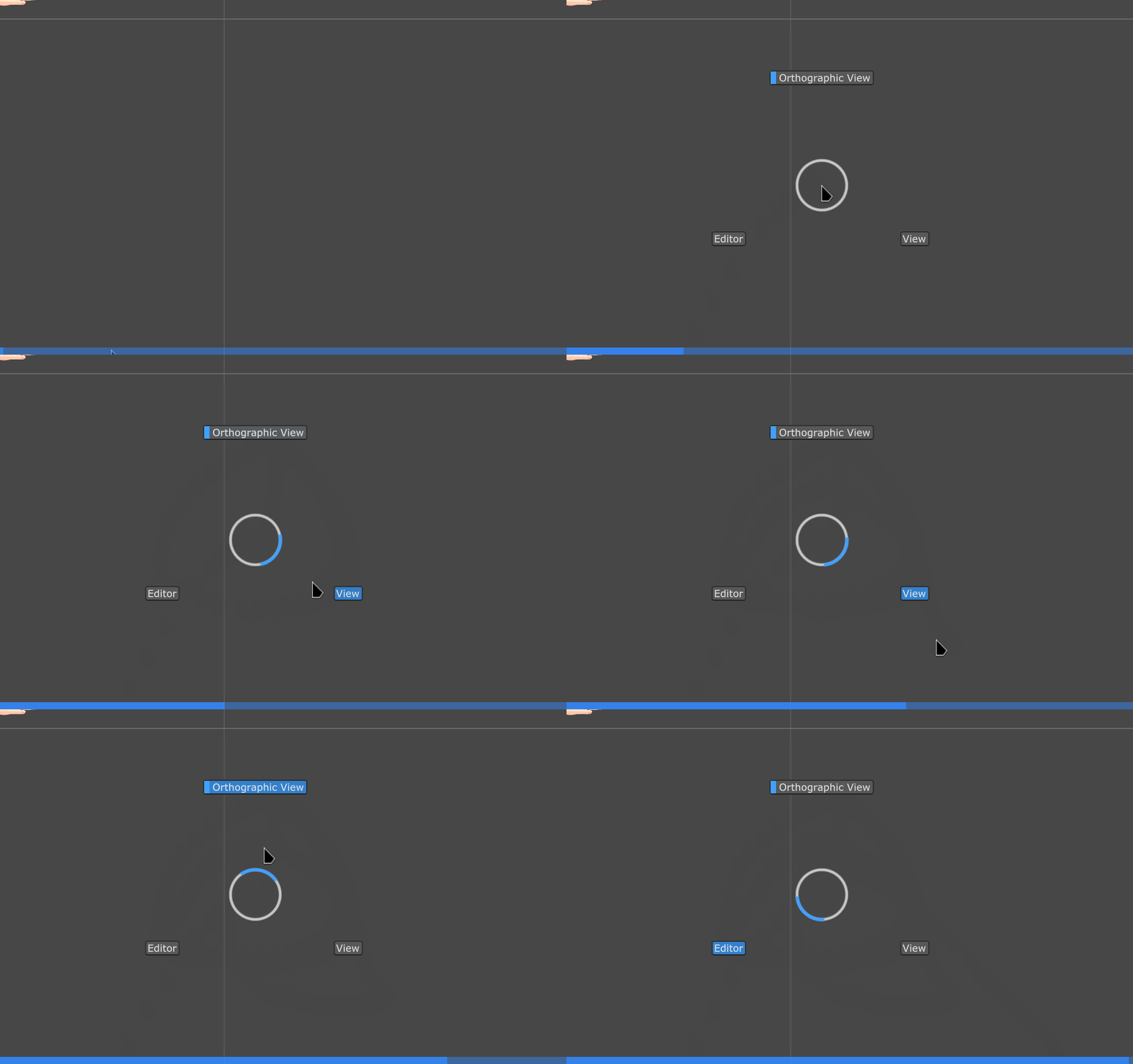
Features
- Circular Interface: Intuitive radial button layout centered at mouse position
- Hotkey Activation: Press
Ctrl+Qto instantly open the action menu - Hierarchical Organization: Organize actions into categories and subcategories
- Dynamic Pagination: Automatically handles large numbers of actions with pagination
- Conditional Actions: Enable/disable actions based on current context
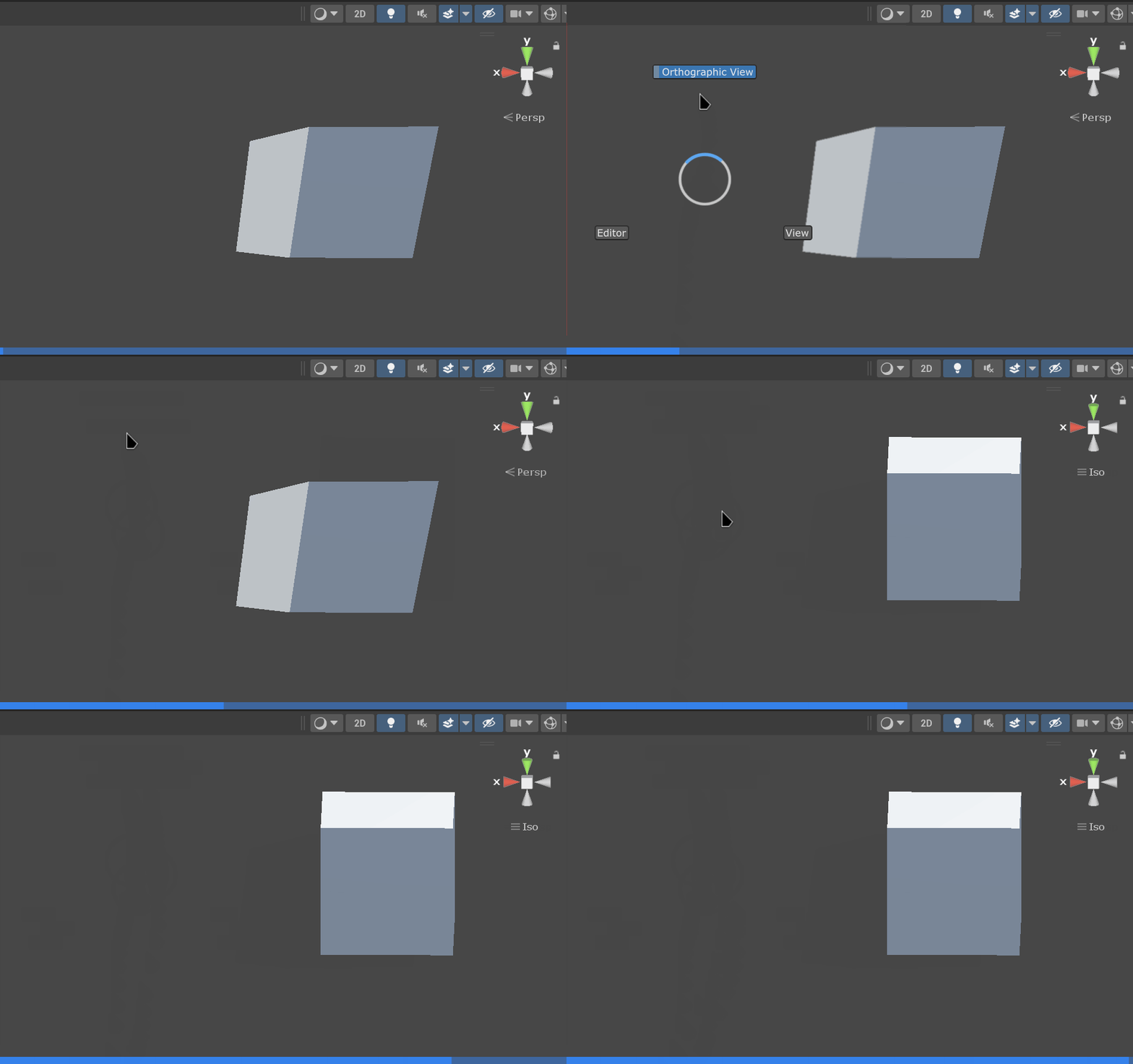
- State Management: Visual state indicators (checked/unchecked, visible/hidden)
- Priority System: Control action display order with priority values
- Easy Integration: Simple attribute-based action registration
- Dynamic Actions: Register actions programmatically at runtime for context-aware functionality
Quick Start
1. Import the Package
You can import the Quick Action package into your Unity project using one of the following methods:
Method 1: VRChat Creator Companion (VCC)
For VRChat developers: Add to VCC via VPM Listing
Method 2: Git URL (Recommended)
- Open Unity and go to Window > Package Manager
- Click the + button in the top-left corner
- Select Add package from git URL...
- Enter the following URL:
https://github.com/Yueby/QuickAction.git - Click Add and wait for the package to be imported
Method 3: Manual Download
- Download the package from the GitHub repository
- Extract the files to your project's
Packagesfolder - Unity will automatically detect and import the package
2. Create Your First Action
Create a new script and add a simple action:
using UnityEngine;
using UnityEditor;
using Yueby.QuickActions; // Don't forget to import the namespace

public class MyActions
{
    [QuickAction("Tools/Hello World", "Display a greeting message")]
    public static void HelloWorld()
    {
        Debug.Log("Hello from Quick Action!");
    }

    [QuickAction("Tools/Create Cube", "Create a cube in the scene", Priority = -100)]
    public static void CreateCube()
    {
        var cube = GameObject.CreatePrimitive(PrimitiveType.Cube);
        cube.name = "Quick Action Cube";
        Selection.activeGameObject = cube;
    }
}
3. Use the System
Basic Operations
- Open Menu: Press
Ctrl+Qin the Unity Editor - Select Action: Move mouse to different angles to automatically select options
- Execute Action:
- Release
Ctrl+Qto automatically execute the selected action - Or left-click to execute the action
- Release
- Cancel Operation: Right-click to close the window without executing any action
Operation Flow
- Hold
Ctrl+Qto open the menu - Move mouse to different angles to select different options
- Release the key or left-click to execute
- Right-click to cancel the operation
Action Configuration
QuickAction Attribute
The QuickActionAttribute is used to mark methods as quick actions:
[QuickAction(path, description, Priority = priority, ValidateFunction = nameof(ValidationMethod))]
Parameters:
path(required): Action path using forward slashes (e.g., "Tools/My Action")description(optional): Action description for tooltipsPriority(optional): Display priority (lower numbers appear first)ValidateFunction(optional): Method name for conditional enabling
Method Requirements
Action methods must be:
staticpublicorprivate- Return
void - Have no parameters
Validation Functions
Validation functions must be:
staticpublicorprivate- Return
bool - Have no parameters
Validation functions can also control action visibility and checked state using:
QuickAction.SetVisible(path, bool): Show/hide actionsQuickAction.SetChecked(path, bool): Set checked state (shows checkmark)QuickAction.GetVisible(path): Get visibility stateQuickAction.GetChecked(path): Get checked state
Dynamic Actions
Dynamic actions allow you to register actions programmatically at runtime, perfect for context-aware functionality:
// Register a dynamic action
QuickAction.RegisterDynamicAction(
    "Selection/Component/Copy",
    () => CopyComponent(),
    "Copy selected component",
    -100
);
Dynamic Action Features:
- Runtime Registration: Add actions when the panel opens
- Automatic Cleanup: Actions are automatically removed when the panel closes
- Context Awareness: Perfect for operations that depend on current selection
Usage:
// Register event (during class initialization)
[InitializeOnLoadMethod]
private static void RegisterDynamicActions()
{
    QuickAction.OnBeforeOpen += OnQuickActionOpen;
}

// Register dynamic actions in the event
private static void OnQuickActionOpen()
{
    QuickAction.RegisterDynamicAction(
        "path/action_name",
        () => { /* action logic */ },
        "action description",
        priority
    );
}

// Dynamic action with validation
QuickAction.RegisterDynamicAction(
    "path/action_name",
    () => { /* action logic */ },
    "action description",
    priority,
    () => { /* validation logic, return bool */ }
);
Examples
Basic Actions
using UnityEngine;
using UnityEditor;
using Yueby.QuickActions;

public class BasicActions
{
    [QuickAction("Debug/Hello World", "Display a greeting message")]
    public static void HelloWorld()
    {
        Debug.Log("Hello from Quick Action!");
    }

    [QuickAction("GameObject/Create Cube", "Create a cube in the scene")]
    public static void CreateCube()
    {
        var cube = GameObject.CreatePrimitive(PrimitiveType.Cube);
        cube.name = "Quick Action Cube";
        Selection.activeGameObject = cube;
    }
}
Conditional Actions
using UnityEngine;
using UnityEditor;
using Yueby.QuickActions;

public class ConditionalActions
{
    [QuickAction("Selection/Delete Selected", "Delete selected GameObjects", ValidateFunction = "HasSelection")]
    public static void DeleteSelected()
    {
        if (Selection.gameObjects.Length > 0)
        {
            foreach (var go in Selection.gameObjects)
            {
                Undo.DestroyObjectImmediate(go);
            }
        }
    }

    private static bool HasSelection()
    {
        bool hasSelection = Selection.gameObjects.Length > 0;
        // Only show this action when objects are selected
        QuickAction.SetVisible("Selection/Delete Selected", hasSelection);
        return hasSelection;
    }

    [QuickAction("Play Mode/Stop Play", "Stop play mode", ValidateFunction = "IsPlaying")]
    public static void StopPlay()
    {
        EditorApplication.isPlaying = false;
    }

    private static bool IsPlaying()
    {
        return EditorApplication.isPlaying;
    }
}
State Management Actions
using UnityEngine;
using UnityEditor;
using Yueby.QuickActions;

public class StateActions
{
    private static bool _featureEnabled = false;

    [QuickAction("Settings/Toggle Feature", "Enable/disable a feature", ValidateFunction = "ValidateFeature")]
    public static void ToggleFeature()
    {
        _featureEnabled = !_featureEnabled;
        Debug.Log($"Feature {(_featureEnabled ? "enabled" : "disabled")}");
    }

    private static bool ValidateFeature()
    {
        // Show checkmark when feature is enabled
        QuickAction.SetChecked("Settings/Toggle Feature", _featureEnabled);
        return true;
    }

    [QuickAction("Tools/Debug Mode", "Toggle debug mode", ValidateFunction = "ValidateDebugMode")]
    public static void ToggleDebugMode()
    {
        Debug.unityLogger.logEnabled = !Debug.unityLogger.logEnabled;
    }

    private static bool ValidateDebugMode()
    {
        // Show current debug mode state
        QuickAction.SetChecked("Tools/Debug Mode", Debug.unityLogger.logEnabled);
        return true;
    }
}
Hierarchical Organization

using UnityEngine;
using UnityEditor;
using Yueby.QuickActions;

public class HierarchicalActions
{
    [QuickAction("Tools/Utilities/Screenshot", "Take a screenshot")]
    public static void TakeScreenshot()
    {
        ScreenCapture.CaptureScreenshot("screenshot.png");
        Debug.Log("Screenshot saved as screenshot.png");
    }

    [QuickAction("Tools/Utilities/Open Persistent Data", "Open persistent data path")]
    public static void OpenPersistentData()
    {
        EditorUtility.RevealInFinder(Application.persistentDataPath);
    }

    [QuickAction("Tools/Scene/Save Scene", "Save current scene")]
    public static void SaveScene()
    {
        EditorSceneManager.SaveScene(EditorSceneManager.GetActiveScene());
    }
}
Dynamic Component Actions
Dynamic actions are perfect for context-aware operations like component management:
using UnityEngine;
using UnityEditor;
using Yueby.QuickActions;

public class ComponentActions
{
    [InitializeOnLoadMethod]
    private static void RegisterDynamicActions()
    {
        QuickAction.OnBeforeOpen += OnQuickActionOpen;
    }

    private static void OnQuickActionOpen()
    {
        if (Selection.activeGameObject != null)
        {
            var components = Selection.activeGameObject.GetComponents<Component>();

            foreach (var component in components)
