
WolframWebEngineForPython
Integrates the Wolfram Language seamlessly with Python AIOHTTP
Install / Use
/learn @WolframResearch/WolframWebEngineForPythonREADME
Wolfram Web Engine for Python
Wolfram Web Engine for Python uses the Python AIOHTTP web server to handle requests for a Wolfram Engine. Web pages are specified on the server with standard Wolfram Language functions such as APIFunction, FormFunction, FormPage, URLDispatcher, AskFunction, HTTPResponse, HTTPRedirect, etc. This allows you to integrate Wolfram Language functionality seamlessly with existing Python web applications like Django and AIOHTTP.
Getting Started
Prerequisites
- Python 3.5 or higher
- Wolfram Language 11.3 or higher (Mathematica, Wolfram Desktop, or Wolfram Engine)
- WolframClientForPython
Install Using pip (Recommended)
Recommended for most users. It installs the latest stable version released by Wolfram Research.
Evaluate the following command in a terminal:
>>> pip3 install wolframwebengine
Install Using Git
Recommended for developers who want to install the library along with the full source code. Clone the library’s repository:
>>> git clone git://github.com/WolframResearch/WolframWebEngineForPython
Install the library in your site-package directory:
>>> cd WolframWebEngineForPython
>>> pip3 install .
The following method is not installing the library globally, therefore all the example commands needs to run from the cloned directory.
Start a demo server
Start a demo server by doing:
python3 -m wolframwebengine --demo
----------------------------------------------------------------------
Address         http://localhost:18000/
Folder          /Users/rdv/Desktop/wolframengineforpython/wolframwebengine/examples/demoapp
Index           index.wl
----------------------------------------------------------------------
(Press CTRL+C to quit)
Now you can open your web browser at the address http://localhost:18000/
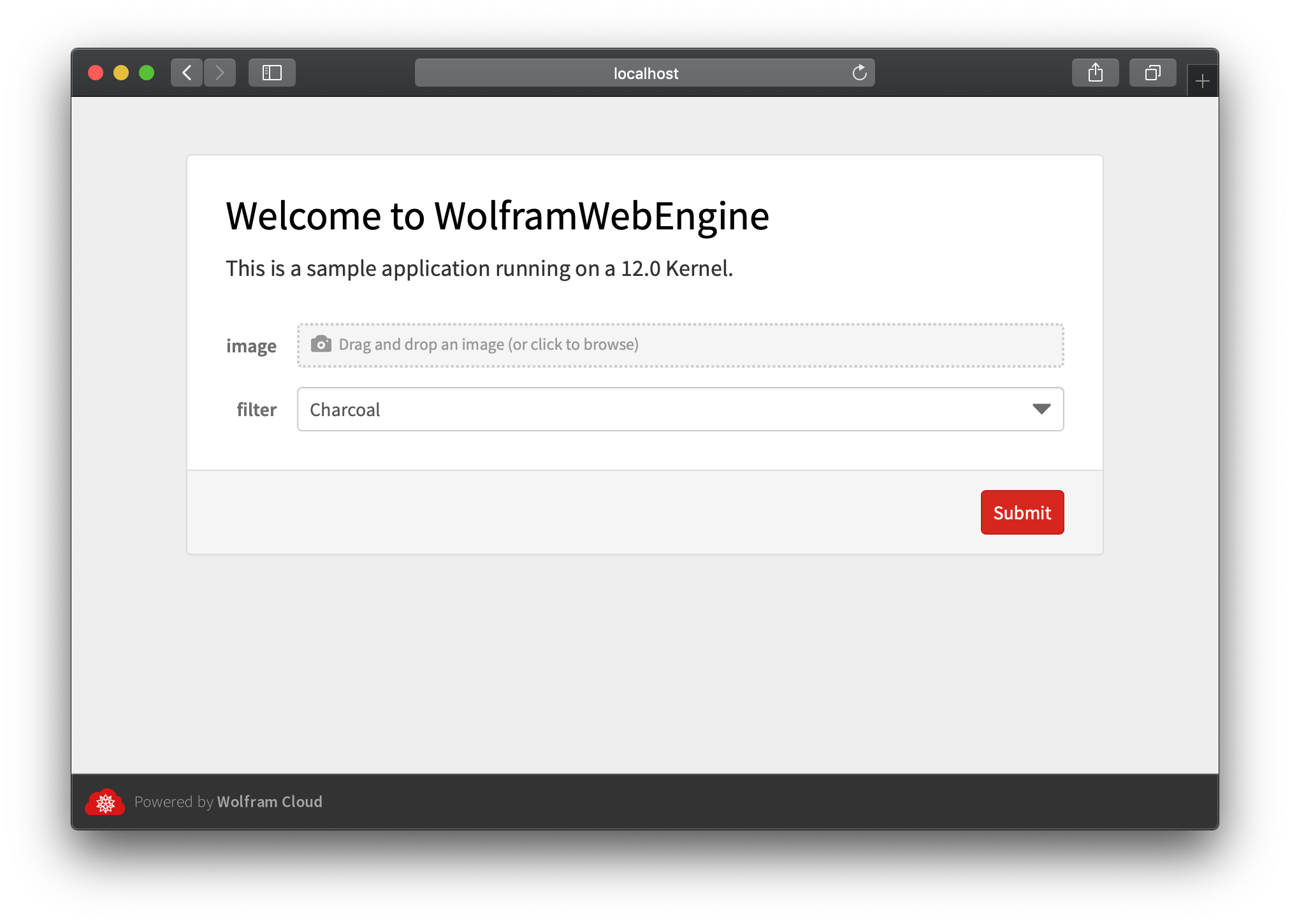
Two different ways of structuring an application:
- Use a single file with URLDispatcher
- Use multiple files in a directory layout
Single file with URLDispatcher
One way to run your server is to direct all requests to a single file that runs a Wolfram Language URLDispatcher function.
Write the following content in a file called dispatcher.m:
URLDispatcher[{
    "/api" -> APIFunction["x" -> "String"],
    "/form" -> FormFunction["x" -> "String"],
    "/" -> "hello world!"
}]
From the same location run:
>>> python3 -m wolframwebengine dispatcher.m
----------------------------------------------------------------------
Address         http://localhost:18000/
File            /Users/rdv/Desktop/dispatcher.m
----------------------------------------------------------------------
(Press CTRL+C to quit)
All incoming requests will now be routed to the URLDispatcher function in dispatcher.m.
You can now open the following urls in your browser:
http://localhost:18000/
http://localhost:18000/form
http://localhost:18000/api
For more information about URLDispatcher please refer to the online documentation.
Multiple files in a directory layout
Another way to write an application is to create a directory structure that is served by the server. The url for each file will match the file's directory path.
The server will serve content with the following rules:
- All files with extensions '.m', '.mx', '.wxf', '.wl' will be evaluated in the Kernel using GenerateHTTPResponse on the content of the file.
- Any other file will be served as static content.
- If the request path corresponds to a directory on disk, the server will search for a file named index.wl in that directory. This convention can be changed with the --index option.
Create an application by running the following code in your current location:
mkdir testapp
mkdir testapp/form
mkdir testapp/api
echo 'ExportForm[{"hello", UnixTime[]}, "JSON"]' >  testapp/index.wl
echo 'FormFunction["x" -> "String"]'             >  testapp/form/index.wl
echo 'APIFunction["x" -> "Number", #x! &]'       >  testapp/api/index.wl
echo 'HTTPResponse["hello world"]'               >  testapp/response.wl
echo '["some", "static", "JSON"]'                >  testapp/static.json
Start the application by running:
>>> python3 -m wolframwebengine testapp
----------------------------------------------------------------------
Address         http://localhost:18000/
Folder          /Users/rdv/Desktop/testapp
Index           index.wl
----------------------------------------------------------------------
(Press CTRL+C to quit)
Then open the browser at the following locations:
http://localhost:18000/
http://localhost:18000/form
http://localhost:18000/api?x=4
http://localhost:18000/response.wl
http://localhost:18000/static.json
One advantage of a multi-file application structure is that is very easy to extend the application. You can simply place new files into the appropriate location in your application directory and they will automatically be served.
Using Docker
Wolfram Web Engine for Python is available as a container image from Docker Hub for use in containerized environments.
This image is based on the official Wolfram Engine Docker image; information on product activation and license terms is available on the Docker Hub page for the latter image.
# exposes the server on port 8080 of the host machine
>>> docker run -ti -p 8080:18000 wolframresearch/wolframwebengineforpython --demo

# serve files from the /srv directory
>>> docker run -ti -p 8080:18000 wolframresearch/wolframwebengineforpython /srv
The commands above do not include activation/licensing configuration; see the official Wolfram Engine Docker image for information on activating the Wolfram Engine kernel.
Note regarding on-demand licensing: As Wolfram Web Engine for Python does not use WolframScript, the -entitlement command-line option and the WOLFRAMSCRIPT_ENTITLEMENTID
environment variable cannot be used to pass an on-demand license entitlement ID to the Wolfram Engine kernel inside this image.
As a workaround, the WOLFRAMINIT environment variable can be set to pass both the entitlement ID and the license server address to the kernel:
>>> docker run -ti -p 8080:18000 --env WOLFRAMINIT='-pwfile !cloudlm.wolfram.com -entitlement O-WSTD-DA42-GKX4Z6NR2DSZR' wolframresearch/wolframwebengineforpython --demo
Options
>>> python3 -m wolframwebengine --help
usage: __main__.py [-h] [--port PORT] [--domain DOMAIN] [--kernel KERNEL]
                   [--poolsize POOLSIZE] [--cached] [--lazy] [--index INDEX]
                   [--demo [{None,ask,trip,ca,form}]]
                   [path]

positional arguments:
  path

optional arguments:
  -h, --help            show this help message and exit
  --port PORT           Insert the port.
  --domain DOMAIN       Insert the domain.
  --kernel KERNEL       Insert the kernel path.
  --poolsize POOLSIZE   Insert the kernel pool size.
  --startuptimeout SECONDS
                        Startup timeout (in seconds) for kernels in the pool.
  --cached              The server will cache the WL input expression.
  --lazy                The server will start the kernels on the first
                        request.
  --index INDEX         The file name to search for folder index.
  --demo [{None,ask,trip,ca,form}]
                        Run a demo application
demo
Run a demo application:
- ask: Marginal Tax rate calculator using AskFunction.
- trip: Trip calculator using FormFunction and TravelDirections.
- ca: Cellular Automaton demo gallery using URLDispatcher and GalleryView.
- form: ImageProcessing demo using FormFunction.
>>> python3 -m wolframwebengine --demo ca
----------------------------------------------------------------------
Address         http://localhost:18000/
File            /Users/rdv/Wolfram/git/wolframengineforpython/wolframwebengine/examples/demo/ca.wl
----------------------------------------------------------------------
(Press CTRL+C to quit)
path
The first argument can be a folder or a single file.
Write a file on your current folder:
>>> mkdir testapp
>>> echo 'ExportForm[{"hello", "from", "Kernel", UnixTime[]}, "JSON"]' > testapp/index.wl
Then from a command line run:
>>> python3 -m wolframwebengine testapp
----------------------------------------------------------------------
Address         http://localhost:18000/
Folder          /Users/rdv/Desktop/testapp
Index           index.wl
----------------------------------------------------------------------
(Press CTRL+C to quit)
If the first argument is a file, requests will be redirected to files in that directory if the url extension is '.m', '.mx', '.wxf', '.wl'. If the extension cannot be handled by a kernel, the file will be served as static content.
If the request path is a folder the server will search for an index.wl in the same folder.
--index
Specify the default file na
