
Searchbox.nvim
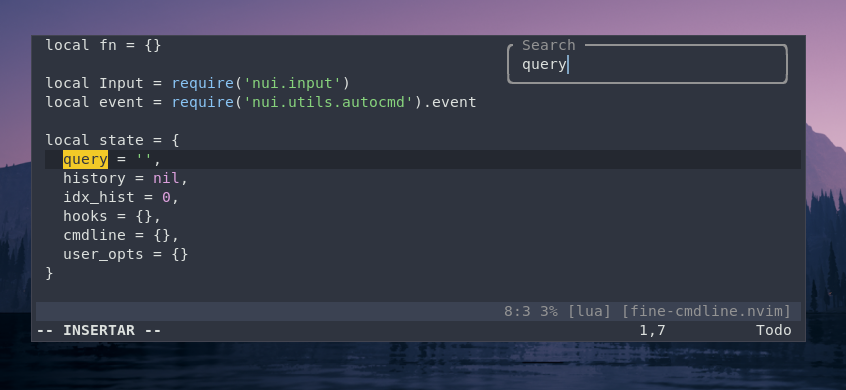
Start your search from a more comfortable place, say the upper right corner?
Install / Use
/learn @VonHeikemen/Searchbox.nvimREADME
Searchbox
Start your search from a more comfortable place, say the upper right corner?
Here's demo of search and replace component, and also match_all search.
Search and replace with a multi-step input
Getting Started
Make sure you have Neovim v0.5.1 or greater.
Dependencies
Installation
Use your favorite plugin manager. For example.
With vim-plug:
Plug 'MunifTanjim/nui.nvim'
Plug 'VonHeikemen/searchbox.nvim'
With packer:
use {
  'VonHeikemen/searchbox.nvim',
  requires = {
    {'MunifTanjim/nui.nvim'}
  }
}
With paq:
'VonHeikemen/searchbox.nvim';
'MunifTanjim/nui.nvim';
Types of search
There are five kinds of inputs:
-
incsearch: Highlights the nearest match of your query as you type. -
match_all: Highlights all the matches in the buffer as you type. By default the highlights will disappear after you submit your search. If you want them to stay set the argumentclear_matchestofalse(more on this later). -
simple: Doesn't do anything as you type. No highlight, no moving the cursor around in realtime. It's only purpose is to execute a search. -
replace: Starts a multi-step input to search and replace. First input allows you to enter a pattern (search term). Second input will ask for the string that will replace the previous pattern. -
replace_last: Acts like the second input ofreplace. The string you enter on this input will be used to replace the previous search query in your history.
Usage
There is a command for each kind of search which can be used in a keybinding.
- Lua Bindings
If using neovim 0.7 or greater.
vim.keymap.set('n', '<leader>s', ':SearchBoxIncSearch<CR>')
If you have neovim 0.6.1 or lower.
vim.api.nvim_set_keymap(
  'n',
  '<leader>s',
  ':SearchBoxIncSearch<CR>',
  {noremap = true}
)
- Vimscript Bindings
nnoremap <leader>s :SearchBoxIncSearch<CR>
They are also exposed as lua functions, so the following is also valid.
:lua require('searchbox').incsearch()<CR>
Visual mode
To get proper support in visual mode you'll need to add visual_mode=true to the list of arguments.
In this mode the search area is limited to the range set by the selected text. Similar to what the substitute command does in this case :'<,'>s/this/that/g.
- Lua Bindings
vim.keymap.set('x', '<leader>s', ':SearchBoxIncSearch visual_mode=true<CR>')
- Vimscript Bindings
xnoremap <leader>s :SearchBoxIncSearch visual_mode=true<CR>
When using the lua api add <Esc> at the beginning of the binding.
<Esc>:lua require('searchbox').incsearch({visual_mode = true})<CR>
Search arguments
You can tweak the behaviour of the search if you pass any of these properties:
reverse: Look for matches above the cursor.exact: Look for an exact match.title: Set title for the popup window.prompt: Set input prompt.default_value: Set initial value for the input.visual_mode: Search only in the recently selected text.show_matches: If set totrueit'll show number of matches in the input. If set to a string the pattern{total}will be replaced with the number of matches. If the pattern{match}is found it'll be replaced with the index of match under the cursor. You can set for example,show_matches='[M:{match} T:{total}]'. The default format of the message is[{match}/{total}].modifier: Apply a "search modifier" at the beginning of the search pattern. It won't be visible in the search input. Possible values:ignore-case: Make the search case insensitive. Applies the pattern \c.case-sensitive: Make the search case sensitive. Applies the pattern \C.no-magic: Act as if the optionnomagicis used. Applies the pattern \M.magic: Act as if the optionmagicis on. Applies the pattern \m.very-magic: Anything that isn't alphanumeric has a special meaning. Applies the pattern \v.very-no-magic: Only the backslash and the terminating character has special meaning. Applies the pattern \V.plain: Is an alias forvery-no-magic.disabled: Is the default. Don't apply any modifier.:: It acts as a prefix. Use it to add your own modifier to the search. Example,:\C\Vwill make the searchvery-no-magicand also case sensitive. See:help /magicto know more about possible patterns.
Other arguments are exclusive to one type of search.
For match_all:
clear_matches: Get rid of the highlight after the search is done.
For replace:
confirm: Ask the user to choose an action on each match. There are three possible values:off,nativeandmenu.offdisables the feature.nativeuses neovim's built-in confirm method.menudisplays a list of possible actions below the match. Is worth mentioningmenuwill only show up if neovim's window is big enough, confirm type will fallback to "native" if it isn't.
Command Api
When using the command api the arguments are a space separated list of key/value pairs. The syntax for the arguments is this: key=value.
:SearchBoxMatchAll title=Match exact=true visual_mode=true<CR>
Because whitespace acts like a separator between the arguments if you want to use it as a value you need to escape it, or use a quoted argument. If you want to use Match All as a title, these are your options.
:SearchBoxMatchAll title="Match All"<CR>
" or
:SearchBoxMatchAll title='Match All'<CR>
:SearchBoxMatchAll title=Match\ All<CR>
Note that escaping is specially funny inside a lua string, so you might need to use
\\.
Is worth mention that argument parsing is done manually inside the plugin. Complex escape sequences are not taken into account. Just \" and \' to avoid conflict in quoted arguments, and \ to escape whitespace in a string argument without quotes.
Not being able to use whitespace freely makes it difficult to use default_value with this api, that's why it gets a special treatment. There is no default_value argument, instead everything that follows the -- argument is considered part of the search term.
:SearchBoxMatchAll title=Match clear_matches=false -- I want to search this<CR>
In the example above I want to search this will become the initial value for the search input. This becomes useful when you want to use advance techniques to set the initial value of your search (I'll show you some examples later).
If you only going to set the initial value, meaning you're not going to use any of the other arguments, you can omit the --. This is valid, too.
:SearchBoxMatchAll I want to search this<CR>
Lua api
In this case you'll be using lua functions of the searchbox module instead of commands. The arguments can be provided as a lua table.
:lua require('searchbox').match_all({title='Match All', clear_matches=false, default_value='I want to search this'})<CR>
Examples
Make a reverse search, like the default ?:
:SearchBoxIncSearch reverse=true<CR>
Make the highlight of match_all stay after submit. They can be cleared manually with the command :SearchboxClear.
:SearchBoxMatchAll clear_matches=false<CR>
Move to the nearest exact match without any fuss.
:SearchBoxSimple modifier=case-sensitive exact=true<CR>
Add your own modifier to the search pattern. Here we apply case-sensitive and very-no-magic together. This makes it so we don't need to escape characters like * or ..
:SearchBoxIncSearch modifier=':\C\V'<CR>
Start a search and replace.
:SearchBoxReplace<CR>
Use the word under the cursor to begin search and replace. (Normal mode).
:SearchBoxReplace -- <C-r>=expand('<cword>')<CR><CR>
Look for the word under the cursor.
:SearchBoxMatchAll exact=true -- <C-r>=expand('<cword>')<CR><CR>
Search and replace, but use the most recent query as the search term. This basically acts like the second input of SearchBoxReplace.
:SearchBoxReplaceLast<CR>
Use the selected text as a search term. (Visual mode):
Due to limitations on the input, it can't handle newlines well. So whatever you have selected, must be one line. The escape sequence
\ncan be use in the search term but will not be interpreted on the second input of search and replace.
y:SearchBoxReplace -- <C-r>"<CR>
Search and replace within the range of the selected text, and look for an exact match. (Visual mode)
:SearchBoxReplace exact=true visual_mode=true<CR>
Confirm every match of search and replace.
- Normal mode:
:SearchBoxReplace confirm=menu<CR>
- Visual mode:
:SearchBoxReplace confirm=menu visual_mode=true<CR>
Default keymaps
Inside the input you can use the following keymaps:
Alt + .: Writes the content of the last search in the input.Enter: Submit input.Esc: Closes input.Ctrl + c: Close input.Ctrl + y: Scroll up.Ctrl + e: Scroll down.Ctrl + b: Scroll page up.Ctrl + f: Scroll page down.Ctrl + g: Go to previous match.Ctrl + l: Go to next match.
In the confirm menu (of search and replace):
y: Confirm replace.n: Move to next match.a: Replace all matches.q: Quit menu.l: Replace match then quit. Think of it as "the last replace".Enter: Accept option.Esc: Quit menu.ctrl + c: Quit menu.Tab: Next option.shift + Tab: Previous option.Down arrow: Next option.Up arrow: Previous opt
