
ComChan
A Blazingly Fast Minimal Serial Monitor written in Rust
Install / Use
/learn @Vaishnav-Sabari-Girish/ComChanREADME

ComChan (Communication Channel)
A Blazingly Fast Serial Monitor for Embedded Systems and Serial Communication

Features • Installation • Documentation • Examples • Contributing
</div><!-- START doctoc generated TOC please keep comment here to allow auto update --> <!-- DON'T EDIT THIS SECTION, INSTEAD RE-RUN doctoc TO UPDATE -->
Table of Contents
<!-- END doctoc generated TOC please keep comment here to allow auto update -->Installation
Choose your preferred installation method:
From crates.io
[!NOTE] The easiest way to install ComChan is via
cargo install
# Install from source
cargo install comchan

# Install the binary directly (faster)
cargo binstall comchan
Verify the installation:
comchan --version
From AUR
For Arch Linux users, ComChan is available in the AUR (thanks to orhun!):
# Using yay
yay -S comchan

# Using paru
paru -S comchan
Using Homebrew
ComChan can be installed via Homebrew taps:
brew install Vaishnav-Sabari-Girish/taps/comchan
From source
Build from source for the latest development version:
# Clone from GitHub
git clone git@github.com:Vaishnav-Sabari-Girish/ComChan.git

# Or clone from Codeberg
git clone ssh://git@codeberg.org/Vaishnav-Sabari-Girish/ComChan.git

# Build and run
cd ComChan
cargo build --release
cargo run
Documentation
📚 The full documentation for ComChan can be found at vaishnav.world/ComChan
Common Commands
Basic Serial Monitor
Monitor serial output from your device:
comchan -p <port> -r <baud_rate>
# OR
comchan --port <port> --baud <baud_rate>
Example:
comchan -p /dev/ttyUSB0 -r 9600
Verbose Mode
Get detailed information about the serial connection:
comchan -p <port> -r <baud_rate> -v
# OR
comchan --port <port> --baud <baud_rate> --verbose
Log Mode
Save serial output to a log file:
comchan -p <port> -r <baud_rate> -l <log_file_name>
# OR
comchan --port <port> --baud <baud_rate> --log <log_file_name>
Serial Plotter
Visualize sensor data in real-time:
comchan --port <port> --baud <baud_rate> --plot
# OR
comchan -p <port> -r <baud_rate> --plot
Automatically Detect Serial Ports
Let ComChan find your serial device automatically:
# With default baud rate (9600)
comchan --auto

# With custom baud rate
comchan --auto --baud <baud_rate>
# OR
comchan --auto -r <baud_rate>
Example:
comchan --auto --baud 115200
Use a Configuration File
Starting from version 0.1.9, you can use a configuration file instead of command-line flags:
# Generate default configuration file
comchan --generate-config
This creates a config file at ~/.config/comchan/comchan.toml
Example Configuration:
# ComChan Configuration File
#
# This file contains default settings for comchan serial monitor.
# Command line arguments will override these settings.
#
# To use auto-detection, set port = "auto"
# Available parity options: "none", "odd", "even"
# Available flow control options: "none", "software", "hardware"

port = "auto"
baud = 9600
data_bits = 8
stop_bits = 1
parity = "none"
flow_control = "none"
timeout_ms = 500
reset_delay_ms = 1000
verbose = false
plot = false
plot_points = 100
[!NOTE] The default baud rate is
9600. You can customize it in the config file or override it with command-line flags (--auto,--port/-p,--baud/-r,--plot).
Features
Current Features ✅
- Read Serial Data - Monitor incoming serial data from any serial port
- Write to Serial Port - Send data to your serial device
- Basic Logging - Save serial output to log files
- Auto-Detect Serial Ports - Automatically find connected serial devices
- Configuration Files - Use
.tomlfiles instead of command-line flags - Terminal-Based Serial Plotter - Visualize data in real-time with the
--plotflag - Multiple Sensor Plotting - Plot multiple sensor values simultaneously with legends
Planned Features 🚧
- Export Serial Data - Write serial data to files (
.txt,.csv, and more)
Legends
- ✅ Implemented Features
- 🚧 Yet to be implemented
Examples
"Hello World" Program
Basic serial monitoring in action:

User Input
Interactive serial communication:

Serial Plotter
Real-time data visualization:

Auto Serial Port Detector
Automatic port detection in action:

Using the Configuration File
Serial Monitor (plot = false)

Serial Plotter (plot = true)

Serial Plotter Multiple Sensor Values
Plot multiple sensors simultaneously with automatic legends:

Full Working Demo
Complete workflow demonstration:

ComChan in Windows
As of Version 0.2.2, ComChan works perfectly on Windows with no limitations!
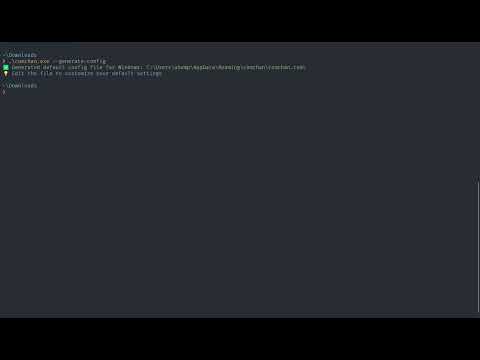
Windows Installation:
- Download the
.exefile from the releases page - Open Command Prompt or PowerShell
- Navigate to the download location:
cd Downloads - Run ComChan:
comchan.exe --help
Contributing
We welcome contributions to ComChan! 🎉
Please see our CONTRIBUTING.md for guidelines on how to contribute.
Feedback Form
We value your feedback! ComChan uses Bashforms for terminal-based feedback submission.
To submit feedback, run this in your terminal:
ssh -t bashform.me f comchan
OSCG Guidelines
Contributor Guidelines
Mentor Guidelines
Community
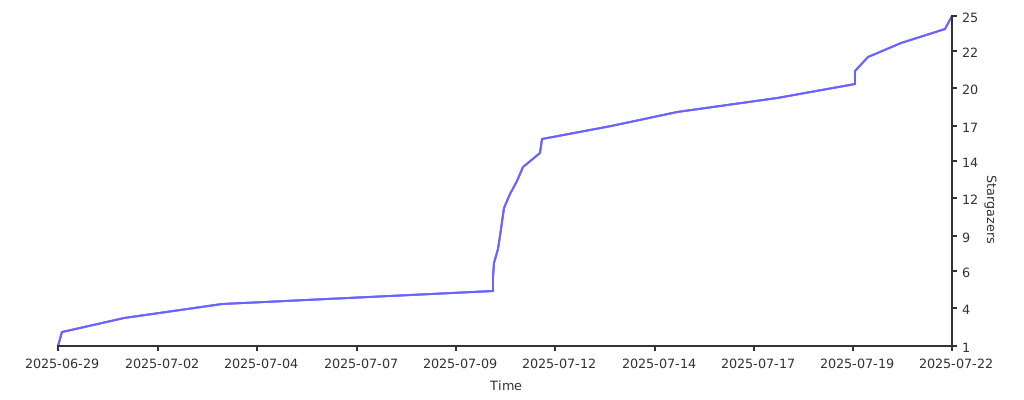
Stargazers over time (Graph)
<div align="center">
Made with ❤️ by the ComChan Community
</div>Related Skills
himalaya
328.6kCLI to manage emails via IMAP/SMTP. Use `himalaya` to list, read, write, reply, forward, search, and organize emails from the terminal. Supports multiple accounts and message composition with MML (MIME Meta Language).
node-connect
328.6kDiagnose OpenClaw node connection and pairing failures for Android, iOS, and macOS companion apps
frontend-design
80.9kCreate distinctive, production-grade frontend interfaces with high design quality. Use this skill when the user asks to build web components, pages, or applications. Generates creative, polished code that avoids generic AI aesthetics.
coding-agent
328.6kDelegate coding tasks to Codex, Claude Code, or Pi agents via background process
