
Imarkdown
imarkdown is a lightweight markdown image link converter that allows you to easily convert image links between local and image server, as well as between different image servers.
Install / Use
/learn @Undertone0809/ImarkdownREADME
When converting markdown from Yuque, the images are protected against external linking. If you want to publish the converted markdown on other platforms, you need to change all the image addresses in the markdown to local image addresses or custom image server addresses, so that others can view them correctly. This project aims to solve this problem by providing a converter that can batch convert image links in markdown and supports customized conversion in complex scenarios.
Features
- Batch Download: imarkdown can batch download all the images in the markdown that are referenced using image links.
- Multiple Conversion Methods: imarkdown supports various conversion methods for image links in markdown, such as converting to local image, converting web URL to local image, and converting web URL to image server URL.
- Batch Conversion: It supports batch conversion of single or multiple files, as well as formatting and renaming of generated files.
- Highly Customizable: By inheriting the
MdAdapterclass, you can easily implement custom URL conversion for different image servers. - Image Server Adapters: Currently, only Aliyun OSS is supported as an image server. Contributions are welcome to add support for more types of image servers.
- Custom recognition format: With ElementFinder, users can customize the search method for elements (such as image addresses) to meet the needs of special element recognition.
Target Audience
- People who need to batch convert image links in markdown.
- Users who export markdown from Yuque and need to convert image links.
- People who need to develop third-party extensions.
Technical Architecture
imarkdown is designed with a modular architecture, allowing easy extension of each component. The following diagram provides a simplified overview of the technical architecture of imarkdown, which consists of the following components:
MdImageConverter: The image converter responsible for converting the image addresses in markdown and generating new markdown files.MdAdapter: The adapter for convertingImageobjects to different types, such asLocalFileAdapterfor local conversion,AliyunAdapterfor Aliyun OSS conversion, andCustomAdapterfor custom conversion. By injecting the adapter intoMdImageConverter, you can define the type of address to convertImageobjects to.MdMedium: IncludesMdFileandMdFolder, encapsulating some features used for data conversion inMdImageConverter.
The execution process of imarkdown is roughly as follows: after the convert method is called on MdImageConverter, imarkdown builds a virtual MdTree based on the provided MdMedium, and performs batch image URL conversion on the files according to this tree.
Quick Start
This project is developed in Python and distributed on PyPI. Users can easily use imarkdown by installing it with pip. The following sections will explain several usage scenarios and methods of imarkdown.
- Third-Party Package Installation: Open a terminal or command prompt and run the following command.
pip install -U imarkdown
Examples
- Convert Web URLs to Local Addresses
- Convert Web URLs to Image Server URLs
- Batch Conversion: Web URLs to Local
- Batch Conversion: Local to Image Server
- Custom Image Hosting Service
Converting Web URLs to Local File Paths
If you have web URL links for images in your Markdown file and you want to download them in bulk to your local machine while converting the image addresses in Markdown to local file paths, the following example will solve your problem.
Assuming the file you want to convert is test.md with the following content:
The examples below will be based on the initial Markdown file if it is a web URL. They are not repeated here.
## 6.3 Converting MD Image Addresses
Only supports uploading to a local image hosting service.
- [https://github.com/JyHu/useful_script.git](https://github.com/JyHu/useful_script.git)
- [https://github.com/JyHu/useful_script/blob/](https://github.com/JyHu/useful_script/blob/master/Scripts/md%E6%96%87%E4%BB%B6%E5%9B%BE%E7%89%87%E5%9B%BE%E5%BA%8A%E8%BD%AC%E6%8D%A2/%E8%87%AA%E5%8A%A8%E8%BD%AC%E6%8D%A2markdown%E6%96%87%E4%BB%B6%E4%B8%AD%E5%9B%BE%E7%89%87%E5%88%B0%E5%9B%BE%E5%BA%8A.md/)
After all the hassle and trying this, I found it doesn't work either.
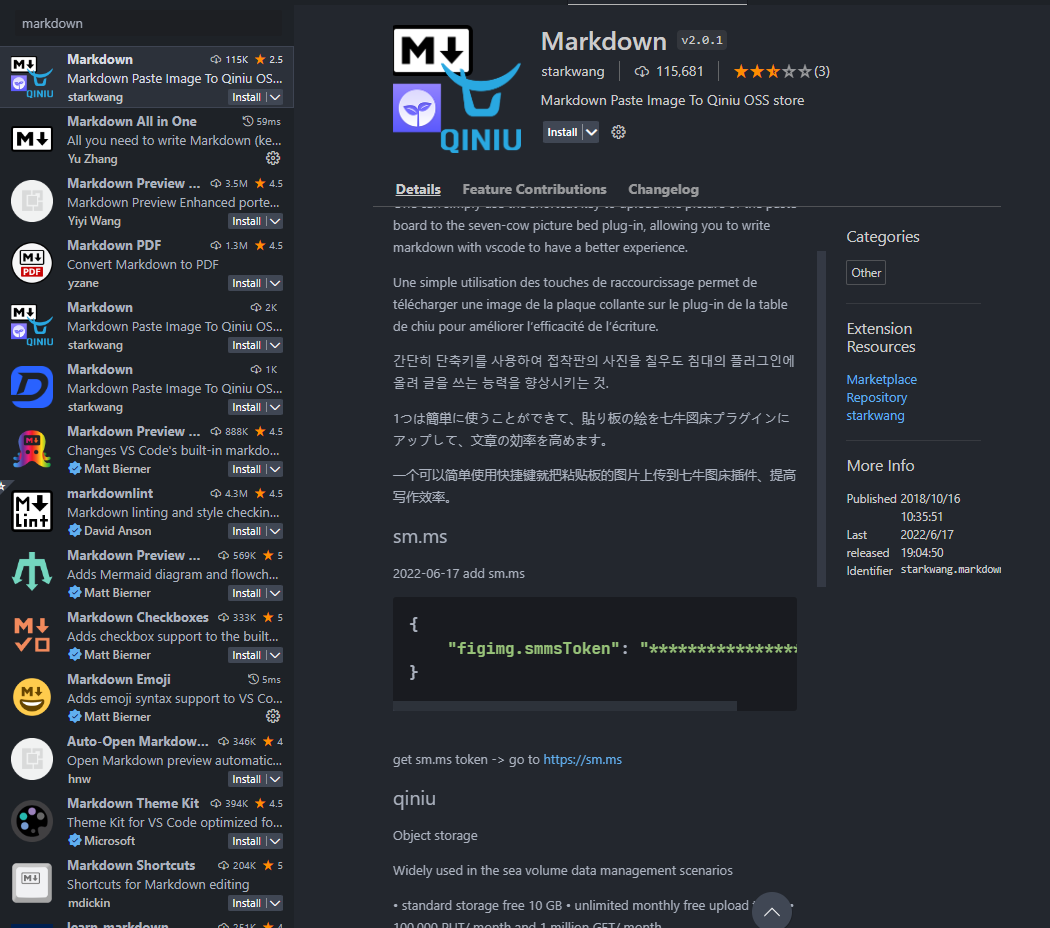
In the end, PigGo is still the best. It provides a shortcut for uploading, and after uploading, you can directly xxxTODO.
## 6.4 Pycasbin
In pycasbin, I saw a colleague who frequently contributes to pycasbin. You can refer to some of his contributions:
- [https://github.com/Nekotoxin/nekotoxin.github.io/blob/gsoc_2022_summary/GSoC2022-summary.md](https://github.com/Nekotoxin/nekotoxin.github.io/blob/gsoc_2022_summary/GSoC2022-summary.md)
This content is the exported Markdown file from Yuque, and its image links are protected against external access. They need to be downloaded and replaced with local file paths in the Markdown.
from imarkdown import MdFile, LocalFileAdapter, MdImageConverter

def main():
    adapter = LocalFileAdapter()
    converter = MdImageConverter(adapter=adapter)

    md_file = MdFile(name="test.md")
    converter.convert(md_file)

if __name__ == '__main__':
    main()
In imarkdown, there are many places where you need to provide paths. You can use relative paths or absolute paths. It is recommended to use
/as the path separator instead of\\.
The converted result will generate a new Markdown file named test_converted.md, with the following content:
## 6.3 Converting MD Image Addresses
Only supports uploading to a local image hosting service.
- [https://github.com/JyHu/useful_script.git](https://github.com/JyHu/useful_script.git)
- [https://github.com/JyHu/useful_script/blob/](https://github.com/JyHu/useful_script/blob/master/Scripts/md%E6%96%87%E4%BB%B6%E5%9B%BE%E7%89%87%E5%9B%BE%E5%BA%8A%E8%BD%AC%E6%8D%A2/%E8%87%AA%E5%8A%A8%E8%BD%AC%E6%8D%A2markdown%E6%96%87%E4%BB%B6%E4%B8%AD%E5%9B%BE%E7%89%87%E5%88%B0%E5%9B%BE%E5%BA%8A.md/)
After all the hassle and trying this, I found it doesn't work either.

In the end, PigGo is still the best. It provides a shortcut for uploading, and after uploading, you can directly xxxTODO.
## 6.4 Pycasbin
In pycasbin, I saw a colleague who frequently contributes to pycasbin. You can refer to some of his contributions:
- [https://github.com/Nekotoxin/nekotoxin.github.io/blob/gsoc_2022_summary/GSoC2022-summary.md](https://github.com/Nekotoxin/nekotoxin.github.io/blob/gsoc_2022_summary/GSoC2022-summary.md)

- Customizing the Output File Name
When using imarkdown for conversion, the default name for the converted Markdown file is
{markdown_file_name}_converted.md. If you want to customize the output file name, you can use the following configuration:
md_converter.convert(md_file, name_prefix="new_", name_suffix="_converted")
Using this method of conversion will result in a file named new_test_converted.md. If you want to completely customize the converted name, you can use the following method:
md_converter.convert(md_file, new_name="A new markdown.md")
With the above method, a file named A new markdown.md will be generated.
Converting Web URLs to Image Hosting Service URLs
In the following example, we will use the test.md file provided earlier to demonstrate the conversion of image addresses from web URLs to URLs on the Alibaba Cloud OSS server, showcasing the functionality of converting web URLs to image hosting service URLs.
from imarkdown import MdImageConverter, AliyunAdapter, MdFile


def main():
    aliyun_config = {
        "access_key_id": "key_id",
        "access_key_secret": "key_secret",
        "bucket_name": "bucket_name",
        "place": "bucket_place",
        "storage_path_prefix": "prefix",
    }
    adapter = AliyunAdapter(**aliyun_config)
    md_converter = MdImageConverter(adapter=adapter)
    md_file = MdFile(name="markdown.md")
    md_converter.convert(md_file)


if __name__ == "__main__":
    main()
In the example above, storage_path_prefix represents the file prefix in the bucket where the image is uploade
