
PdfPig
Read and extract text and other content from PDFs in C# (port of PDFBox)
Install / Use
/learn @UglyToad/PdfPigREADME
PdfPig


![Build and test [MacOS]](https://github.com/UglyToad/PdfPig/actions/workflows/build_and_test_macos.yml/badge.svg)
PdfPig supports reading text and content from PDF files. It also supports basic PDF file creation.
Installation
The package is available via the releases tab or from Nuget:
https://www.nuget.org/packages/PdfPig/
Or from the package manager console:
> Install-Package PdfPig
While the version is below 1.0.0 minor versions will change the public API without warning (SemVer will not be followed until 1.0.0 is reached).
Get Started
See the wiki for more examples
Reading text from a PDF
The simplest usage at this stage is to open a document, reading the words from every page:
// using UglyToad.PdfPig.DocumentLayoutAnalysis.TextExtractor;
// using UglyToad.PdfPig.DocumentLayoutAnalysis.WordExtractor;
using (PdfDocument document = PdfDocument.Open(@"C:\Documents\document.pdf"))
{
    foreach (Page page in document.GetPages())
    {
        string text = ContentOrderTextExtractor.GetText(page);
        IEnumerable<Word> words = page.GetWords(NearestNeighbourWordExtractor.Instance);
    }
}
You should not use page.Text directly, unless you know what you're doing. The Text property preserves the internal content order which is rarely ever the text in the order you want.
These layout analysis tools should get you the text you want in most cases.
Create PDF Document
To create documents use the class PdfDocumentBuilder. The Standard 14 fonts provide a quick way to get started:
PdfDocumentBuilder builder = new PdfDocumentBuilder();

PdfPageBuilder page = builder.AddPage(PageSize.A4);

// Fonts must be registered with the document builder prior to use to prevent duplication.
PdfDocumentBuilder.AddedFont font = builder.AddStandard14Font(Standard14Font.Helvetica);

page.AddText("Hello World!", 12, new PdfPoint(25, 700), font);

byte[] documentBytes = builder.Build();

File.WriteAllBytes(@"C:\git\newPdf.pdf", documentBytes);
The output is a 1 page PDF document with the text "Hello World!" in Helvetica near the top of the page:
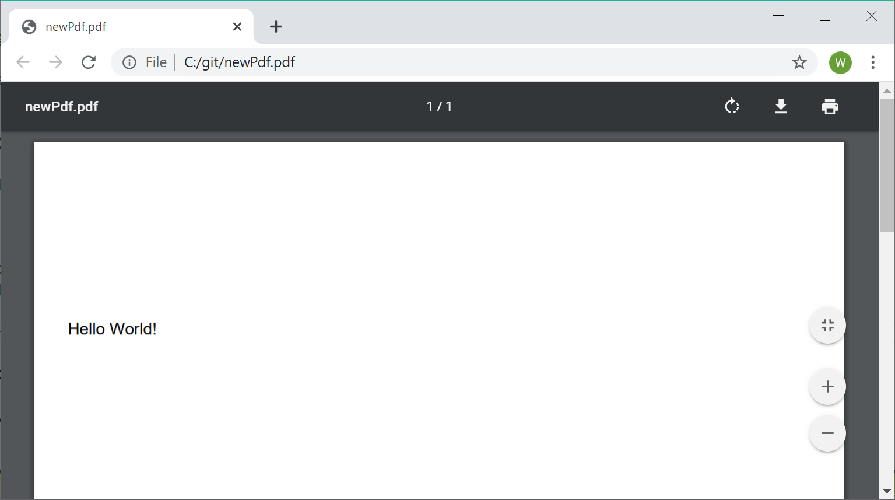
Each font must be registered with the PdfDocumentBuilder prior to use enable pages to share the font resources. Only Standard 14 fonts and TrueType fonts (.ttf) are supported.
Document creation supports very limited changes to existing PDF documents. However it does not support any of the following:
- Editing forms
- Copying or changing annotations, metadata or document structure data
- Adding or removing text with existing fonts
Advanced Document Extraction
In this example a more advanced document extraction is performed. PdfDocumentBuilder is used to create a copy of the pdf with debug information (bounding boxes and reading order) added.
//using UglyToad.PdfPig;
//using UglyToad.PdfPig.DocumentLayoutAnalysis.PageSegmenter;
//using UglyToad.PdfPig.DocumentLayoutAnalysis.ReadingOrderDetector;
//using UglyToad.PdfPig.DocumentLayoutAnalysis.WordExtractor;
//using UglyToad.PdfPig.Fonts.Standard14Fonts;
//using UglyToad.PdfPig.Writer;


var sourcePdfPath = "";
var outputPath = "";
var pageNumber = 1;
using (var document = PdfDocument.Open(sourcePdfPath))
{
    var builder = new PdfDocumentBuilder { };
    PdfDocumentBuilder.AddedFont font = builder.AddStandard14Font(Standard14Font.Helvetica);
    var pageBuilder = builder.AddPage(document, pageNumber);
    pageBuilder.SetStrokeColor(0, 255, 0);
    var page = document.GetPage(pageNumber);

    var letters = page.Letters; // no preprocessing

    // 1. Extract words
    var wordExtractor = NearestNeighbourWordExtractor.Instance;

    var words = wordExtractor.GetWords(letters);

    // 2. Segment page
    var pageSegmenter = DocstrumBoundingBoxes.Instance;

    var textBlocks = pageSegmenter.GetBlocks(words);

    // 3. Postprocessing
    var readingOrder = UnsupervisedReadingOrderDetector.Instance;
    var orderedTextBlocks = readingOrder.Get(textBlocks);

    // 4. Add debug info - Bounding boxes and reading order
    foreach (var block in orderedTextBlocks)
    {
        var bbox = block.BoundingBox;
        pageBuilder.DrawRectangle(bbox.BottomLeft, bbox.Width, bbox.Height);
        pageBuilder.AddText(block.ReadingOrder.ToString(), 8, bbox.TopLeft, font);
    }

    // 5. Write result to a file
    byte[] fileBytes = builder.Build();
    File.WriteAllBytes(outputPath, fileBytes); // save to file
}

See Document Layout Analysis for more information on advanced document analysing.
See Export for more advanced tooling to analyse document layouts.
Usage
PdfDocument
The PdfDocument class provides access to the contents of a document loaded either from file or passed in as bytes. To open from a file use the PdfDocument.Open static method:
using UglyToad.PdfPig;
using UglyToad.PdfPig.Content;

using (PdfDocument document = PdfDocument.Open(@"C:\my-file.pdf"))
{
	int pageCount = document.NumberOfPages;

	// Page number starts from 1, not 0.
	Page page = document.GetPage(1);

	decimal widthInPoints = page.Width;
	decimal heightInPoints = page.Height;

	string text = page.Text;
}
PdfDocument should only be used in a using statement since it implements IDisposable (unless the consumer disposes of it elsewhere).
Encrypted documents can be opened by PdfPig. To provide an owner or user password provide the optional ParsingOptions when calling Open with the Password property defined. For example:
using (PdfDocument document = PdfDocument.Open(@"C:\my-file.pdf", new ParsingOptions { Password = "password here" }))
You can also provide a list of passwords to try:
using (PdfDocument document = PdfDocument.Open(@"C:\file.pdf", new ParsingOptions
{
	Passwords = new List<string> { "One", "Two" }
}))
The document contains the version of the PDF specification it complies with, accessed by document.Version:
decimal version = document.Version;
Document Creation
The PdfDocumentBuilder creates a new document with no pages or content.
For text content, a font must be registered with the builder. This library supports Standard 14 fonts provided by Adobe by default and TrueType format fonts.
To add a Standard 14 font use:
public AddedFont AddStandard14Font(Standard14Font type)
Or for a TrueType font use:
AddedFont AddTrueTypeFont(IReadOnlyList<byte> fontFileBytes)
Passing in the bytes of a TrueType file (.ttf). You can check the suitability of a TrueType file for embedding in a PDF document using:
bool CanUseTrueTypeFont(IReadOnlyList<byte> fontFileBytes, out IReadOnlyList<string> reasons)
Which provides a list of reasons why the font cannot be used if the check fails. You should check the license for a TrueType font prior to use, since the compressed font file is embedded in, and distributed with, the resultant document.
The AddedFont class represents a key to the font stored on the document builder. This must be provided when adding text content to pages. To add a page to a document use:
PdfPageBuilder AddPage(PageSize size, bool isPortrait = true)
This creates a new PdfPageBuilder with the specified size. The first added page is page number 1, then 2, then 3, etc. The page builder supports adding text, drawing lines and rectangles and measuring the size of text prior to drawing.
To draw lines and rectangles use the methods:
void DrawLine(PdfPoint from, PdfPoint to, decimal lineWidth = 1)
void DrawRectangle(PdfPoint position, decimal width, decimal height, decimal lineWidth = 1)
The line width can be varied and defaults to 1. Rectangles are unfilled and the fill color cannot be changed at present.
To write text to the page you must have a reference to an AddedFont from the methods on PdfDocumentBuilder as described above. You can then draw the text to the page using:
IReadOnlyList<Letter> AddText(string text, decimal fontSize, PdfPoint position, PdfDocumentBuilder.AddedFont font)
Where position is the baseline of the text to draw. Currently only ASCII text is supported. You can also measure the resulting size of text prior to drawing using the method:
IReadOnlyList<Letter> MeasureText(string text, decimal fontSize, PdfPoint position, PdfDocumentBuilder.AddedFont font)
Which does not change the state of the page, unlike AddText.
Changing the RGB color of text, lines and rectangles is supported using:
void SetStrokeColor(byte r, byte g, byte b)
void SetTextAndFillColor(byte r, byte g, byte b)
Which take RGB values between 0 and 255. The color will remain active for all operations called after these methods until reset is called using:
void ResetColor()
Which resets the color for stroke, fill and text drawing to black.
Document Information
The PdfDocument provides access to the document metadata as DocumentInformation defined in the PDF file. These tend not to be provided therefore most of these entries wil
Related Skills
docs-writer
98.6k`docs-writer` skill instructions As an expert technical writer and editor for the Gemini CLI project, you produce accurate, clear, and consistent documentation. When asked to write, edit, or revie
model-usage
328.6kUse CodexBar CLI local cost usage to summarize per-model usage for Codex or Claude, including the current (most recent) model or a full model breakdown. Trigger when asked for model-level usage/cost data from codexbar, or when you need a scriptable per-model summary from codexbar cost JSON.
summarize
328.6kSummarize or extract text/transcripts from URLs, podcasts, and local files (great fallback for “transcribe this YouTube/video”).
feishu-doc
328.6k|
