
Wriststrap
A Twitter Bootstrap inspired framework for Appcelerator Titanium (Alloy)
Install / Use
/learn @TNuzzi/WriststrapREADME
Wriststrap
A Twitter Bootstrap inspired framework for Appcelerator Titanium (Alloy)
Installation:
- Clone the git project to your local machine:
git clone https://github.com/TNuzzi/wriststrap.git - Copy the
themesdirectory to theappdirectory under your Appcelerator mobile project - Edit the config.json (in your mobile project) and add the following entry:
"theme":"wriststrap"to the"global":json section (more details here). - Rebuild your mobile project
Performance note If you are planning on using addClass/resetClass/etc. be sure to keep the theme app.tss relatively small. Due to the way TSS syling is implemented, Alloy will create a _style.js file containing a complete array of the theme TSS (plus views specific tss) for each of your views. When you call *Class function it will load the _style.js file. If there is a large number of entries it could take a while.
Since discovering this, I have greatly reduced the entries of the wriststrap app.tss file. I have removed the glyphish entries and put them in a seperate file (add them as needed). I have removed a majority of the h-,w-,t-,b-,l-, and r- entries. I kept the percentages but reduced the TSS that spaced by dp value. w- and h- end at 400dp, t- and b- end at 200dp and l- and r- end at 100dp.
Version: Version 1
<table> <thead> <tr> <th>Device/Platform</th> <th>Support</th> <th>Version</th> </tr> </thead> <tr> <td>iPhone</td> <td>Supported</td> <td>Version 1</td> </tr> <tr> <td>iPad</td> <td>Supported</td> <td>Version 1</td> </tr> <tr> <td>Android</td> <td>Supported</td> <td>Version 1</td> </tr> <tr> <td>Mobile Web</td> <td>Next</td> <td>Version 2</td> </tr> <tr> <td>Blackberry</td> <td>Not sure</td> <td>Version ?</td> </tr> <tr> <td>Tizen</td> <td>Not sure</td> <td>Version ?</td> </tr> </table>Examples
Cut and paste examples are available at the Wriststrap Examples github repo.
About
Wriststrap was born out of the need to quickly prototype and visualize mobile UI in the Appcelerator Titanium Alloy framework. With the creation of the Alloy, Titanium now has the ability to apply CSS class like attributes to UI elements (think HTML). As with HTML this allow for a clean seperation from layout logic and application functionality (contained within JS files). Wriststrap applies the same principles as Bootstrap in allowing non-visual designers (like myself) to create and layout a visually aesthetically pleasing looking mobile UI.
Code example
The following is an example of TSS classes being applied to different UI elements. There is no code in the JS files for layout.
<Alloy>
    <Window class="t-20">
        <View class="container bg-lightblue">
            <Label class="col col-1 bg-pink">Test</Label>
            <Label class="col col-1 col-spacing text-center bg-pink">Test</Label>
            <Label class="col col-1 col-spacing text-center bg-pink">Test</Label>
            <Label class="col col-1 col-spacing text-right bg-pink">Test</Label>
            <Label class="col col-1 bg-pink">Test</Label>
            <Label class="col col-2 col-spacing text-center bg-pink">Test</Label>
            <Label class="col col-1 col-spacing text-right bg-pink">Test</Label>
            <Label class="col col-3 text-center bg-pink">Test</Label>
            <Label class="col col-1 col-spacing text-right bg-pink">Test</Label>
            <View class="col col-2 bg-yellow lo-horizontal">
                <Label class="col-2 text-center bg-pink">Test</Label>
                <Label class="col-2 col-spacing text-center bg-pink">Test</Label>
            </View>
            <View class="col col-2 col-spacing bg-yellow lo-horizontal">
                <Label class="col-1 text-center bg-pink">Test</Label>
                <Label class="col-1 col-spacing text-center bg-pink">Test</Label>
                <Label class="col-1 col-spacing text-center bg-pink">Test</Label>
                <Label class="col-1-end col-spacing text-center bg-pink">Test</Label>
            </View>
        </View>
        <View class="container bg-blue">
            <Label class="col col-1 bg-pink">Test</Label>
            <Label class="col col-1-push-2 bg-pink">Test</Label>
            <Label class="col col-1 bg-pink">Test</Label>
            <Label class="col col-1-push-2 bg-pink">Test</Label>
            <Label class="col col-1 bg-pink">Test</Label>
            <Label class="col col-1-push-2 bg-pink">Test</Label>
            <Label class="col col-1 bg-pink">Test</Label>
            <Label class="col col-1-push-2 bg-pink">Test</Label>
        </View>
        <View class="container bg-red">
            <Label class="col col-1-push-1 bg-pink">Test</Label>
            <Label class="col col-3-push-1 bg-pink">Test</Label>
            <Label class="col col-3-push-1 bg-pink">Test</Label>
            <Label class="col col-3-push-1 bg-pink">Test</Label>
            <Label class="col col-1 bg-pink">Test</Label>
            <Label class="col col-1-push-2 bg-pink">Test</Label>
        </View>
        <View class="layout-default lo-composite bg-purple">
            <View class="footer bg-25">
                <Label class="col-4 small text-right color-white">Footer</Label>
            </View>
        </View>
    </Window>
</Alloy>
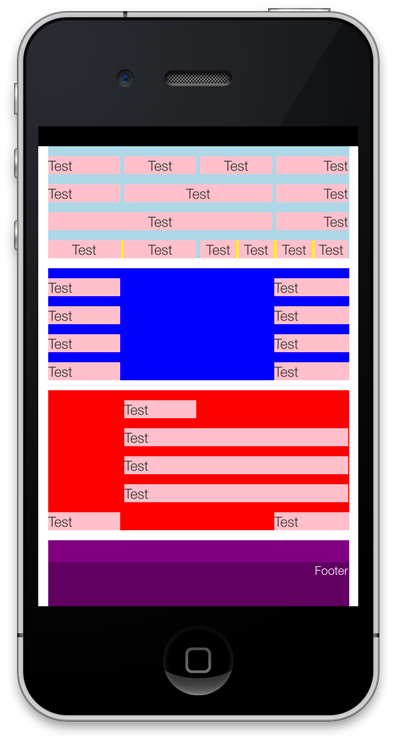
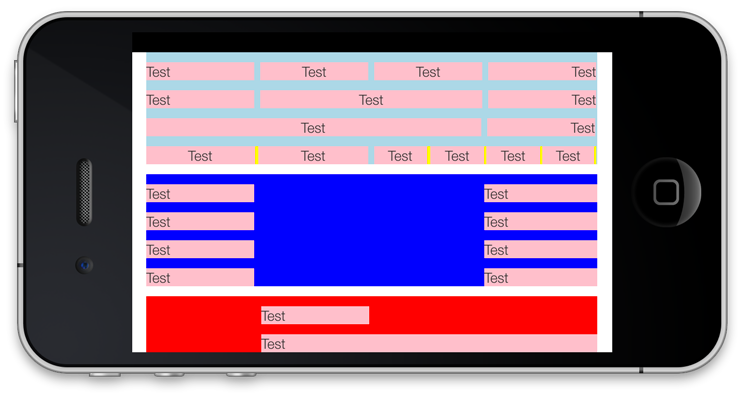
Wriststrap TSS Classes
Overview
The goal of Wriststrap is to simplify the UI by have a set of tss classes that are globally available. As with Bootstrap, you can override and/or add your own styling along with Wriststrap by using the tss syling override mechanism. Wriststrap is intended to be used as a starting point for developing a rich set of tss libraries for styling your app.
Mobile first
Along with simpliciation, Wriststrap is intended to make Mobile first a priority. For example, the Button element default to 44dp (height) as is recommend. By no means will it be exahustive but will get your app started in the right direction.
Default Element styling
The following table is used to show the override default styling of UI Elements.
<table> <thead> <tr> <th>UI Element</th> <th>Default styling</th> </tr> </thead> <tr> <td>Window</td> <td> <pre>layout: 'vertical', backgroundColor: 'ffffff'</pre> </td> </tr> <tr> <td>View</td> <td> <pre>layout: 'vertical', backgroundColor: 'ffffff'</pre> </td> </tr> <tr> <td>ScrollView</td> <td> <pre>layout: 'vertical', backgroundColor: 'ffffff'</pre> </td> </tr> <tr> <td>Label</td> <td> <pre>font: { fontFamily: 'HelveticaNeue-Light', fontSize: '14dp', }, color: '333333'</pre> </td> </tr> <tr> <td>Button</td> <td> <pre>font: { fontFamily: 'HelveticaNeue-Light', fontSize: '14dp' }, height: '44dp', width: '100%'</pre> </td> </tr> <tr> <td>TableView</td> <td> <pre>backgroundColor: 'transparent', width: '100%', height: Ti.UI.FILL</pre> </td> </tr> <tr> <td>TableViewRow</td> <td> <pre>font: { fontFamily: 'HelveticaNeue-Light', fontSize: '14dp' }</pre> </td> </tr> <tr> <td>TextField</td> <td> <pre>backgroundColor: 'ffffff', color: '000000', paddingLeft: '10%', paddingRight: '10%',</pre> </td> </tr> </table>Position helper classes
A set of position TSS helper classes have been created to help position and layout the UI elements. The helper classes both consist of static numbers (specified with dp) and percentages.
The percentage values that can be used with the <letter>- class are 1 - 100 in increments of 5. e.g. w-100% or h-50%
For the static number designation a number between 1 - 400 (h- and w-) / 200 (l- and r-) / 100 (t- and b-) in increments of 5 can be used, with the exception of 1 - 10. e.g. r-4 or l-20
Both h- and w- have size and fill TSS class. These apply either the Ti.UI.FILL or Ti.UI.SIZE accordingly.
A set of TSS classes can be used to easily position a UI element to the right pull-right or left pull-left.
