
ventriloquist
Turn Mac apps into MCP tools through the accessibility API. Each tool replays steps you approved, with no screenshots.
Install / Use
claude mcp add ShaanGS -- npx -y github:ShaanGS/ventriloquistIf the server publishes to npm under a different name, use that package instead — check the repo README.
MCP Server
Model Context Protocol server
Quality Score
Category
AutomationSupported Platforms
Tags
Our assessment of ventriloquist
ventriloquist scores 71/100 on our quality scale, 2646th of 2,872 Automation skills we index.
Its MCP Server is 24 KB long, well organised into 15 sections with 8 code examples: a thorough specification that gives an agent plenty to work with.
It has 3 GitHub stars, so there is little community track record yet; judge it on its content.
Maintenance, license and trust
- The repository was last updated 2 days ago, so ventriloquist is actively maintained.
- It is released under the MIT license, a permissive license that allows use, modification and commercial use with attribution.
- Its trust signals score 92/100, with 1 caution from licensing, adoption, age or documentation. These come from repository metadata, not a code audit — read the skill file before letting an agent act on it.
ventriloquist compared with similar skills
All 4 of these similar skills score higher than ventriloquist; compare them before choosing.
| Skill | Score | Stars | Updated | Format |
|---|---|---|---|---|
| ventriloquist (this skill)by ShaanGS | 71 | 3 | 2d ago | MCP Server |
| Agent-Reachby Panniantong | 100 | 109.7k | today | CLAUDE.md |
| headroomby headroomlabs-ai | 100 | 79.0k | today | CLAUDE.md |
| CowAgentby zhayujie | 100 | 47.8k | 1d ago | CLAUDE.md |
| Scraplingby D4Vinci | 100 | 98.8k | 1d ago | MCP Server |
Frequently asked questions
- How do I install ventriloquist?
- Run
claude mcp add ShaanGS -- npx -y github:ShaanGS/ventriloquist. The install tabs above show the steps for each supported agent. - Which AI agents does ventriloquist work with?
- It is written for Claude Code and Claude Desktop, as a MCP Server file. Other agents that read the same format can often use it too.
- Is ventriloquist safe to use?
- It is MIT-licensed and scores 92/100 on trust signals. Skills are instructions an agent will follow, so read the file before installing it and do not approve commands you do not understand.
- Is ventriloquist still maintained?
- The repository was last updated 2 days ago, so ventriloquist is actively maintained.
Skill content
View source on GitHubAbout
Ventriloquist is an MCP server that turns actions in Mac apps into tools
your agent can call, like outlook_file_to_folder or
textedit_write_document. Each tool is a list of steps on elements in the
app's accessibility tree, saved in a JSON file per app (its pack). A tool
is made once, by hand or by letting a model explore the app and propose
tools you approve. After that, every call replays the saved steps: no
screenshots, and no model deciding where to click. Your agent still
decides which tool to call.
For an app with no tools yet, turn on live mode. Your agent reads the app's tree and presses and types by element number, and once a task works it can ask to keep those steps as a tool.
In one test, sorting six test emails in Outlook, the same model read about 3.6x fewer tokens through vent than through Claude's built-in computer use, and made no wrong clicks (computer use made two). That was one run each, with caveats in docs/BENCHMARKS.md.
<p align="center"> <img src="https://raw.githubusercontent.com/ShaanGS/ventriloquist/main/docs/demo.gif" width="900" alt="A Claude session triages six test emails in new Outlook through vent's tools: it reads each email as text, flags the two that need a reply or have a deadline, and files all six into Receipts, Meetings or Reading. Email addresses are blurred."> <br> <sub>A real run on test emails, by an agent that hadn't seen the expected answers: 6 of 6 filed. Email 1 plays at real speed with the agent's pauses cut; the other five are sped up 8x.</sub> </p> <!-- mcp-name: io.github.ShaanGS/ventriloquist -->Set it up with your agent
Paste this into Claude Code, Codex or another coding agent on your Mac:
Install Ventriloquist with uv (uv tool install ventriloquist-mcp), then read https://github.com/ShaanGS/ventriloquist/blob/main/onboarding.md and walk me through it.
The agent checks what's already set up, installs vent, connects it to
your agent app, and stops only for the steps that need you, like
switching on the Accessibility permission. It follows
onboarding.md,
and SKILL.md
(also printed by vent skill) tells it how to use vent afterwards.
Or install the plugin, which sets up the server and the skill with live mode on, for Claude Code:
claude plugin marketplace add ShaanGS/ventriloquist
claude plugin install ventriloquist@ventriloquist
OpenClaw installs the same folder; see integrations/claude-plugin.
Try it in a minute
To do it by hand instead, you need macOS and
uv (brew install uv).
uv tool install ventriloquist-mcp
vent doctor
If your shell says vent: command not found, uv's tool folder isn't on
your PATH yet (common after brew install uv): run uv tool update-shell
and open a new terminal. To upgrade later, run
uv tool upgrade ventriloquist-mcp.
vent doctor checks the one permission vent needs. If it says
Accessibility is missing, open System Settings > Privacy & Security >
Accessibility, switch on your terminal app, restart the terminal, and run
it again. (pipx install ventriloquist-mcp
works too.)
Now drive TextEdit with the pack that ships with vent:
echo "hello" > /tmp/vent-demo.txt && open -a TextEdit /tmp/vent-demo.txt
vent run TextEdit write_document --arg text="typed by a pack"
vent run TextEdit read_document
The document changes with no keystrokes and no screenshot: the pack sets
the text area's value through the accessibility API, then reads it back
to verify. write_document replaces the whole text of the frontmost
TextEdit document, which is why the first line opens a scratch file; don't
run it with a document you care about in front.
Use it from Claude, Cursor, or Codex
vent serve speaks MCP over stdio. GUI apps start MCP servers without
your shell's PATH, so the config needs vent's absolute path, and
vent mcp-config prints the entry with the right path for your machine:
{
  "mcpServers": {
    "ventriloquist": {
      "command": "/Users/you/.local/bin/vent",
      "args": ["serve"]
    }
  }
}
-
Claude Desktop: quit Claude, then merge it into
~/Library/Application Support/Claude/claude_desktop_config.json. Claude rewrites that file while it runs, so an edit made with it open gets lost. -
Cursor: merge it into
~/.cursor/mcp.json. -
Claude Code:
claude mcp add --scope user ventriloquist -- ~/.local/bin/vent serve -
Codex CLI: add to
~/.codex/config.toml:[mcp_servers.ventriloquist] command = "/Users/you/.local/bin/vent" args = ["serve"]
The Accessibility permission belongs to whichever app starts
vent serve: Cursor itself, or your terminal for Claude Code and Codex.
Switch it on for that app (use the + button if it isn't in the list yet)
and restart it.
Claude Desktop is the exception. It runs each MCP server as its own
process for permissions, so macOS checks vent's Python rather than
Claude, and switching Claude on does nothing for vent. vent mcp-config
and vent doctor print that file's path. Drag it from Finder into
System Settings > Privacy & Security > Accessibility (the + picker greys
it out), then restart Claude. Use the vent mcp-config entry rather
than uvx here: under uvx, macOS checks uv instead, and a grant for
uv covers everything uv runs.
If every call fails with "not trusted for Accessibility", the message names the app or file to switch on.
Tools show up as textedit_write_document, code_show_search,
slack_filter_channels, and so on. Then ask for things in plain words,
like "open the Search view in VS Code and search the workspace for
TODO". Tools a pack marks read_only or mutating run when called. A
tool marked high risk is hidden unless your client can ask you to
confirm each call (MCP elicitation), or the server was started with
VENT_ALLOW_HIGH=1, which runs it without asking. Start the server with
VENT_READ_ONLY=1 to serve read-only tools and nothing else.
docs/SECURITY.md
explains why (T9).
Use any app live
Live mode is off by default. Turn it on with VENT_LIVE=1 in the server's
environment. vent mcp-config --live prints the entry with it, and for
Claude Code:
claude mcp add --scope user -e VENT_LIVE=1 ventriloquist -- ~/.local/bin/vent serve
Your agent gets three more tools:
vent_live_looklists a running app's elements, numbered, read from its accessibility tree. No screenshot.vent_live_actpresses an element, or types into a text field, by its number. Each act runs through the same runtime a saved tool uses, so a step that worked once is one that replays.vent_live_savekeeps steps that worked as a tool. You see the exact steps and every bit of text it will type, and nothing is saved until you accept. The new tool shows up right away in clients that listen for tool-list changes; others need a restart.
It asks you before pressing anything labelled like send, delete, pay or
archive, before buttons with no label, and before typing over a long
text. Without a client that can ask (MCP elicitation), those steps are
refused, and a tool to save waits for vent approve in a terminal. It
never touches password fields, sign-in windows, terminals, password
managers or System Settings. docs/SECURITY.md
(T13) has the details.
What ships
| App | Tools | Notes |
| --- | --- | --- |
| TextEdit | write_document, read_document | Acts on the frontmost document; write_document replaces all of its text |
| Notes | create_note, read_open_note | |
| VS Code | show_explorer, show_search, show_source_control, search_workspace | Launch VS Code with --force-renderer-accessibility |
| Slack | show_home, filter_channels | Same flag as VS Code |
The Outlook tools in the demo aren't bundled: they're tied to three test folders. They're in examples/outlook as a pack you can copy and adapt. So are the WhatsApp tools, in examples/whatsapp: they read your chat list and open chat and leave drafts, and none of them sends.
More packs people have shared are in
examples/,
and vent add-pack examples/<app> adds one after you approve each tool.
If you make tools for an app you use, a pull request adding them there
helps the next person with that app.
Electron apps like VS Code and Slack only publish a working tree when
started with that flag, for example
open -a "Visual Studio Code" --args --force-renderer-accessibility.
Without it the tree can still be read, but actions get silently ignored.
Each step in a tool finds its element through an anchor: a recorded
description of the element (its role, label and identifier, and the chain
of elements above it) that vent matches against the live app. Anchors are
recorded per machine and per app version, so the bundled packs are
working examples of the format more than guarantees for your exact setup.
If a tool refuses to resolve, that's on purpose (it never guesses
between lookalike elements), and re-recording takes about a
minute with vent inspect and vent anchor, as in
Write a tool by hand. Section 5 of
docs/ARCHITECTURE.md
has the details.
How it works
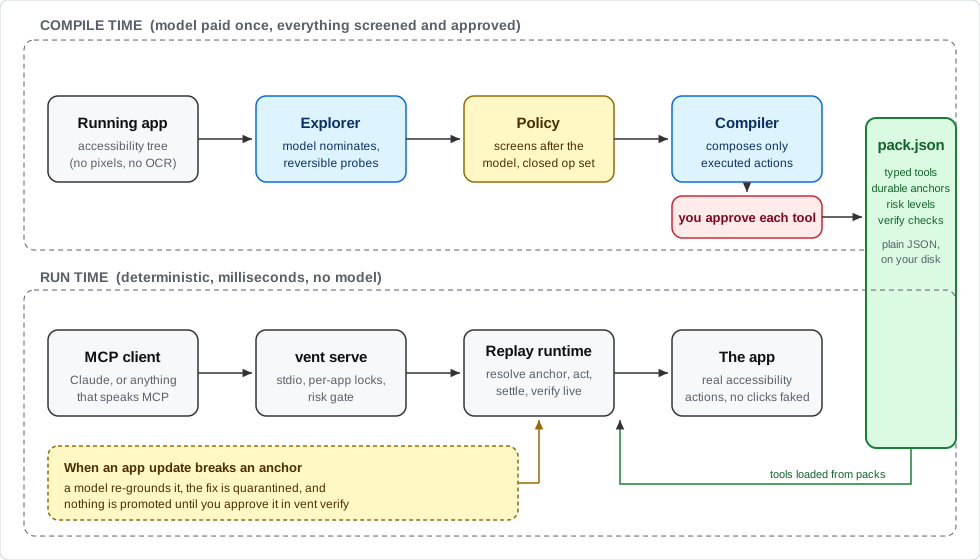
With computer use, a model looks at your app and decides every action,
every time. That works on any app with no setup, but every run pays again
for screenshots and model decisions. vent moves that work to when a tool
is made. You get back tools like write_document(text) or
file_to_folder(folder), which run no model on vent's side. The agent still
reads, judges and picks the tool, and vent does the clicking.
On a one-step task the two are even: in a TextEdit test, Claude's computer use needed the same two tool calls and about the same total time, and vent added about 6x fewer tokens to the agent's context. On a longer task the difference shows. Triaging six test emails in new Outlook (read each one, flag it if it needs a reply or has a deadline, file it into one of three folders), both filed all six correctly. vent took 1:59 and made no wrong clicks. Claude's computer use took 2:31, made two harmless wrong moves, and put about 3.6x as many tokens into the context (18k against 5k), mostly screenshots, where vent returns text. The TextEdit test was three rounds each and the Outlook one a single run each, with the same model, which knew the answer key both times; [docs/BENCHMARKS.md](https://github.com/ShaanGS/ventriloquist/blo
Truncated for display — read the full file on GitHub.
Related Skills
Agent-Reach
109.7kGive your AI agent eyes to see the entire internet. Read & search Twitter, Reddit, YouTube, GitHub, Bilibili, XiaoHongShu — one CLI, zero API fees.
headroom
79.0kCompress tool outputs, logs, files, and RAG chunks before they reach the LLM. 20% fewer tokens for coding agents, 60-95% fewer tokens for JSON, same answers. Library, proxy, MCP server.
CowAgent
47.8kOpen-source personal AI assistant & Agent Harness. Plans tasks, runs tools and skills, self-evolves with memory and knowledge. Multi-agent, multi-model, multi-channel. Lightweight, extensible, one-line install.
Scrapling
98.8k🕷️ The BEST Web Scraping framework that handles everything from a single request to a full-scale crawl! Don't be shy, join here: https://discord.gg/EMgGbDceNQ and follow here for daily tips and tricks: https://x.com/Scrapling_dev

Languages
Trust signals
From repository metadata: license, adoption, age and documentation. Not a code audit — see the Safety scan above for what the skill file itself contains.