
LiveReloadServer
A self-contained, local, cross-platform, static file Web Server based on .NET with automatic Live Reloading, Markdown rendering and loose Razor Pages support.
Install / Use
/learn @RickStrahl/LiveReloadServerREADME
Live Reload Web Server




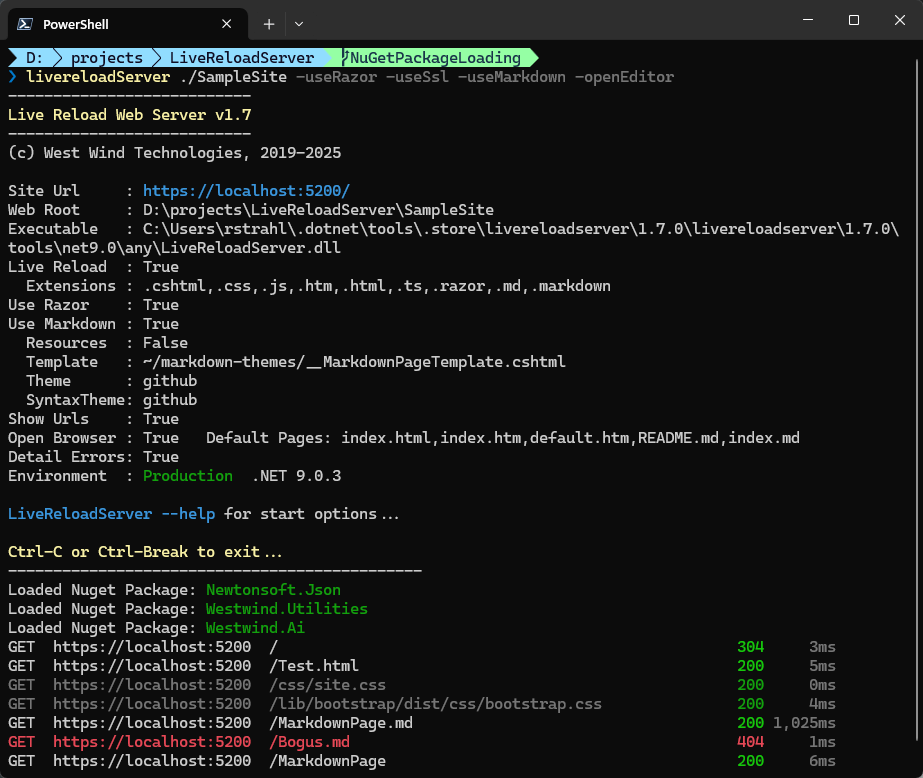
A self-contained, local, cross-platform, static file Web Server that is based on .NET, with automatic Live Reloading, Markdown rendering and loose Razor Pages support. The server also supports Web server and standalone hosting for sites using the non-static resource features.
Features
- Generic Static File Web Server you can launch in any folder
- Just start with:
LiveReloadServer <folder><small>(dotnet tool)</small>LiveReloadWebServer <folder><small>(installed version)</small>
- Support for self-contained Razor Pages <small>(.cshtml)</small>
- Themed Markdown Page Rendering support built in
- Built-in, optional Live Reload functionality for change detection and browser refresh
<small>for all supported file formats: Static Files, Razor and Markdown</small> - Options to customize location, port, files checked etc.
- Easily installed and updated with
dotnet tool -g install LiveReloadServer - Run local SPA applications (Angular, VueJs, React etc.)
- Run local Blazor Applications (without Live Reload support however)
- Cross Platform - Windows, Mac, Linux <small>(dotnet tool only)</small>
- Serve HTTPS content <small>(dotnet tool only)</small>
- Self-Contained Razor Pages
- Single file .cshtml files only
- Can import NuGet packages
- Can import external assemblies
- Can update external assemblies (on restart)
- Hostable ASP.NET Core Server that can be used by multiple sites on a server
- Similar to ASP.NET Web Pages features but using Razor code
- Single file updates supported
- Self-contained for light code scenarios
- Great fit for landing pages or product sites
- Multiple sites from a single LiveReloadServer folder
- Available as:
- Dotnet Tool (cross-platform)
- Chocolatey Package (Windows)
- Self-Contained (Windows) Download
Links
Requirements:
- Dotnet Tool: .NET 9 SDK
- Hosted: .NET 9 (Asp.Net Runtime)
- Standalone Exe (Windows): self-contained (.NET 9)
- Live Reload in hosted apps requires a Web Server that supports WebSockets
- Older versions of .NET are supported with prior releases
- < 1.5 - .NET 8.0
- < 1.3 - .NET 7.0
- <= 1.1 - .NET 6.0
You can grab the compiled Dotnet Tool from:
-
Dotnet Tool <small>(windows, mac, linux)</small>
dotnet tool install -g LiveReloadServer -
Chocolatey Package <small>(windows)</small>
choco install LiveReloadWebServer -
Self Contained Windows Executable Folder (zipped) <small>(windows)</small>
-
Hostable Package (requires installed .NET/ASP.NET 9.0 Runtime) <small>(windows, mac, linux)</small>
All four versions have the same features and interface, just the delivery mechanism and the executable name is different. The EXE uses
LiveReloadWebServerwhile the Dotnet Tool usesLiveReloadServer.
What does it do?
This tool is a generic local Web Server that you can point to any folder and provide simple and quick HTTP access to HTML and other Web resources. You can serve any static resources - HTML, CSS, JS etc. Optionally you can also serve loose Razor Pages - .cshtml pages that are self-contained with any code contained in the .cshtml template. It's also possible to load loose assemblies with custom .NET library code. Additionally there's also optional Markdown Page Rendering support with themed HTML templates that render directly from Markdown file to themed page output.
Live Reload is enabled by default and checks for changes to common static files and also Razor and Markdown files if enabled. If a checked file is changed, the browser's current page is refreshed. Razor pages are recompiled before the refresh. You can map additional file extensions that trigger the Live Reload.
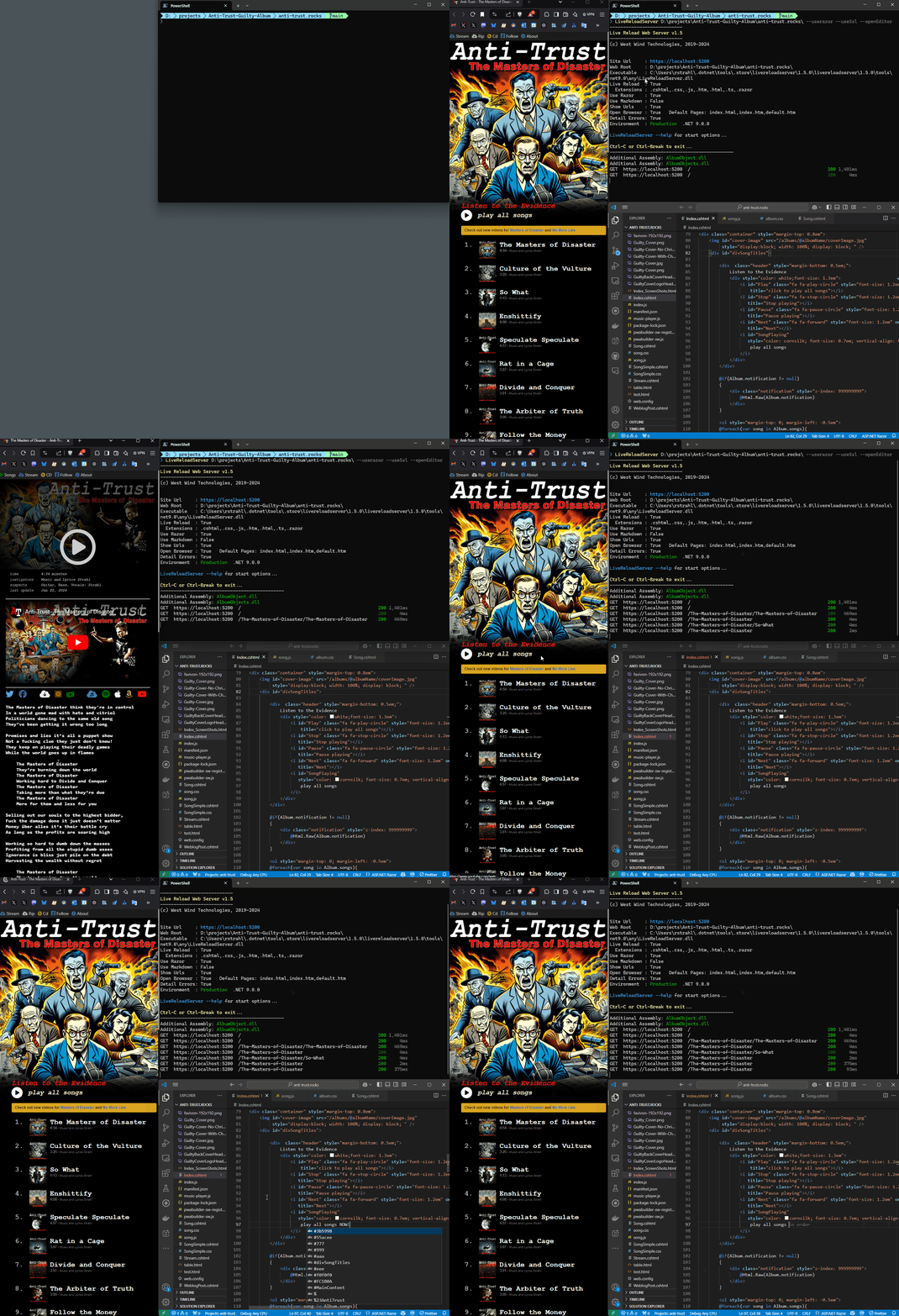
You can also use this 'generic' server behind a live Web Server (like IIS, nginx etc.) by installing the main project as a deployed Web application to provide loose Razor support and Markdown rendering on a Web server. A single LiveReloadServer installation can serve many Web sites using the same static, Razor and Markdown resources which can be ideal for mostly static content sites that need 'a little extra' beyond plain static pages <small>(examples: Anti-Trust Band Site and Markdown Monster Product Site)</small>.
Note: This hosting feature isn't meant to be a replacement for full ASP.NET Web sites. If you have complex logic beyond simple scripting or displaying easily managed local content, a full Web site will offer a better development experience. BUt if you just need a few small features or some easy script code to render some output the hosting feature is a quick way to push-button deploy individual HTML pages and their dependencies.
Installation
Live Reload Server can be installed as:
- A dotnet tool using .NET SDK (cross-platform)
- From Chocolatey as a self-contained Executable (Windows)
- Downloaded self-contained or shared runtime install (Windows)
- Hosted Package in a Web Server (cross-platform)
Dotnet Tool
If you are a .NET developer and are already using the .NET SDK this is the easiest way to use this tool and it works on all platforms .NET is supported on:
dotnet tool install -g LiveReloadServer
To use it, navigate to a folder that you want to serve HTTP files out of:
# will serve current folder files out of http://localhost:5200
LiveReloadServer

# specify a folder instead of current folder and a different port
LiveReloadServer "c:/temp/My Local WebSite" --port 5350 -UseSsl

# Customize some options
LiveReloadServer --LiveReloadEnabled False --OpenBrowser False -UseSsl -UseRazor
Chocolatey
You can also install from Chocolatey on Windows:
choco install LiveReloadWebServer
To use it then use:
LiveReloadWebServer "c:/temp/My Local WebSite" --port 5350 -UseSsl
Note that EXE filename is
LiveReloadWebServerwhich is different from the Dotnet Tool'sLiveReloadServerso they can exist side by side without conflict.Any of the following examples use
LiveReloadServer, and you should substituteLiveReloadServerwithLiveReloadWebServerfor any non dotnet tool installations.
Self-Contained EXE or Shared Runtime Installs
You can also download the self-contained binaries directly into a folder and run locally on Windows. The application installs into a folder and runs as console application. Invoke directly or add your path to the folder to launch the console app.
This version can also be used in a hosted environment (see next section)
Download and Install Self (Windows)
To launch with a full path:
# Use your install folder
~\MyPrograms\LiveReloadServer\LiveReloadWebServer c:\Web Sites\MyStaticSite -useSsl -useRazor
Shared Runtimes and Hosted Install
The Shared Runtime install requires that the .NET and ASP.NET Runtimes are installed. Using this install is smaller and works identical tot he self-contained install.
In addition it can also be hosted in a Web server to provide Razor, Markdown and LiveReload services to Web sites. In order to host you'll need to map the binaries to a Web site and you can use .NET configuration or Environment variables to set startup parameters to point at the Web site folder.
For IIS this looks like this:
<system.webServer>
   <handlers>
     <add name="aspNetCore" path="*" verb="*" modules="AspNetCoreModuleV2" resourceType="Unspecified" />
   </handlers>
   <!-- point at the DLL with absolute or relative path -->
   <aspNetCore processPath="dotnet" hostingModel="InProcess" arguments="..\LiveReloadServer\LiveReloadServer.dll" stdoutLogEnabled="false" stdoutLogFile=".\logs\stdout">
     <environmentVariables>
       <!-- set launch options for the site  -->
       <environmentVariable name="ASPNET_ENVIRONMENT" value="Production" />
       <environmentVariable name="LIVERELOADSERVER_WEBROOT" value="C:\users\rstrahl\OneDrive\Web Sites\anti-trust.rocks" />
       <environmentVariable name="LIVERELOADSERVER_USERAZOR" value="True" />
       <environmentVariable name="LIVERELOADSERVER_USEMARKDOWN" value="True" />
       <environmentVariable name="LIVERELOADSERVER_USELIVERELOAD" value="False" />
       <environmentVariable name="LIVERELOADSERVER_OPENBROWSER" value="False" />
       <environmentVariable name="LIVERELOADSERVER_SHOWCONSOLEOUTPUT" value="False" />
       <environmentVariable name="LIVERELOADSERVER_DEFAULTFILES" value="index.html,post.md,readme.md" />
     </environmentVariables>
   </aspNetCore>
</system.webS
