
PowerShellEditorServices
A common platform for PowerShell development support in any editor or application!
Install / Use
npx skills add PowerShell/PowerShellEditorServicesInstalls into whichever agent you are using.
README
PowerShell Editor Services


PowerShell Editor Services is a PowerShell module that provides common functionality needed to enable a consistent and robust PowerShell development experience in almost any editor or integrated development environment (IDE).
Language Server Protocol clients using PowerShell Editor Services
[!NOTE] PowerShell for Azure Data Studio will no longer be updated or maintained.
The functionality in PowerShell Editor Services is available in the following editor extensions:
[!WARNING] These clients are community maintained and may be very out of date. It is recommended to use a generic LSP plugin with your client if possible.
- lsp-pwsh, an Emacs PowerShell plugin
- intellij-powershell, adds PowerShell language support to IntelliJ-based IDEs
- coc-powershell, a Vim and Neovim plugin
- powershell.nvim a Neovim plugin
Supported PowerShell Versions
PSES runs as a PowerShell Module in currently supported versions of PowerShell 7+.
Windows PowerShell 5.1 is supported on a best-effort basis.
Features
- The Language Service provides common editor features for the PowerShell language:
- Code navigation actions (find references, go to definition)
- Statement completions (IntelliSense)
- Real-time semantic analysis of scripts using PowerShell Script Analyzer
- The Debugging Service simplifies interaction with the PowerShell debugger (breakpoints, variables, call stack, etc.)
- The $psEditor API enables scripting of the host editor
- A full, Extension Terminal experience for interactive development and debugging
Usage
If you're looking to integrate PowerShell Editor Services into your Language Server Protocol compliant editor or client, we support two ways of connecting.
Named Pipes / Unix Domain Sockets
If you're looking for a more feature-rich experience, named pipes (AKA sockets) are the way to go. They give you all the benefits of the Language Server Protocol with extra capabilities that you can take advantage of:
- The PowerShell Extension Terminal
- Debugging using the Debug Adapter Protocol
The typical command to start PowerShell Editor Services using named pipes / sockets is as follows:
pwsh -NoLogo -NoProfile -Command "./PowerShellEditorServices/Start-EditorServices.ps1 -SessionDetailsPath ./session.json"
The start script, Start-EditorServices.ps1, is found in the PowerShellEditorServices folder instead the PowerShellEditorServices.zip downloaded from the GitHub releases.
The session details (which named pipes were created) will be written to the given session details path, and the client needs to point to these in order to connect.
The Visual Studio Code, Vim, Neovim, and IntelliJ extensions use named pipes.
Standard Input and Output
Alternatively, the -SessionDetailsPath ./session.json argument can be replaced with just -Stdio.
The use of stdio is the simplest way to connect with most LSP clients,
but will limit some features, such as the debugger and Extension Terminal.
This is because because these two features require their own IO streams and stdio only provides a single pair of streams.
Please see the emacs-simple-test.el, emacs-test.el, vim-simple-test.vim and vim-test.vim for examples of end-to-end tested configurations. They use eglot for Emacs and LanguageClient-neovim.
Advanced Usage
If you are trying to automate the service in PowerShell, you can also run it under Start-Process to prevent hanging your script.
It also gives you access to process automation features like $process.Close() or $process.Kill().
The Start-EditorServices.ps1 script takes many more optional arguments, but they no longer need to be specified.
$command = @(
    "$PSES_BUNDLE_PATH/PowerShellEditorServices/Start-EditorServices.ps1",
        "-BundledModulesPath $PSES_BUNDLE_PATH",
        "-LogPath ./logs",
        "-SessionDetailsPath ./session.json",
        "-FeatureFlags @()",
        "-AdditionalModules @()",
        "-HostName 'My Client'",
        "-HostProfileId 'myclient'",
        "-HostVersion 1.0.0",
        "-LogLevel Trace"
) -join " "

$pwsh_arguments = "-NoLogo -NoProfile -Command $command"
$process = Start-Process pwsh -ArgumentList $arguments -PassThru
...
$process.Close(); #$process.Kill();
Once the command is run,
PowerShell Editor Services will wait until the client connects to the named pipe.
The session.json will contain the paths of the named pipes that you will connect to.
There will be one you immediately connect to for Language Server Protocol messages,
and once you connect to when you launch the debugger for Debug Adapter Protocol messages.
PowerShell Extension Terminal
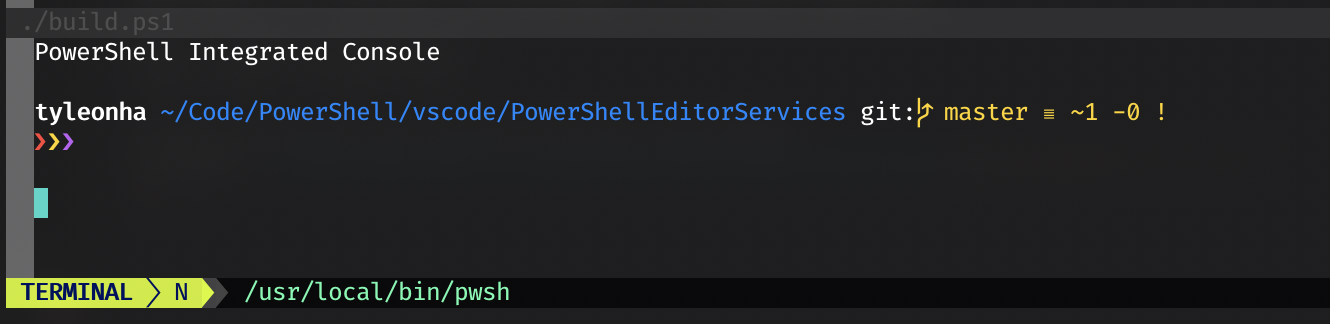
The PowerShell Extension Terminal uses the host process' stdio streams for console input and output. Please note that this is mutually exclusive from using stdio for the Language Server Protocol messages.
If you want to take advantage of the PowerShell Extension Terminal,
you must include the -EnableConsoleRepl switch when calling Start-EditorServices.ps1.
This is typically used if your client can create arbitrary terminals in the editor like below:
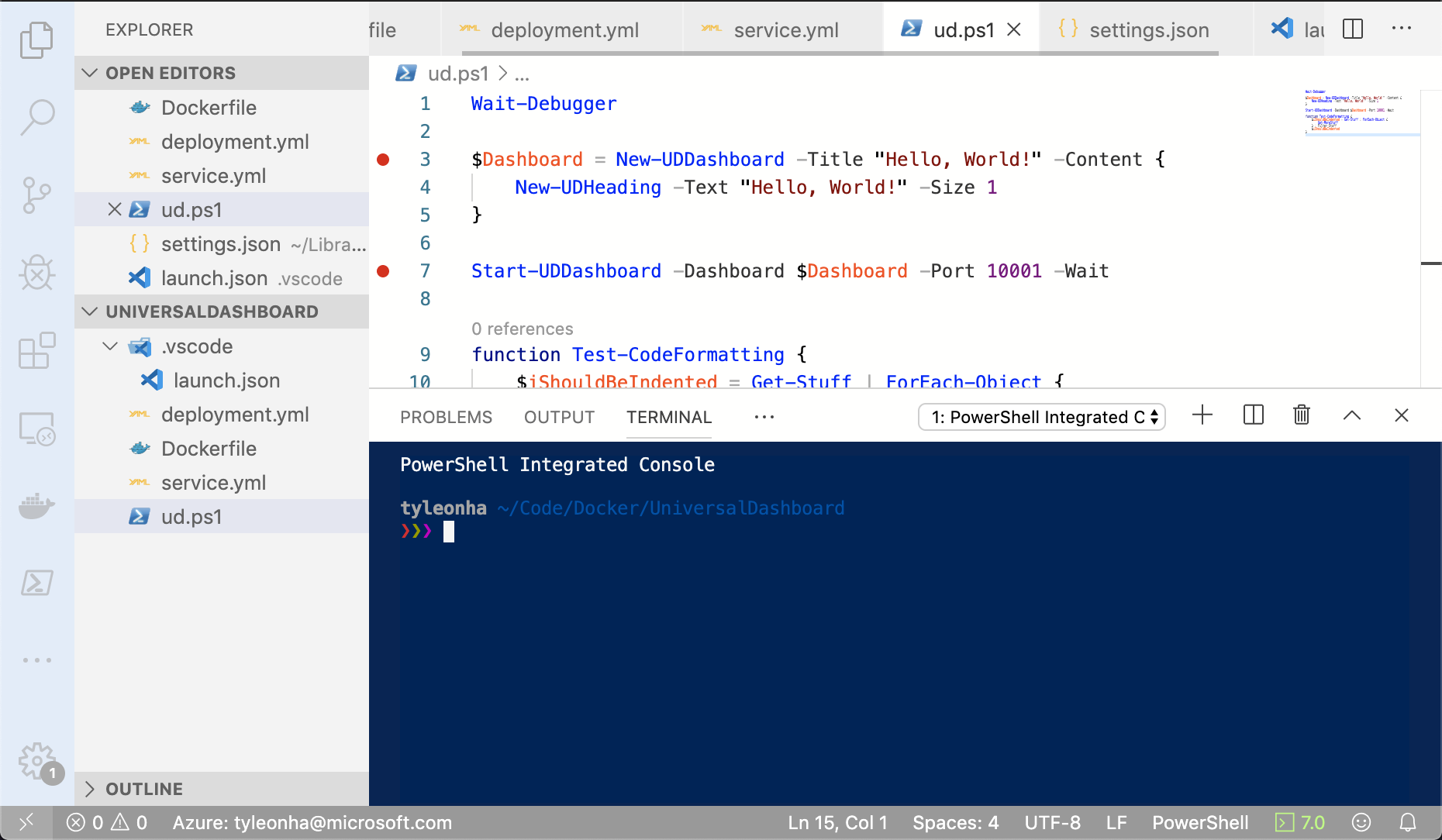
The Visual Studio Code, Vim, and IntelliJ extensions currently use the PowerShell Extension Terminal.
Debugging
Debugging support is also exposed with PowerShell Editor Services.
It is handled within the same process as the Language Server Protocol.
This provides a more integrated experience for end users but is something to note as not many other language servers work in the same way.
If you want to take advantage of debugging,
your client must support the Debug Adapter Protocol.
Your client should use the path to the debug named pipe found in the session.json file talked about above.
The debugging functionality in PowerShell Editor Services is available in the following editor extensions:
- PowerShell for Visual Studio Code
- nvim-dap-powershell for Neovim
- powershell.nvim for Neovim
- intellij-powershell
Rename Disclaimer
PowerShell is not a statically typed language. As such, the renaming of functions, parameters, and other symbols can only be done on a best effort basis. While this is sufficient for the majority of use cases, it cannot be relied upon to find all instances of a symbol and rename them across an entire code base such as in C# or TypeScript.
There are several edge case scenarios which may exist where rename is difficult or impossible, or unable to be determined due to the dynamic scoping nature of PowerShell.
The focus of the rename support is on quick updates to variables or functions within a self-contained script file. It is not intended for module developers to find and rename a symbol across multiple files, which is very difficult to do as the relationships are primarily only computed at runtime and not possible to be statically analyzed.
👍 Implemented and Tested Rename Scenarios <- Link to Tests
🤚 Unsupported Scenarios
- ❌ Renaming can only be done within a single file. Renaming symbols across multiple files is not supported, even if those are dotsourced from the source file.
- ❌ Functions or variables must have a corresponding definition within their scope or above to be renamed. If we cannot find the original definition of a variable or function, the rename will not be supported.
- ❌ Dynamic Parameters are not supported
- ❌ Dynamically constructed splat parameters will not be renamed/updated (e.g.
$splat = @{};$splat.a = 5;Do-Thing @a) - ❌ Scoped variables (e.g. $SCRIPT:test) are not currently supported
- ❌ Renaming a variable inside of a scriptblock that is used in unscoped operations like
Foreach-ParallelorStart-Joband the variable is not defined within the scriptblock is not supported and can have unexpected results. - ❌ Scriptblocks part of an assignment are considered isolated scopes. For example
$a = 5; $x = {$a}; & $xdoes not consider the two $a to be related, even though in execution this reference matches. - ❌ Scriptblocks that are part of a parameter are assumed to not be executing in a different runspace. For example, the renaming behavior will treat
ForEach-Object -Parallel {$x}the same asForeach-Object {$x}for purpose
Related Skills
node-connect
385.5kDiagnose OpenClaw Android, iOS, or macOS node pairing, QR/setup code, route, auth, and connection failures.
blender-python-addon
40.5kBlender Python add-on rules for operators, panels, properties, registration, testing, and API-safe scripting
flutter-development-guidelines-cursorrules-prompt-file
40.5kCursor rules for Flutter development with MVVM architecture, Riverpod state management, Material widgets, and Dart style guidelines.
commit-push-pr
140.6kCommit, push, and open a PR
