
Rhino
On-device Speech-to-Intent engine powered by deep learning
Install / Use
/learn @Picovoice/RhinoREADME
Rhino










Made in Vancouver, Canada by Picovoice


Rhino is Picovoice's Speech-to-Intent engine. It directly infers intent from spoken commands within a given context of interest, in real-time. For example, given a spoken command:
Can I have a small double-shot espresso?
Rhino infers what the user wants and emits the following inference result:
{
  "isUnderstood": "true",
  "intent": "orderBeverage",
  "slots": {
    "beverage": "espresso",
    "size": "small",
    "numberOfShots": "2"
  }
}
Rhino is:
- using deep neural networks trained in real-world environments.
- compact and computationally-efficient. It is perfect for IoT.
- cross-platform:
- Arm Cortex-M, STM32, and Arduino
- Raspberry Pi
- Android and iOS
- Chrome, Safari, Firefox, and Edge
- Linux (x86_64), macOS (x86_64, arm64), and Windows (x86_64, arm64)
- self-service. Developers can train custom contexts using Picovoice Console.
Table of Contents
- Rhino
Use Cases
Rhino is the right choice if the domain of voice interactions is specific (limited).
- If you want to create voice experiences similar to Alexa or Google, see the Picovoice platform.
- If you need to recognize a few static (always listening) voice commands, see Porcupine.
Try It Out
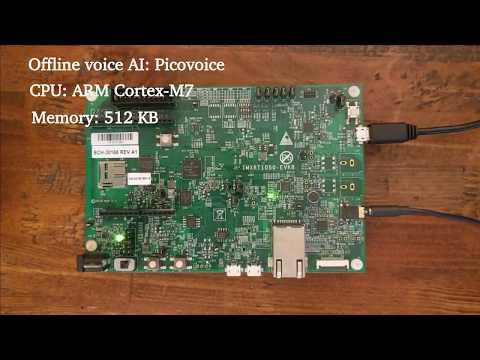
-
Rhino and Porcupine on an ARM Cortex-M7
Language Support
- English, Chinese (Mandarin), French, German, Italian, Japanese, Korean, Portuguese, and Spanish.
- Support for additional languages is available for commercial customers on a case-by-case basis.
Performance
A comparison between the accuracy of Rhino and major cloud-based alternatives is provided here. Below is the summary of the benchmark:

Terminology
Rhino infers the user's intent from spoken commands within a domain of interest. We refer to such a specialized domain as
a Context. A context can be thought of a set of voice commands, each mapped to an intent:
turnLightOff:
  - Turn off the lights in the office
  - Turn off all lights
setLightColor:
  - Set the kitchen lights to blue
In examples above, each voice command is called an Expression. Expressions are what we expect the user to utter
to interact with our voice application.
Consider the expression:
Turn off the lights in the office
What we require from Rhino is:
- To infer the intent (
turnLightOff) - Record the specific details from the utterance, in this case the location (
office)
We can capture these details using slots by updating the expression:
turnLightOff:
  - Turn off the lights in the $location:lightLocation.
$location:lightLocation means that we expect a variable of type location to occur, and we want to capture its value
in a variable named lightLocation. We call such variable a Slot. Slots give us the ability to capture details of the
spoken commands. Each slot type is be defined as a set of phrases. For example:
lightLocation:
  - "attic"
  - "balcony"
  - "basement"
  - "bathroom"
  - "bedroom"
  - "entrance"
  - "kitchen"
  - "living room"
  - ...
You can create custom contexts using the Picovoice Console.
To learn the complete expression syntax of Rhino, see the Speech-to-Intent Syntax Cheat Sheet.
Demos
If using SSH, clone the repository with:
git clone --recurse-submodules git@github.com:Picovoice/rhino.git
If using HTTPS, clone the repository with:
git clone --recurse-submodules https://github.com/Picovoice/rhino.git
Python Demos
Install the demo package:
sudo pip3 install pvrhinodemo
With a working microphone connected to your device run the following in the terminal:
rhino_demo_mic --access_key ${ACCESS_KEY} --context_path ${CONTEXT_PATH}
Replace ${CONTEXT_PATH} with either a context file created using Picovoice Console or one within the repository.
For more information about Python demos, go to demo/python.
.NET Demos
Rhino .NET demo is a command-line application that lets you choose between running Rhino on an audio file or on real-time microphone input.
Make sure there is a working microphone connected to your device. From demo/dotnet/RhinoDemo run the following in the terminal:
dotnet run -c MicDemo.Release -- --access_key ${ACCESS_KEY} --context_path ${CONTEXT_FILE_PATH}
Replace ${ACCESS_KEY} with your Picovoice AccessKey and ${CONTEXT_FILE_PATH} with either a context file created using Picovoice Console or one within the repository.
For more information about .NET demos, go to demo/dotnet.
Java Demos
The Rhino Java demo is a command-line application that lets you choose between running Rhino on an audio file or on real-time microphone input.
To try the real-time demo, make sure there is a working microphone connected to your device. Then invoke the following commands from the terminal:
cd demo/java
./gradlew build
cd build/libs
java -jar rhino-mic-demo.jar -a ${ACCESS_KEY} -c ${CONTEXT_FILE_PATH}
Replace ${CONTEXT_FILE_PATH} with either a context file created using Picovoice Console or one within the repository.
For more information about Java demos go to demo/java.
Flutter Demos
To run the Rhino demo on Android or iOS with Flutter, you must have the Flutter SDK installed on your system. Once installed, you can run flutter doctor to determine any other missing requirements for your relevant platform. Once your environment has been set up, launch a simulator or connect an Android/iOS device.
Run the prepare_demo script with a language code to set up the demo in the language of your
choice (e.g. de -> German, ko -> Korean). To see a list of available languages, run prepare_demo without a language code.
cd demo/flutter
dart scripts/prepare_demo.dart ${LANGUAGE}
Run the following command to build and deploy the demo to your device:
cd demo/flutter
flutter run
Once the demo app has started, press the start button and utter a command to start inferring context. To
