
Porcupine
On-device wake word detection powered by deep learning
Install / Use
/learn @Picovoice/PorcupineREADME
Porcupine










Made in Vancouver, Canada by Picovoice


Porcupine is a highly-accurate and lightweight wake word engine. It enables building always-listening voice-enabled applications. It is
- using deep neural networks trained in real-world environments.
- compact and computationally-efficient. It is perfect for IoT.
- cross-platform:
- Arm Cortex-M, STM32, and Arduino
- Raspberry Pi (Zero, 3, 4, 5)
- Android and iOS
- Chrome, Safari, Firefox, and Edge
- Linux (x86_64), macOS (x86_64, arm64), and Windows (x86_64, arm64)
- scalable. It can detect multiple always-listening voice commands with no added runtime footprint.
- self-service. Developers can train custom wake word models using Picovoice Console.
Table of Contents
- Porcupine
Use Cases
Porcupine is the right product if you need to detect one or a few static (always-listening) voice commands.
- If you want to create voice experiences similar to Alexa or Google, see the Picovoice platform.
- If you need to understand complex and naturally-spoken voice commands within a specific domain, see the Rhino Speech-to-Intent engine.
Try It Out
-
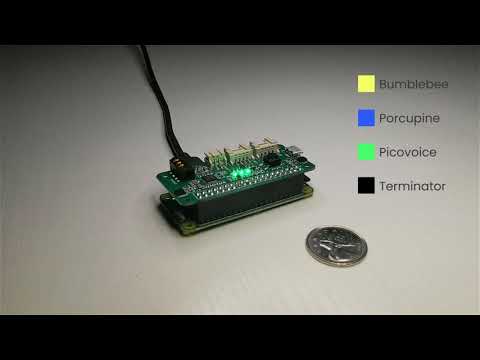
Porcupine on a Raspberry Pi Zero
Language Support
- English, Chinese (Mandarin), French, German, Italian, Japanese, Korean, Portuguese, and Spanish.
- Support for additional languages is available for commercial customers on a case-by-case basis.
Performance
A comparison between accuracy and runtime metrics of Porcupine and two other widely-used libraries, PocketSphinx and Snowboy, is provided here. Compared to the best-performing engine of these two, Porcupine is 11.0 times more accurate and 6.5 times faster (on Raspberry Pi 3).
Demos
If using SSH, clone the repository with:
git clone --recurse-submodules git@github.com:Picovoice/porcupine.git
If using HTTPS, clone the repository with:
git clone --recurse-submodules https://github.com/Picovoice/porcupine.git
Python Demos
Install the demo package:
sudo pip3 install pvporcupinedemo
With a working microphone connected to your device run the following in the terminal:
porcupine_demo_mic --access_key ${ACCESS_KEY} --keywords porcupine
The engine starts processing the audio input from the microphone in realtime and outputs to the terminal when it detects
utterances of Porcupine.
For more information about Python demos go to demo/python.
.NET Demos
From demo/dotnet/PorcupineDemo run the following in the terminal to build the demo:
dotnet build -c MicDemo.Release
Make sure there is a working microphone connected to your device. From demo/dotnet/PorcupineDemo run the following in the terminal:
dotnet run -c MicDemo.Release -- \
--access_key ${ACCESS_KEY} \
--keywords porcupine
The engine starts processing the audio input from the microphone in realtime and outputs to the terminal when it detects
utterances of Porcupine.
For more information about .NET demos go to demo/dotnet.
Java Demos
Make sure there is a working microphone connected to your device. Then invoke the following commands from the terminal:
cd demo/java
./gradlew build
cd build/libs
java -jar porcupine-mic-demo.jar -a ${ACCESS_KEY} -k porcupine
The engine starts processing the audio input from the microphone in realtime and outputs to the terminal when it detects
utterances of Porcupine.
For more information about Java demos go to demo/java.
Flutter Demos
To run the Porcupine demo on Android or iOS with Flutter, you must have the Flutter SDK installed on your system. Once installed, you can run flutter doctor to determine any other missing requirements for your relevant platform. Once your environment has been set up, launch a simulator or connect an Android/iOS device.
Run the prepare_demo script from demo/flutter with a language code to set up the demo in the language of your
choice (e.g. de -> German, ko -> Korean). To see a list of available languages, run prepare_demo without a language code.
dart scripts/prepare_demo.dart ${LANGUAGE}
Replace your AccessKey in lib/main.dart file:
final String accessKey = "{YOUR_ACCESS_KEY_HERE}"; // AccessKey obtained from Picovoice Console (https://console.picovoice.ai/)
Run the following command from demo/flutter to build and deploy the demo to your device:
flutter run
React Native Demos
To run the React Native Porcupine demo app you will first need to set up your React Native environment. For this, please refer to React Native's documentation.
Replace your AccessKey, in App.tsx file:
_accessKey: string ="${YOUR_ACCESS_KEY_HERE}" // AccessKey obtained from Picovoice Console (https://console.picovoice.ai/)
Navigate to demo/react-native/PorcupineDemo to run the following commands:
For Android:
yarn android-install          # sets up environment
yarn android-run ${LANGUAGE}  # builds and deploys to Android
For iOS:
yarn ios-install              # sets up environment
yarn ios-run ${LANGUAGE}      # builds and deploys to iOS
Replace ${LANGUAGE} with the language code of your choice (e.g. de -> German, ko -> Korean).
To see a list of available languages, run the android-run or ios-run command without a language code.
Android Demos
Using Android Studio, open
demo/android/Activity as an Android project, copy your AccessKey into MainActivity.java, select the build variant (Build > Select Build Variant...) for the desired language and then run the application.
To learn about how to use Porcupine in long-running services go to demo/android/Service.
To learn about how to use Porcupine with Android Speech to Text r
