
WibbleWobbleCore
No description available
Install / Use
/learn @PHARTGAMES/WibbleWobbleCoreREADME
WibbleWobble v2.3.1
WibbleWobble turns your display into a window to virtual worlds.
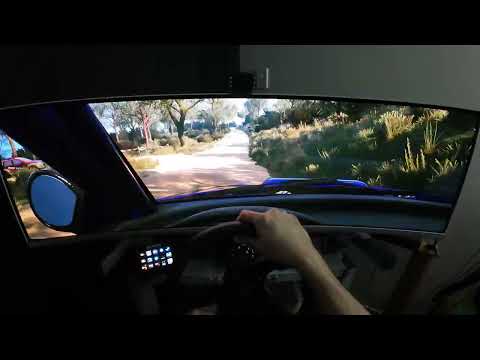
Features
- Reprojects single view games to any number of screens to make the displays appear to be a window into a virtual world.
- Supports flat and curved screens.
- Supports Steam VR with and without head tracking. (OpenVR Client).
- Supports Reshade for non-VR games with and without head tracking. (ReShade Client).
- Supports SuperDepth3D for conversion of flat games to stereoscopic through ReShade and the Reshade Client.
- Supports head tracking through OpenTrack.
- Can be used in monoscopic and stereoscopic modes; stereoscopic is not required.
- Will convert a 60hz side by side or checkerboard stereoscopic source into 120hz sequential stereoscopic.
- Supports black frame insertion and Blur Busters CRT simulator for use with either monoscopic or stereoscopic modes to reduce motion blur.
- Black frame insertion or CRT sim can be used in stereoscopic to run the game at 60hz, sync glasses at 120hz, and output to the screen at 240hz. You want to do this to reduce crosstalk for the best experience in stereoscopic.
- Supports upscalers such as FSR1.
- Scalable infrastructure; Game can be run at a lower resolution and framerate than the dispay; WibbleWobble will upscale to display resolution and framerate. (this is NOT frame generation)
- Supports a simple Arduino interface for running stereoscopic VESA sender units.
- Supports a simple Arduino interface for running infrared and DLP shutter glasses without a VESA sender.
- Supports Open3DOLED sync emitter.
- Supports NVIDIA Emitter. Thanks to FlintEastwood, cms and others for their work on making this emitter function.
- Supports sequential DLP projector protocol (3D Ready).
- Can be used without reprojection and head tracking if all you want to do is upscale, use the sequential stereoscopic features, black frame insertion, CRT Sim, etc..
Why WibbleWobble
-
Many games don't support multi-view rendering and those that do support it require the world rendered for each view to fill all monitors.:
- WibbleWobble allows the game to render a single view and reprojects that view across the user's desktop using a high performance shader. This means that the world is rendered through a single view and that view is placed in front of the user via head tracking, saving performance.
- Because WibbleWobble controls the size of the game window, performance is scalable.
- Because the user is able to select their desired FOV, performance is scalable.
-
VR accessibility issues.:
- Some people want to use VR but they may have physical disabilties that prevent them from enjoying VR.
- WibbleWobble allows the user to have a VR-alike immersive experience without the need to wear a headset in both monoscopic and stereoscopic modes.
-
NVIDIA killed sequential stereoscopic on 3x series and up cards.:
- WibbleWobble implements sequential stereoscopic in open source with the help of Reshade effects such as SuperDepth3D.
- WibbleWobble also has Arduino sketches for controlling XPand IR shutter glasses as well as any VESA stereoscopic sender unit.
- You don't need a special stereoscopic monitor or video card for this to work either; a 120hz+ monitor with a low response time and preferrably some form of motion blur reduction should work however YMMV.
-
People have a hard time figuring out the right FOV for games to suit their sim rigs; giant world, distortions etc..:
- WibbleWobble requires the user to setup their display rig one time only and then input a matching FOV value per game to get a life size reprojection every time.
- WibbleWobble also does not require head tracking and can be simply used to reproject the view to real world size.
Limitations
-
Currently does not work with TrackIR hardware:
- If anyone knows a workaround for using TrackIR hardware with OpenTrack please let me know by raising an issue on GitHub.
-
Head Tracking using the ReShade Client only works with TrackIR supported games:
- WibbleWobble provides similar game support as the freetrack 2.0 enhanced output in OpenTrack.
- Unless you want to support the WibbleWobble public api for head tracking in your application.
-
Currently does not support freetrack:
- This should be a fairly simple fix but I haven't even thought about it, any ideas please raise an issue on GitHub.
WibbleWobble Setup and Configuration
Initial Setup (WibbleWobble Install for all Clients)
-
Download and unzip the latest release: Releases Here
-
Register WibbleWobble:
In Windows Explorer, right-clickWibbleWobbleClient/Register.batand select Run as administrator. -
Disable Desktop Scaling:
Disable desktop scaling in Windows settings. WibbleWobble and some games are not DPI aware, and scaling can cause window size issues. (For example, Assetto Corsa.)
OpenTrack Setup (Head Tracking for all Clients)
-
Install OpenTrack (Win32):
WibbleWobble only supports the Win32 version of OpenTrack. Choose the appropriate installer based on your head tracking device: -
Copy Modules Folder:
Copy themodulesfolder fromWibbleWobbleClient/OpenTrack/Win32into your OpenTrack installation directory. -
Configure OpenTrack:
- WibbleWobble.ini is provided in the modules/presets folder and should contain these settings already but in case something gets changed accidentally, here are each of the settings.
- Run OpenTrack and select wibblewobbletrack as the output.
- Click the Hammer (Settings) button next to wibblewobbletrack to open the configuration UI.
- Under Selected Interface, choose "Use TrackIR, disable freetrack".
- Check Custom location and browse to
WibbleWobbleClient/NPClient. - Under Mapping Properties, set:
- X, Y, Z: Max Input = 100cm, Max Output = 100cm.
- Yaw Max Input = 180
- Pitch Max Input = 90, Max Output = 90
- Roll Max Input = 180
- Map the Center shortcut to "Shift+." so WibbleWobble and OpenTrack recenter together.
- Under Output for Axis Assignment, assign Yaw, Pitch, Roll, X, Y, Z 1:1 with no remapping.
- Disable Relative translation.
SteamVR Setup (OpenVR Client)
-
Open Steam and install SteamVR if not already installed.
-
Navigate to the WibbleWobbleVR folder and Run Install.bat to register the path of WibbleWobbleVR with SteamVR; you may need to run as administrator.
-
Open <SteamDirectory>\config\steamvr.vrsettings and add the following lines to the steamvr section
"forcedDriver": "WibbleWobbleVR", "activateMultipleDrivers": "true",
NOTE: To disable WibbleWobbleVR, remove the "forcedDriver": "WibbleWobbleVR", line.
-
Disable head tracking for room setup.
-
Launch Steam VR
-
Press SHIFT + / to toggle the focus on the overlay and then ALT + TAB to the SteamVR widget.
-
Click on the hamburger icon top left of the SteamVR widget and select Room Setup
-
Select STANDING ONLY
-
For ESTABLISH TRACKING it should say Headset Ready, click NEXT
-
For Calibrate your space. click CALIBRATE CENTER and wait; then click NEXT
-
For Locate the floor. you can set this to the distance that your head is from the floor or leave it at 0, then click CALIBRATE FLOOR and wait; then click NEXT
-
Click DONE
To uninstall the driver completely, navigate to the WibbleWobbleVR folder and Run Uninstall.bat; you may need to run as administrator.
Installation for Each Game (ReShade Client)
-
Install Reshade Addon:
RunWWReshadeAddon/Reshade/ReShade_Setup_6.3.3_Addon.exe. WibbleWobble only supports DX11 and DX12.
Note: Do not use this version of Reshade with games that have anti-cheat. Use at your own risk.- Install Reshade into the game you want to use. (Depending on the game you may need to perform extra steps to make Reshade work).
-
Copy WWReshadeAddon Files:
Copy the contents ofWWReshadeAddon/Release/architectureinto the same folder as the game’s executable (where you installed Reshade).- For 64-bit games, use the contents of
x64. - For 32-bit games, use the contents of
Win32.
- For 64-bit games, use the contents of
-
Run the Game:
After starting the game, complete or skip the Reshade tutorial and close the Reshade UI. -
Use Windowed Mode:
Put the game into Windowed mode. WibbleWobble will not function in fullscreen mode.
Launch Workflow (ReShade Client)
-
Start the Game:
Launch the game and reach a point where you're viewing the in-game world. -
Launch WibbleWobble:
Press Shift + End to start WibbleWobble. -
Configure or Play:
- Once launched, you can adjust WibbleWobble’s settings () or begin playing.
- Game specific settings for the ReShade Client are modified inside "Game Config".
-
Maintain Focus on the Game Window:
The game window should remain in focus. If the WibbleWobble window is in focus when the WibbleWobble UI is closed, ALT + TAB or click on the game window to focus it. This should happen automatically, but if not, refocus manually. -
ReCenter the view: Place your head at the centre of the play
