
ForexTradingBot
ForexSignalBot is an advanced, AI-driven Telegram bot meticulously engineered for the Forex market. It delivers real-time, high-precision trading signals, aggregates intelligent market news, and features an integrated auto-forwarder for seamless execution with trading clients. Built on .NET 9 with Clean Architecture and Domain-Driven Design
Install / Use
/learn @Opselon/ForexTradingBotREADME
ForexSignalBot: AI-Driven Telegram Forex Signals / Telegramb bot Auto Forwarder Smart Free OpenSource 📈🤖✨🚀














🚀 Get Started Now!
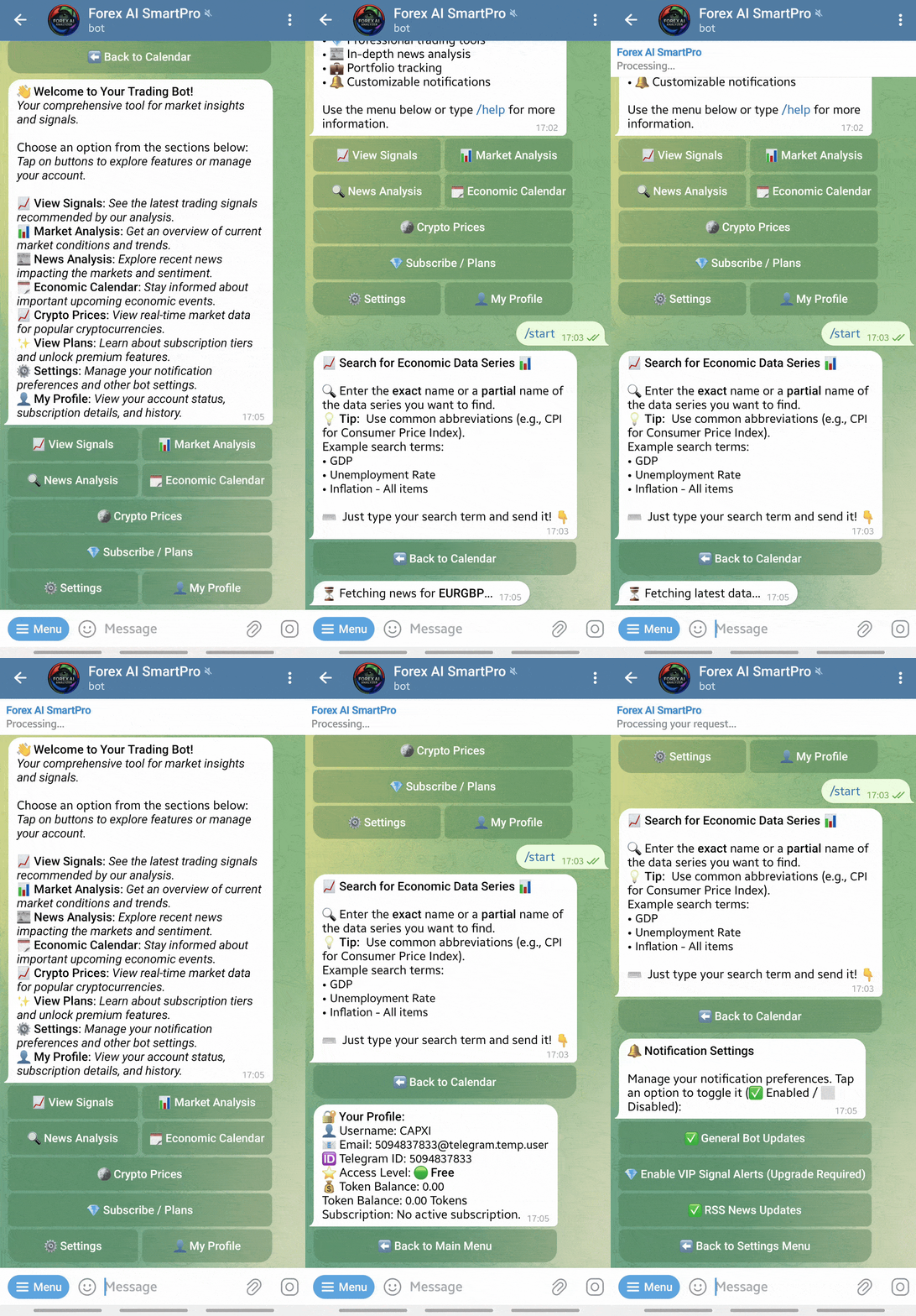
- <span style="font-size: 3.5em;">Live Bot: https://t.me/trade_ai_helper_bot ✨</span>
- Just click the link to open the bot in Telegram and start trading!
🚀 Getting Started
You can run this project in two ways: with Docker (recommended for quick setup) or by setting up a local environment manually.
Option 1: Quick Start with Docker (Recommended)
Get the entire application stack—API, PostgreSQL database, and Redis cache—running in minutes with Docker. This is the fastest and easiest way to start.
Prerequisites
- Docker Desktop: Make sure it's installed and running on your system. Download it here.
Step 1: Clone the Repository
Open your terminal and clone the project source code.
git clone https://github.com/Opselon/ForexTradingBot.git
cd ForexTradingBot
Step 2: Configure Your Secrets
The application requires API keys and passwords. We use a .env file for this, which is kept private.
-
Create the environment file:
cp .env.example .env -
Edit the
.envfile: Open the new.envfile and fill in your actual secret values.TELEGRAM_BOT_TOKEN: Get this from@BotFatheron Telegram.POSTGRES_PASSWORD: Create a strong, secure password for your database.
Step 3: Run the Application! 🔥
With Docker running, execute a single command from the project's root directory:
docker-compose up --build -d
This command builds and starts the API, PostgreSQL, and Redis containers. The API is configured to automatically apply database migrations on startup.
Step 4: Seed the Database
The bot needs an initial list of RSS feeds. Connect to the database using a client like DBeaver or DataGrip and run the Populate_RssSources_Categories.sql script.
- Host:
localhost - Port:
5432 - Database:
forexsignalbot_db - User:
postgres - Password: The
POSTGRES_PASSWORDyou set in.env.
🎉 That's it! Your bot is now running inside Docker.
Option 2: Local Development Setup (Without Docker)
Follow these steps if you prefer to run the application directly on your machine.
Prerequisites
-
.NET 9 SDK:
- Install the .NET 9 SDK (v9.0.107 or later).
- Download Page: https://dotnet.microsoft.com/en-us/download/dotnet/9.0
- Verify your installation by running
dotnet --version.
-
PostgreSQL Database:
- Install and run a local PostgreSQL server.
- Create a database and a user.
- Update your connection string in the
appsettings.Development.jsonfile.
-
Redis Server:
- Redis is used for caching and background job processing.
- For Windows: Install a Redis-compatible server like Memurai.
- Installation Guide: https://docs.memurai.com/en/installation.html
- For macOS/Linux: Install via a package manager (e.g.,
brew install redisorsudo apt-get install redis-server).
Running the Application Locally
For developers who prefer to run the application directly on their machine, follow these steps:
- Clone the repository (if you haven't already).
- Configure
appsettings.Development.jsonwith your local database connection string and other settings. - Apply database migrations:
dotnet ef database update --startup-project WebApi --project Infrastructure - Seed the database by running the
Populate_RssSources_Categories.sqlscript against your local database. - Run the API:
dotnet run --project WebApi
For more comprehensive details and production deployment instructions, please refer to the dedicated INSTALL.md guide.
🛠️ Developer Guide
This section contains common commands for development.
Managing Database Migrations
Before running these commands, ensure you have the EF Core tools installed: dotnet tool install --global dotnet-ef
-
Add a New Migration: When you change a domain model, create a new migration.
dotnet ef migrations add YourMigrationName --startup-project WebApi --project Infrastructure(Replace
YourMigrationNamewith a descriptive name, e.g.,AddSignalStatus) -
Apply Migrations: To manually update the database schema.
dotnet ef database update --startup-project WebApi --project Infrastructure
Creating a Production Build
To compile the application into a self-contained executable for deployment:
# Example for a self-contained Windows x64 build
dotnet publish --configuration Release --runtime win-x64 --self-contained true --project WebApi
- The output will be in the
WebApi/bin/Release/net9.0/win-x64/publishfolder.
Step 4: The Web Setup Wizard ✨
This is the new, streamlined setup process
