
Omnisharp Vim
Vim omnicompletion (intellisense) and more for C#
Install / Use
npx skills add OmniSharp/omnisharp-vimInstalls into whichever agent you are using.
README


OmniSharp-vim is a plugin for Vim to provide IDE like abilities for C#.
OmniSharp works on Windows, Linux and MacOS.
The plugin relies on the OmniSharp-Roslyn server, a .NET development platform used by several editors including Visual Studio Code and Emacs.
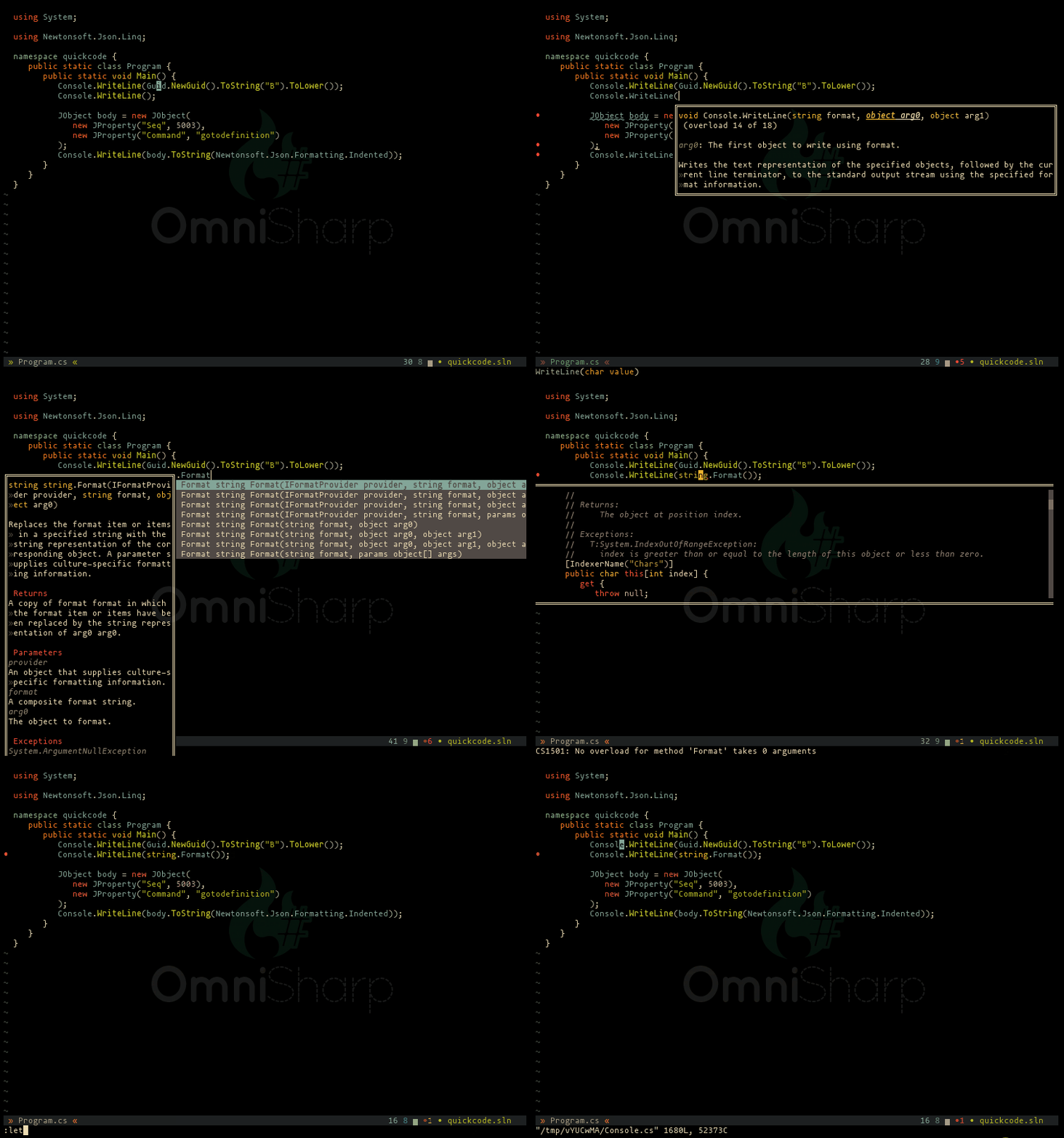
(see the wiki example config for a similar configuration to this demo)
Features
-
Contextual code completion
- Code documentation and type lookup, displayed in popups or the preview window, when available (depends on installed SDKs)
- Completion Sources are provided for:
- Completion snippets are supported. e.g. Console.WriteLine(TAB) (ENTER) will complete to Console.WriteLine(string value) and expand a dynamic snippet, this will place you in SELECT mode and the first method argument will be selected.
- Requires UltiSnips and supports standard C-x C-o completion as well as completion/autocompletion plugins such as asyncomplete-vim, Supertab, Neocomplete etc.
- Requires
set completeopt-=previewwhen using Neocomplete because of a compatibility issue with UltiSnips.
-
Jump to the definition of a type/variable/method
-
Find symbols interactively (uses selector plugin by default: fzf, vim-clap, CtrlP or unite.vim)
-
Find implementations/derived types
-
Find usages (optionally uses selector plugin: fzf or vim-clap)
-
Contextual code actions (unused usings, use var....etc.) (uses selector plugin by default: fzf, vim-clap, CtrlP or unite.vim)
-
Find code issues (unused usings, use base type where possible....etc.) (requires plugin: ALE or Syntastic)
-
Find all code issues in solution and populate the quickfix window
-
Fix using statements for the current buffer (sort, remove and add any missing using statements where possible)
-
Rename refactoring
-
Full semantic highlighting
-
Code error checking
-
Code formatter
-
Run unit tests and navigate to failing assertions
Asynchronous server interactions over stdio
For vim8 and neovim, OmniSharp-vim uses the OmniSharp-roslyn stdio server instead of the older HTTP server, using pure vimscript (no python dependency!). All server operations are asynchronous and this results in a much smoother coding experience.
To use the HTTP server instead, add this to your .vimrc:
let g:OmniSharp_server_stdio = 0
Any time g:OmniSharp_server_stdio is modified, the server needs to be re-installed with :OmniSharpInstall.
Installation
Plugin
Install the Vim plugin using your preferred plugin manager:
| Plugin Manager | Command |
|------------------------------------------------------|--------------------------------------------------------------------------------------|
| Vim-plug | Plug 'OmniSharp/omnisharp-vim' |
| Vundle | Bundle 'OmniSharp/omnisharp-vim' |
| NeoBundle | NeoBundle 'OmniSharp/omnisharp-vim' |
... or git:
| 'runtimepath' handler | Command |
|------------------------------------------------------|--------------------------------------------------------------------------------------|
| Vim 8.0+ Native packages | $ git clone https://github.com/OmniSharp/omnisharp-vim ~/.vim/pack/plugins/start/omnisharp-vim |
| Pathogen | $ git clone https://github.com/OmniSharp/omnisharp-vim ~/.vim/bundle/omnisharp-vim |
If not using a plugin manager such as Vim-plug (which does this automatically), make sure your .vimrc contains these lines:
filetype indent plugin on
syntax enable
Server
OmniSharp-vim depends on the OmniSharp-Roslyn server. The first time OmniSharp-vim tries to open a C# file, it will check for the presence of the server, and if not found it will ask if it should be downloaded. Answer y and the latest version will be downloaded and extracted to ~/.cache/omnisharp-vim/omnisharp-roslyn, ready to use. Note: Requires curl or wget on Linux, macOS, Cygwin and WSL.
Running the command :OmniSharpInstall in vim will also install/upgrade to the latest OmniSharp-roslyn release.
To install a particular release, including pre-releases, specify the version number like this:
:OmniSharpInstall v1.35.2
Note: These methods depend on the g:OmniSharp_server_stdio variable to decide which OmniSharp-roslyn server to download. If you are unsure, try using the default stdio option first, and only fall back to HTTP if you have problems.
-
vim8.0+ or neovim: Use the stdio server, it is used asynchronously and there is no python requirement.
-
< vim8.0: Use the HTTP server. Your vim must have python (2 or 3) support, and you'll need either vim-dispatch or vimproc.vim to be installed
" Use the stdio version of OmniSharp-roslyn - this is the default
let g:OmniSharp_server_stdio = 1

" Use the HTTP version of OmniSharp-roslyn:
let g:OmniSharp_server_stdio = 0
Manual installation
To install the server manually, first decide which version (stdio or HTTP) you wish to use, as described above.
Download the latest release for your platform from the OmniSharp-roslyn releases page.
For stdio on a 64-bit Windows system, the omnisharp.win-x64.zip package should be downloaded, whereas Mac users wanting to use the HTTP version should select omnisharp.http-osx.tar.gz etc.
Extract the binaries and configure your vimrc with the path to the run script (Linux and Mac) or OmniSharp.exe file (Window), e.g.:
let g:OmniSharp_server_path = 'C:\OmniSharp\omnisharp.win-x64\OmniSharp.exe'
let g:OmniSharp_server_path = '/home/me/omnisharp/omnisharp.http-linux-x64/run'
Windows Subsystem for Linux (WSL)
OmniSharp-roslyn can function perfectly well in WSL using linux binaries, if the environment is correctly configured (see OmniSharp-roslyn for requirements). However, if you have the .NET Framework installed in Windows, you may have better results using the Windows binaries. To do this, let OmniSharp-vim know that you are operating in WSL mode (indicating that file paths need to be translated by OmniSharp-vim from Unix-Windows and back:
let g:OmniSharp_translate_cygwin_wsl = 1
Running :OmniSharpInstall from WSL when g:OmniSharp_translate_cygwin_wsl = 1 results in the Windows version of OmniSharp-roslyn being installed to the standard Windows location %LocalAppData%\omnisharp-vim\omnisharp-roslyn.
Windows: Cygwin
The automatic installation script for cygwin downloads the Windows OmniSharp-roslyn release. OmniSharp-vim detects that it is running in a cygwin environment and automatically enables Windows/cygwin file path translations by setting the default value of g:OmniSharp_translate_cygwin_wsl to 1.
Note: The Windows stdio server unfortunately does not work from cygwin, so when cygwin is detected (has('win32unix')) the HTTP server is used by default.
Linux and MacOS
The default version of OmniSharp-roslyn requires mono on Linux and MacOS.
The roslyn server releases come with an embedded mono, but this can be overridden to use the installed mono by setting g:OmniSharp_server_use_mono in your vimrc.
See The Mono Project for installation details.
let g:OmniSharp_server_use_mono = 1
Any time g:OmniSharp_server_use_mono is modified, the server needs to be re-installed with :OmniSharpInstall.
Native net6.0
From version 1.38.0 of OmniSharp-roslyn, a dotnet native net6.0 server version is available.
To use this version, set g:OmniSharp_server_use_net6 in your vimrc before installing the server.
let g:OmniSharp_server_use_net6 = 1
Related Skills
node-connect
385.5kDiagnose OpenClaw Android, iOS, or macOS node pairing, QR/setup code, route, auth, and connection failures.
blender-python-addon
40.5kBlender Python add-on rules for operators, panels, properties, registration, testing, and API-safe scripting
flutter-development-guidelines-cursorrules-prompt-file
40.5kCursor rules for Flutter development with MVVM architecture, Riverpod state management, Material widgets, and Dart style guidelines.
commit-push-pr
140.7kCommit, push, and open a PR
