
MuddyMaps.js
Create your own Muddy Maps, Neutralizing maps, and winner-takes-all maps using a CSV file and simple configuration file.
Install / Use
/learn @MuddyMaps/MuddyMaps.jsREADME
MuddyMaps.js
Create your own Muddy Maps, neutralizing maps, and winner take all maps using a CSV file and a simple configuration file.
What's a Muddy Map?
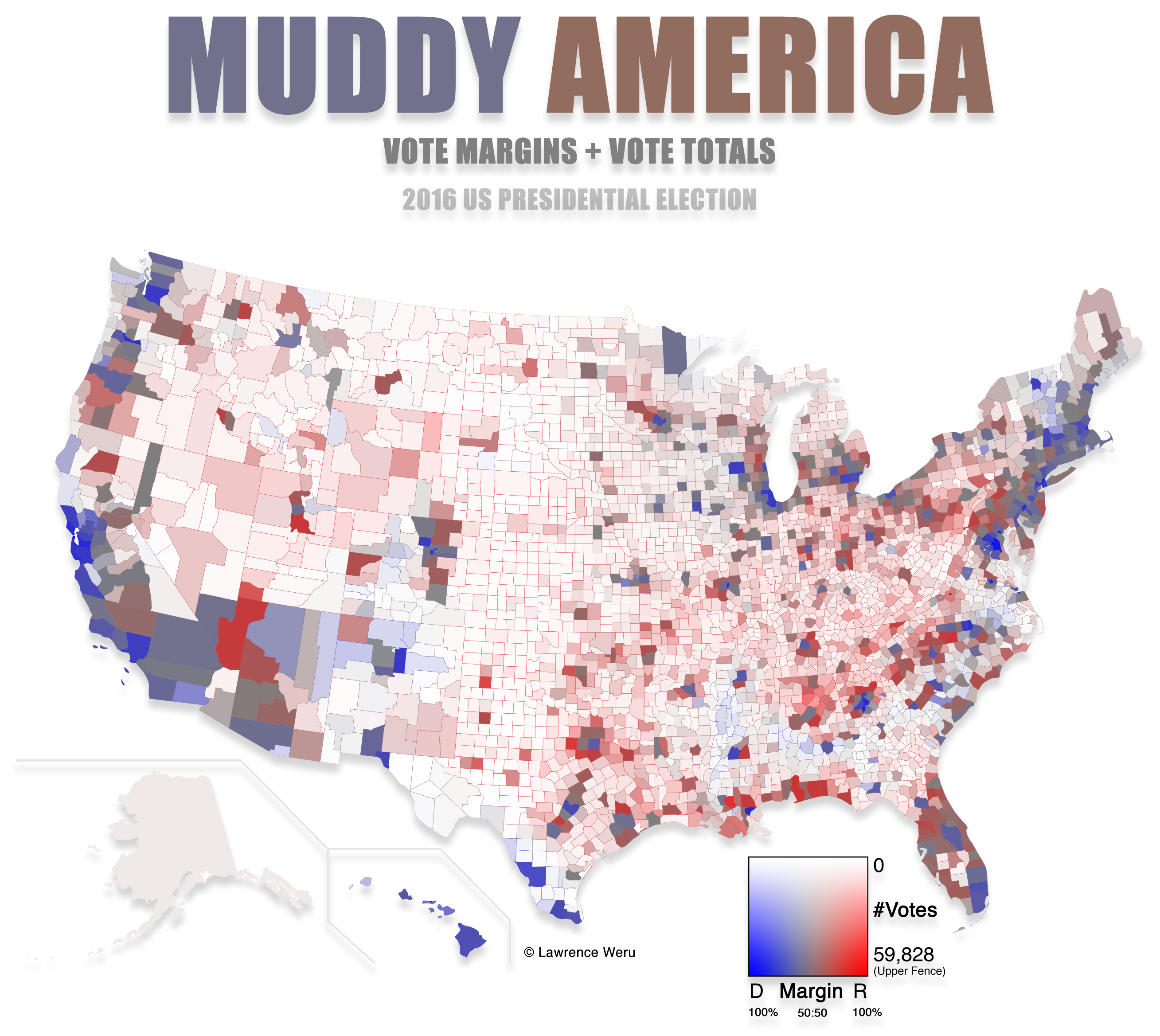
"Muddy" maps are choropleth maps that use the Muddy Maps algorithm first described on the STEM Lounge article "Muddy America : Color Balancing The Election Map" in order to color-balance margins and totals for multi-categorical geospacial data.
Muddy Map
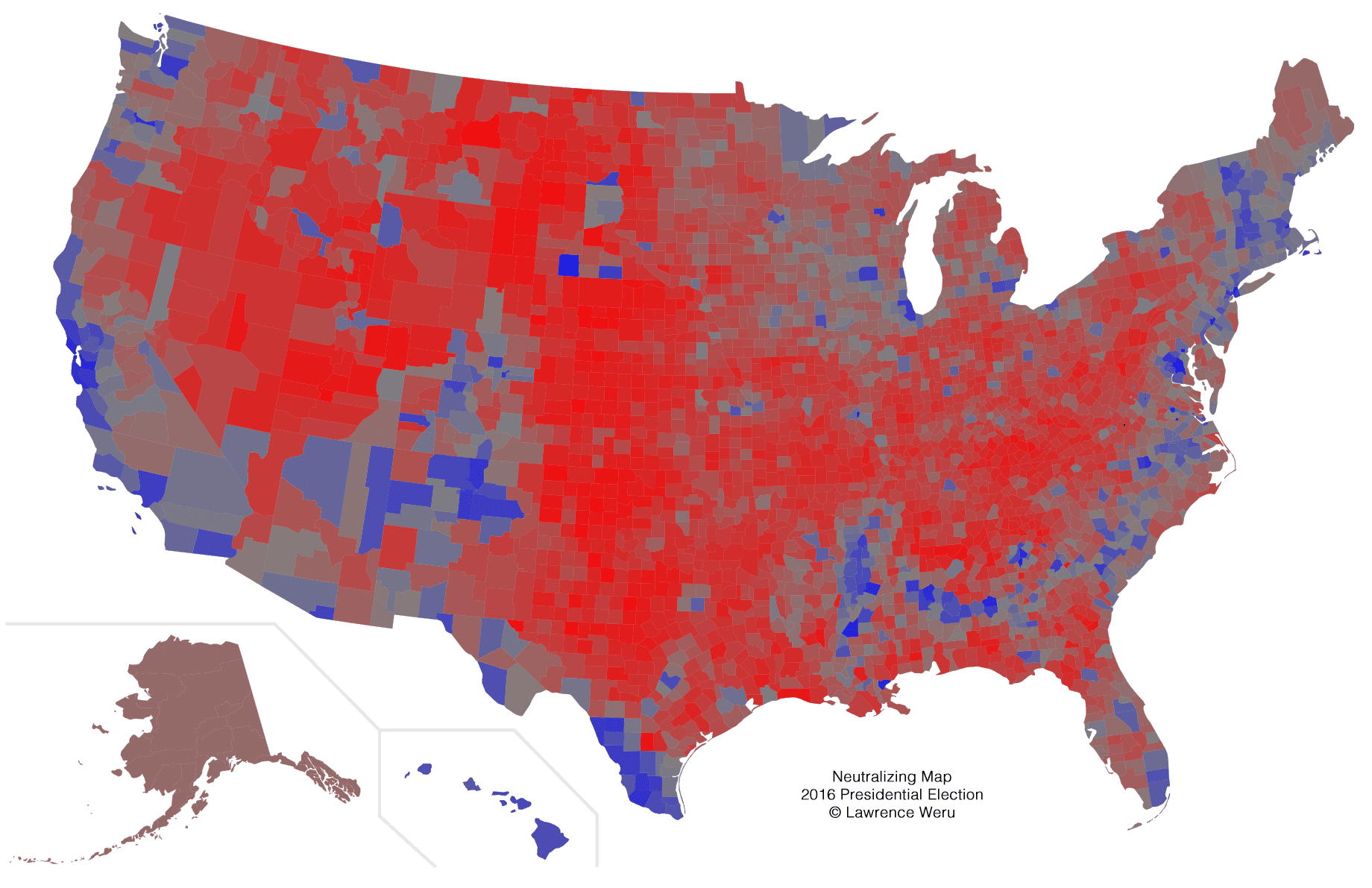
Neutralizing Map
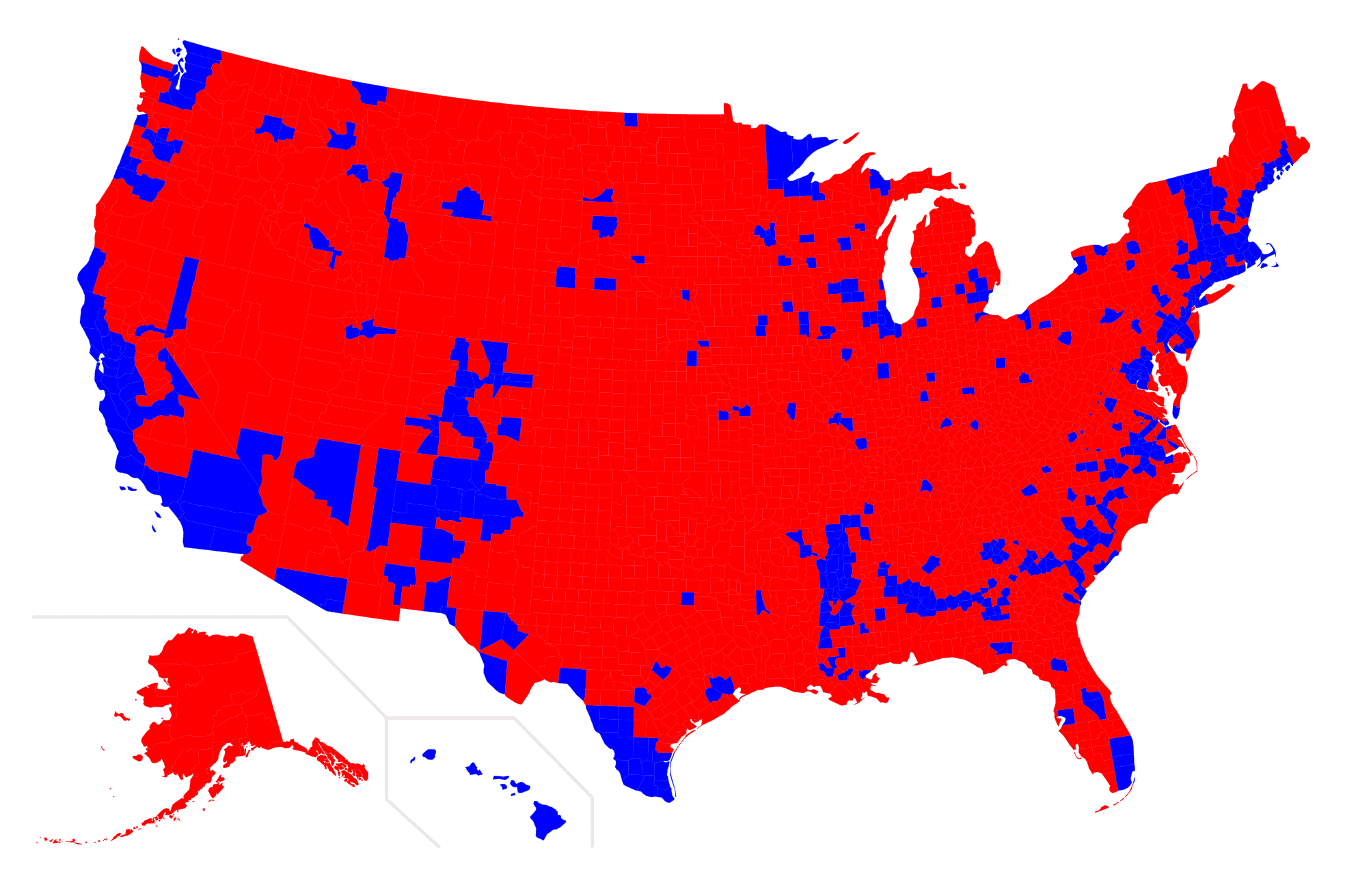
Also supports Winner-Takes-All maps
Features:
- Easy setup. Just add your columns in a CSV and define them in settings.json.
- Automatically calculates win margins and relative vote totals.
- Automatically applies Hue, Saturation, and Lightness to each county based on margins and win totals.
- Automatically Calculates and applies Upper Fence.
Visualizations supported
- Muddy Maps
- Neutralizing Maps
- Winner Take All Maps
Maps currently supported
- United States of America, County-level
Upcoming features (pull requests welcome):
- Account for population-density
- Show Data on hover
- "Save image" button
- More maps (Canada, etc)
How to use
- Add your data into CSV
- Configure Settings.json
- Run locally & View your maps
1. Add your data into the CSV
Open up us_countydata.csv and add in whatever county-level data you want to compare. It can be election results, or other types of multi-categorical geospacial county-level count data, such as number of Cows vs People in each county. It works with any number of categories.
2. Configure settings.json
Tell settings.json which CSV columns to look at for your data and which colors to use.
Take a look at the settings.json file to get a feel for how it's configured. If you need further assistance, refer to this documentation.
Required settings.json parameters:
| parameter | type | description | |---|---|---| | fipsColumn | int | The CSV column for county FIPS IDs | | categories | array of Category objects | See "Category object" | | type | text (string) | The type of data visualization. <br/><br/>Currently supports:<ul><li> "muddy"</li> <li>"neutralizing"</li> <li> "winnerTakesAll"</li> </ul> Defaults to muddy. |
Category object
In order for Muddy Maps to run analysis on your geospacial data, it needs to know where to get the categories being compared from the CSV, and the colors to use for each category.
To do this, you include a category object for each category in your CSV.
category object parameters:
| parameter | type | description | required | |---|---|---|---| | title | text (string) | The title of the category. Can be whatever you want it to be, and doesn't need to match the column title in the CSV. | no | | column | int | The CSV column for the category | yes | | hue | int hue number (x/360) | The color to apply to counties where this county is the winner | yes |
Example settings.json:
{
    "fipsColumn": 1,
    "type": "muddy",
    "categories": [
        {
            "title": "dvote",
            "column": 4,
            "hue": 240
        },
        {
            "title": "gvote",
            "column": 5,
            "hue": 0
        }
    ]
}
Optional settings.json parameters:
| parameter | type | description | default |
|---|---|---|---|
| distinguishUpper | bool | Whether or not to add a distinguishing border to the counties that have totals above the upper fence | false |
| upperHue | int hue number (x/360) | The border color to apply to counties that have totals above the upper fence, if distinguishUpper is set to true | 60 |
3. Set up a local webserver
In order to view your map in the browser, you need to run a local web-server so that the browser can load your CSV data. This is due to the same origin policy enforced in modern web browsers for your security.
How to set up a simple HTTP server on a Mac:
Setting up a local HTTP server using Python
Inside your terminal, visit the root directory of this project.
$ cd MuddyMaps.js-master
Then, run the following Python command to set up a local HTTP server. It will serve the files in this directory on port 8001.
$ Python -m SimpleHTTPServer 8001
Now you can visit your visualization at http://localhost:8001
It's an SVG, so you can zoom in.
When you're finished using the HTTP server, go back to the terminal and safely terminate the HTTP server with ctrl + c.
This project runs entirely in the browser and does not require any server computation. However, due to modern web browsers' adherence to the same origin policy, you need to serve the files from a webserver that allows same origin policy. This will allow Muddy Maps to access your CSV to read the data and do its analysis.
