
Te
Text editor for the CP/M operating system and related computers: Amstrad PCW, CPC, Kaypro, Spectrum...
Install / Use
/learn @MiguelVis/TeREADME
te
v1.73 / 20 Nov 2021 for CP/M
(c) 2015-2021 Miguel Garcia / FloppySoftware
Introduction
The te text editor is small, humble and useful.
It edits the full text in memory, so your system must leave enough
free TPA for the text, after te is loaded and running.
It's screen oriented, and can be easily adapted to a lot of computers.
It's written in the C language, and there are ports for various operating systems: CP/M, DOS, Windows and GNU/Linux.
I use MESCC to compile it for CP/M and the Z80 cpu.
Command line
It's simple (for the PCW adaptation; see below for the name of the rest of available adaptations):
te_pcw [filename]
Examples:
te_pcw           - To start an empty document.
te_pcw todo.txt - To edit the document 'todo.txt'.
You should rename the adaptation of your choice to simply te, because
some CCP implementations (including the standard from CP/M), do not like
the character _ in filenames.
The screen layout
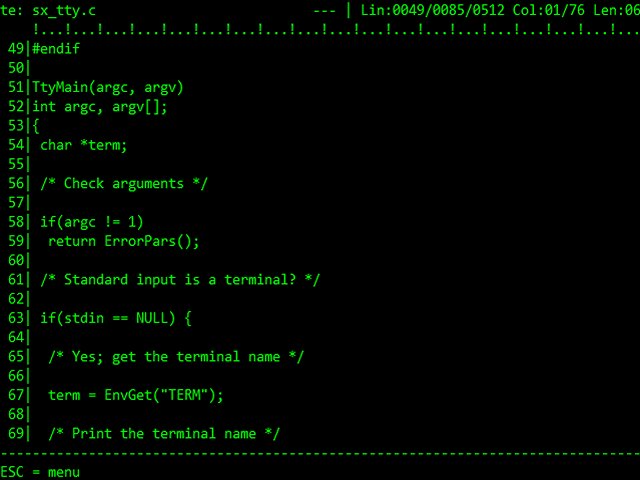
Depending of the te adaptation, you could see a layout similar to:
te: TODO.TXT                   --- | Lin:0012/0029/0512 Col:08/76 Len:07
    !.......!.......!.......!.......!.......!.......!.......!.......!...
  1|This is my TO-DO list for today:
  2|  - Wake up.
  3|  - Make coffee.
  4|  - Have a shower.
  5|  - Get dressed.
  6|  - Go work and:
  7|    1. Revise email.
  8|    2. Call Peter.
  9|    3. Meet the boss.
 10|    4. Plan tomorrow.
 11|  - Have lunch with Sarah.
 12|  - ...
 13|
 14|
 15|
 16|
 17|
 18|
 19|
 20|
 21|
------------------------------------------------------------------------
ESC = menu
On the first screen line, you will see something like:
te: TODO.TXT - The file name of the document your are editing.
And something like:
--- | Lin:0015/0042/0512 Col:32/90 Len:36
The very first field, can have one of the following values:
--- Means the clipboard is empty.
CLP Means the clipboard has data.
The numbers following 'Lin' are:
0015 - The line number you are editing right now.
0042 - The current total number of lines.
0512 - The maximum number of lines.
The numbers following 'Col' are:
32 - The column number on which you are.
90 - The number of screen columns.
And, finally, the number following 'Len' is:
36 - The length of the current line.
On the last screen line, you will see program messages and questions.
The options menu
You can enter to the menu, by pressing the ESCAPE key, as shown
in the messages line:
ESC = menu
Note that the exact name of your ESCAPE key may differ, depending of
the program configuration.
The options are:
New       - To start a new document
Open      - To open a document
Save      - To save the current document
save As   - To save the current document under another filename.
Insert    - To insert a text file into the current position.
Help      - To show the help screen.
aBout te  - To show some te information.
eXit te   - To quit the program.
You can select an option by pressing the character in uppercase.
To leave the menu, you must press ESCAPE.
If you select one of the options New, Open or eXit, and there are
any changes that are not saved yet, te will ask you for confirmation
before proceed.
If you start a new document, the Save option will redirect to you to
the save As option.
The help screen will show the keyboard configuration (or key bindings if you prefer), which depends of the program configuration.
For example, in the case of TE_WS100 (25x80 VT100 and WordStar keys) you could see something like this:
Up         ^E   | Down       ^X   | Indent     ^I
Left       ^S   | Right      ^D   | NewLine    ^M
Begin      ^QS  | End        ^QD  | Escape     ^[
Top        ^QR  | Bottom     ^QC  | Macro      ^QM
PgUp       ^C   | PgDown     ^R   |
WordLeft   ^A   | WordRight  ^F   |
DelLeft    ^H   | DelRight   ^G   |
BlockStart ^KB  | BlockEnd   ^KK  | BlockUnset ^KU
Cut        ^Y   | Copy       ^O   | Paste      ^W
Delete     ^KY  | ClearClip  ^T   |
Find       ^QF  | FindNext   ^L   | GoLine     ^J
The clipboard
The clipboard contents is not cleared after file operations (new, open, save...). That makes possible to share text between files.
But it's a good practice to clear the clipboard when you don't need it anymore, to free some memory.
Key bindings
As you can see in the help screen of example, there are some key bindings to perform actions when you are editing the file.
The exact keys you must press to do an action, depend on the configuration you are running, but the meanings are the same:
- Up, Down, Left, Right: to move the cursor one character at a time.
- Begin, End: to move the cursor to the begin or the end of the current line.
- Top, Bottom: to move the cursor to the begin or the end of the current file.
- PgUp, PgDown: to move the cursor to the previous or next page.
- WordLeft, WordRight: to move the cursor to the previous or next word.
- DelLeft, DelRight: to delete the previous or next character.
- Find, FindNext: to find a string or repeat the search.
- GoLine: to go to a line number.
- BlockStart: to mark the start of a block of lines.
- BlockEnd: to mark the end of a block of lines.
- BlockUnset: to unselect a block of lines.
- Cut, Copy, Paste, Delete: to cut, copy, paste or delete a line or block of lines.
- ClearClip: to clear the clipboard data.
- Macro: to run a macro.
- Indent: to insert spaces as indentation. Same as Tab.
- NewLine: to insert a break or empty line. Same as Cr, Enter, Intro or Return.
- Escape: to exit the menu or cancel an action. Same as Esc.
Take into account that some actions could not be available in all te adaptations to save memory space. These actions are: WordLeft, WordRight, Find, FindNext, GoLine, BlockStart, BlockEnd, BlockUnset and Macro.
If you miss one or more of the mentioned actions, you can edit the exact file of the te adaptation and recompile it to include them.
Auto-completion
If the text editor is configured with the C language type auto-completion option enabled, the input of some characters will cause the automatic input of some other:
[  -->  ]
{  -->  }
(  -->  )
"  -->  "
'  -->  '
/* -->  */
Auto-indentation
The text editor supports automatic indentation of lines, according to the indentation of the previous one.
The indentation is done by inserting the same number of spaces of the previous line - ie:
  This paragraph is
  indented, according to
  the first line.
    More indentation
    here.
Lists
The text editor supports automatic lists, when the first non blank character of the previous line is one of the "bullets" according to the configuration.
As automatic indentation is supported, automatic multi level lists are possible - ie:
- Item #1
- Item #2
  * Item #2a
  * Item #2b
    > Item #2b-1
	> Item #2b-2
- Item #3
Macros
Macros are a powerful way to perform repetitive tasks at editing level.
For example, you could create a macro with your signature to include it in every letter you write.
Or, being a programmer, you could create a gdoc block macro to document your own C functions.
Macros are not affected by default by auto-completion, auto-indentation or lists.
Each time you want to run a macro, just press the corresponding key for the Macro action, enter the filename you choose when you saved it to disk, and press the key for the NewLine action. That's all.
The default filetype for macro files is ".M".
The filetype is only required when it's different. So, if you have
saved a macro file as JOIN.M, you could just enter JOIN:
JOIN.M     you could enter JOIN.M or just JOIN
JOIN.MAC   you must enter JOIN.MAC
There are some special symbols you can use in your macros:
{# comment}                    comments, they are ignored
{Up} {Down} {Left} {Right}     move the cursor one character at a time
{Begin} {End}                  go to the begin / end of the current line
{Top} {Bottom}                 go to the begin / end of the current file
{NewLine}                      insert a break or empty line
{Indent}                       insert spaces as indentation
{DelLeft} {DelRight}           delete the character at the left / right
{Cut} {Copy} {Delete}          operation over a line or block of lines
{Paste}                        paste the clipboard contents
{ClearClip}                    clear the clipboard data
{BlockStart} {BlockEnd}        mark the start / end of a block of lines
{FileName}                     insert the current filename
{AutoIndent}                   enable / disable automatic indentation
{AutoList}                     enable / disable automatic list
The symbol names are case insensitive - ie: {ClearClip} and {clearclip}
are the same.
Additionally, you can repeat a symbol as in:
{up:12}
Auto indentation or auto list can be enabled by just using the symbol
name or setting a repeat number of 1:
{AutoList}
{AutoList:1}
They can be disabled setting a repeat number of 0:
{AutoIndent:0}
Take into account that line endings in the macro are not translated
to NewLine actions. Use {NewLine} for that.
If you need to insert the { or } characters in the text of the
macro, just write them as \{ and \}.
For example, a macro to insert a banner at the top of the document, could be written as:
{# this is a macro example}
{top}{newline}{up}
=============={newline}
FloppySoftware{newline}
=============={newline}
Some macro files are included as examples:
HEADER.M     Above example.
JOINUP.M     Join current line with the previous one.
JOINDOWN.M   Join current
Related Skills
pestel-analysis
Analyze political, economic, social, technological, environmental, and legal forces
next
A beautifully designed, floating Pomodoro timer that respects your workspace.
product-manager-skills
38PM skill for Claude Code, Codex, Cursor, and Windsurf: diagnose SaaS metrics, critique PRDs, plan roadmaps, run discovery, and coach PM career transitions.
devplan-mcp-server
3MCP server for generating development plans, project roadmaps, and task breakdowns for Claude Code. Turn project ideas into paint-by-numbers implementation plans.
