
MaterialSearchView
Cute library to implement SearchView in a Material Design Approach
Install / Use
/learn @MiguelCatalan/MaterialSearchViewREADME
MaterialSearchView
Cute library to implement SearchView in a Material Design Approach. Works from Android API 14 (ICS) and above.
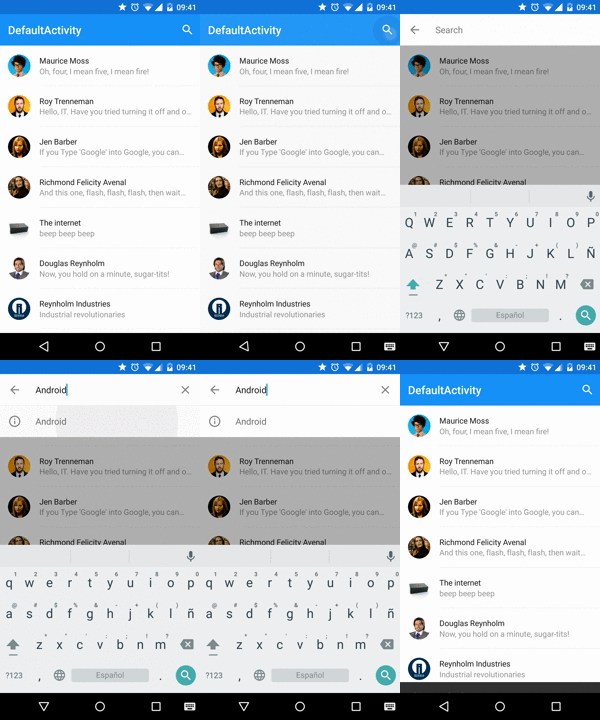
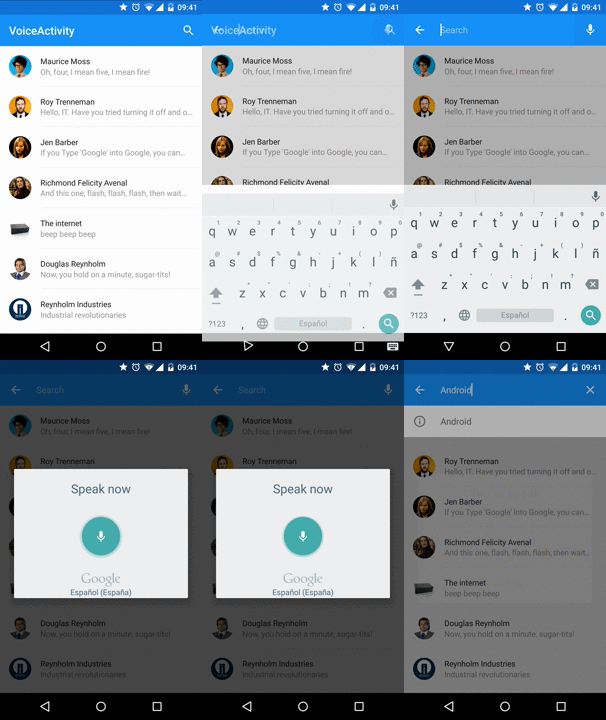
#Native version Maybe it would be useful to take a look into the new official approach http://www.materialdoc.com/search-filter/
Usage
Add the dependencies to your gradle file:
	dependencies {
    	compile 'com.miguelcatalan:materialsearchview:1.4.0'
	}
Add MaterialSearchView to your layout file along with the Toolbar (Add this block at the bottom of your layout, in order to display it over the rest of the view):
    <!— Must be last for right layering display —>
    <FrameLayout
        android:id="@+id/toolbar_container"
        android:layout_width="match_parent"
        android:layout_height="wrap_content">

        <android.support.v7.widget.Toolbar
            android:id="@+id/toolbar"
            android:layout_width="match_parent"
            android:layout_height="?attr/actionBarSize"
            android:background="@color/theme_primary" />

        <com.miguelcatalan.materialsearchview.MaterialSearchView
            android:id="@+id/search_view"
            android:layout_width="match_parent"
            android:layout_height="wrap_content" />
    </FrameLayout>
Add the search item into the menu file:
	<item
        android:id="@+id/action_search"
        android:icon="@drawable/ic_action_action_search"
        android:orderInCategory="100"
        android:title="@string/abc_search_hint"
        app:showAsAction="always" />
Add define it in the onCreateOptionsMenu:
	@Override
	public boolean onCreateOptionsMenu(Menu menu) {
        getMenuInflater().inflate(R.menu.menu_main, menu);

        MenuItem item = menu.findItem(R.id.action_search);
        searchView.setMenuItem(item);

        return true;
    }
Set the listeners:
	MaterialSearchView searchView = (MaterialSearchView) findViewById(R.id.search_view);
	searchView.setOnQueryTextListener(new MaterialSearchView.OnQueryTextListener() {
            @Override
            public boolean onQueryTextSubmit(String query) {
                //Do some magic
                return false;
            }

            @Override
            public boolean onQueryTextChange(String newText) {
                //Do some magic
                return false;
            }
        });

        searchView.setOnSearchViewListener(new MaterialSearchView.SearchViewListener() {
            @Override
            public void onSearchViewShown() {
                //Do some magic
            }

            @Override
            public void onSearchViewClosed() {
                //Do some magic
            }
        });
Use VoiceSearch
Allow/Disable it in the code:
searchView.setVoiceSearch(true); //or false
Handle the response:
    @Override
    protected void onActivityResult(int requestCode, int resultCode, Intent data) {
        if (requestCode == MaterialSearchView.REQUEST_VOICE && resultCode == RESULT_OK) {
            ArrayList<String> matches = data.getStringArrayListExtra(RecognizerIntent.EXTRA_RESULTS);
            if (matches != null && matches.size() > 0) {
                String searchWrd = matches.get(0);
                if (!TextUtils.isEmpty(searchWrd)) {
                    searchView.setQuery(searchWrd, false);
                }
            }

            return;
        }
        super.onActivityResult(requestCode, resultCode, data);
    }
Add suggestions
Define them in the resources as a string-array:
    <string-array name="query_suggestions">
        <item>Android</item>
        <item>iOS</item>
        <item>SCALA</item>
        <item>Ruby</item>
        <item>JavaScript</item>
    </string-array>
Add them to the object:
searchView.setSuggestions(getResources().getStringArray(R.array.query_suggestions));
Style it!
    <style name="MaterialSearchViewStyle">
        <!-- Background for the search bar -->
        <item name="searchBackground">@color/theme_primary</item>

        <!-- Change voice icon -->
        <item name="searchVoiceIcon">@drawable/ic_action_voice_search_inverted</item>

        <!-- Change clear text icon -->
        <item name="searchCloseIcon">@drawable/ic_action_navigation_close_inverted</item>

        <!-- Change up icon -->
        <item name="searchBackIcon">@drawable/ic_action_navigation_arrow_back_inverted</item>

        <!-- Change icon for the suggestions -->
        <item name="searchSuggestionIcon">@drawable/ic_suggestion</item>

        <!-- Change background for the suggestions list view -->
        <item name="searchSuggestionBackground">@android:color/white</item>

        <!-- Change text color for edit text. This will also be the color of the cursor -->
        <item name="android:textColor">@color/theme_primary_text_inverted</item>

        <!-- Change hint text color for edit text -->
        <item name="android:textColorHint">@color/theme_secondary_text_inverted</item>

        <!-- Hint for edit text -->
        <item name="android:hint">@string/search_hint</item>
    </style>
#Custom cursor Create the drawable:
    <shape xmlns:android="http://schemas.android.com/apk/res/android">
    	<size android:width="2dp" />
    	<solid android:color="@color/theme_primary" />
    </shape>
And add it to the object:
searchView.setCursorDrawable(R.drawable.custom_cursor);
Using AppBarLayout?
It is a little bit tricky but can be achieved using this:
	<RelativeLayout xmlns:android="http://schemas.android.com/apk/res/android"
    xmlns:app="http://schemas.android.com/apk/res-auto"
    android:id="@+id/container"
    android:layout_width="match_parent"
    android:layout_height="match_parent">

    <!— Irrelevant stuff —>
    <android.support.v4.view.ViewPager
        android:id="@+id/viewpager"
        android:layout_width="match_parent"
        android:layout_height="match_parent"
        android:layout_below="@+id/appbarlayout"
        app:layout_behavior="@string/appbar_scrolling_view_behavior" />

    <!— Must be last for right layering display —>
    <android.support.design.widget.AppBarLayout
        android:id="@+id/appbarlayout"
        android:layout_width="match_parent"
        android:layout_height="wrap_content"
        android:background="@color/search_layover_bg">

        <FrameLayout
            android:id="@+id/toolbar_container"
            android:layout_width="match_parent"
            android:layout_height="wrap_content">

            <android.support.v7.widget.Toolbar
                android:id="@+id/toolbar"
                android:layout_width="match_parent"
                android:layout_height="?attr/actionBarSize"
                android:background="@color/theme_primary" />

            <com.miguelcatalan.materialsearchview.MaterialSearchView
                android:id="@+id/search_view"
                android:layout_width="match_parent"
                android:layout_height="wrap_content"
                android:visibility="gone" />
        </FrameLayout>

        <android.support.design.widget.TabLayout
            android:id="@+id/tabs"
            android:layout_width="match_parent"
            android:layout_height="wrap_content"
            android:background="@color/theme_primary"
            app:tabGravity="fill"
            app:tabMode="fixed" />

    </android.support.design.widget.AppBarLayout>

</RelativeLayout>
Bonus
Close on backpressed:
    @Override
    public void onBackPressed() {
        if (searchView.isSearchOpen()) {
            searchView.closeSearch();
        } else {
            super.onBackPressed();
        }
    }
Help me
Pull requests are more than welcome, help me and others improve this awesome library.
The code is based in the Krishnakapil original concept.
License
Copyright 2015 Miguel Catalan Bañuls

Licensed under the Apache License, Version 2.0 (the "License");
you may not use this file except in compliance with the License.
You may obtain a copy of the License at

	http://www.apache.org/licenses/LICENSE-2.0

Unless required by applicable law or agreed to in writing, software
distributed under the License is distributed on an "AS IS" BASIS,
WITHOUT WARRANTIES OR CONDITIONS OF ANY KIND, either express or implied.
See the License for the specific language governing permissions and
limitations under the License.
Related Skills
openpencil
2.0kThe world's first open-source AI-native vector design tool and the first to feature concurrent Agent Teams. Design-as-Code. Turn prompts into UI directly on the live canvas. A modern alternative to Pencil.
HappyColorBlend
HappyColorBlendVibe Project Guidelines Project Overview HappyColorBlendVibe is a Figma plugin for color palette generation with advanced tint/shade blending capabilities. It allows designers to
Flyaro-waffle-app
Waffle Delight - Full Stack MERN Application Rules & Documentation Project Overview A comprehensive waffle delivery application built with MERN stack featuring premium UI/UX, admin management, a
ui-ux-pro-max-skill
57.0kAn AI SKILL that provide design intelligence for building professional UI/UX multiple platforms
