
Romlm
Powerful python script to pack, unpack, sort and clean up from duplicates your retro-game ROMs library.
Install / Use
/learn @ManeFunction/RomlmREADME
romlm (ROMs Library Manager)
A Python-based command line tool that helps you organize and manage your ROM collections effortlessly. Whether you want to pack, unpack, sort, or remove duplicates, romlm has got you covered.
All features are tested on the no-intro ROM sets (which I personally recommend), but it should work with any ROM collection that follows a similar naming convention. If you have some issues with other ROM sets, that can't be worked-around with the current implementation, feel free to open an issue on the GitHub issues page.
Features
-
Extract (
-x, --extract)
Automatically unpacks all.7zor.zipfiles in the current directory (or a specified folder) into subfolders. Supports nested subfolders, keeping all the structure.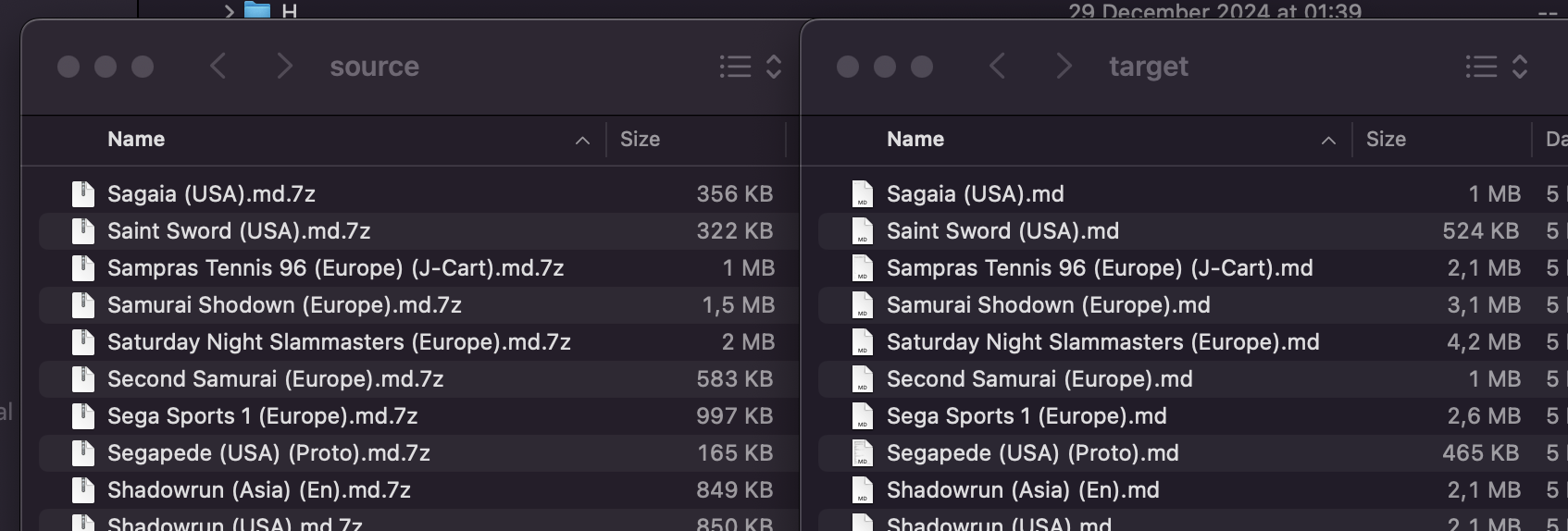
-
Pack (
-p, --pack)
Compresses all uncompressed files in the current directory (or a specified folder) into.7zor.ziparchives. Supports nested subfolders, keeping all the structure.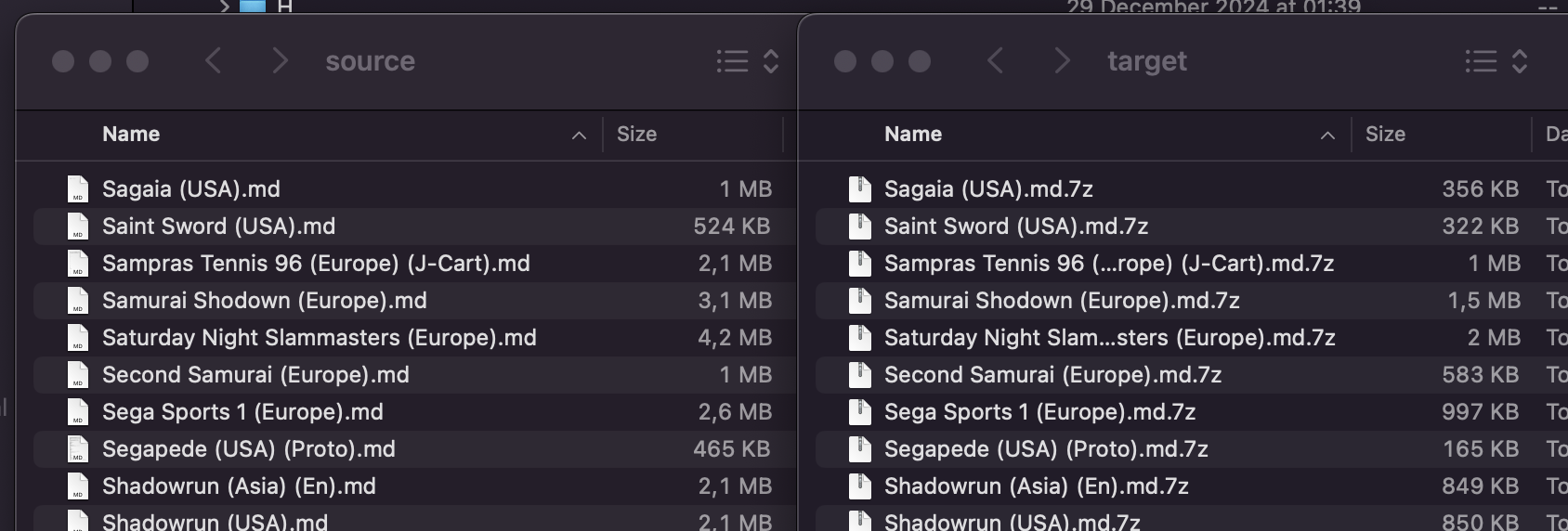
-
Sort (
-s, --sort)
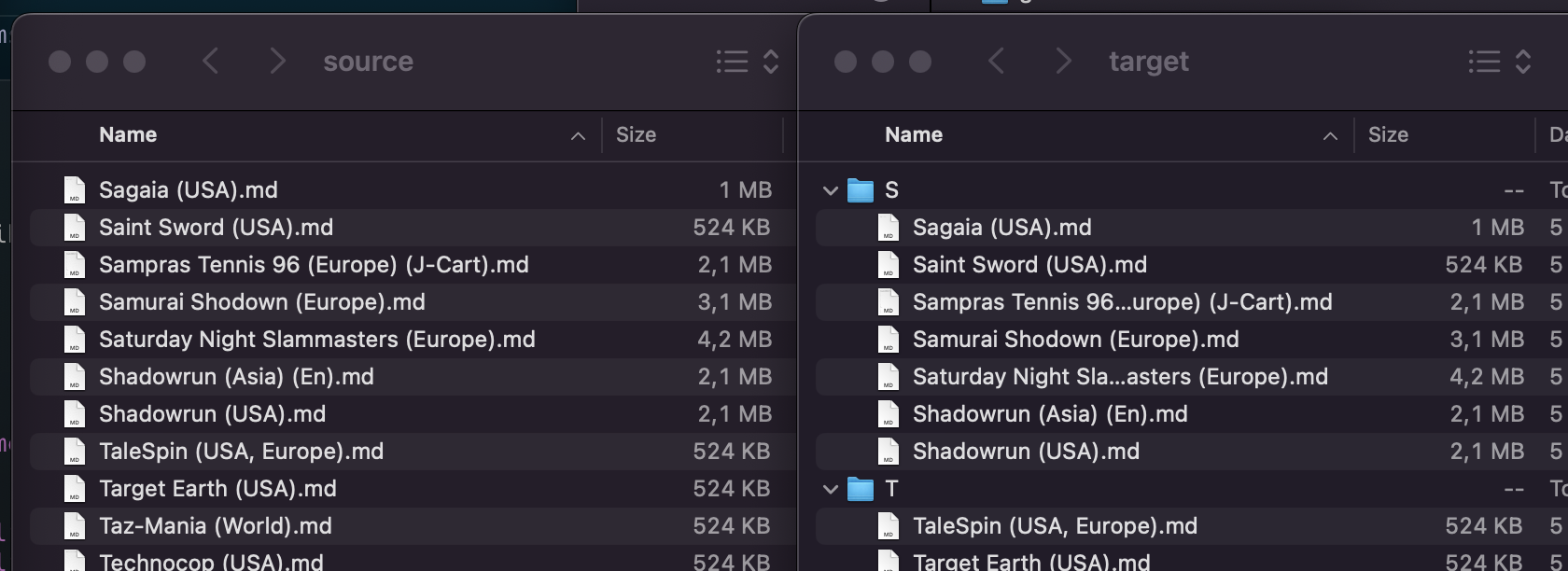
Moves files into alphabetically organized subfolders (A–Z). Optionally handles special folders for Homebrew (!Homebrew), Pirates (!Pirates), or user-defined subfolders (-f).hwill also sort files into homebrew subfolder.pwill also sort files into pirates subfolder.fwill also sort files into user-defined subfolders (-f).awill also sort files into homebrew, pirates and all user-defined subfolders (-f). Equal tohpf.- You can also use any combination of
h,pandfoptions, for examplehporfh. -s reversewill reverse-sort files, i.e., move them all back into the root folder.
-
Separate Homebrew and Pirate ROMs (
-u, --unlicensed)
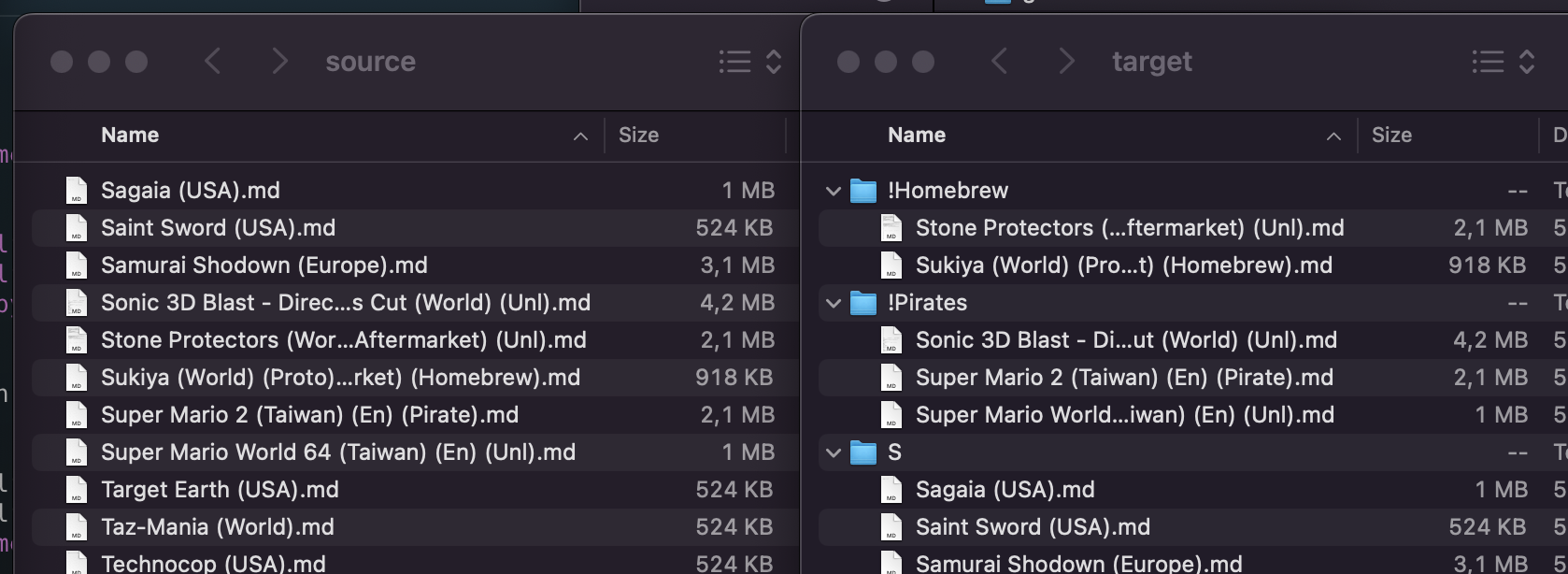
By default, romlm detects and separates Homebrew or Pirate files into dedicated folders. Can be customized with options:nonedisables separation completely,hseparates Homebrew files only,pseparates Pirate files only.
-
Remove Duplicates (
-r, --remove-duplicates)
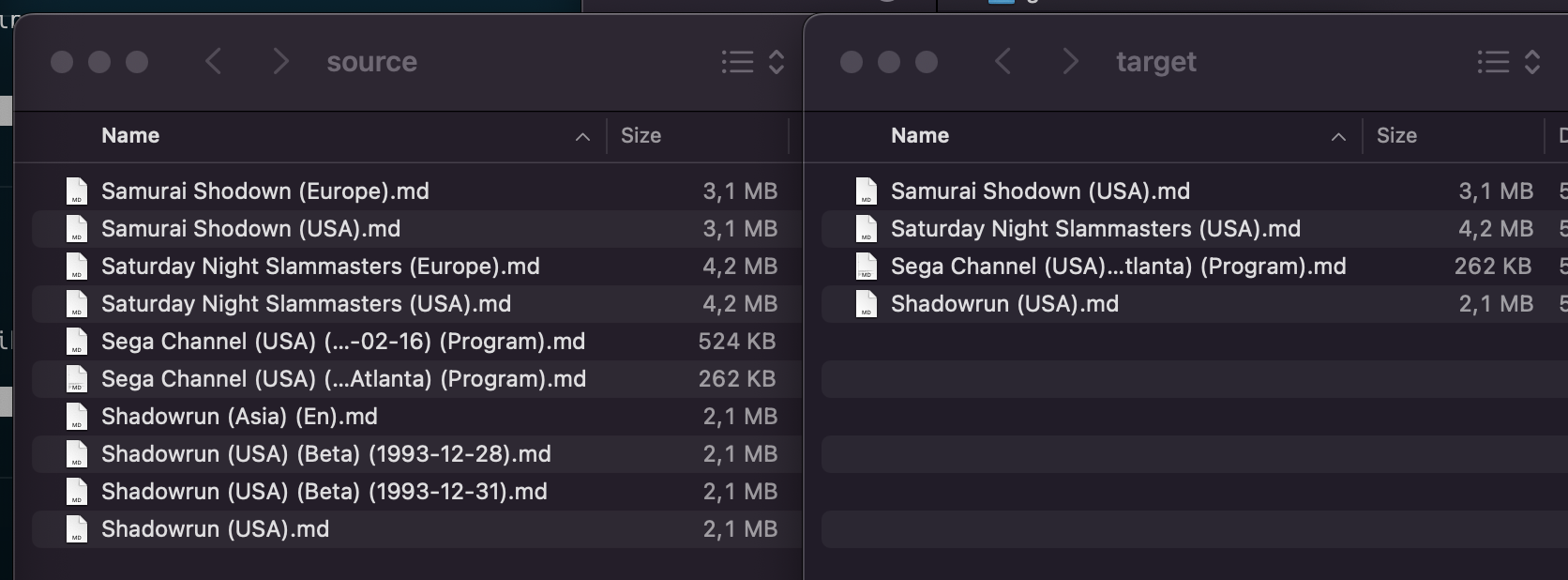
Automatically detects duplicate files, preserving the best candidate according to region, beta status, revision, version, release date and other data that can be received from the filename. Behavior for the situations when script can't decide the best file itself, can be specified:askprompts you which file to keep, default with-l,allkeeps all equally good files, default without-l,onekeeps exactly one of the best ROMs, taken randomly.
I highly recommend to use this feature with
-loption to see the results, and make a backup of your ROMs before!In the current scenario it removes all the beta and prototype files if there is a final version of the game exists. If not, it tries to keep only one the latest version. USA retro ROMs (not Virtual Console versions) counts as the best version of the game. Also, Europe and EN releases have a higher priority over JP and Asia versions, as well as NTSC counts better, than PAL. romlm will never remove all copies of one game!
If you want to keep a Japanese collection intact, I recommend to separate it first. See Usage Examples below.
-
User-defined Folders (
-f, --folders)
Easily map certain tags to user-defined folders. For example, specifying-f Japanwill move ROMs tagged as(Japan)into dedicated subfolder. Works only with--sortprocess as a part of it. Search only within tags, to not be confused with a game name, so if you just want all your Mario games in one place, just search it manually, romlm not for that. -
Exclude Tags (
-e, --exclude)
Combine with-fto skip specified tags from the subfolders sorting process. For example,-f Japan -e USAwill move all(Japan)tagged ROMs into a dedicated subfolder, excluding any(USA)tagged ROMs if(Japan, USA)combination is met.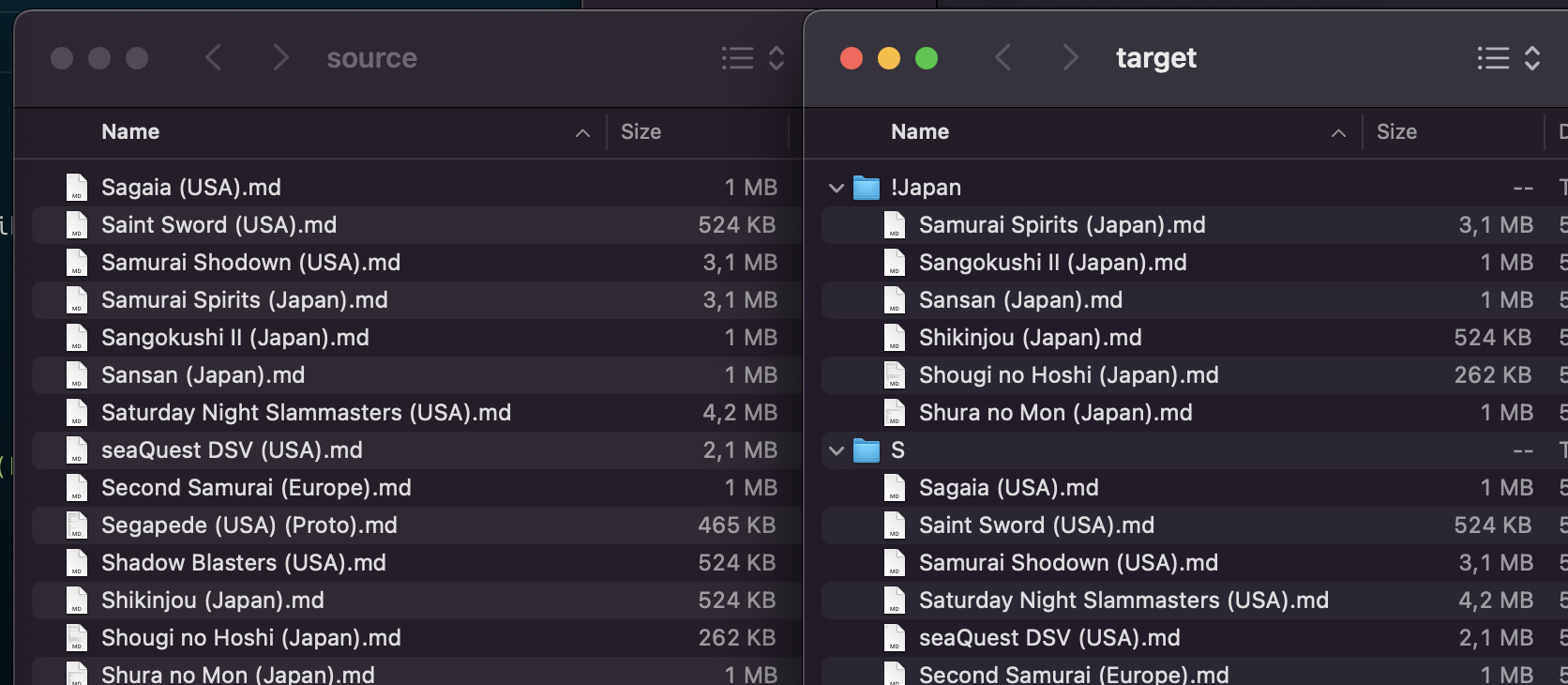
-
Logging (
-l, --log)
Enables verbose output to see exactly what the script is doing. Extremely useful when--remove-duplicatesis enabled.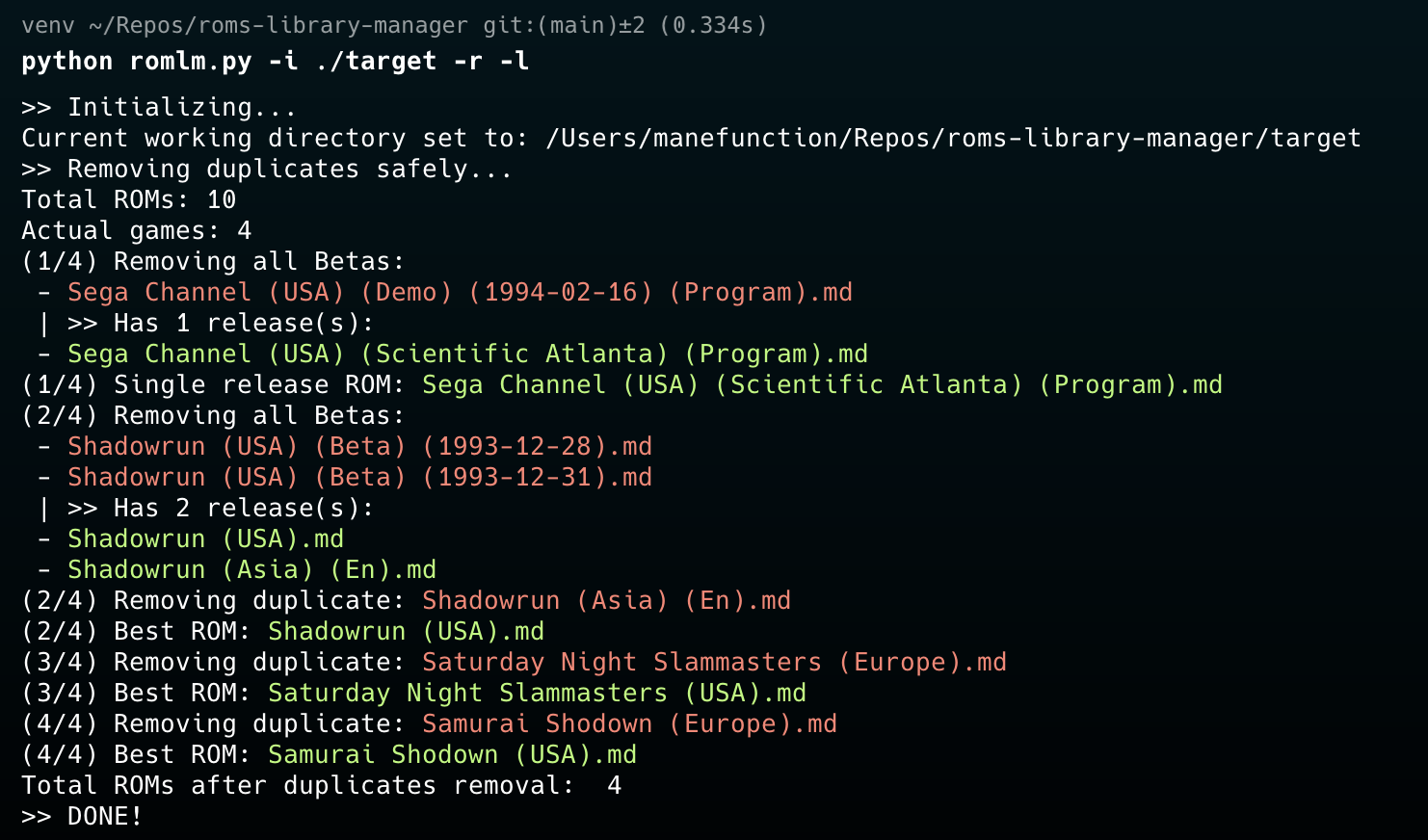
-
Other Utilities
- Cleans out unwanted system meta-files (e.g.,
desktop.ini,.DS_Store). - Removes empty subdirectories after sorting.
- Provides an in-script help guide (
-h, --help).
- Cleans out unwanted system meta-files (e.g.,
Installation
romlm is available from a variety of sources.
pip or brew is recommended, because they have a convenient way to manage updates automatically.
- pip (Recommended for everyone with Python environment)
- You can check if you have Python installed by running
python --versionin the Terminal or cmd. - For Mac and Linux users, there is a high chance that you already have Python installed on your system.
- For Windows users, you can download Python from the official website.
- After confirmation, install romlm through the PyPI package manager, typing
pip install romlmin the Terminal. For Mac users, you may need to usepip3instead ofpip. - Verify the installation with
romlm -hcommand. - You are perfect, you can use the app with
romlm [parameters]command from any folder in your system.
- You can check if you have Python installed by running
- brew (Recommended for Mac and Linux users)
- You can install romlm through the Homebrew formula for macOS users, if you have brew installed.
- Type
brew tap manefunction/tapin your Terminal to add my custom tap (app source) to your brew sources. - Type
brew install romlmto install application itself. - Verify the installation with
romlm -hcommand. - You are perfect, you can use the app with
romlm [parameters]command from any folder in your system.
- Ready to use binaries (Recommended for Windows users)
- Download ready-to-use binaries from the GitHub Releases.
- Unpack the downloaded archive.
- On Windows (cmd):
- Open Command Prompt (cmd) with
Win+Rand typingcmd, or just searchingcmdin a Start menu. - Run
cd path\to\folderto go to the folder withromlm.exe. Don't forget to usecdwith/doption to change the drive, if needed (cd /d path\to\folder). - Run
romlm -hto verify the script is working. - You are perfect, you can use the app now with
romlm [parameters]command.
- Open Command Prompt (cmd) with
- On Windows (PowerShell):
- Open PowerShell searching it in a Start menu.
- Run
cd path\to\folderto go to the folder withromlm.exe. - Run
./romlm -hto verify the script is working. - You are perfect, you can use the app now with
./romlm [parameters]command.
- On Mac:
- Open Terminal or any other CL app you prefer to use.
- Run
cd path/to/unpacked/folderto go to the folder (you can just drag'n'drop a folder to the Terminal to copy-paste its path). - Run
xattr -r -d com.apple.quarantine ./to remove the quarantine attribute from binaries
(I do not have an Apple Developer status at the moment and cannot sign binaries properly, this, hopefully, will be fixed in the future). - Run
./romlm -hto verify the script is working
(be aware, that macOS still running security checks, so the first start of the app will be longer for about 10-15 sec.). - You are perfect, you can use the app now with
./romlm [parameters]command.
- Python package (manual installation, for advanced users)
- Clone the repository or download the source code from the GitHub.
- Go to the folder with the script in your Terminal.
- Run
pip install .to installromlmto your system. - Run
romlm -hto verify the script is working. - You are perfect, you can use
romlm [parameters]command from anywhere in your system.
- Python script (manual usage, for advanced users)
- if you are familiar with Python scripts, venv, and dependencies, you can simply clone the repository
and run
romlm.py. In that way, feel free to modify the script for yourself as you want.
- if you are familiar with Python scripts, venv, and dependencies, you can simply clone the repository
and run
Backstory
As a user of Analogue Pocket and an Emulation Station based handheld system, there are some nuances from both worlds that I'm trying to cover with romlm. Analogue Poket is a highly precise FPGA-based console, but it covers only earlier generations and a scoop of Arcade games. Though, those platforms, like NES, SNES and Genesis have a huge library of games, that should be sorted to have an easy access. Also, Pocket do not support archives, so all the ROMs should be unpacked. Standard software emulators, on the other hand, can play archived ROMs, and with the support of more later platforms, where games became bigger, it's great to have them packed, but also, it's good to have old systems packed as well, to save some Gigs for a few more CD games. So, I've need a tool to prepare my ROMs for both systems in a few clicks. That's how romlm was born.
Personally, I keep all my ROMs on Analogue Pocket, to be able to quickly launch any version of any game it supports. But I do not need all of those for a device that made for casual play. To be honest, I have Powkidy RGB30 with a rectangular screen, specifically for the Pico-8. Emulation capabilities of this device is just a neat bonus for me :) So, to prepare
Related Skills
node-connect
342.0kDiagnose OpenClaw node connection and pairing failures for Android, iOS, and macOS companion apps
frontend-design
84.7kCreate distinctive, production-grade frontend interfaces with high design quality. Use this skill when the user asks to build web components, pages, or applications. Generates creative, polished code that avoids generic AI aesthetics.
openai-whisper-api
342.0kTranscribe audio via OpenAI Audio Transcriptions API (Whisper).
commit-push-pr
84.7kCommit, push, and open a PR
