
IntuneWin32App
Provides a set of functions to manage all aspects of Win32 apps in Microsoft Intune.
Install / Use
/learn @MSEndpointMgr/IntuneWin32AppREADME
Overview

This module was created to provide means to automate the packaging, creation and publishing of Win32 applications in Microsoft Intune.
Currently the following functions are supported in the module:
- Add-IntuneWin32App
- Add-IntuneWin32AppAssignment
- Add-IntuneWin32AppAssignmentAllDevices
- Add-IntuneWin32AppAssignmentAllUsers
- Add-IntuneWin32AppAssignmentGroup
- Add-IntuneWin32AppDependency
- Add-IntuneWin32AppSupersedence
- Connect-MSIntuneGraph
- Expand-IntuneWin32AppPackage
- Get-IntuneWin32App
- Get-IntuneWin32AppAssignment
- Get-IntuneWin32AppDependency
- Get-IntuneWin32AppMetaData
- Get-IntuneWin32AppSupersedence
- Get-MSIMetaData
- New-IntuneWin32AppDependency
- New-IntuneWin32AppDetectionRule
- New-IntuneWin32AppDetectionRuleFile
- New-IntuneWin32AppDetectionRuleMSI
- New-IntuneWin32AppDetectionRuleRegistry
- New-IntuneWin32AppDetectionRuleScript
- New-IntuneWin32AppIcon
- New-IntuneWin32AppPackage
- New-IntuneWin32AppRequirementRule
- New-IntuneWin32AppRequirementRuleFile
- New-IntuneWin32AppRequirementRuleRegistry
- New-IntuneWin32AppRequirementRuleScript
- New-IntuneWin32AppReturnCode
- New-IntuneWin32AppSupersedence
- Remove-IntuneWin32App
- Remove-IntuneWin32AppAssignment
- Remove-IntuneWin32AppAssignmentAllDevices
- Remove-IntuneWin32AppAssignmentAllUsers
- Remove-IntuneWin32AppDependency
- Remove-IntuneWin32AppSupersedence
- Set-IntuneWin32App
- Update-IntuneWin32AppPackageFile
Installing the module from PSGallery
The IntuneWin32App module is published to the PowerShell Gallery. Install it on your system by running the following in an elevated PowerShell console:
Install-Module -Name "IntuneWin32App" -AcceptLicense
Module dependencies
As of version 1.5.0, the IntuneWin32App module has no external dependencies. The module now uses native OAuth 2.0 implementation for all authentication flows, eliminating the need for MSAL.PS or any other third-party modules.
Authentication
The IntuneWin32App module uses the Connect-MSIntuneGraph function to authenticate with Microsoft Graph API. As of version 1.5.0, the module implements native OAuth 2.0 flows without external dependencies.
Authentication Requirements
- TenantID: Your Entra ID tenant ID or domain (e.g., "name.onmicrosoft.com")
- ClientID: Application (client) ID from your Entra ID app registration (required as of v1.5.0)
Supported Authentication Flows
Interactive Authentication (Default)
Uses OAuth 2.0 Authorization Code flow with PKCE. Opens browser for user sign-in:
Connect-MSIntuneGraph -TenantID "name.onmicrosoft.com" -ClientID "<your-client-id>"
Device Code Flow
For environments without interactive browser access (e.g., remote sessions, SSH, Windows Terminal):
Connect-MSIntuneGraph -TenantID "name.onmicrosoft.com" -ClientID "<your-client-id>" -DeviceCode
Displays a URL and code for authentication on another device.
Client Secret Flow
For unattended automation and CI/CD pipelines:
$ClientSecret = "<your-client-secret>"
Connect-MSIntuneGraph -TenantID "name.onmicrosoft.com" -ClientID "<your-client-id>" -ClientSecret $ClientSecret
Custom Scopes
Customize the requested permission scopes if needed:
$CustomScopes = @("DeviceManagementApps.ReadWrite.All", "offline_access")
Connect-MSIntuneGraph -TenantID "name.onmicrosoft.com" -ClientID "<your-client-id>" -Scopes $CustomScopes
Entra ID App Registration Requirements
Your Entra ID app registration must have:
Required API Permissions (Delegated):
DeviceManagementApps.ReadWrite.All- Create, read, update, delete Win32 appsDeviceManagementConfiguration.ReadWrite.All- Manage Assignments and FiltersDeviceManagementRBAC.Read.All- Read role-based access controlGroup.Read.All- Read Entra ID groups (required for group-based assignments)
Optional API Permissions:
GroupMember.Read.All- Read group membership (for validation)
Authentication Configuration:
- Redirect URI:
http://localhost(for Interactive flow) - Public client: Yes (for Interactive and Device Code flows)
- Admin consent: May be required depending on your organization's policies
Note: The module automatically requests offline_access scope to enable refresh token functionality for long-running sessions.
Encoding recommendations
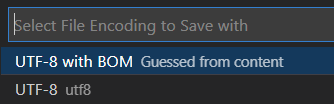
When for instance UTF-8 encoding is required, ensure the file is encoded with UTF-8 with BOM, this should address some problems reported in the past where certain characters was not shown correctly in the MEM portal.
Below is a screenshot from Visual Studio Code where the encoding is set accordingly:
Get existing Win32 apps
Get-IntuneWin32App function can be used to retrieve existing Win32 apps in Microsoft Intune. Retrieving an existing Win32 app could either be done passing the display name of the app, which performs a wildcard search meaning it's not required to specify the full name of the Win32 app. The ID if a specific Win32 app could also be used for this function. Additionally, by not specifying either a display name or an ID, all Win32 apps available will be retrieved. Below are a few examples of how this function could be used:
# Get all Win32 apps
Get-IntuneWin32App -Verbose

# Get a specific Win32 app by it's display name
Get-IntuneWin32App -DisplayName "7-zip" -Verbose

# Get a specific Win32 app by it's id
Get-IntuneWin32App -ID "<Win32 app ID>" -Verbose
Package application source files into Win32 app package (.intunewin)
Use the New-IntuneWin32AppPackage function in the module to create a content package for a Win32 app. MSI, EXE and script-based applications are supported by this function. This function automatically downloads the IntuneWinAppUtil.exe application that's essentially the engine behind the packaging and encryption process. The utility will be downloaded to the temporary directory of the user running the function, more specifically the location of the environment variable %TEMP%. If required, a custom path to where IntuneWinAppUtil.exe already exists is possible to pass to the function using the IntuneWinAppUtilPath parameter. In the sample below, application source files for 7-Zip including the setup file are specified and being packaged into an .intunewin encrypted file. Package will be exported to the output folder.
# Package MSI as .intunewin file
$SourceFolder = "C:\Win32Apps\Source\7-Zip"
$SetupFile = "7z1900-x64.msi"
$OutputFolder = "C:\Win32Apps\Output"
New-IntuneWin32AppPackage -SourceFolder $SourceFolder -SetupFile $SetupFile -OutputFolder $OutputFolder -Verbose
Create a new MSI based installation as a Win32 app
Use the New-IntuneWin32AppPackage function to first create the packaged Win32 app content file (.intunewin). Then call the Add-IntuneWin32App function to create a new Win32 app in Microsoft Intune. This function has dependencies for other functions in the module. For instance when passing the detection rule for the Win32 app, you need to use the New-IntuneWin32AppDetectionRule function to create the required input object. Below is an example how the dependent functions in this module can be used together with the Add-IntuneWin32App function to successfully upload a packaged Win32 app content file to Microsoft Intune:
# Get MSI meta data from .intunewin file
$IntuneWinFile = "C:\Win32Apps\Output\7z1900-x64.intunewin"
$IntuneWinMetaData = Get-IntuneWin32AppMetaData -FilePath $IntuneWinFile

# Create custom display name like 'Name' and 'Version'
$DisplayName = $IntuneWinMetaData.ApplicationInfo.Name + " " + $IntuneWinMetaData.ApplicationInfo.MsiInfo.MsiProductVersion
$Publisher = $IntuneWinMetaData.ApplicationInfo.MsiInfo.MsiPublisher

# Create requirement rule for Intel/AMD platforms and Windows 10 20H2
# Note: Use "AllWithARM64" for universal targeting, or "arm64" for ARM64 only
$RequirementRule = New-IntuneWin32AppRequirementRule -Architecture "x64x86" -MinimumSupportedWindowsRelease "20H2"

# Create MSI detection rule
$DetectionRule = New-IntuneWin32AppDetectionRuleMSI -ProductCode $IntuneWinMetaData.ApplicationInfo.MsiInfo.MsiProductCode -ProductVersionOperator "greaterThanOrEqual" -ProductVersion $IntuneWinMetaData.ApplicationInfo.MsiInfo.MsiProductVersion

# Add new MSI Win32 app
Add-IntuneWin32App -FilePath $IntuneWinFile -DisplayName $DisplayName -Description "Install 7-zip application" -Publisher $Publisher -InstallExperience "system" -RestartBehavior "suppress" -DetectionRule $DetectionRule -RequirementRule $RequirementRule -Verbose
Create a new EXE/script based installation as a Win32 app
Use the New-IntuneWin32AppPackage function to first create the packaged Win32 app content file (.intunewin). Then call the Add-IntuneWin32App much like the example above illustrates for a MSI installation based Win32 app. Apart from the above example, for an EXE/script based Win32 app, a few other parameters are required:
- InstallCommandLine
- UninstallCommandLine
The detection rule is also constructed differently, for example in the below script it's using a PowerShell script as the detection logic. In the example below a Win32 app is created that's essentially a PowerShell script that executes and another PowerShell script used for detection:
# Get MSI meta data from .intunewin file
$IntuneWinFile = "C:\Win32Apps\Output\Enable-BitLockerEncryption.intunewin"
$IntuneWinMetaData = Get-IntuneWin32AppMetaData -FilePath $IntuneWinFile

# Create custom display name like 'Name' and 'Version'
$DisplayName = "Enable BitLocker Encryption 1.0"

# Create requirement rule for Intel/AMD platforms and Windows 10 20H2
$RequirementRule = New-IntuneWin32AppRequirementRule -Architecture "x64x86
