
SwiftUI
`SwiftUI` Framework Learning and Usage Guide. 🚀
Install / Use
/learn @Jinxiansen/SwiftUIREADME



This article refers to SwiftUI apple example and records the results of the exploration here, I hope to be helpful to you.
For the content described in this article, by default you have some experience based on Swift language development, so it will not describe every detail in detail; if you have doubts about Swift syntax, you can learn Swift Grammar.
When learning and using SwiftUI, if you have any questions, you can join the SwiftUI QQ Group: 18552966 to discuss communication.
Recommended Preview: Windows 11 desktop client implemented using SwiftUI.
<img width="80%" src="images/windows11/launchpad.png"/>
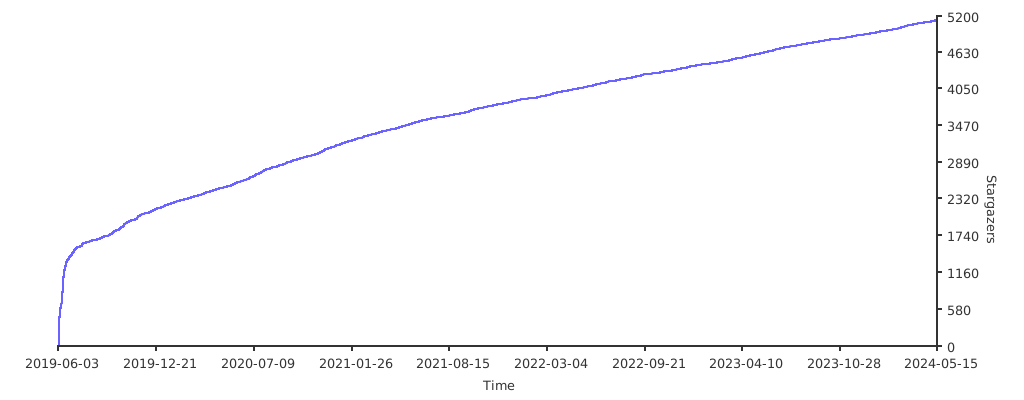
⭐️ Stargazers over time
💻 Requirements
- macOS 10.15
- Xcode 11.0
- iOS 13.0
Directory:
Basic View
-
<span id="Text_D">Text</span>
-
<span id="Image_D">Image</span>
-
<span id="Button_D">Button</span>
-
<span id="Picker_D">Picker</span>
-
<span id="Special_D">Special Views</span>
<span id="Layout_D">Layout</span>
-
<span id="Stacks_D">Stacks</span>
-
<span id="List_D">List</span>
-
<span id="Container_D">Container Views</span>
-
<span id="Architectural_D">Architectural Views</span>
-
<span id="Alert_D"> Alert </span>
<span id="State_D">State and Data Flow</span>
-
<span id="Bindings_D"> Bindings </span>
-
<span id="Data_D"> Data-Dependent Views </span>
-
<span id="Environment_D"> Environment Values </span>
-
<span id="ENavigation_D"> ENavigation Models </span>
-
<span id="Preferences_D"> Preferences </span>
-
<span id="Transactions_D"> Transactions </span>
<span id="Gestures_D">Gestures</span>
-
<span id="BasicGestures_D"> Basic Gestures </span>
-
<span id="Combined_D"> Combined Gestures </span>
-
<span id="Custom_D"> Custom Gestures </span>
Text is used to display one or more lines of text content with the same effect as UILabel, but it is even better.
If you want to create Text, just create it with Text("SwiftUI");
With chained syntax, you can also add multiple attributes to the text, such as fonts, colors, shadows, spacing between top left and right, and so on.
Example:
Text("SwiftUI")
    .foregroundColor(.orange)
    .bold()
    .font(.system(.largeTitle))
    .fontWeight(.medium)
    .italic()
    .shadow(color: .black, radius: 1, x: 0, y: 2)
<h4 id="TextField"> TextField </h4>HStack and VStack controls are used to host multiple views, as mentioned later.
TextField is used to add a normal input box, which is often used as a text input.
Example:
TextField(self.$name, placeholder: self.nameText, onEditingChanged: { changed in
    print("onEditing: \(changed)")
}) {
    print("userName: \(self.name)")
    self.endEditing(true)
}}
.padding(10)
.frame(height: 50)
.textFieldStyle(RoundedBorderTextFieldStyle())
.padding(EdgeInsets(top: 0, leading: 20, bottom: 0, trailing: 20))
SecureField is generally used as a password input. It is used in the same way as TextField. The example and the running effect are the same as TextField.
The Image control is used to display images, example:
Image("icon")
    .resizable()
    .frame(width: 100,
           height: 100,
           alignment: .center)
webImage is used to download the web image, use the URLSession to download the original Image after successful download; you can also use Kingfisher in the downloadWebImage function .
Example:
var body: some View {
        Image(uiImage: self.uiImage ?? placeholderImage)
            .resizable()
            .onAppear(perform: downloadWebImage)
            .frame(width: 80,
                   height: 80,
                   alignment: .center)
            .onTapGesture {
                print("Tap ")
        }
    }
Button is used to respond to click events.
Example:
Button(action: {
    print("Tap")
}) {
   Text("I'm a Button")
}
Waiting for release.
<h4 id="ItemBasedPopUpButton"> ItemBasedPopUpButton </h4>Waiting for release.
<h4 id="NavigationButton"> NavigationButton </h4>NavigationButtonPage is used to push to the next navigation page.
Example:
NavigationLink(destination: NavigationButtonPage()) {
            Text("NavigationButton").bold()
                .foregroundColor(.orange)
                .font(.largeTitle)
            }
    .navigationBarTitle(Text("Page"))
PresentationButton ~~is used to pop up a page.~~ has deprecated, please use NavigationLink
EditButton is used to trigger the editing state, just use the navigationBarItems setting when using it.
Example:
navigationBarItems(trailing: EditButton())
Waiting for release.
<h4 id="Picker"> Picker </h4>Picker can customize the selector of the data source.
Example:
Picker(selection: $leftIndex, label: Text("Picker")) {
    ForEach(0..<leftSource.count) {
        Text(self.leftSource[$0]).tag($0)
    }
    }.frame(width: UIScreen.main.bounds.width/2)
DatePicker is used to select the absolute date of the control.
Example:
DatePicker(selection: $server.date,
in: server.spaceDate,
displayedComponents: .date, label: {
    Text("")
})
Toggle is used to switch the selected state, for example:
Toggle(isOn: $isOn) {
    Text("State: \(self.isOn == true ? "Open":"open")")
}.padding(20)
Slider A control for selecting values from a finite range of values, example:
Slider(value: $data.rating)
Related Skills
YC-Killer
2.7kA library of enterprise-grade AI agents designed to democratize artificial intelligence and provide free, open-source alternatives to overvalued Y Combinator startups. If you are excited about democratizing AI access & AI agents, please star ⭐️ this repository and use the link in the readme to join our open source AI research team.
openclaw-plugin-loom
Loom Learning Graph Skill This skill guides agents on how to use the Loom plugin to build and expand a learning graph over time. Purpose - Help users navigate learning paths (e.g., Nix, German)
best-practices-researcher
The most comprehensive Claude Code skills registry | Web Search: https://skills-registry-web.vercel.app
groundhog
398Groundhog's primary purpose is to teach people how Cursor and all these other coding agents work under the hood. If you understand how these coding assistants work from first principles, then you can drive these tools harder (or perhaps make your own!).
