
Miniplayer
A curses based mpd client with basic functionality and album art.
Install / Use
/learn @GuardKenzie/MiniplayerREADME
Miniplayer
A curses based mpd client with basic functionality and album art.
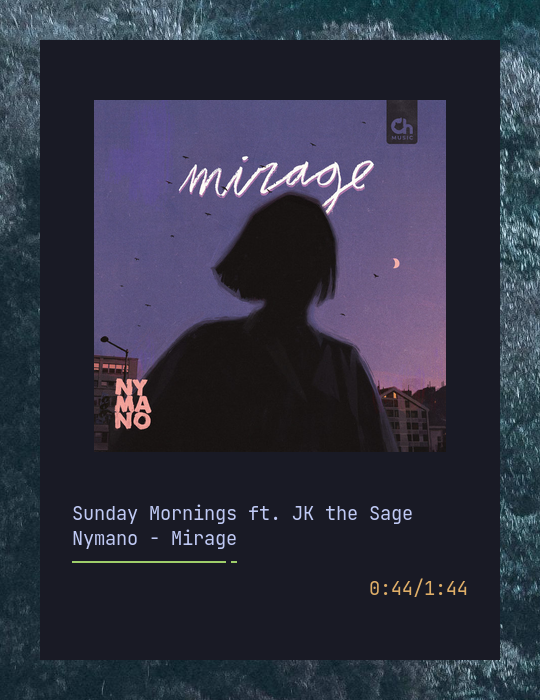
After installation, the player can be opened from the terminal with miniplayer.
Installation
This package can be installed by:
- Cloning this repository to your computer and running
python setup.py install
- Through PyPi with
pip install miniplayer
- By installing the
miniplayer-gitpackage with your AUR package manager of choice.
Configuration
The config file is located at ~/.config/miniplayer/config. The example configuration file, config.example, has all the default values. You will need to create the file yourself.
player
Wow, that volume step is huge. Why isn't my album art centered?
| Option | Description |
| -------------- | ----------------------------------------------------------------------------------------------------- |
| font_width | The width of your font in pixels in the actual terminal. |
| font_height | The height of your font in pixels in the actual terminal. |
| volume_step | The ammount (in percents) the volume will be adjusted on pressing the volume up and volume down keys. |
| album_art_only | Whether or not to only draw the album art and no other track info (true/false). |
| auto_close | Whether or not to automatically close the player once the mpd playlist has concluded (true/false). |
| show_playlist | Whether or not to show the playlist view. |
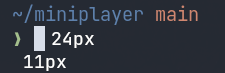
The font_width and font_height options are used to center the album art properly.Here is an example of how they should be measured.
art
Why listen to music if you can't look at the pretty album art?
| Option | Description |
| -------------------- | --------------------------------------------------------------------------------------------- |
| image_method | The method to use for drawing album art. Available values are pixcat and ueberzug. |
mpd
Tell me your mpd address please!
| Option | Description | | ------ | ---------------- | | host | The mpd host | | port | The mpd port | | pass | The mpd password |
keybindings
This section allows you to change the keybinds for the player. The format for a keybind is key = action (for example p = play_pause or left = last_track).
To use shift as a modifier, capitalize the keybinding (i.e. shift + p becomes P and shift + left becomes Left). This only works for alpha keys and the arrow keys!
| Available actions |
| ----------------- |
| play_pause |
| next_track |
| last_track |
| volume_down |
| volume_up |
| toggle_info |
| help |
| quit |
| select_down |
| select_up |
| select |
| move_up |
| move_down |
| shuffle |
| repeat |
| delete |
| command_line |
theme
Make it yours!
| Option | Description | | ------------ | ---------------------------------------------------------- | | accent_color | The color to use for selections in the playlist | | bar_color | The color for the progress bar | | time_color | The color for the time stamp | | bar_body | A single character to use for the body of the progress bar | | bar_head | A single character to use for the head of the progress bar | | command_sep | Characters used to seperate the command line | | command_char | Characters to indicate the command line is open |
The following terminal colors can be used:
blackredgreenyellowbluemagentacyanwhite
You can also use the magic colour called auto. If you pick it, the player will try to determine the dominant color in the album art and use that instead.
Default keybinds
| Key | Function | | ------------ | ---------------------------------- | | h | Show keybinds | | p | Play/pause | | > | Next track | | < | Last track | | q | Quit | | + | Volume up | | - | Volume down | | i | Toggle info | | Up | Selection up | | Down | Selection down | | Enter | Play selected song | | Delete | Remove selected song from playlist | | Shift + up | Move selected song up | | Shift + down | Move selected song down | | x | Shuffle playlist | | r | Toggle repeat | | : | Open command line |
These keybinds can be changed by editing the config file. See the config.example file for the format.
The command line
The command line can be used to add songs to the current playlist. To launch it, press the command_line button (that's : by default). The command line supports some tab completion but you cannot move the caret left or right (yet).
The format is as follows:
[hierarchy] [tag1/tag2/tag3/...tagN]

-
You do not have to populate all the tags. if you type, for example,
artist Phoebe Bridgers/and hit enter, all of Phoebe's music in your library will be added to the playlist. -
NOTE You do not type the seperator! It is added automatically. Just use a space!
The hierarchy controls the order of the tags and what each tag represents. Currently there are 4 available hierarchies with plans to add user configurable ones in the future.
Hierarchies
| Hierarchy | Tag format | | --------- | ----------------- | | album | album/song | | artist | artist/song | | song | song | | aa | artist/album/song |
Command line keys
| Key | Action | |--------|-------------------------------------------------| | Escape | Exit command line | | Enter | Attempt to add the current tags to the playlist |
F.A.Q.
-
Q: Album art is not showing up.
A: Try changingimage_methodfrompixcattoueberzugor vice versa. -
Q: Album art is too big/too small.
A: You need to configurefont_heightandfont_width. Their values should be the actual pixel height and width of a character in your terminal.
More screenshots!

