
Gogh
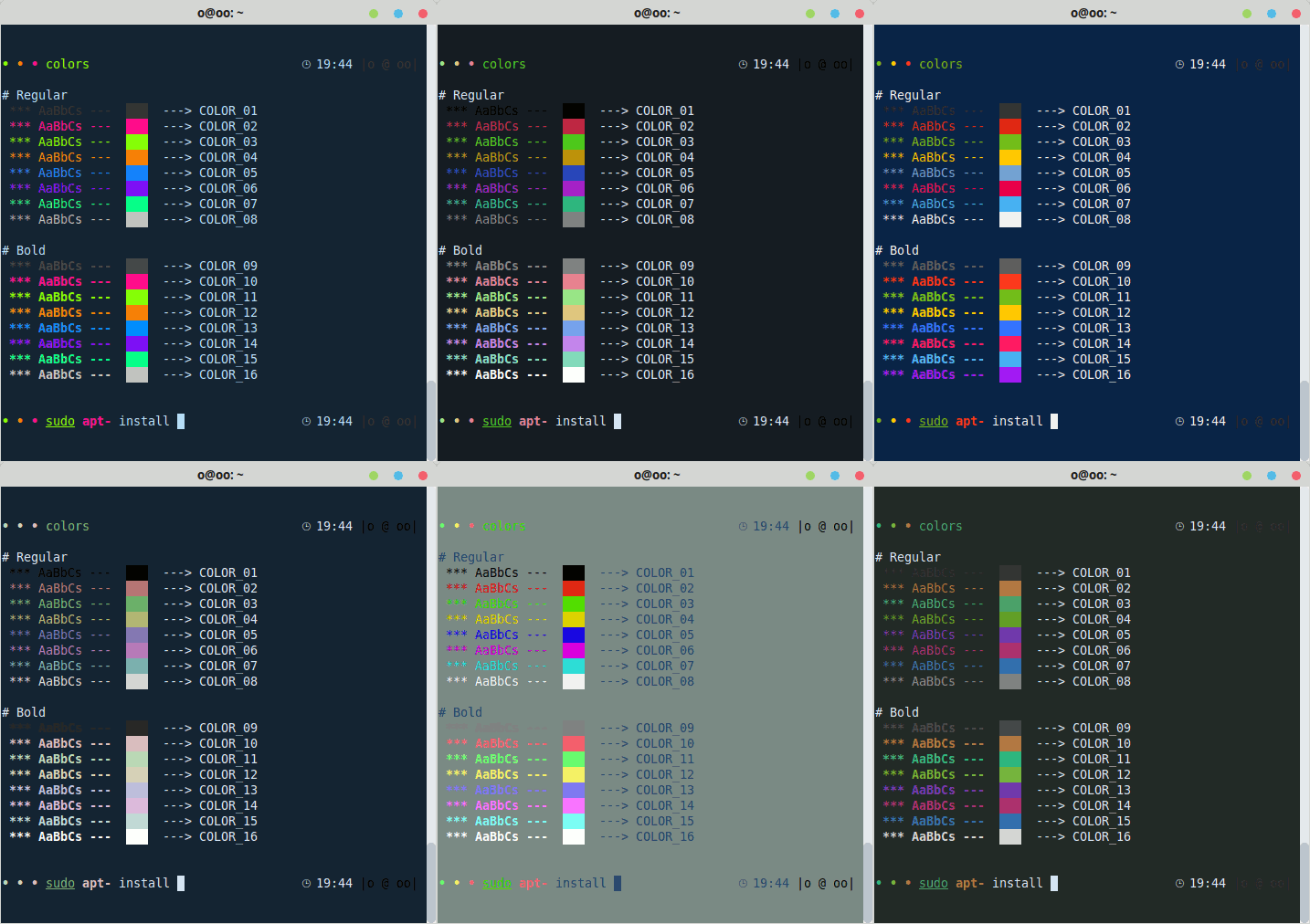
Gogh is a collection of color schemes for various terminal emulators, including Gnome Terminal, Pantheon Terminal, Tilix, and XFCE4 Terminal also compatible with iTerm on macOS.
Install / Use
/learn @Gogh-Co/GoghREADME
Color Scheme Implementer for Terminals
Gogh is a collection of color schemes for various terminal emulators, including Gnome Terminal, Pantheon Terminal, Tilix, and XFCE4 Terminal. These schemes are designed to make your terminal more visually appealing and improve your productivity by providing a better contrast and color differentiation. (This fork of Gogh includes a color scheme named "Vaombe".)
The inspiration for Gogh came from the clean and minimalistic design of Elementary OS, but the project has since grown to include a variety of unique and beautiful options. Not only does Gogh work on Linux systems, but it's also compatible with iTerm on macOS, providing a consistent and visually appealing experience across platforms.
<br> <div align="center"> This project is here for anyone to use, no expectations. <br> If you want to buy me a coffee voluntarily, you can use this link.
<b style="font-size:30px">Index:</b>
<br>- Pre-Install
- Install
- Install (Non-Interactive mode)
- Terminal Support
- Available Themes
- Help
- Create your Own Theme!
- As Command line
- Accessibility ~ WCAG
- First commit
- Credits
- Contributors
- Author
- Why Gogh?
- Mentions
- Stargazers Over Time
⚙️ Pre-Install
In your terminal, type:
For Debian/Ubuntu:
sudo apt-get install dconf-cli uuid-runtime
For Arch Linux:
sudo pacman -S dconf util-linux-libs
You can now install Gogh in Interactive Mode (Easier) or Non-Interactive Mode! (Ideal for Scripting)
<br> <br>Install
Interactive Mode:
1. Just copy and paste this one-line command:
bash -c "$(wget -qO- https://git.io/vQgMr)"
Or, if you're a Mac user:
bash -c "$(curl -sLo- https://git.io/vQgMr)"
2. Select your installed theme from your terminal.
DEMO:

⚙️ Install (Non-Interactive Mode)
Two ways:
- Clone the repository.
- Download the only required files. (Bare Minimum!)
Clone Repository
# Clone the repo into "$HOME/src/gogh"
mkdir -p "$HOME/src"
cd "$HOME/src"
git clone https://github.com/Gogh-Co/Gogh.git gogh
cd gogh

# necessary in the Gnome terminal on ubuntu
export TERMINAL=gnome-terminal

# necessary in the Alacritty terminal
pip install -r requirements.txt
export TERMINAL=alacritty

# Enter theme installs dir
cd installs

# install themes
./atom.sh
./dracula.sh
Download the only required files. (Bare Minimum!)
# Download apply script
wget https://github.com/Gogh-Co/Gogh/raw/master/apply-colors.sh
# Download desired themes from ./installs/ like this:
wget https://github.com/Gogh-Co/Gogh/raw/master/installs/selenized-dark.sh

# Optional - download Alacritty dependency (may require additional python packages, see requirements.txt for more)
wget https://github.com/Gogh-Co/Gogh/raw/master/apply-alacritty.py
# Optional - download Terminator dependency (may require additional python packages, see requirements.txt for more)
wget https://github.com/Gogh-Co/Gogh/raw/master/apply-terminator.py

# You can also specify where to find the apply scripts with the following environmental variables:
GOGH_APPLY_SCRIPT=/path/to/apply-colors.sh
GOGH_ALACRITTY_SCRIPT=/path/to/apply-alacritty.py   # only needed if applying to Alacritty terminal
GOGH_TERMINATOR_SCRIPT=/path/to/apply-terminator.py # only needed if applying to Terminator terminal

# Control Gogh behavior with the following:
TERMINAL=gnome-terminal # Select for which terminal to install the theme
                        # (see apply-colors.sh for all supported terminals)
GOGH_NONINTERACTIVE= # Make output silent and answer all prompts with default value
                     # (errors will still be printed)
GOGH_USE_NEW_THEME= # Make theme the currently used/default one of the terminal
                    # Actual effect may differ between terminals
                    # Supported terminals: xfce4-terminal

# Apply downloaded theme (apply script must be in the same folder)
TERMINAL=gnome-terminal bash ./selenized-dark.sh
# OR specify apply script path
GOGH_APPLY_SCRIPT=/path/to/file/apply-colors.sh bash ./selenized-dark.sh
💻 Terminal Support
Here are some terminals that Gogh is supported with:
- Alacritty - Web
- Cygwin - Web
- Foot - Web
- Gnome - Web
- Guake - Web
- iTerm - Web
- Kitty - Web
- Konsole - Web
- Mate - Web
- Mintty - Web
- Pantheon / Elementary - Web
- Tilix - Web
- Wezterm - Web
- XFCE4 - Web
- Terminator - Web
🎨 Themes
We have lots of themes in stock! Check them out here!
- json: https://raw.githubusercontent.com/Gogh-Co/Gogh/master/data/themes.json
- json min: https://raw.githubusercontent.com/Gogh-Co/Gogh/master/data/themes-min.json
- csv: https://raw.githubusercontent.com/Gogh-Co/Gogh/master/data/themes.csv
👀 WCAG - Accessibility Contrast
- Web: https://gogh-co.github.io/Gogh/wcag
- wcag: https://raw.githubusercontent.com/Gogh-Co/Gogh/master/data/wcag.json
- wcag min: https://raw.githubusercontent.com/Gogh-Co/Gogh/master/data/wcag-min.json
- More information: https://webaim.org/resources/contrastchecker/
❓ HELP
- Ubuntu 19.10: default_profile not a valid identifier, command not found
- Using Elementary terminal but says unsupported
- Doesn't working Debian
- Not Working on Ubuntu
sudo apt install gconf2- https://github.com/Gogh-Co/Gogh/issues/334#issuecomment-1374541799
🔹 Debian Fixes
Fix 1 (@romzie):
- Reset your profiles:
dconf reset -f /org/gnome/terminal/legacy/profiles:/
Fix 2 (@MalwareJedi):
- Reset your profiles:
dconf reset -f /org/gnome/terminal/legacy/profiles:/
- Close your terminal; re-open it.
- Go to Edit ---> Preferences ---> Profiles.
- Create a new profile called Default.
- Close the terminal. re-open it.
- Confirm that Default is still listed in your profiles.
- If it is, run the Gogh script again.
Fix 3 (@sui74):
- Reset your profiles:
dconf reset -f /org/gnome/terminal/legacy/profiles:/
- "Unname" Rename profile called "default".
sudo apt install uuid-runtime
- Run the Gogh script.
🔹 Elementary OS
1 - Uncomment the following line in .bashrc ;you can find this file in your /home/USER/ directory.
#force_color_prompt=yes
2 - Execute in terminal
source .bashrc
🖼️ Create your Own Theme!
Good news! Now, creating themes are easier than ever.
All you need to do is to create a YAML format file, following the example of the other files in the themes folder.
Some rules to keep in mind:
- The file name should match the name of the theme. For example:
- Filename:
Solarized Dark.yml - Inside the .yml file:
name: 'Solarized Dark'
- Filename:
- Use title case for all words by capitalizing their first letter.
- Ensure that the contrast is sufficient for good legibility.
***Now,
Related Skills
node-connect
329.0kDiagnose OpenClaw node connection and pairing failures for Android, iOS, and macOS companion apps
frontend-design
81.1kCreate distinctive, production-grade frontend interfaces with high design quality. Use this skill when the user asks to build web components, pages, or applications. Generates creative, polished code that avoids generic AI aesthetics.
openai-whisper-api
329.0kTranscribe audio via OpenAI Audio Transcriptions API (Whisper).
commit-push-pr
81.1kCommit, push, and open a PR
