
FineCodeCoverage
Visualize unit test code coverage easily for free in Visual Studio Community Edition (and other editions too)
Install / Use
/learn @FortuneN/FineCodeCoverageREADME
Fine Code Coverage
Download this extension from the Visual Studio Market Place ( vs 2019 ), Visual Studio Market Place ( vs 2022 ) or download from releases. Older versions can be obtained from here.
Prerequisites
For .Net
FCC supports the new Microsoft.Testing.Platform for MsTest, NUnit and xUnit.
Unfortunately the workaround FCC uses for MSTest, NUnit and xUnit does not apply to TUnit.
TUnit has its own dedicated button on the FCC tool window toolbar and cannot be driven from the test explorer window.
As the test explorer window is not used FCC cannot intercept your runsettings ( see later).
Microsoft.Testing.Platform has the Microsoft code coverage extension. If you add the package it will be used, otherwise FCC will run dotnet-coverage.
The Microsoft code coverage extension accepts runsettings or configuration and dotnet-coverage only accepts configuration.
FCC will supply the necessary settings using FCC's settings system ( below ) but if you want to supply your own, FCC will read the test project file.
If either the FCCTestingPlatformCommandLineArguments or TestingPlatformCommandLineArguments property is present FCC will use these arguments except ones pertaining to coverage other than --coverage-settings ( or --settings) as long as the
path specified exists.
Note that TUnit blocks coverage of your tests in the GlobalSetup.cs file if using the project template.
When not using Microsoft.Testing.Platform you have added test adapters through nuget packages. For instance, the NUnit Test Adapter extension is not sufficient.
Introduction
Fine Code Coverage provides code coverage using one of 3 different coverage tools. In previous releases there were two coverage tools being utilised, OpenCover and Coverlet that will be referred to as 'old coverage'.
Microsoft now provides a free coverage solution that you can choose to use by setting the Visual Studio Fine Code Coverage enumeration option RunMsCodeCoverage. This will probably be the preferred coverage tool for most developers. This is not necessary for TUnit.
With the old coverage it was possible for FCC to provide an abstraction over each tool's exclusion / inclusion options. This abstraction does not work for MS code coverage.
Thus you will find that there are separate configuration options for Ms coverage vs old coverage and options that are common to the two.
Assembly level exclusions and inclusions can be achieved - see ExcludeAssemblies and IncludeAssemblies.
Configuration is ( mostly ) determined from Visual Studio options, finecodecoverage-settings.xml files and project msbuild properties. All of these settings are optional.
For options that have a project scope, these settings form a hierarchy where lower levels override or, for collections, override or merge with the level above. This is described in detail further on.
Aside from TUnit projects, the process begins with FCC reacting to the test explorer in visual studio. One of the 3 coverage tools provides the coverage results and the results can be opened from buttons on the Fine Code Coverage Tool Window. This coverage is not dynamic and represents the coverage obtained from the last time you executed tests. When the coverage becomes outdated, you can click the 'FCC Clear UI' button in Tools or run coverage again.
Details of how FCC is progressing with code coverage can be found in the Coverage Log tab in the Fine Code Coverage Tool Window with more detailed logs in the FCC Output Window Pane. If you experience issues then providing the logs from the output window will help to understand the nature of the problem.
Coverage Result Presentation
Report
Present a single unified report in the Fine Code Coverage Tool Window. The report shows line and branch coverage and risk hotspots with the facility to open your class files.
Editor
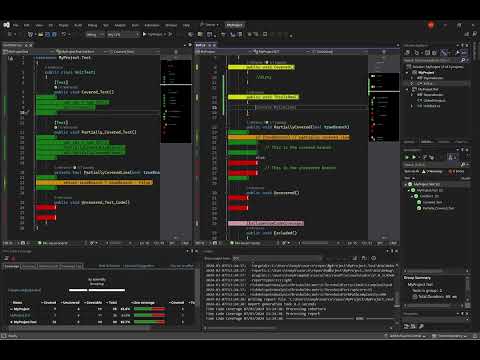
Coloured margins to indicate the coverage status of your code. Instrumented ( included and analysable) lines of code are either covered, uncovered or partially covered which means that not all branches were executed.
FCC provides the concept of dirty regions where previously instrumented code will no longer show instrumented status once you have change the code.
For C# and Visual Basic provides further coverage information :
FCC also allows you to see code that was not included in coverage and new lines that have been added since the last coverage run.
Both dirty and new line colouring needs to be turned on in options.
If desired, lines can be highlighted too by setting the available Visual Studio options. Read on for more details.
The colours can be controlled via Visual Studio / Tools / Options / Environment / Fonts and Colors / Text Editor / Display Items :
For Visual Studio Community, Professional and Enterprise you can use the settings
Coverage Touched Area FCC
Coverage Partially Touched Area FCC
Coverage Not Touched Area FCC
Coverage Dirty Area FCC
Coverage New Lines Area FCC
Coverage Not Included Area FCC
For versions that supply the items below FCC will use these by default over the equivalent FCC items so that colours defined in themes can be used. If you wish to be consistent for the 5 available items you can set UseEnterpriseFontsAndColors to false.
Coverage Not Touched Area
Coverage Partially Touched Area
Coverage Touched Area
You can turn off editor colouring by setting the visual studio option EditorCoverageColouringMode to Off. You can also set the option to DoNotUseRoslynWhenTextChanges if there is a performance issue. By doing so new lines colouring will not be as good. If you switch to one of the EditorCoverageColouringMode options then you will need to re-run coverage.
You can toggle editor colouring. FCC adds a menu button, Toggle Indicators, in the Tools menu. You can also create a keyboard shortcut - Tools / Options / Environment / Keyboard, show commands containing "ToggleIndicators".
For Blazor components with @code blocks coverage lines can be generated outside these regions. When the Roslyn syntax tree is available to FCC you can set the option BlazorCoverageLinesFromGeneratedSource to true to limit coverage lines in .razor file to those in generated source.
FCC tracks the visual studio editor and saves this information when a file is closed. If upon re-opening a file the text has changed outside of a document window there will be no coverage marks for this file as the coverage lines are no longer expected to be correct..
There will also be no editor marks if you edit a file whilst FCC is collecting coverage.
Why use MS Code Coverage ?
With the old coverage FCC needed to copy your test dll and dependencies and run OpenCover or Coverlet on those files. This is not necessary with ms code coverage. The old coverage would wait until tests have finished before starting the coverage tool to re-run all tests. This is not necessary with ms code coverage. The old coverage was based upon every test. Ms code coverage is coverage from the tests you select in the test explorer.
Supports C++ ! Note that FCC has not been properly tested with C++ projects but with a simple C++ class, tested with Google Test, FCC provides coverage.
How to utilize MS Code Coverage with FCC ?
Ms code coverage requires a runsettings file that is configured appropriately for code coverage. This requires that you have the ms code coverage package and have pointed to it with the TestAdaptersPaths element as well as specifying the ms data collector. Exclusions and inclusions are also specified in the runsettings.
FCC does not require you to do this. If you do not provide a runsettings and RunMsCodeCoverage is Yes then FCC will generate one and write the necessary entry in the project file.
Note that having a test project file open in visual studio whilst running tests may result in a conflict warning when FCC removes the entry at the end of the test.
If RunMsCodeCoverage is IfInRunSettings then if the project has runsettings that includes the ms data collector element configured correctly then FCC will process the collected results.
Run settings generation from template
FCC includes the ms code coverage package and will create the necessary runsettings file for each test project being run from the test explorer window. The exclusions and inclusions will come from the combined settings, in a similar manner to the old coverage. As ms code coverage uses regex and has different methods of exclusion / inclusion to Coverlet and OpenCover there are ms specific Visual Studio options and associated elements.
As FCC provides a runsettings file for each test project ( if you have not provided a solution wide or project specific ) it has to write the RunSettingsFilePath element in t
Related Skills
node-connect
339.3kDiagnose OpenClaw node connection and pairing failures for Android, iOS, and macOS companion apps
frontend-design
83.9kCreate distinctive, production-grade frontend interfaces with high design quality. Use this skill when the user asks to build web components, pages, or applications. Generates creative, polished code that avoids generic AI aesthetics.
openai-whisper-api
339.3kTranscribe audio via OpenAI Audio Transcriptions API (Whisper).
commit-push-pr
83.9kCommit, push, and open a PR
