
Ffloat
FFloat, although simple and easy to use, can satisfy all your imagination of the floating layer.
Install / Use
/learn @Fliggy-Mobile/FfloatREADME
English | 简体中文
Like it? Please cast your Star 🥰 !
✨ Features
-
Supports floating layer position control based on anchor elements
-
Convenient floating layer show / hide control
-
Comes with elegant interactive effects
-
Flexible and beautiful decorative triangle
-
Support precise control of round corners
-
Wonderful gradient effect support
-
Simple but powerful border support
-
Support absolute position Dual mode
🛠 Guide
⚙️ Parameters
🔩 Basic parameters
|Param|Type|Necessary|Default|desc|
|---|---|:---:|---|---|
|builder|FloatBuilder|true|null|[FloatBuilder] returns the content component of [FFloat]. If only the content area is updated, proceed with setter (() {})|
|color|Color|false|Color(0x7F000000)|[FFloat] colors|
|gradient|Gradient|false|null|Gradient. Will overwrite color|
|anchor|Widget|false|null|Anchor element|
|location|Offset|false|null|position. After specifying the location of [FFloat] through [location], all configurations that determine the location based on the anchor point will be invalid|
|alignment|FFloatAlignment|false|FFloatAlignment.topCenter|[FFloat] Based on the relative position of the [anchor] anchor element.|
|margin|EdgeInsets|false|EdgeInsets.zero|[FFloat] Determine the distance between anchor points based on relative|
|padding|EdgeInsets|false|null|[FFloat] Internal spacing|
|canTouchOutside|bool|false|false|Click [FFloat] to hide the area outside the range.|
|backgroundColor|Color|false|Colors.transparent|[FFloat] The color of the background area when floating|
|autoDismissDuration|Duration|false|null|Duration of automatic disappearance. If it is null, it will not disappear automatically|
|controller|FFloatController|false|null|[FFloatController] can control the show/hide of [FFloat]. See [FFloatController] for details|
|animDuration|Duration|false|Duration(milliseconds: 100)|Show/hide animation duration|
🔺 Triangle
|Param|Type|Necessary|Default|desc| |---|---|:---:|---|---| |triangleWidth|double|false|12|The width of the triangle| |triangleHeight|double|false|6|The height of the triangle| |triangleAlignment|TriangleAlignment|false|TriangleAlignment.center|Relative position of triangle| |triangleOffset|Offset|false|Offset.zero|Triangle position offset| |hideTriangle|bool|false|false|Whether to hide the decorative triangle|
🔆 Corner & Border
|Param|Type|Necessary|Default|desc| |---|---|:---:|---|---| |corner|FFloatCorner|false|null|corner| |cornerStyle|FFloatCornerStyle|false|FFloatCornerStyle.round|corner style| |strokeColor|Color|false|null|Stroke color| |strokeWidth|double|false|null|Stroke width|
🔳 Shadow parameters
|Param|Type|Necessary|Default|desc| |---|---|:---:|---|---| |shadowColor|Color|false|null|Shadow color| |shadowOffset|Offset|false|null|Shadow offset| |shadowBlur|double|false|null|The larger the value, the greater the shadow|
📺 Demo
🔩 Basic Demo

FFloat(
  (_) => createContent(),
  controller: controller1,
  padding: EdgeInsets.only(left: 9, right: 9, top: 6, bottom: 6),
  corner: FFloatCorner.all(10),
  alignment: floatAlignment1,
  canTouchOutside: false,
  anchor: buildAnchor1(),
)
FFloat can wrap a normal component (that is, assign the normal component to the anchor parameter of FFloat), so that the component has the ability to click to pop up the floating layer.
And FFloat will not have any adverse effect on the original components, which is amazing!
Alternatively, you can control the display of the floating layer through FFloatController. Of course, the premise is that you need to create a FFloatController, and then assign it to the FFloat controller property.
FFloatController controller = FFloatController();

FFloat(
  controller: controller,
)

/// show float
controller.show();
/// hide float
controller.dismiss();
FFloat is smart enough to automatically determine where it should appear based on the position of anchor. With alignment and margin, you can adjust the position of the floating layer in an incredibly simple way until you think it is ok.
This is an unprecedented change 👍!
In the past, if you wanted to display a floating layer based on the position of an element, then you had to go through a series of tedious operations to get the position of the element. Then coordinate conversion is performed, and the position is calculated according to the size of the floating layer.
God, it's complicated enough just to think about it. Not to mention when you encounter a scene that needs to be centered and left aligned, it is a nightmare 👿.
As for the content of the floating layer, just pass the buidler parameter and return a Widget in the FloatBuilder function.
If your floating layer content needs to be refreshed, the FloatBuilder function provides a StateSetter parameter, through which you can refresh only the content in the floating layer without affecting the content outside the floating layer. It's really efficient.
FFloat(
  (setter){
    return GestureDetector(
      onTap:(){
        setter((){
          /// update something
        });
      }
      anchor: buildWidgte());
  },
  anchor: buildAnchor()
)
💫 Background & Animation

FFloat(
  (_) => FSuper(
    text: "Surprise😃 !",
    textColor: Colors.white,
  ),
  controller: controller2_1,
  color: Color(0xff5D5D5E),
  corner: FFloatCorner.all(6),
  margin: EdgeInsets.only(bottom: 10),
  padding: EdgeInsets.only(left: 9, right: 9, top: 3, bottom: 3),
  anchor: buildAnchor(),
  canTouchOutside: false,
  autoDismissDuration: Duration(milliseconds: 2000),
),

FFloat(
  (_) => buildSearch(),
    child2Alignment: Alignment.centerLeft,
    child2Margin: EdgeInsets.only(left: (9.0 + 18.0 + 9.0)),
  ),
  controller: controller2_2,
  color: Colors.black.withOpacity(0.95),
  backgroundColor: Colors.black26,
  corner: FFloatCorner.all(20),
  margin: EdgeInsets.only(bottom: 10, left: 10),
  anchor: buildAnchor(),
  alignment: FFloatAlignment.topRight,
  triangleAlignment: TriangleAlignment.end,
  triangleOffset: Offset(-39, 0),
)
When the floating layer of FFloat appears, you can choose whether you want a background color, by configuring backgroundColor.
And through the canTouchOutside property, you set whether your floating layer can be closed by clicking the area outside the floating layer.
When set to canTouchOutside = false, it often means that you need to control the hiding of the floating layer through a FFloatController.
By default, FFloat comes with the Scale show/hide animation.
According to the orientation of the floating layer you set, FFloat can intelligently determine the starting anchor point of the animation. This makes everything more natural.
If you don't need the animation effect, just pass null through the animDuration parameter to cancel the animation effect and return to the more abrupt show/hide.
When you configure the autoDismissDuration parameter, FFloat will enter auto-disappear mode. This means that after the floating layer pops up, it will automatically disappear at the time you expect. You don't need to intervene too much.
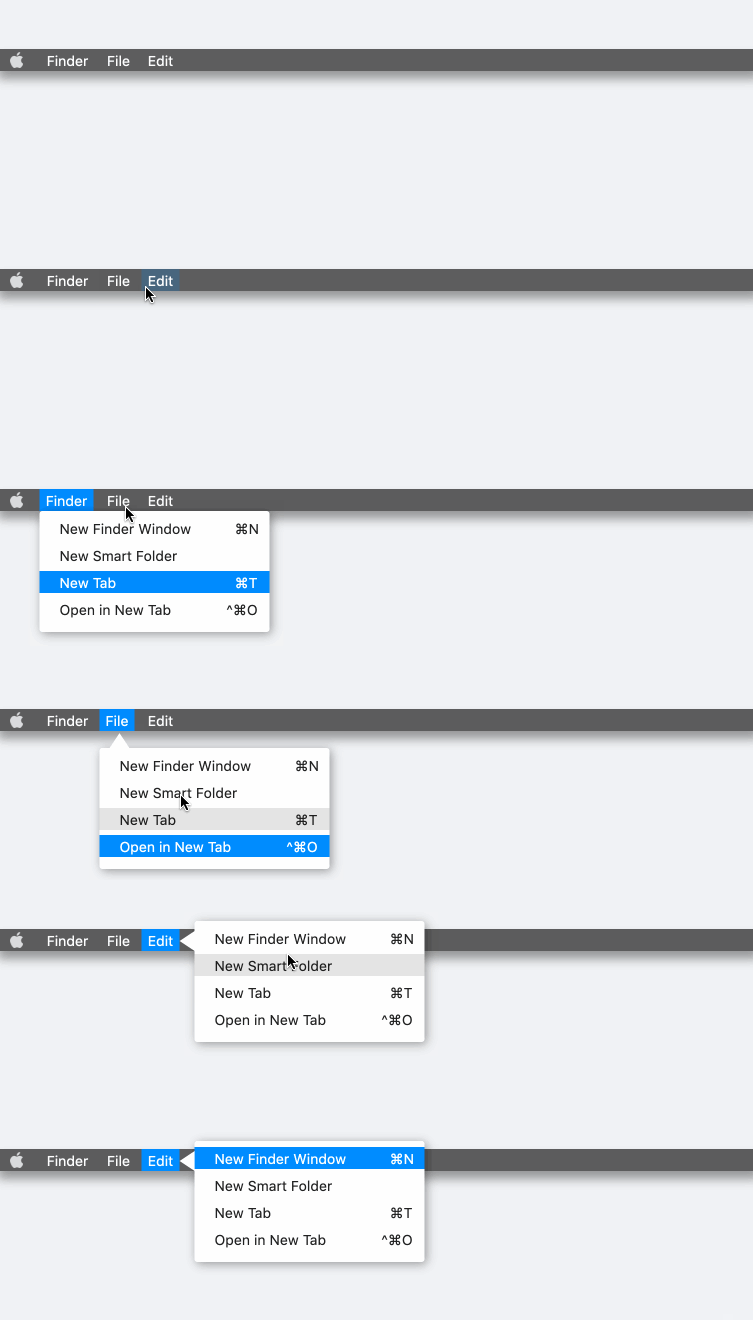
🔺 Decorative triangle
FFloat(
  (setter) => buildContent(),
  shadowColor: Colors.black38,
  shadowBlur: 8.0,
  shadowOffset: Offset(2.0, 2.0),
  color: Colors.white,
  corner: FFloatCorner.all(3),
  controller: controller3_1,
  alignment: FFloatAlignment.bottomLeft,
  hideTriangle: true,
  anchor: buildAnchor(),
),

FFloat(
  (setter) => buildContent(),
  controller: controller3_2,
  alignment: FFloatAlignment.bottomLeft,
  margin: EdgeInsets.only(top: 2),
  shadowColor: Colors.black38,
  shadowBlur: 8.0,
  shadowOffset: Offset(2.0, 2.0),
  corner: FFloatCorner.all(3),
  color: Colors.white,
  triangleAlignment: TriangleAlignment.start,
  triangleOffset: Offset(10, 10),
  triangleWidth: 20,
  triangleHeight: 15,
  anchor: buildAnchor(),
),
FFloat Intimately built-in decorative triangle.
