
WIIIUI
A Warcraft III UI addon for vanilla WoW
Install / Use
/learn @Fiurs-Hearth/WIIIUIREADME
$\color{#f00}{\textsf{NEW - Align Center Option, Chat area width option.}}$
- Option to center entire UI
- Disabled (default) → The UI uses the classic Warcraft III–style anchoring based on the screen edges.
- Three modes, With chat area, no chat area with inventory, no chat area
- Option to change the width of the chat area.
- Fixed issues where the UI would look wrong when UI Scale was enabled from the 'Video Options → Use UI Scale'
How to use
- Open the WIIIUI config menu from the cogwheel at bottom right corner.
- Check any of the Center UI to shift the layout to screen center.
- Uncheck and reload to restore classic edge-anchored layout.
- Reload UI when changing 'Center UI'-modes
Center UI
<img width="1920" height="250" alt="image" src="https://github.com/user-attachments/assets/35bf1ca5-cb06-44be-884c-b53277fa420a" />
Center UI, no chat area <img width="1920" height="233" alt="image" src="https://github.com/user-attachments/assets/105f6a67-de2a-4979-8da6-fea4dbf3bbfe" />
Center UI, no chat area and no inventory
<img width="1920" height="227" alt="image" src="https://github.com/user-attachments/assets/07fa06e6-b87f-4def-a9e1-76e50236dc0f" />
WIIIUI
WIIIUI was made for Warcraft III fans or people who just enjoy the aesthetics.
This addon have the four faction themes from Warcraft III, Human, Orc, Undead and Night Elf. The addon also have the possibility to add your own theme albeit it does not have good support for it with the initial release. It also offers various feature that can be read below and instruction on how to modify the addon.
A video demonstrating the different menu options available.
https://youtu.be/agffQHWyWh8
Please give feedback for improvements or new features for future releases.
Don't forget to check out Known issues section.
Contact me on Discord: Fiur#8658
Installation
- Download the addon
- Unpack the file
- Open the unpacked file and rename the folder named
WIIIUI-mastertoWIIIUI - Put the renamed folder into the AddOns folder:
World of Warcraft\Interface\AddOns - Start or restart WoW if already running
- Recommended: Set script memory to 0, this helps against most game crashes caused by addons, click link for instructions.
Download MoveAnything addon here.
With this addon you can move basically any UI part that was not added by addons (such as mine)
Don't forgot to open the config menu for configuration options, accessible in the lower right corner!

Please support
Click here to donate via ko-fi
Click here to donate via PayPal
Crypto
ETH: 0x51086260a62ceAD7f3A930708a50ad2F3d36eB08
BTC: bc1qqzrnnw3nnn9m7plsmwp8e9jhzkvqjc42kg4dym
BNB: bnb1m5rau82ydfvcualt7hf54h2yvsfumj3sv7g2t7
If you have other crypto you want to donate with, please contact me at Discord: Fiur#8658
Themes
Human Theme
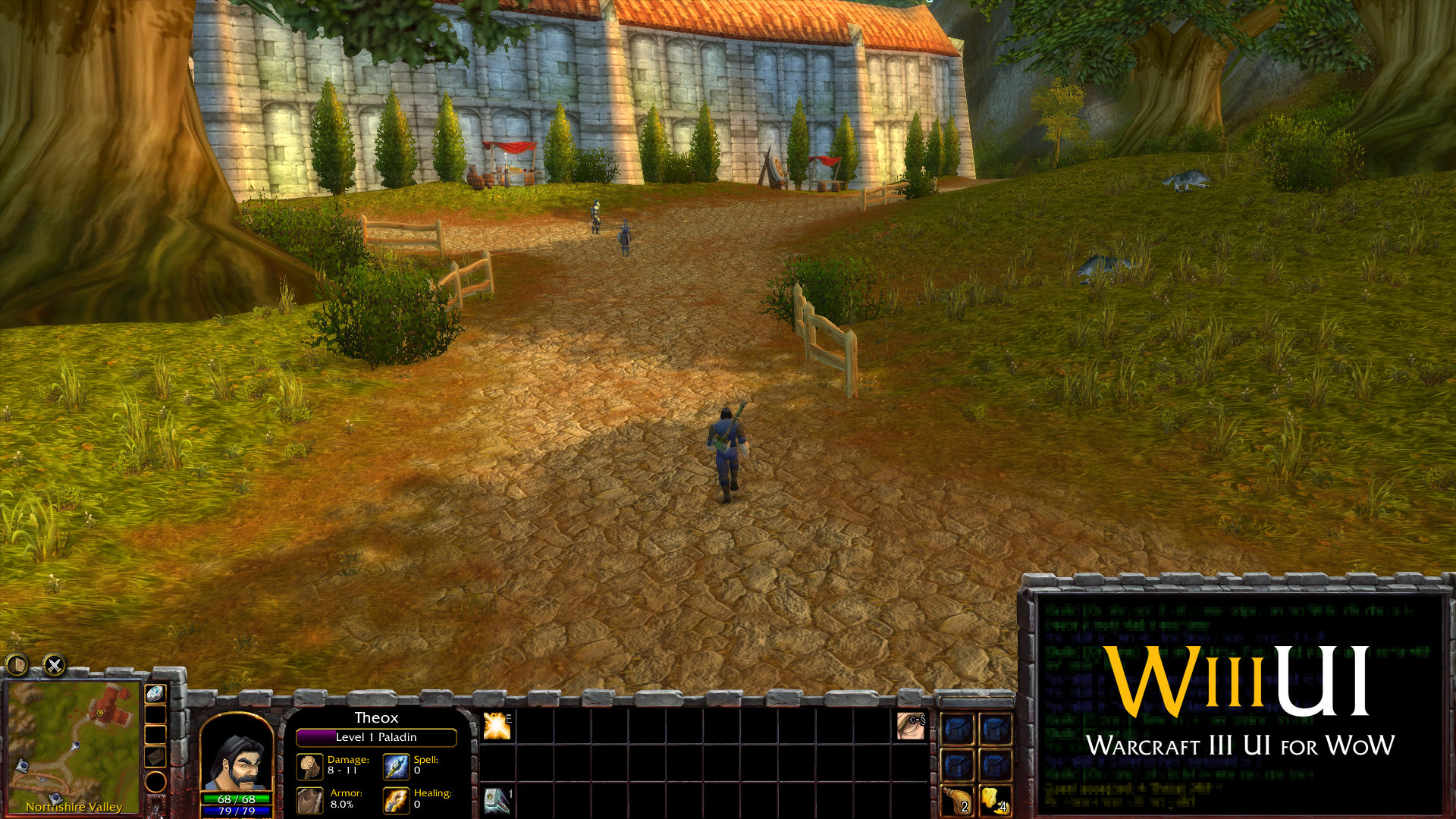
Orc Theme

Undead Theme

Night Elf Theme

(Screenshots taken on server Turtle WoW)
Features
- (NEW!) Customization tab, allows you to edit size, position, transparency, texture, stacking etc. Use mouse scroll to change page.

Example of an edit with human theme:

Settings:
Page 8, extensionBackground, width: 500 (change to fit)
Page 22, rightpart, Frame strata: BACKGROUND
inventorySlots, Hide: Checked
- Zoom minimap in and out with the mousescroll while hovering over the minimap
- Scroll chat up or down with mousescroll while hovering over the chat
- 3 extra custom bindable actionslots next to the minimap, hearthstone is automatically put into the top one if it's empty

- 6 extra custom bindable actionslots where you can put spells, items, consumables etc.


- Customizable icons to show different kind of information.

- A configuration menu, accessible in the lower right corner by hovering your mouse in the corner
Cog wheel
Configuration menu

A video demonstrating the different menu options available.
https://youtu.be/agffQHWyWh8
Custom Themes
The customization feature takes current settings of current theme and saves it as a base setting. Since it takes current settings and uses that as a base, some frames are set as hidden as base and needs to be unchecked to become visible (for example custom action slots).
Tips, Tricks and Solutions
- WARNING, this will remove your saved settings for your customized themes!!! You can reset the base settings by deleting the WIIIUI.lua file in
WoW\WTF\Account\[ACCOUNT NAME]\[SERVER NAME]\[CHARACTER NAME]\SavedVariablesor by opening the file and remove thebase_settingsof the theme, do the same with the theme inedit_theme_settings. - Some frames are hidden or visible based on the UI scale and might be hidden based on your UI scale, just uncheck the Hide checkbox and it will appear.
- Changes are not being applied? Enable customize settings from the config menu.
- Inventory (custom action) slots are not visible, uncheck hide for each action slot you want to be visible.
- Changing the UI scale from the General tab screws with my UI. Reload UI.
- Name over the experience bar does not fit? Increase the width of
WIIIUI_xpNameon Page 14. - Level and class text does not fit? Increase the width of
WIIIUI_xpNameon Page 14. - HP and/or Mana/Rage/Energy does not fit? Increase the width of
WIIIUI_HealthTextandWIIIUI_PowerTexton Page 41. - Changing position of either Pos X or Pos Y does not work? If
PointandRelative toare both or either is set to CENTER, try changing it to BOTTOMLEFT onPointand BOTTOMRIGHT onRelative to, requires you to reload UI. Other settings might work as well, if the frame disappears after this change it might be outside of the screen and you may have to put in negative value on Pos X or Pos Y.
Here are some example edits.

No inventory slots
For above solution you want to:
- Go to page 11,
Wc3_UI_right_left, set it's Parent toWIIIUI_rightpartand Draw layer to OVERLAY. - Go to page 22,
WIIIUI_inventorySlots, check Hide if you want to hide the 6 action slots - Go to page 23,
Wc3_UI_right_middle, set Draw layer to ARTWORK
How to make a custom theme
- Create a folder named
custom#1-8, examplecustom4. - Copy all files and folders in
WoW\Interface\AddOns\WIIIUI\art\orcand paste it into your new folder. Orc is the template for custom themes, which is good if you do not intend to edit with the customization option. - Either use the images as a template and follow their form or go crazy and use the customization feature.
- Do not save any image with higher resolution than 512x512 since it is not supported in vanilla WoW.
- All images must be saved with width/height of a multiplier of 8. For example: 16,32,64,128,256,512.
- You can edit and then save an image while ingame, you just need to reload the UI to see the changes ingame.
How to apply custom themes
- Download a theme
- Put the custom theme folder into
WoW\Interface\AddOns\WIIIUI\art - (Optional) Go into
WoW\WTF\Account\[ACCOUNT NAME]\[SERVER NAME]\[CHARACTER NAME]\SavedVariables - (Optional) Paste the WIIIUI.lua file and overwrite OR...
- (Optional) If you don't want your old settings to be overriden, such as UI scale size etc, then you can go into the downloaded WIIIUI.lua file, copy the code block in
["base_settings"]={["THEME"]}, paste it into your own WIIIUI.lua file. Now do the same with["edit_theme_settings"]={["THEME"]}.

Example of how it should look.
How to share
- Upload your custom theme folder from
WoW\Interface\AddOns\WIIIUI\art. - (Optional) Upl
Related Skills
node-connect
352.9kDiagnose OpenClaw node connection and pairing failures for Android, iOS, and macOS companion apps
frontend-design
111.5kCreate distinctive, production-grade frontend interfaces with high design quality. Use this skill when the user asks to build web components, pages, or applications. Generates creative, polished code that avoids generic AI aesthetics.
openai-whisper-api
352.9kTranscribe audio via OpenAI Audio Transcriptions API (Whisper).
qqbot-media
352.9kQQBot 富媒体收发能力。使用 <qqmedia> 标签,系统根据文件扩展名自动识别类型(图片/语音/视频/文件)。
