
React Native Google Places Autocomplete
Customizable Google Places autocomplete component for iOS and Android React-Native apps
Install / Use
npx skills add FaridSafi/react-native-google-places-autocompleteInstalls into whichever agent you are using.
README
Google Maps Search Component for React Native
Customizable Google Places autocomplete component for iOS and Android React-Native apps
Preview
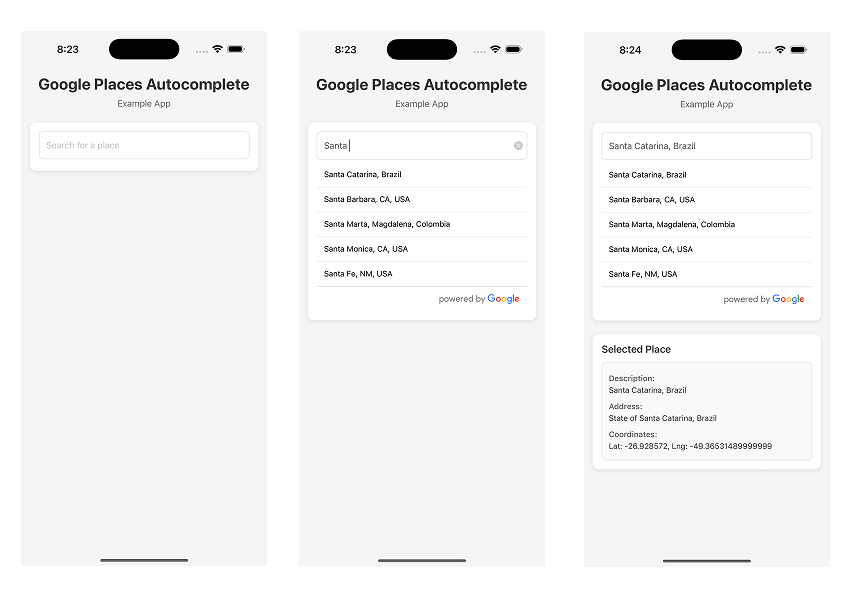
Installation
Step 1.
npm install react-native-google-places-autocomplete --save
or
yarn add react-native-google-places-autocomplete
Step 2.
Get your Google Places API keys and enable "Google Places API Web Service" (NOT Android or iOS) in the console. Billing must be enabled on the account.
Step 3.
Enable "Google Maps Geocoding API" if you want to use GoogleReverseGeocoding for Current Location
Basic Example
Basic Address Search
import React from 'react';
import { GooglePlacesAutocomplete } from 'react-native-google-places-autocomplete';

const GooglePlacesInput = () => {
  return (
    <GooglePlacesAutocomplete
      placeholder='Search'
      onPress={(data, details = null) => {
        // 'details' is provided when fetchDetails = true
        console.log(data, details);
      }}
      query={{
        key: 'YOUR API KEY',
        language: 'en',
      }}
    />
  );
};

export default GooglePlacesInput;
You can also try the basic example in a snack here
More Examples
Get Current Location
<details> <summary>Click to expand</summary>Extra step required!
If you are targeting React Native 0.60.0+ you must install either @react-native-community/geolocation (link) or react-native-geolocation-service(link).
Please make sure you follow the installation instructions there and add navigator.geolocation = require(GEOLOCATION_PACKAGE) somewhere in you application before <GooglePlacesAutocomplete />.
import React from 'react';
import { GooglePlacesAutocomplete } from 'react-native-google-places-autocomplete';

// navigator.geolocation = require('@react-native-community/geolocation');
// navigator.geolocation = require('react-native-geolocation-service');

const GooglePlacesInput = () => {
  return (
    <GooglePlacesAutocomplete
      placeholder='Search'
      onPress={(data, details = null) => {
        // 'details' is provided when fetchDetails = true
        console.log(data, details);
      }}
      query={{
        key: 'YOUR API KEY',
        language: 'en',
      }}
      currentLocation={true}
      currentLocationLabel='Current location'
    />
  );
};

export default GooglePlacesInput;
Search with predefined option
<details> <summary>Click to expand</summary>import React from 'react';
import { GooglePlacesAutocomplete } from 'react-native-google-places-autocomplete';
const homePlace = {
description: 'Home',
geometry: { location: { lat: 48.8152937, lng: 2.4597668 } },
};
const workPlace = {
description: 'Work',
geometry: { location: { lat: 48.8496818, lng: 2.2940881 } },
};
const GooglePlacesInput = () => {
return (
<GooglePlacesAutocomplete
placeholder='Search'
onPress={(data, details = null) => {
// 'details' is provided when fetchDetails = true
console.log(data, details);
}}
query={{
key: 'YOUR API KEY',
language: 'en',
}}
predefinedPlaces={[homePlace, workPlace]}
/>
);
};
export default GooglePlacesInput;
Limit results to one country
<details> <summary>Click to expand</summary>import React from 'react';
import { GooglePlacesAutocomplete } from 'react-native-google-places-autocomplete';
const GooglePlacesInput = () => {
return (
<GooglePlacesAutocomplete
placeholder='Search'
onPress={(data, details = null) => {
// 'details' is provided when fetchDetails = true
console.log(data, details);
}}
query={{
key: 'YOUR API KEY',
language: 'en',
components: 'country:us',
}}
/>
);
};
export default GooglePlacesInput;
Use a custom Text Input Component
<details> <summary>Click to expand</summary>This is an example using the Text Input from react-native-elements.
import React from 'react';
import { Text, View, Image } from 'react-native';
import { GooglePlacesAutocomplete } from 'react-native-google-places-autocomplete';
import { Input } from 'react-native-elements';

const GOOGLE_PLACES_API_KEY = 'YOUR_GOOGLE_API_KEY';

const GooglePlacesInput = () => {
  return (
    <GooglePlacesAutocomplete
      query={{
        key: GOOGLE_PLACES_API_KEY,
        language: 'en', // language of the results
      }}
      onPress={(data, details) => console.log(data, details)}
      textInputProps={{
        InputComp: Input,
        leftIcon: { type: 'font-awesome', name: 'chevron-left' },
        errorStyle: { color: 'red' },
      }}
    />
  );
};

export default GooglePlacesInput;
Props
This list is a work in progress. PRs welcome!
| Prop Name | type | description | default value | Options | | ----------------------------- | --------------- | ------------------------------------------------------------------------------------------------------------------------------------------------------------------------------------------------------------------------------------------- | ----------------------------------------------------------------- | ---------------------------------------------------------- | | autoFillOnNotFound | boolean | displays the result from autocomplete if the place details api return not found | false | true | false | | currentLocation | boolean | Will add a 'Current location' button at the top of the predefined places list | false | true | false | | currentLocationLabel | string | change the display label for the current location button | Current Location | Any string | | debounce | number | debounce the requests (in ms) | 0 | | | disableScroll | boolean | disable scroll on the results list | | | | enableHighAccuracyLocation | boolean | use GPS or not. If set to true, a GPS position will be requested. If set to false, a WIFI location will be requested. use GPS or not. If set to true, a GPS position will be requested. If set to false, a WIFI location will be requested. | true | | | enablePoweredByContainer | boolean | show "powered by Google" at the bottom of the search results list | true | | | fetchDetails | boolean | get more place details about the selected option from the Place Details API | false | | | filterReverseGeocodingByTypes | array | filter the reverse geocoding results by types - ['locality', 'administrative_area_level_3'] if you want to display only cities |
Related Skills
node-connect
385.5kDiagnose OpenClaw Android, iOS, or macOS node pairing, QR/setup code, route, auth, and connection failures.
blender-python-addon
40.5kBlender Python add-on rules for operators, panels, properties, registration, testing, and API-safe scripting
flutter-development-guidelines-cursorrules-prompt-file
40.5kCursor rules for Flutter development with MVVM architecture, Riverpod state management, Material widgets, and Dart style guidelines.
commit-push-pr
140.7kCommit, push, and open a PR

Languages
Security Score
Audited on Jul 29, 2026