
Tabame
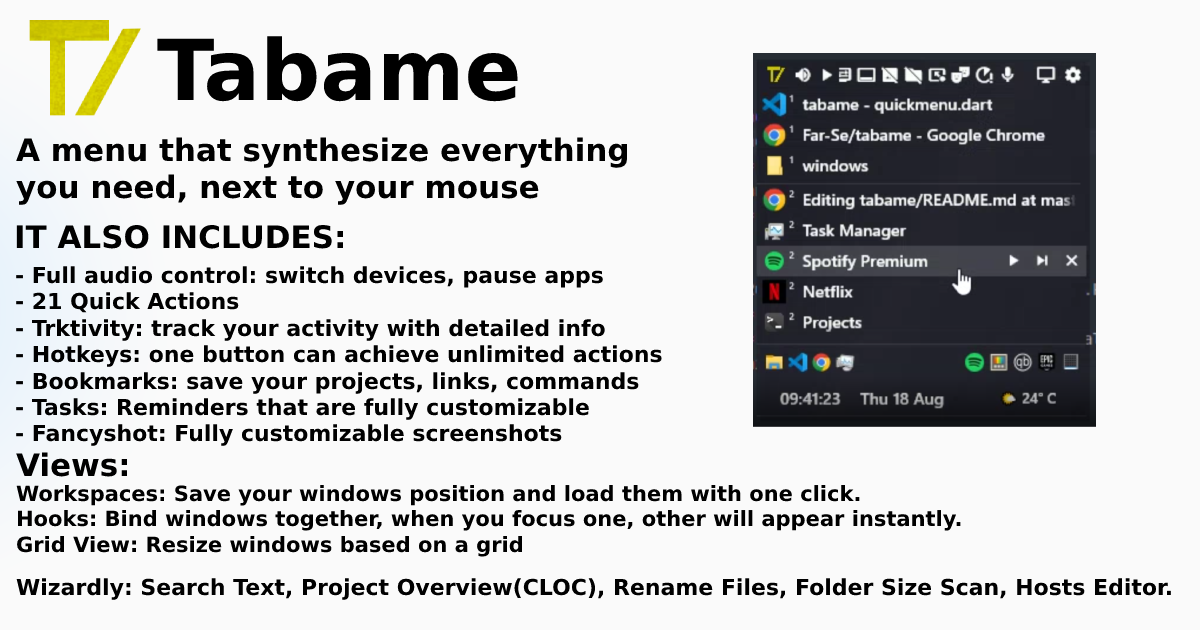
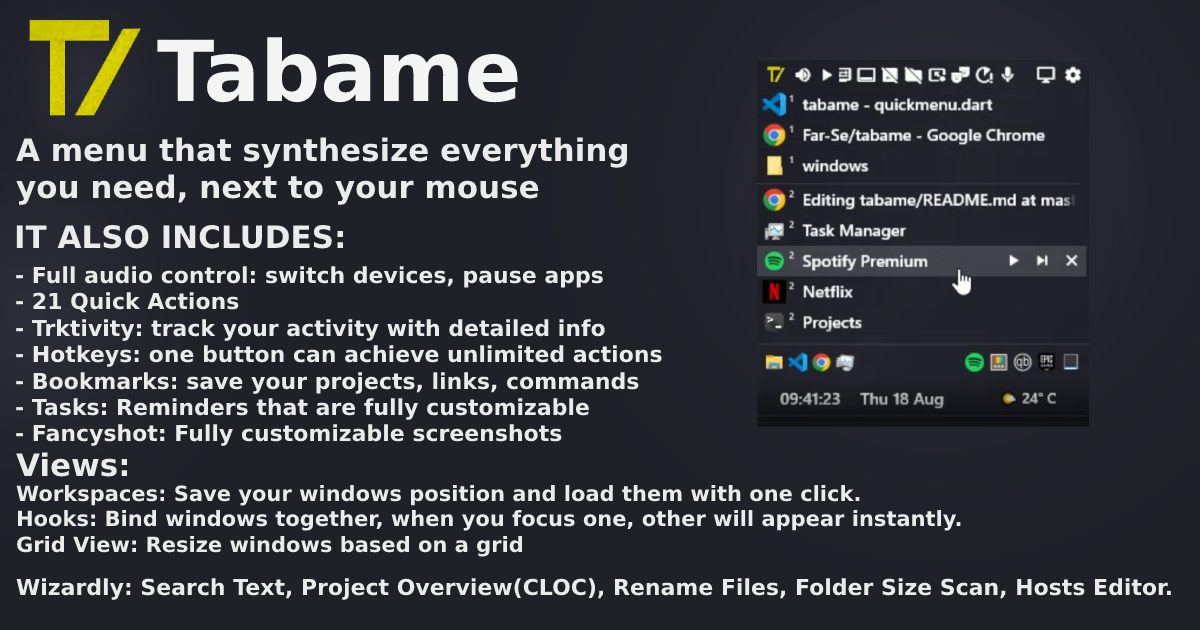
Tabame is an alternative to Windows Taskbar. It also contains great tools such as advanced Hotkeys, QuickRun, Trktivity and Wizardly.
Install / Use
/learn @Far-Se/TabameREADME
If you want updated code
You can clone "personal" branch for development. I will not update main branch because i've made enough personal changes that it won't fit general usage.
https://github.com/Far-Se/tabame/tree/personal
To clone:
git clone -b personal git@github.com:Far-Se/tabame.git
If you do not have ATL on Visual Studio, open Visual Studio Installer, press on Modify for VS 2019, go to Individual components, search for ATL and install last version for your processor architecture.
🤔 What is this app about?
Main purpose of this app is to be a replacement for the Taskbar, but in meanwhile I've added more features that can come in handy sometimes. It's not about the 30px you add on your screen, but to limit distraction that comes from flashes, badges, notifications and other apps Microsoft forcefully tries to push to their users.
Best way to use:
- You can bind the QuickMenu on:
- Mouse Side buttons, most mouses have them.
- Any extra mouse button. Open your mouse software, bind it to something like
CTRL+ALT+SHIFT+F9then focus Tabame and press the button on field above. - If you do not have any extra buttons on your mouse, you can bind it to something simple like
Shift+Win+A, it's easy for the fingers.
You can watch a small demo here:
| <video src="https://user-images.githubusercontent.com/20853986/185470373-dce706ae-5132-4ecb-97e8-77fbe5377edb.mp4" width="300px"></video> | <video src="https://user-images.githubusercontent.com/20853986/185466421-7347e01a-de1e-4dcd-adfe-81f206107325.mp4" width="300"></video> | |------ |------ |
📥 How to Install
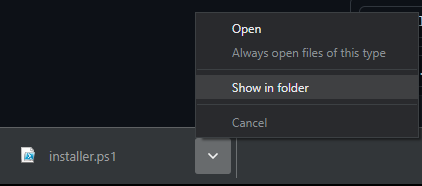
Go to Release page. It is in right sidebar. Download either installer.ps1 or tabame.zip
Easiest way to install:
- Download installer.ps1
- Open your Downloads folder
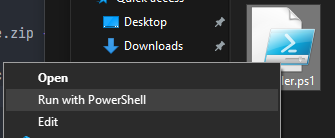
- Right click and press "Run with PowerShell"
- Complete main setup and it's done 😄
|  |
|  |
|------|------|
|
|------|------|
Manual Install:
- Download zip archive.
- Extract it in a folder you want.
- Open tabame.exe
📤 How to uninstall:
If you installed it with installer.ps1 Open file explorer, in address bar write %localappdata% then delete folder Tabame.
If you manually installed it, delete the folder where you placed it.
🐛 If you encounter any errors or bugs:
Please submit a issue here, it will be very helpful. On my Computer it works, but each PC can be different.
Please also provide errors.log file. You can find it here: %localappdata%/Tabame. Open File Explorer and paste that in Address Bar.
Thanks to @elvinvandalen for helping me fix a bug where the app crashed on start because AudioPropertyStore was bugged for some users.
Known Issue: for a small amount of users Audio Module makes the app crash, if you experience crash on startup and still want to use Tabame, open folder
%localappdata%/Tabame and create a file called disable_audio.txt then start Tabame again.
Make your own:
This project is open source, which means you can compile your own version.
- Install Flutter for Windows
- Open Visual Studio Installer, on Individual Components select ATL Dependencies and install.
- Open a console in Tabame folder and type
flutter build windows - The exe is in
build\windows\runner\Release - You can open vsCode and debug the app.
Written in Flutter
Which means it consumes very little resources and disk space.
On idle cpu is 0.0% and when in use is below 3%.
Ram usage is below 50 MB, usually around 40 MB.
It takes only 26.5 MB of space.
Works very fast, no interruptions
Main Features
🧩 Views (v1.1)
🧰 QuickActionsMenu (v1.2)
📷 Fancyshot (v1.2)
🎛️ QuickMenu
This is the menu that will popup when you are pressing the main hotkey. It is divided in 3 sections:
Top bar
Contains audio control, volume control, quick actions, pinned apps, Desktop Button and settings button.
Audio Control
- Left click to open Audio Box, where you can modify audio devices.
- Right click to switch default audio output.
- Middle button to mute or un-mute.
- Scroll up or down to change volume level.
Volume Control
- Left click sends Play or Pause signal.
- Right click sends Next Track.
- Middle button sends Previous Track.
- Scroll up or down to change volume level.
Quick Actions
- Spotify Button - Sends media control only to Spotify, same buttons as Volume Control.
- Task Manager Button - Opens Task Manager
- Virtual Desktop Button - Left Click to move to Right(Next) Desktop, right click for Left(Previous) Desktop
- Toggle Taskbar Button - Hides or shows taskbar
- Pin Window Button - Sets last focused window always on top
- Mic Mute Button - Mutes microphone, right click to switch Device Input.
- Always Awake Button - Keeps screen on
- Change Theme Button - Changes between Dark to White. It does not change the settings too!
- Hide Desktop Files Button - Hides/Shows files on desktop, good if you do not always use them.
- Toggle Hidden Files Button - Hides/Shows hidden files.
- v1.2
- Fancyshot - Screen Capture with editor.
- Bookmarks - See your saved Bookmarks.
- Countdown - A countdown for quick access.
- Timers - Create Quick Timers. (v1.3:Timers save after restart)
- Quick Actions Menu - A dedicated menu with Quick Actions.
- Close on Focus Loss - If you want to keep QuickMenu on screen, toggle this.
- v1.3
- Custom Chars - You can save custom chars or browse different language accents or currency symbols.
- Schedule Shutdown - Schendule a Computer shutdown at a specific hour or after a specific period.
- Case Change - Convert text to camelCase, PascalCase, snake_case, kebab-case, UPPERCASE or lowercase
- Memos - Save your memos.
Taskbar
Contains your opened windows, it shows the icon, if it makes sound, if it is pinned, Monitor Number, Title, Media Control and Close button.
You can right click a listed window to move it to right or left Desktop, pin or force close
You can drag to left or right to switch the app to a different Desktop
You can show QuickMenu at Taskbar Level or TopBar Level. You can order windows by monitor, activity, or only current monitor.
You can rewrite app titles using regex, example:

Bottom Bar
Main elements of bottom bar are the time and the weather. It also shows:
Tray icons
It shows a list of existing tray icons. You can hide/pin icons from settings. You can simulate click on the icon, or open icon's executable. Some apps do not listen to native clicks so you can set the second option!
PowerShell Scripts
You can pin PowerShell scripts for easy access, either write the code directly or make a .ps1 file and then set as command Invoke-Item path\to\script.ps1
System Information
Your CPU and RAM usage.
You can move pinned apps and tray icons on the same level at the bottom if the UI becomes too crowded.
You can change the icon and add a splash image above the menu if you brand it as your own or to add your company logo.
🎚️ QuickRun
QuickRun can be launched directly from QuickMenu, just start typing. You can also set a hotkey to open it specifically.
BE AWARE: shortcuts always have a space after letters. You can add regex as last parameter. Look at calculator or currency converter.
Consists of:
Converters
- Calculator: default shortcut is
c. You can divide multiple math equations with | and use x,y,z,a,b,c as variables. It supports complex equations. Example:66*20/12...c 75 | x * 20% | x - y | z * 30% | z-a...c 2+3*sqrt(4) - Unit converter: Default is
u. Supports length, mass, temperature, volume, speed, digital, area, energy, force, fuel, power, pressure, shoe, time, torque Example:u 1 in to cm...u 1 mass - Currency converter: default is
cur. It uses fawazahmed0/currency-api repository to get latest rates. Example:cur 100 eur to usd...100 usd to eur...100$ to eur - Color converter: default is
col. Converts from and to: hex#or0x, rgba, hsla, hsv, cmyk. Example:col #ff00ff...rgba(123,255,54,12) - Time zones: default is
tz. Shows current time in specific timezone, contains DTS as well.
Processors
- Shortcuts: default is
s. It is good to bookmark links or search - Memo: default is
m. Good to save commands, text, info that you might need later - Regex: default is
rgx. You can test regex if you ever need to. - Lorem: default is
lorem. It generates lorem ipsum text, Example:lorem 3 long headers - Encoders: default is
enc. Use ! to encode and @ to decode. supports url, base, rot13, ascii.
Utility
- Bookmarks: default is
b. You open your saved bookmarks from Interface. - Timer: default is
t. Use this to set quick timers, for example fort 5 teato remind you in 5
