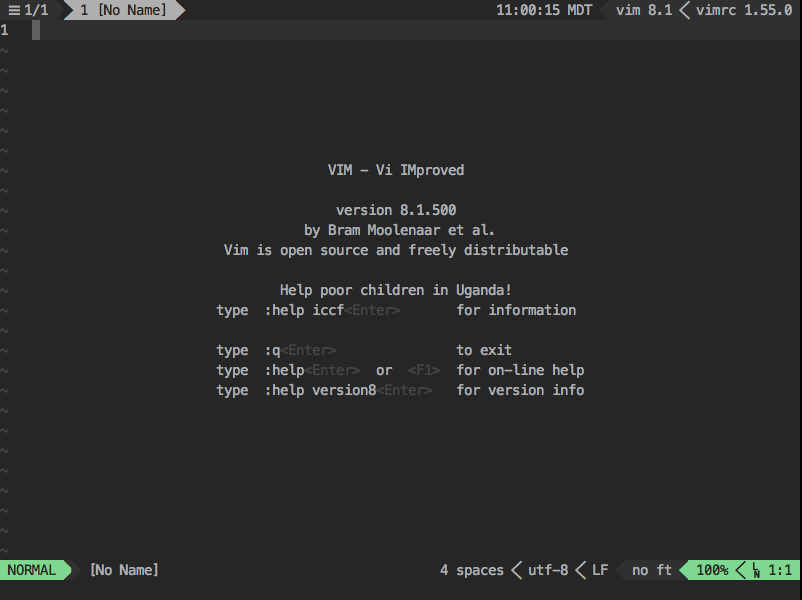
Qvim
:sunrise_over_mountains: My personal Vim configuration. Begone foul Emacs!
Install / Use
/learn @EvanQuan/QvimREADME
My Vim Configuration
This is my personal Vim configuration.
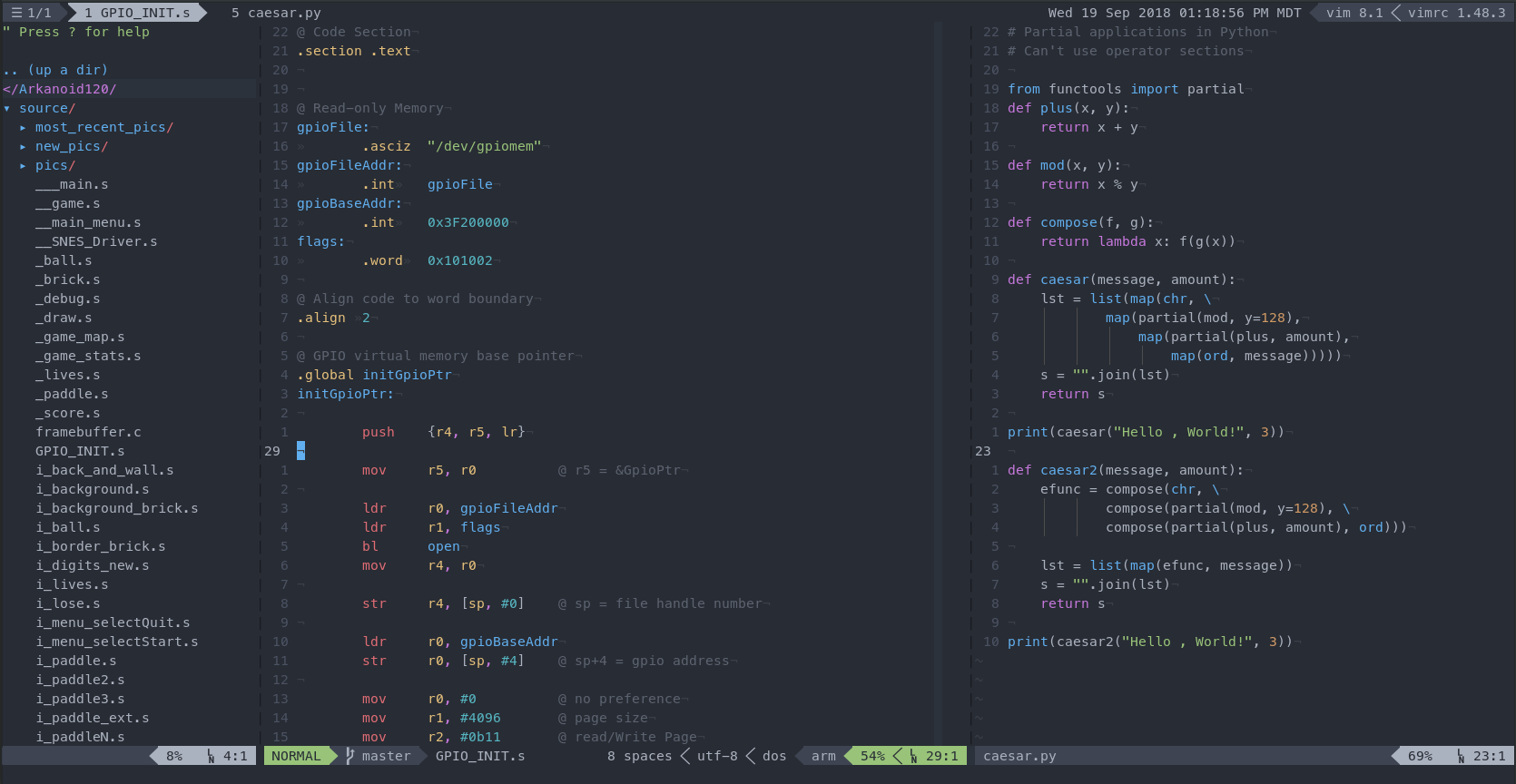
Table of Contents
<details> <summary>Click here to show.</summary> </details>Why Use This?
If you're lazy and want to use what I'm using, feel free to. However, note that each person's Vim configuration is tailored to that person's workflow, and not necessarily anyone else's. This is why I recommend that people customize Vim to best fit their own needs.
Installation
Clone this repository and run pull.sh as follows:
git clone https://github.com/EvanQuan/qvim ~/.vim
cd ~/.vim
bash pull.sh
Hooray, that's it! You're all done!
Windows
Bash (.sh) files are not executable on Windows by default. One solution is
to install Git Bash or
Cygwin to run pull.sh.
Another solution is to stop using Windows entirely.

On a more serious note, I may later make a .bat script to make things easier
on Windows.
External Dependencies
No one likes having to install external dependencies, which is why all of mine are optional. That being said, installing these may improve your Vim experience.
Powerline Fonts
By default, Powerline symbols are disabled in settings.vim. But if you want
to make your status line look fancy, you can install them
here.
Python Language Server
ale requires some extra stuff to do its linting for Python. You can install the Language Server Protocol for Python linting with:
pip install 'python-language-server[all]'
or
pip3 install 'python-language-server[all]'
You can install Flake8 for style guide enforcement with:
python<version> -m pip install flake8
where <version> is the Python version you have installed, such as 3.4 or
3.7. If running python in your terminal already runs some version of
Python 3, then no version number needs to be included.
Lua Support
If Vim is installed without Lua support (:echo has('lua') responds with
1), then autocomplete features from
completor.vim or
neocomplete will not work.
Updating
Vimrc configuration
To update your configuration, run bash pull.sh. If there is a new version of
settings.vim available, your local copy will be replaced with a template of
the newer version. Otherwise, your local settings.vim will be unchanged.
cd ~/.vim
bash pull.sh
Plugins
To update your plugins, open up Vim and execute :PlugUpdate. Close and
restart Vim.
Plugin List
<details> <summary>Click here to show.</summary>Plugin Manager
Color Schemes
Editing
- auto-pairs
- betterdigraphs.vim
- completor.vim
- dragvisuals
- listtrans
- neocomplete
- nerdcommenter
- tabular
- targets.vim
- ultisnips
- victionary
- vim-closetag
- vim-easy-align
- vim-exchange
- vim-mathematize
- vim-multiple-cursors
- vim-repeat
- vim-sensible
- vim-snippets
- vim-speeddating
- vim-surround
- vim-textobj-parameter
- vim-textobj-user
- vim-workspace
File Navigation
Language Support
- arm-syntax-vim
- prolog.vim
- vim-instant-markdown
- vim-javacomplete2
- vim-polyglot
- vim-prolog
- vim-pythonsense
- vimtex
Linting
Programming
User Interface
- goyo.vim
- indentLine
- lightline-buffer
- lightline.vim
- quick-scope
- vim-leader-guide
- vim-sleuth
- vim-togglecursor
- vim-startify
Version Control
</details>Troubleshooting
<details> <summary>Plugins are not installed</summary>vim-plug manages the installation of
all the plugins. Open Vim and execute :PlugInstall. Close and restart Vim.
For Vim versions 7.4 (or late versions of 7.3) onwards, Vim automatically
detects ~/.vim/vimrc as a secondary vimrc so nothing needs to be done. For
earlier versions of Vim, create a dummy ~/.vimrc file in your home directory
that links to ~/.vim/vimrc:
echo "source ~/.vim/vimrc" > ~/.vimrc
Better yet, just update Vim.
</details> <details> <summary>Some characters in the UI are not rendering properly</summary>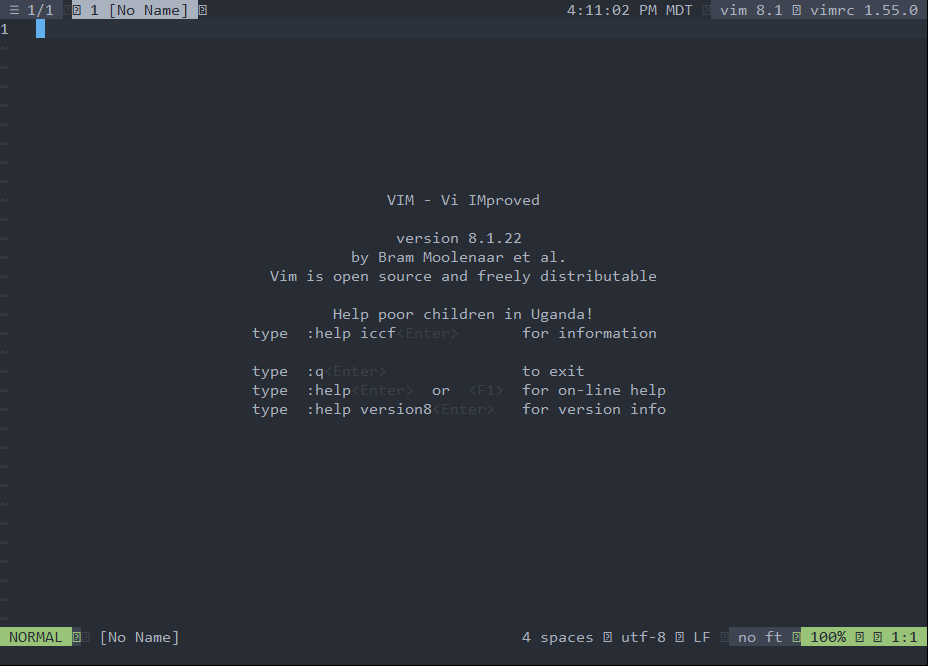
There are two solutions:
- Install Powerline fonts here.
Once Powerline fonts are installed, they need to be set in the terminal for
them to appear correctly. On Mac, I use Meslo LG M for Powerline 14.
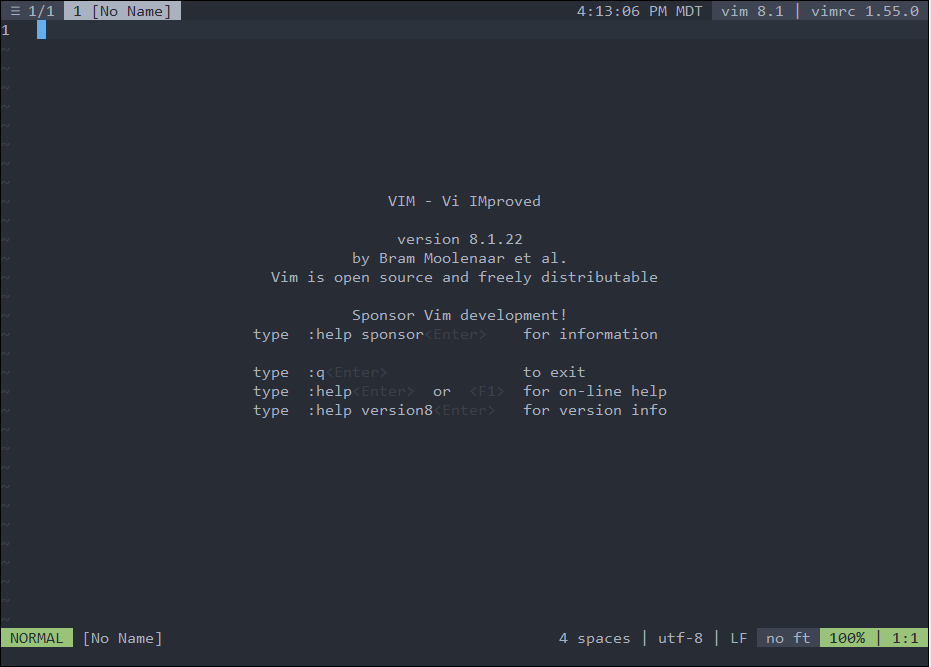
- Disable Powerline fonts
Go to settings.vim and set g:special_symbols_enabled = 0. The resulting
appearance will be:
If for some reason your terminal does not support italics, enable them:
echo "xterm-256color|xterm with 256 colors and italic,
  sitm=\E[3m, ritm=\E[23m,
  use=xterm-256color," >> xterm-256color.terminfo.txt
tic -o ~/.terminfo xterm-256color.terminfo.txt
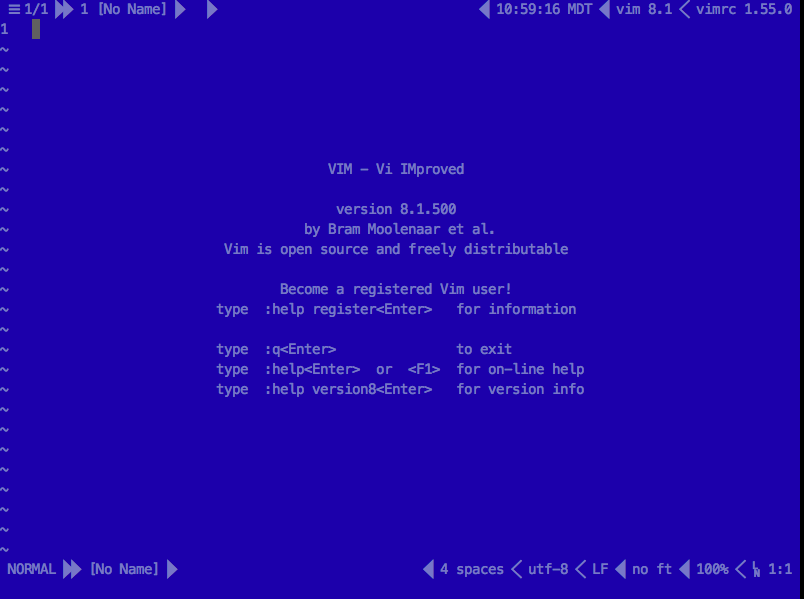
There are 2 solutions:
-
Use a terminal that supports 24-bit color (also called true color).
Mac
I strongly recommend iTerm2 over the default terminal. It supports 24-bit color and has a bunch of other fancy stuff.
Windows
If you're using PuTTY for ssh, use some other terminal for ssh instead, such as Git Bash or Mintty.
Linux
You already know what you're doing. :penguin:
-
Disable true color
Go to
settings.vimand setg:truecolor_enabled = 0. The resulting appearance will be be an altered version of the selected color scheme.