
MidiControl
MIDIControl is a standalone software (Windows Only), to remote control OBS, remote control your GoXLR, act as Soundboard, send message in Twitch Chat, and more..., with any MIDI controller like APC (from AKAI) or Launchpad (from Novation).
Install / Use
/learn @Etuldan/MidiControlREADME
MidiControl
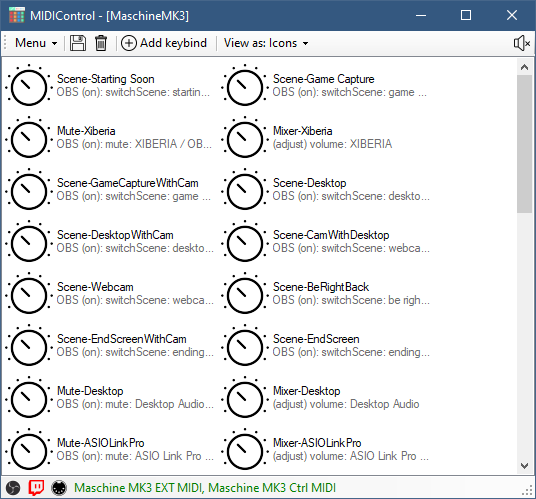
MIDIControl is an external software (Windows Only), to remote control OBS, remote control your GoXLR, act as Soundboard, send message in Twitch Chat, and more..., with any MIDI controller like APC (from AKAI), Launchpad (from Novation), or Maschine (from Native Instruments).
It support profiles/mapping, so you can switch from one to another, to use your MIDI Controller differently if you want to.
Prerequisites
- obs-websocket-5.0. This is included with OBS Studio 28. Older versions of OBS and obs-websocket are NOT supported.
How to configure
- Start MIDIControl.
- Configure the OBS websocket connection in Menu > MIDIControl options. For minimal usage, the MIDI section should be okay at its default settings. You can connect your Twitch account here if needed.
- Click Add keybind (or press Ctrl+N) to add a new MIDI keybind.
- Press a MIDI key or control on your controller; the key/control will be displayed in the "Add MIDI Keybind" window.
- Assign one or more actions to this key/control, then press Save.
- Repeat steps 3-5 for all keys/controls you want to configure. Double-click an existing keybind to edit it, or right-click for more options.
- Save your profile.
- Hide the window with the X button or Menu > Close to tray; it will minimize to the system tray and can be reactivated by double-clicking the tray icon. Exit the program by right-clicking the tray icon and choosing Exit, or by selecting Exit from the Menu in the main window.
Once you have it configured to your liking, you can go to Menu > Interface options to set MIDIControl to start to the system tray without showing the main interface. By default, it will load the last-used profile on startup.
How to Use
- Make sure OBS Studio is running first.
- Start MIDIControl.
- Select the profile you want to use, if needed.
- Press on your MIDI keys/controls!
Notes
The green label on the status bar lists the available MIDI input devices detected, in the order they were detected. This label will turn yellow if you press a control on a device that is listed after a previous one that has been disconnected since starting the program, indicating the need for a device refresh. Click the MIDI status button next to this label at any time to refresh and reconnect to available input devices.
Related Skills
node-connect
338.0kDiagnose OpenClaw node connection and pairing failures for Android, iOS, and macOS companion apps
frontend-design
83.4kCreate distinctive, production-grade frontend interfaces with high design quality. Use this skill when the user asks to build web components, pages, or applications. Generates creative, polished code that avoids generic AI aesthetics.
openai-whisper-api
338.0kTranscribe audio via OpenAI Audio Transcriptions API (Whisper).
commit-push-pr
83.4kCommit, push, and open a PR
