
EmotionPlayer
Video player with content analysis function for age rating
Install / Use
/learn @EmotionEngineer/EmotionPlayerREADME
EmotionPlayer
EmotionPlayer is a simple desktop video player for Windows with content analysis and age rating.
It uses WPF MediaElement for playback and EmotionLib for:
- per‑frame positiveness analysis,
- video content filtering,
- final MPAA‑style rating / “Unsafe” classification via SAMP.
Requires Windows Media Player (uses the WPF MediaElement stack).
Target framework: .NET Framework 4.7.2
Platform: x64 (Windows 10/11)
Table of Contents
- Features
- Screenshots
- Architecture Overview
- Build from Source
- Running EmotionPlayer
- Usage
- Troubleshooting
- Notes
Features
-
Simple video playback
- Based on WPF
MediaElement(Windows Media stack). - Basic controls: play/pause, previous/next, volume, mute, fullscreen toggle.
- Based on WPF
-
Content analysis & age rating
- Uses models from EmotionLib:
positiveness.dll— positiveness / negativity model.filter.dll— content filter model.samp.dll— combines both into a scalar rating and MPAA label (G,PG,PG-13,R) orUnsafe.
- Results are stored in
.eppand.efpbinary files in anOutputfolder.
- Uses models from EmotionLib:
-
Emotion timeline
- Video frames are sampled every N seconds (interval depends on total video duration).
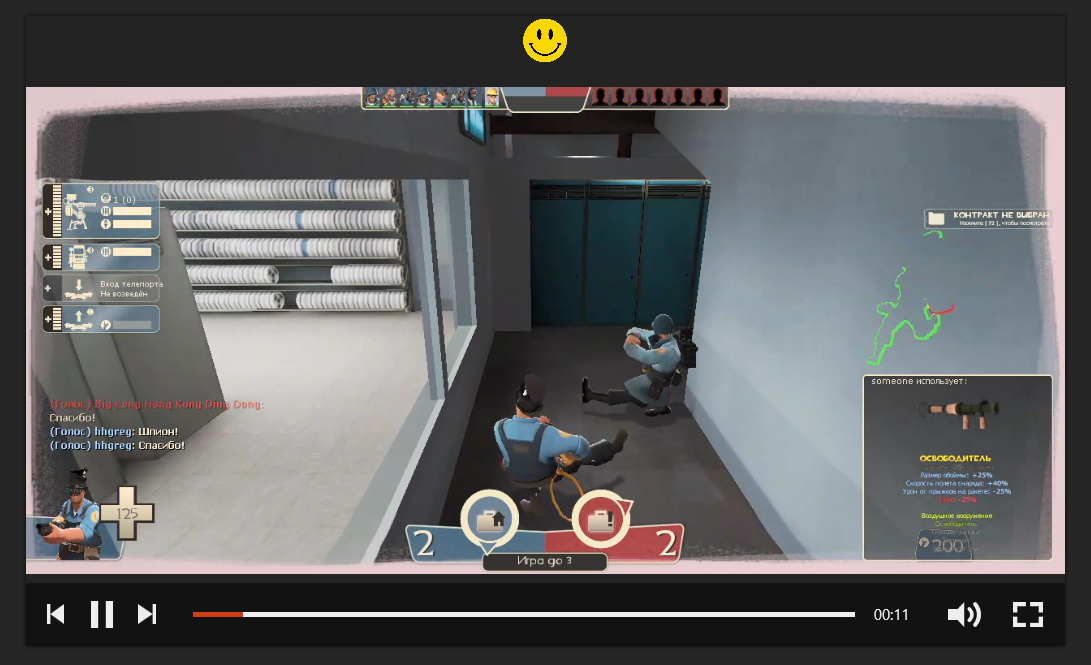
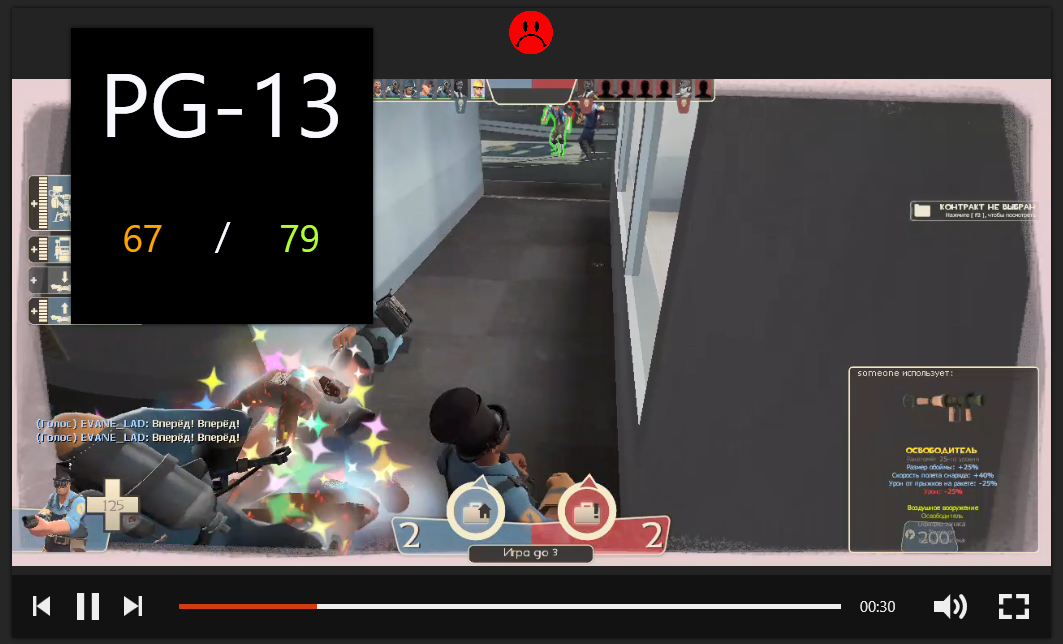
- For each sampled point, positiveness is shown as a happy/sad icon when hovering the timeline.
- Interval is consistent with what is used in
.epp/.efpfiles and SAMP.
-
Batch processing
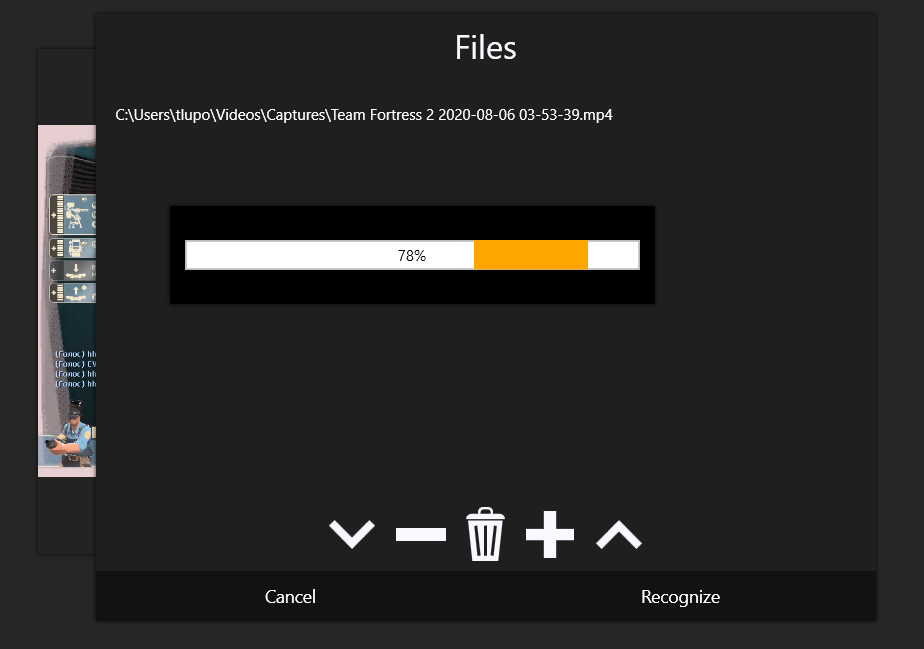
- “Files” window allows loading multiple videos.
- “Recognize” runs analysis sequentially for each selected video.
- A progress window shows:
- current video name,
- current stage:
Positiveness/Filter, - progress percentage.
Screenshots
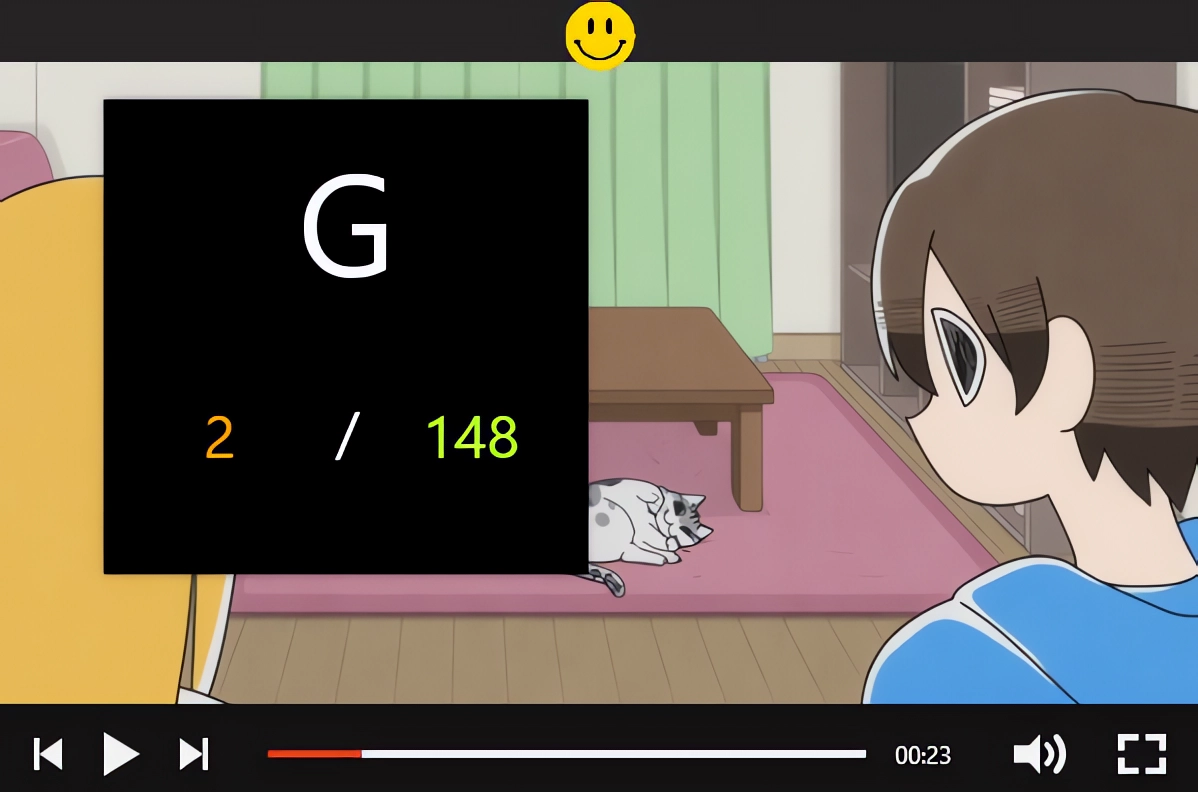
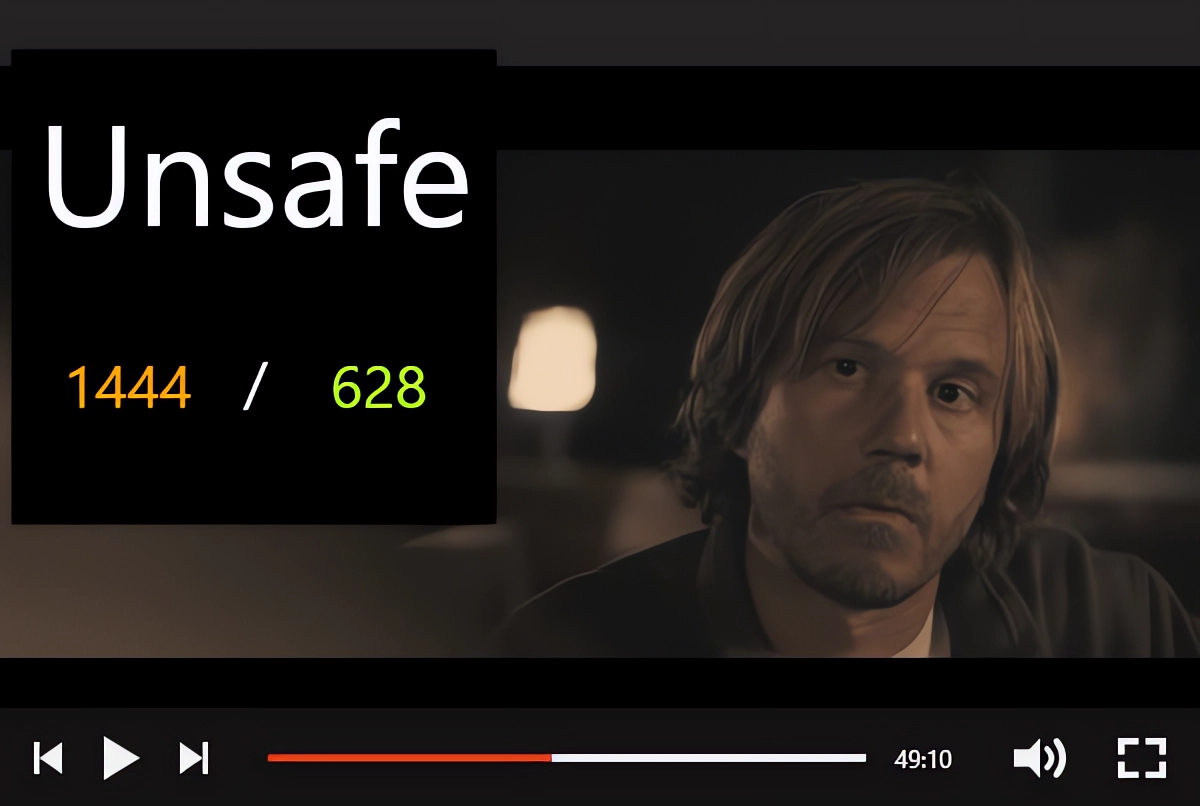
Architecture Overview
EmotionPlayer consists of:
- WPF UI (C#, .NET Framework 4.7.2)
MainWindow– video playback, controls, emotion indicator.FileWindow– file list management and recognition trigger.ProgressBarWindow– per‑video progress (stage + percentage).About/DarkMsgBox– info and rating result windows.
- Inference bridge (
Inferencer.cs)- Loads video frames via OpenCvSharp4.
- Samples frames at dynamic interval (e.g., every 1–6 seconds depending on duration).
- Runs native models over frame batches in parallel chunks (CPU‑only).
- Produces
.eppand.efpfiles inOutput. - Calls
samp.dllfor final rating and reports interpreted result to UI.
- Native libraries from EmotionLib
filter.dll,positiveness.dll,samp.dll— must be built from EmotionLib and copied next toEmotionPlayer.exe.
- OpenCvSharp runtime
- Requires
OpenCvSharpExtern.dllfromOpenCvSharp4.runtime.win.
- Requires
Build from Source
Prerequisites
- OS: Windows 10/11 x64
- Runtime: .NET Framework 4.7.2
- Media: Windows Media Player installed (for WPF
MediaElement) - IDE: Visual Studio 2022 (Community or higher)
- Workload: .NET desktop development
Clone Repositories
Clone both repositories (preferably into sibling folders):
git clone https://github.com/EmotionEngineer/EmotionLib.git
git clone https://github.com/EmotionEngineer/EmotionPlayer.git
Example layout:
D:\Projects\EmotionLib
D:\Projects\EmotionPlayer
Configure NuGet
If NuGet packages fail to restore, ensure that the official nuget.org source is configured:
- Open Visual Studio 2022.
- Menu:
- Tools → NuGet Package Manager → Package Manager Settings
- Select Package Sources.
- Click “+” to add a new source.
- Set:
- Name:
nuget.org - Source:
https://api.nuget.org/v3/index.json
- Name:
- Click Update/OK.
Then, in the Solution Explorer for EmotionPlayer.sln, you can:
- Right‑click the solution → Restore NuGet Packages, or
- Just build the solution – packages will be restored automatically.
Build EmotionLib (native DLLs)
EmotionPlayer depends on native libraries from EmotionLib:
filter.dllpositiveness.dllsamp.dll
Steps:
- Open
EmotionLib.slnin Visual Studio 2022. - Select configuration:
- Configuration: Release
- Platform: x64
- Build the solution:
- Menu: Build → Build Solution (or
Ctrl+Shift+B).
- Menu: Build → Build Solution (or
After a successful build, in one of the output directories (e.g.):
EmotionLib\bin\x64\Release\
you should find:
filter.dllpositiveness.dllsamp.dll
(see the EmotionLib repository for the exact output location if it differs.)
Build EmotionPlayer
- Open
EmotionPlayer/EmotionPlayer.slnin Visual Studio 2022. - Ensure NuGet packages are restored (see Configure NuGet).
- In the toolbar or “Configuration Manager”, select:
- Configuration: Release
- Platform: x64
- Build the project:
- Menu: Build → Build Solution (or
Ctrl+Shift+B).
- Menu: Build → Build Solution (or
The default output path will be similar to:
EmotionPlayer\EmotionPlayer\bin\x64\Release\
(or bin\x64\Debug\ for Debug configuration).
Deploy Native Libraries
1. Copy EmotionLib DLLs
Copy the three DLLs built from EmotionLib:
filter.dllpositiveness.dllsamp.dll
into the same folder as EmotionPlayer.exe, for example:
EmotionPlayer\EmotionPlayer\bin\x64\Release\
So that this directory contains:
EmotionPlayer.exefilter.dllpositiveness.dllsamp.dll- other managed dependencies…
Without these, EmotionPlayer will start but will fail when trying to run inference.
2. Copy OpenCvSharpExtern.dll (if needed)
The project uses OpenCvSharp4 and OpenCvSharp4.runtime.win.
On some systems, the native OpenCvSharpExtern.dll is not automatically copied to the output folder, resulting in an error:
OpenCvSharpExtern.dllis missing
or similar: “Could not load file or assembly OpenCvSharpExtern.dll …”
To fix this:
-
Locate
OpenCvSharpExtern.dllin your NuGet cache, e.g.:%USERPROFILE%\.nuget\packages\opencvsharp4.runtime.win\4.8.0.20230708\runtimes\win-x64\native\OpenCvSharpExtern.dll -
Copy
OpenCvSharpExtern.dllinto the same directory asEmotionPlayer.exe, for example:EmotionPlayer\EmotionPlayer\bin\x64\Release\
After this, the OpenCvSharp runtime dependency will be satisfied.
Running EmotionPlayer
Once all of the above steps are completed:
-
Navigate to the output folder, e.g.:
EmotionPlayer\EmotionPlayer\bin\x64\Release\ -
Double‑click
EmotionPlayer.exe
or run it via Visual Studio:- Set
EmotionPlayeras the startup project. - Press F5 (Debug) or Ctrl+F5 (Run without debugging).
- Set
Make sure the folder contains:
EmotionPlayer.exefilter.dllpositiveness.dllsamp.dllOpenCvSharpExtern.dll- Other managed DLLs from NuGet.
Usage
File selection & recognition
-
Launch EmotionPlayer.
-
Click Files in the top bar (or press
O). -
In the Files window:
- Use the “+” button or
A/+key to add video files. - Supported formats: any that WPF/Windows Media can handle (e.g.
.mp4,.avi,.wmv,.mkvwith proper codecs).
- Use the “+” button or
-
Click Recognize:
- A progress window appears.
- Each video is processed sequentially:
- Stage 1: Positiveness model
- Stage 2: Filter model
- Then SAMP is called to determine the final MPAA rating or “Unsafe”.
- The progress window shows:
Video: <name>Stage: Positiveness/Stage: Filter- Percent value (0–100).
-
After recognition completes:
- You return to the main window.
- You can play the videos with the usual playback controls.
- Click MPAA Content Rating to see a dark popup window with:
- Final rating (e.g.
G,PG-13,R,Unsafe) - Basic statistics (positive/negative frames based on positiveness model).
- Final rating (e.g.
Timeline emotions
- During playback:
- Move the mouse over the bottom control bar (timeline).
- The slider shows the current time.
- A small emoji icon (happy/sad) is updated according to the positiveness prediction for the nearest sampled time.
- Sampling interval:
- Depends on video length (1–6 seconds between frames).
- The same interval is used for
.eppand.efpand for SAMP. - The UI converts timeline seconds to the correct index based on that interval.
Keyboard shortcuts
Core shortcuts in the main window:
- Playback:
- `S
