
DumbTerm
A stupidly simple web-based terminal emulator, with common tools and Starship enabled (via Docker)! 🚀
Install / Use
/learn @DumbWareio/DumbTermREADME
DumbTerm
A stupidly simple web-based terminal emulator, with common tools and Starship enabled! 🚀
- Access your terminal from any device with a web browser
- Execute commands just like in a native terminal
- Starship prompt provides a beautiful terminal experience with git status, command duration, etc.
- PIN protection (recommended) prevents unauthorized access
- Use the data directory to persist files between container restarts
- Demo mode available for testing and demonstrations - simulated terminal (set DEMO_MODE=true)
Use cases:
- Build with docker: To create a sandboxed environment for testing scripts, code, applications, emulate a VPS, showcase examples and more. All without having to install dependencies on your local machine!
- Build locally: To access your client's cli/terminal through your browser instead!
- Self-hosting: Put behind a reverse proxy, auth provider (like authentik, authelia, etc), Cloudflare tunnels with application access rules, etc for secure external access.
- Another alternative to web terminals such as ttyd, shellinabox, etc
Table of Contents
- Features
- Quick Start
- Configuration
- Keyboard Shortcuts
- Security
- Technical Details
- Links
- Contributing
- Check Us Out
- Future Features
Features
- 🖥️ Web-based terminal access from anywhere
- 🌙 Dark mode support
- 📱 Responsive design for mobile and desktop
- 🐳 Docker support (Debian-based container)
- 🔧 Pre-installed utilities: starship, nerdfonts, apt-utils, curl, wget, ssh, git, vim, nano, htop, net-tools, iputils-ping, traceroute, fontconfig, unzip, locales, python3, etc.
- 🔒 Optional PIN protection (numeric)
- ✨ Starship prompt integration for beautiful terminal experience
- 🔍 Terminal search functionality (
ctrl+forcmd+f) - 📂 Custom volume mappings
- 🔗 In-terminal hyperlinks
- ⌨️ Keyboard shortcuts for common actions
- 📑 Tab Management:
- Drag and drop reordering of tabs
- Double-click to rename tabs
- Direct tab selection with shortcuts
- Terminal history persistence across sessions
- 📱 PWA Support for mobile and desktop
- ⚡ XTerm.js for fast terminal rendering
Quick Start
Prerequisites
- Docker (recommended)
- Node.js >=20.0.0 (for local development)
- Windows-specific: WSL or Node.js v16 - Option 3: Running Locally
Option 1: Docker (For Dummies)
- Docker method uses a pre-installed Debian 13 Trixie-based container/environment.
# Pull and run with one command
docker run -p 3000:3000 \
  -v ./data:/root/data \
  -v ./config:/root/.config \
  -e DUMBTERM_PIN=1234 \
  -e SITE_TITLE=DumbTerm \
  -e BASE_URL=http://localhost:3000 \
  -e ALLOWED_ORIGINS=http://localhost:3000 \
  -e ENABLE_STARSHIP=true \
  -e TZ=America/Los_Angeles \
  -e LOCKOUT_TIME=15 \
  -e MAX_SESSION_AGE=24 \
  dumbwareio/dumbterm:latest
- Go to http://localhost:3000
- Enter your PIN if configured
- Enjoy your web-based terminal!
Option 2: Docker Compose (For Dummies who like customizing) - Recommended
Create a docker-compose.yml file or use the provided one:
services:
  dumbterm:
    image: dumbwareio/dumbterm:latest
    container_name: dumbterm
    restart: unless-stopped
    ports:
      - ${DUMBTERM_PORT:-3000}:3000
    volumes:
      - ${DUMBTERM_CONFIG:-./config}:/root/.config
      - ${DUMBTERM_DATA_DIR:-./data}:/root/data
    environment:
      # Container timezone
      TZ: ${DUMBTERM_TZ:-America/Los_Angeles}
      # The title shown in the web interface
      SITE_TITLE: ${DUMBTERM_SITE_TITLE:-DumbTerm}
      # Recommended PIN protection (leave empty to disable)
      DUMBTERM_PIN: ${DUMBTERM_PIN:-1234}
      # The base URL for the application
      BASE_URL: ${DUMBTERM_BASE_URL:-http://localhost:3000}
      ENABLE_STARSHIP: ${ENABLE_STARSHIP:-true}
      LOCKOUT_TIME: ${DUMBTERM_LOCKOUT_TIME:-15} # Minutes
      # Session duration in hours before requiring re-authentication
      MAX_SESSION_AGE: ${DUMBTERM_MAX_SESSION_AGE:-24} # Hours
      # (OPTIONAL) - List of allowed origins for CORS
      # ALLOWED_ORIGINS: ${DUMBTERM_ALLOWED_ORIGINS:-http://localhost:3000}
Then run:
docker compose up -d
Option 3: Running Locally (For Developers)
- Local method will use your local terminal environment (Windows: Powershell, Mac / Linux: bash).
- Install dependencies:
npm install
[!TIP]
Windows specific:
- If you encounter issues with
node-ptyyou can try using Windows Subsystem for Linux (WSL) or may need to install:Node.js v16(Look into nvm for windows for multi node version support):
winget install CoreyButler.NVMforWindows- with nvm installed use:
nvm install 16 && nvm use 16windows-build-toolsthrough Visual Studio InstallerMSVC v142 - VS 2019 C++ {arch} Build Tools
- Contact us or View the official Microsoft documentation for more details
cp .env.example .env> Set environment variables in.env:
PORT=3000                  # Port to run the server on
DUMBTERM_PIN=1234          # Optional PIN protection
SITE_TITLE=DumbTerm        # Custom site title
BASE_URL=http://localhost:3000  # Base URL for the application
- Start the server:
npm start
Configuration
Environment Variables
| Variable | Description | Default | Required | | --------------- | ------------------------------------------------- | --------------------- | -------- | | PORT | Server port | 3000 | No | | BASE_URL | Base URL for the application | http://localhost:PORT | No | | DUMBTERM_PIN | PIN protection (numeric) | None | No | | SITE_TITLE | Site title displayed in header | DumbTerm | No | | TZ | Container timezone | America/Los_Angeles | No | | ENABLE_STARSHIP | Enable Starship prompt (docker only) | true | No | | NODE_ENV | Node environment mode (development or production) | production | No | | ALLOWED_ORIGINS | Allowed CORS origins (comma-separated list) | * (all origins) | No | | DEBUG | Enable debug logging | FALSE | No | | LOCKOUT_TIME | Custom Pin Lockout Time (in minutes) | 15 | No | | MAX_SESSION_AGE | Duration of authenticated session (in hours) | 24 | No | | DEMO_MODE | Enable demo mode with simulated terminal | false | No |
Starship usage
- Starship is a cross-shell prompt that provides a beautiful terminal experience.
- It is enabled by default in the Docker image and is the recommended method.
- To disable it, set
ENABLE_STARSHIPtofalsein your environment variables. - You can customize the Starship prompt by using one of the following steps:
1. Use a preset configuration from starship.
Starship Presets:
<details> <summary><b>Example Preset Command:</b></summary>[!TIP] copy and paste one of the starship preset commands below into DumbTerm and that's it!
<details> <summary><b>View All Starship Presets:</b></summary>[!WARNING] > Note: If running locally or mapped volume to your actual
starship.tomlconfig, the preset commands will overwrite your existingstarship.tomlfile. Make sure to back it up as needed.
| Preset Name | Command | Preview |
| ------------------------------------------ | ---------------------------------------------------------------- | ------------------------------------------------------------------------------- |
| Nerd Font Symbols | starship preset nerd-font-symbols -o ~/.config/starship.toml | 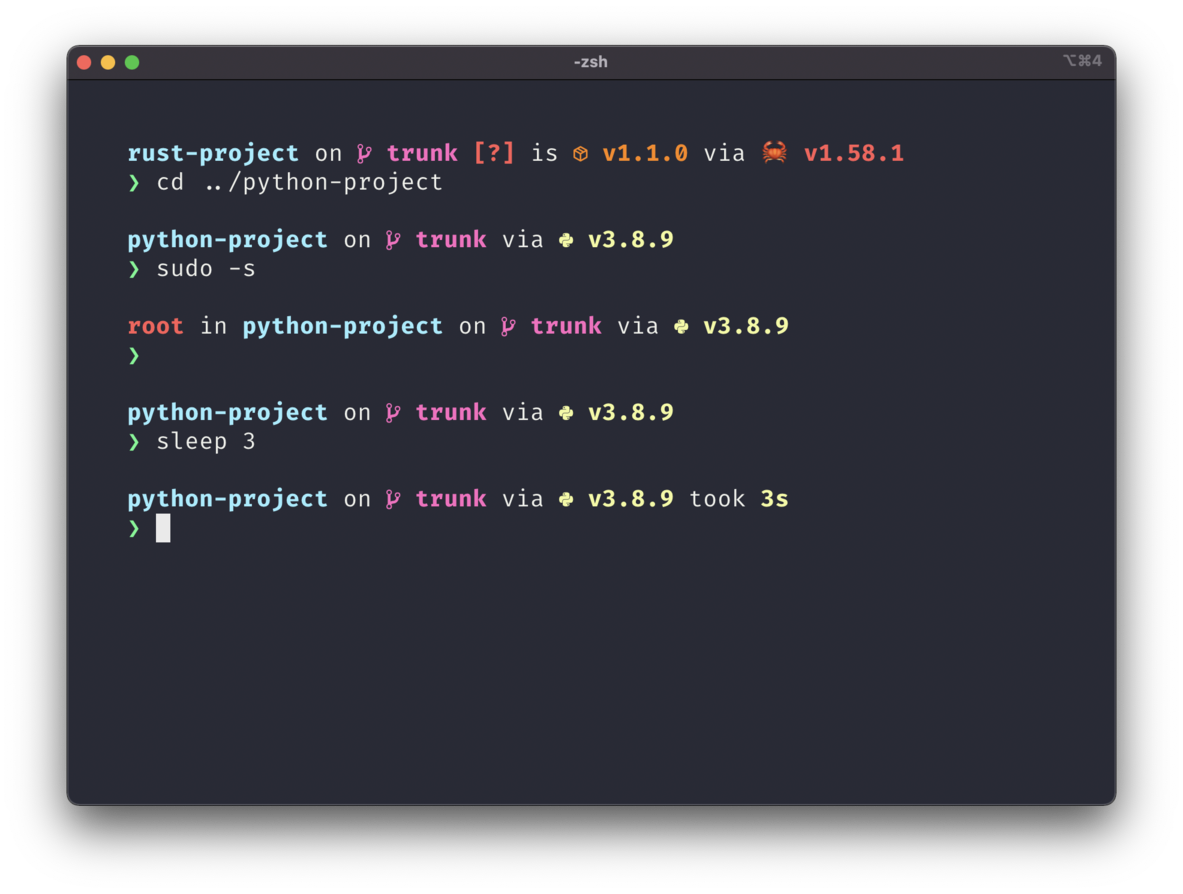 |
| Bracketed Segments |
|
| Bracketed Segments | starship preset bracketed-segments -o ~/.config/starship.toml | 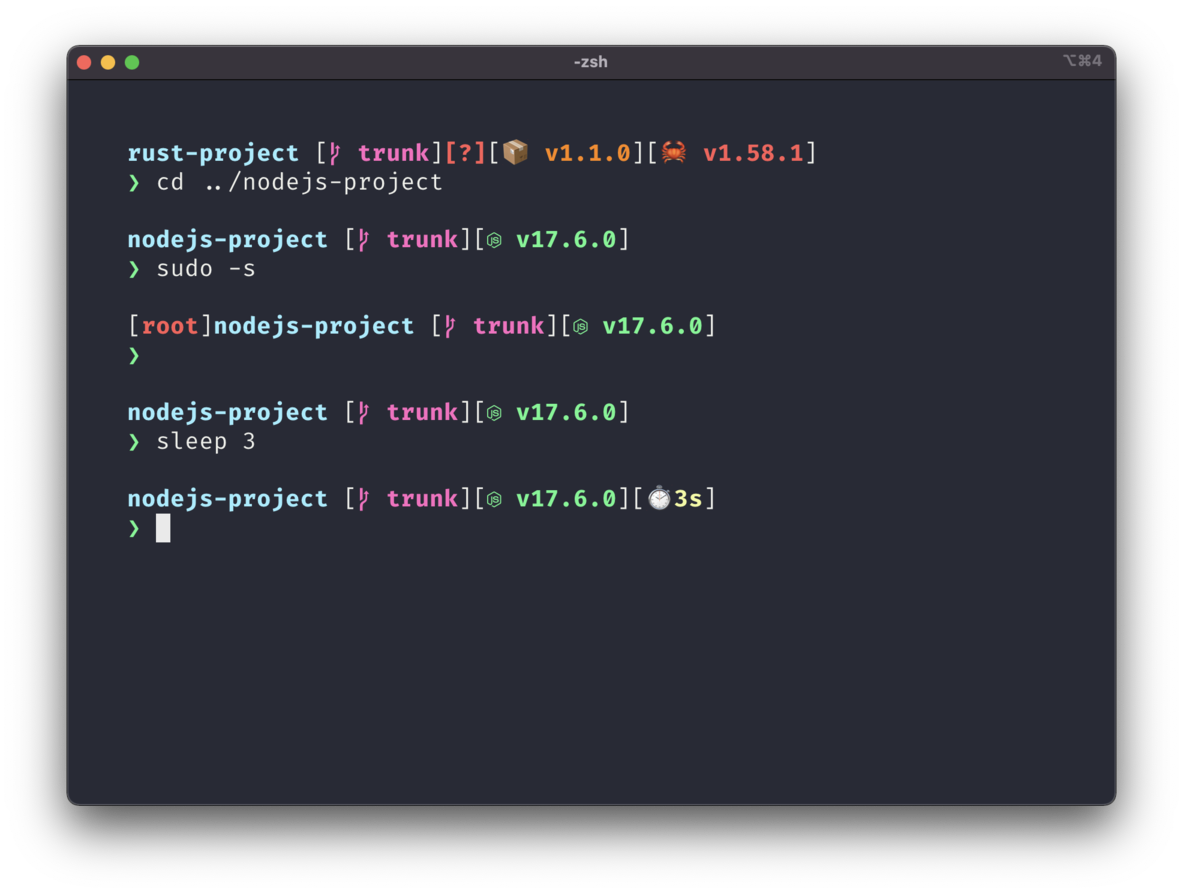 |
| Plain Text Symbols |
|
| Plain Text Symbols | starship preset plain-text-symbols -o ~/.config/starship.toml | 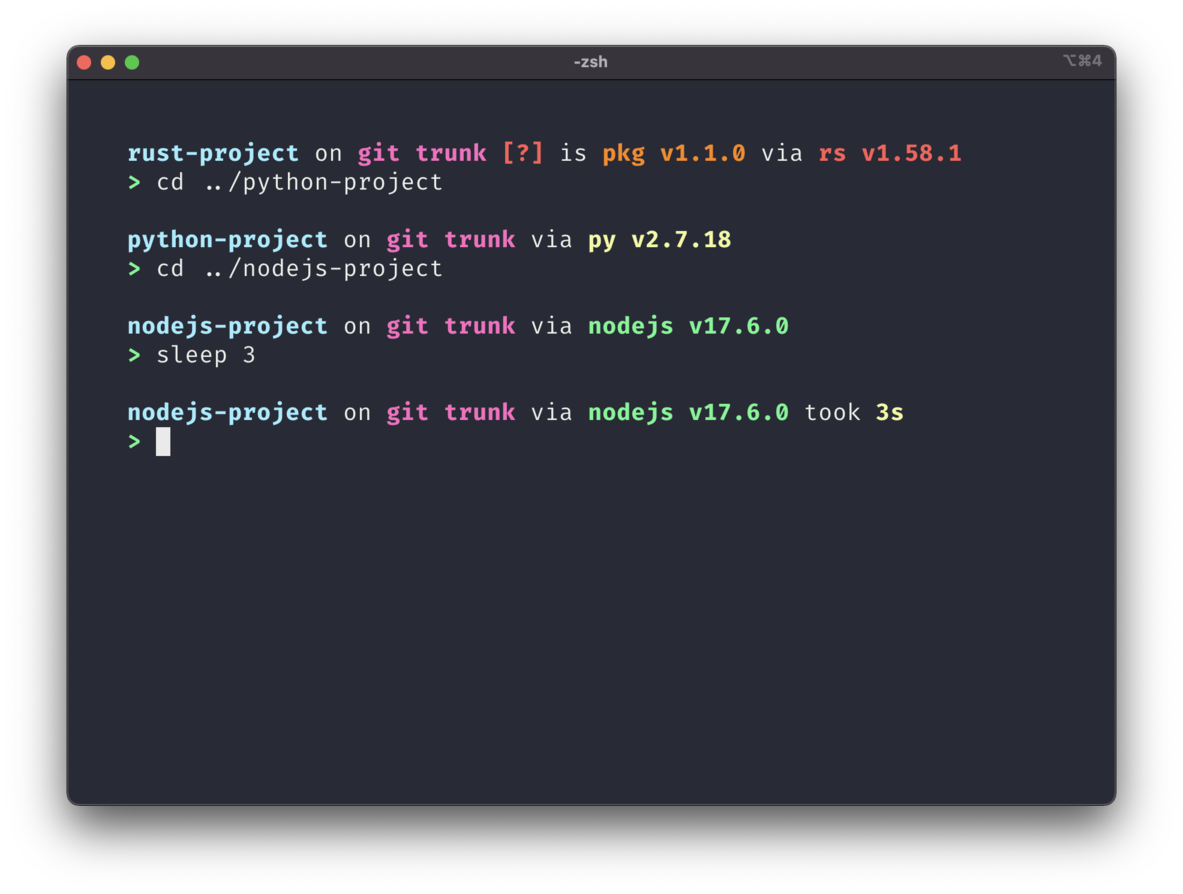 |
| No Runtime Versions |
|
| No Runtime Versions | starship preset no-runtime-versions -o ~/.config/starship.toml | 