
A1111 Sd Webui Tagcomplete
Booru style tag autocompletion for AUTOMATIC1111's Stable Diffusion web UI
Install / Use
npx skills add DominikDoom/a1111-sd-webui-tagcompleteInstalls into whichever agent you are using.
README
SD WebUI Tag Autocomplete
English • 简体中文 • 日本語
Booru style tag autocompletion for the AUTOMATIC1111 Stable Diffusion WebUI
[![Github Release][release-shield]][release-url] [![stargazers][stargazers-shield]][stargazers-url] [![contributors][contributors-shield]][contributors-url] [![forks][forks-shield]][forks-url] [![issues][issues-shield]][issues-url]
[Changelog][release-url] • Known Issues • [Report Bug][issues-url] • [Request Feature][issues-url]
</div> <br/>📄 Description
Tag Autocomplete is an extension for the popular AUTOMATIC1111 web UI for Stable Diffusion. You can install it using the inbuilt available extensions list, clone the files manually as described below, or use a pre-packaged version from Releases.
It displays autocompletion hints for recognized tags from "image booru" boards such as Danbooru, which are primarily used for browsing Anime-style illustrations. Since most custom Stable Diffusion models were trained using this information or merged with ones that did, using exact tags in prompts can often improve composition and consistency, even if the model itself has a photorealistic style.
Disclaimer: The default tag lists contain NSFW terms, please use them responsibly.
<br/>✨ Features
- 🚀 Instant completion hints while typing (under normal circumstances)
- ⌨️ Keyboard navigation
- 🌒 Dark & Light mode support
- 🛠️ Many settings and customizability
- 🌍 Translation support for tags, with optional live preview for the full prompt
- Note: Translation files are provided by the community, see here for a list of translations I know of.
Tag autocomplete supports built-in completion for:
- 🏷️ Danbooru & e621 tags (Top 100k by post count, as of November 2022)
- ✳️ Wildcards
- ➕ Extra network filenames, including
- Textual Inversion embeddings [(jump to readme section)]
- Hypernetworks
- LoRA
- LyCORIS / LoHA
- 🪄 Chants (custom format for longer prompt presets)
- 🏷️ "Extra file", one set of customizable extra tags
Additionally, some support for other third party extensions exists:
<details> <summary>Click to expand</summary>- [Image Browser][image-browser-url] - Filename & EXIF keyword search
- [Multidiffusion Upscaler][multidiffusion-url] - Regional Prompts
- [Dataset Tag Editor][tag-editor-url] - Caption, Interrogate Result, Edit Tags & Edit Caption
- [WD 1.4 Tagger][wd-tagger-url] - Additional & Excluded tags
- [Umi AI][umi-url] - Completion for YAML wildcards
🖼️ Screenshots & Demo videos
<details> <summary>Click to expand</summary> Basic usage (with keyboard navigation):https://user-images.githubusercontent.com/34448969/200128020-10d9a8b2-cea6-4e3f-bcd2-8c40c8c73233.mp4
Wildcard script support:
https://user-images.githubusercontent.com/34448969/200128031-22dd7c33-71d1-464f-ae36-5f6c8fd49df0.mp4
Extra Network preview support:
https://github.com/DominikDoom/a1111-sd-webui-tagcomplete/assets/34448969/3c0cad84-fb5f-436d-b05a-28db35860d13
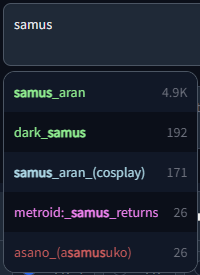
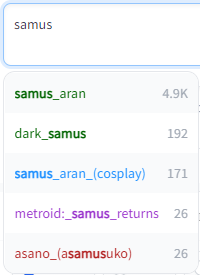
Dark and Light mode supported, including tag colors:
📦 Installation
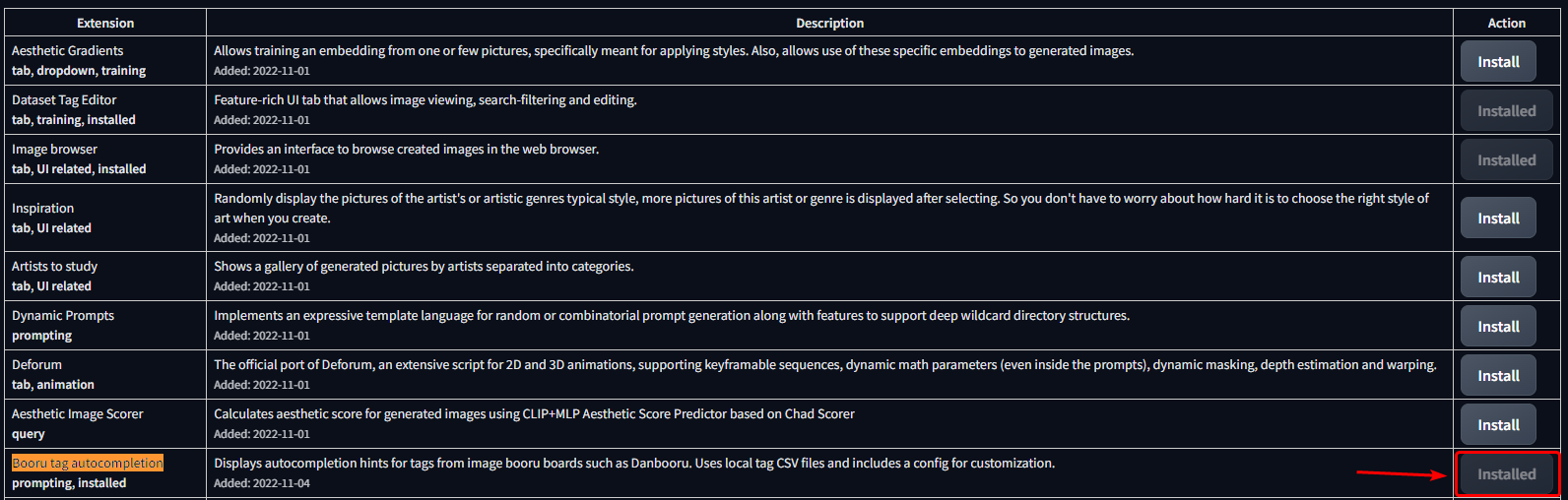
Using the built-in extension list
- Open the
Extensionstab - Open the
Availablesub-tab - Click Load from
- Find Booru tag autocompletion in the list
- The extension was one of the first available, so selecting "oldest first" will show it high up in the list.
- Alternatively, use <kbd>CRTL</kbd> + <kbd>F</kbd> to search for the text on the page
- Click Install on the right side

Manual clone
git clone "https://github.com/DominikDoom/a1111-sd-webui-tagcomplete.git" extensions/tag-autocomplete
(The second argument specifies the name of the folder, you can choose whatever you like).
<br/>❇️ Additional completion support
Wildcards
Autocompletion also works with wildcard files used by https://github.com/AUTOMATIC1111/stable-diffusion-webui-wildcards or other similar scripts/extensions.
Completion is triggered by typing __ (double underscore). It will first show a list of your wildcard files, and upon choosing one, the replacement options inside that file.
This enables you to either insert categories to be replaced by the script, or directly choose one and use wildcards as a sort of categorized custom tag system.
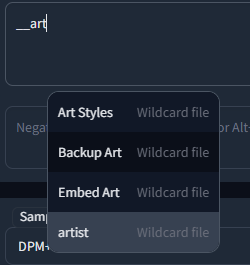
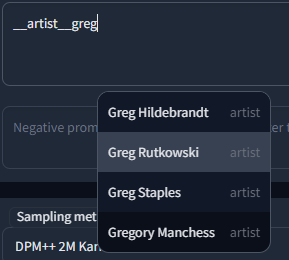
Wildcards are searched for in every extension folder, as well as the scripts/wildcards folder to support legacy versions. This means that you can combine wildcards from multiple extensions. Nested folders are also supported if you have grouped your wildcards in that way.
Extra networks (Embeddings, Hypernets, LoRA, ...)
Completion for these types is triggered by typing <. By default it will show them all mixed together, but further filtering can be done in the following way:
<e:will only show embeddings<l:will only show LoRA and LyCORIS- Or
<lora:and<lyco:respectively for the long form
- Or
<h:or<hypernet:will only show Hypernetworks
Live previews
Tag Autocomplete will now also show the preview images used for the cards in the Extra Networks menu in a small window next to the regular popup. This enables quick comparisons and additional info for unclear filenames without having to stop typing to look it up in the webui menu. It works for all supported extra network types that use preview images (Loras/Lycos, Embeddings & Hypernetworks). The preview window will stay hidden for normal tags or if no preview was found.
Lora / Lyco trigger word completion
This feature will try to add known trigger words on autocompleting a Lora/Lyco.
It primarily uses the list provided by the model-keyword extension, which thus needs to be installed to use this feature. The list is also regularly updated through it.
However, once installed, you can deactivate it if you want, since tag autocomplete only needs the local keyword lists it ships with, not the extension itself.
The used files are lora-keyword.txt and lora-keyword-user.txt in the model-keyword installation folder.
If the main file isn't found, the feature will simply deactivate itself, everything else should work normally.
Note:
As of v1.5.0, the webui provides a native method to add activation keywords for Lora through the Extra networks config UI. These trigger words will always be preferred over the model-keyword ones and can be used without needing to install the model-keyword extension. This will however, obviously, be limited to those manually added keywords. For automatic discovery of keywords, you will still need the big list provided by model-keyword.
Custom trigger words can be added through two methods:
- Using the extra networks UI (recommended):
-
Only works with webui version v1.5.0 upwards, but much easier to use and works without the model-keyword extension
-
This method requires no manual refresh
-
<details>
<summary>Image example</summary>
</details>
-
- Through the model-keyword UI:
-
One issue with this method is that it has no official support for the Lycoris extension and doesn't scan its folder for files, so to add them through the UI you will have to temporarily move them into the Lora model folder to be able to select them in model-keywords dropdown. Some are already included in the default list though, so trying it out first is advisable.
-
After having added your custom keywords, you will need to either restart the UI or use the "Refresh TAC temp files" setting button.
-
<details>
<summary>Image example</summary>
</details>
-
Sometimes the inserted keywords can be wrong due to a hash collision, however model-keyword and tag autocomplete take the name of the file into account too if the collision is known.
If it still inserts something wrong or you simply don't want the keywords added that time, you can undo / redo it directly after as often as you want, until you type something else (It uses the default undo/redo action of the browser, so
Related Skills
node-connect
385.5kDiagnose OpenClaw Android, iOS, or macOS node pairing, QR/setup code, route, auth, and connection failures.
blender-python-addon
40.5kBlender Python add-on rules for operators, panels, properties, registration, testing, and API-safe scripting
flutter-development-guidelines-cursorrules-prompt-file
40.5kCursor rules for Flutter development with MVVM architecture, Riverpod state management, Material widgets, and Dart style guidelines.
commit-push-pr
140.7kCommit, push, and open a PR
