
ContextKeeper.VisualStudio
Session Manager for Visual Studio
Install / Use
/learn @ContextKeeper/ContextKeeper.VisualStudioREADME
ContextKeeper: The State-of-the-Art Session Manager for Visual Studio
Save and restore your complete development context with a single click 🔥
Key Features:
- Save open documents, files and the tabs layout with breakpoints and bookmarks - restore them later and make context switching less painful
- Automagically restore your last context when switching git branches
- Full multi-monitor and DPIs support for complex windows and the tabs layout
- Preserve your exact document layout and editor state
- Simple JSON file storage for easy backup and portability
Reclaim your lost productivity. ContextKeeper safely preserves your task's progress so you can seamlessly switch between different projects or features without losing your piece of mind 🧠
Designed with 💖 for developers who need to maintain multiple work contexts throughout their day. Do you know the real cost of interruption and context switching and The Law of Context Density - "A larger context naturally emerges with a bigger screen real estate."?
<video src="https://github.com/ContextKeeper/ContextKeeper.VisualStudio/assets/8102322/630b296a-e103-42c6-aeca-88dbe37867f3" controls autoplay loop width="800"></video>
💡 ContextKeeper is currently in the Free Beta with Optional Founders License, if you will find any issues please report them.
🧙♂️ Automatically switch contexts when changing Git branches and check more detailed article here.
Are you use using Favorite Documents, Workspace Manager or Task Canvas? Check how much value ContextKeeper delivers when compared to them.
Looking for ARM-compatible build or VS 2019/2017/2015 support? Download from here.
The supported context is made by:
-
logical state
- your favorites files (non-solution files are also supported)
- last opened files, order and state including last selected line&column
- pinned tabs
- tabs groups
- breakpoints
- bookmarks
- relative paths
-
visual state
- main IDE window position and size
- floating windows position and size
- docked state and horizontal/vertical orientation
- tabs groups (including horizontal/vertical orientation)
- last active and selected tabs
- full screen (maximized) windows support
Join the revolution and install it today! Save at least 3300 minutes/year = 55 hours = 2.3 days (15 mins x 20 days x 11 months). You need about 15 minutes to fully switch between contexts at the best possible scenario.
In worst case scenarios switching to detailed context could take several hours, one of the real horror stories:
"Losing this functionality interrupts my workflow beyond imagination. The opened documents represent a "bookmark" for me and I'm barely able to pick up work again without them.
Every time this happens (...) I am willing to put hours into finding a solution, because the thought of losing my opened document state once more after a work session is terrifying. But this time around (...) nothing of the usual remedies helps (...) This has added another 20 Minutes and counting to my two hours put into solving this."
With ContextKeeper you could safely store and switch between different programming contexts in seconds 🔥
All opened files, pinned tabs, documents positions, editor state and the tabs layout (horizontal/vertical orientation, docked state and files order), breakpoints and bookmarks are preserved in a simple JSON file 😍 No more dealing with broken .suo file again.
After installing VSIX package you could access your latest Mental Snapshots by navigating to
View -> Other Windows -> Mental Snapshots
By default tool window will open next to Solution Explorer
Tool
You could create a new snapshot using Create Snapshot button
and restore them quickly using few commands from right-click context menu
- Full Restore - restores all files including windows state&position, pinned tabs and current line&column for every file,
- Append Files - adds all files from a selected snapshot to the current active window,
- Restore Files - closes all tabs and restores a snapshot in the same way as Append Files,
- Update - update selected snapshot using current visual&logical state
Automatic snapshot switching when changing branches
When switching to another git branch ContextKeeper will automatically remember current branch snapshot and save it to .contextkeeper/.git-branches folder. Also it will be added to the "Mental Snapshots" UI list at the very top with <Git Branch> prefix:
This is the same process that you could do manually before switching branches but now fully automated for your convenience 🔥. The current branch snapshot is always continuously auto-saved when you add, remove or change position of any document tab or window (with tabs).
Also a git branch could be changed from CLI, Visual Studio or other third-party client and ContextKeeper will detect it auto-magically 🧙♂️ and restore snapshot for currently selected branch.
Breakpoints and bookmarks
Generally, when a snapshot is created, breakpoints and bookmarks are saved only for the currently open files. This behavior differs from that of Visual Studio, which remembers all breakpoints and bookmarks across different sessions for all files. However, I believe that saving them only for open files is more practical. I remember countless examples of finding old breakpoints from days before that were no longer relevant because I was working on a different task.
The second important thing is that when they are restored for a file, all old breakpoints or/and bookmarks are removed if there were any, but only for that file and nothing else.
Breakpoints
Standard and conditional breakpoints are currently supported. When breakpoint is disabled it will be still saved to a snapshot with IsEnabled property set to false and restored in a disabled state later in the Visual Studio. A single conditional expression is supported with two modes Is true and When changed
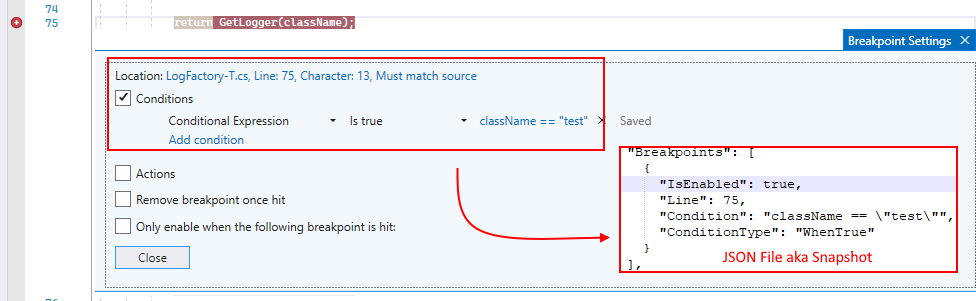
Although the supported area is probably enough for about 90-95% of use cases, there are some limitations:
- only a single conditional expression,
- no support for Hit Count or Filter expressions,
- no support for Actions, “Remove breakpoint once” hit or “Only enable when the following breakpoint is hit” options.
I will be looking for ways to support excluded areas, starting from “Hit Count” and combined conditions (e. g. Conditional Expression with Hit Count). Unfortunately not every breakpoint’s detail is easily exposed via API but I will be extensively digging in Visual Studio’s internals to cover more use cases.
Bookmarks
Bookmarks are stored using line numbers in a similar way to breakpoints.
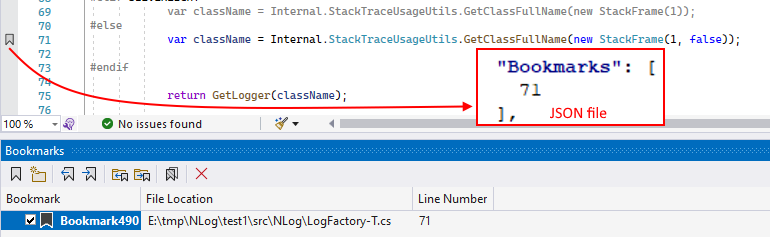
Visual Studio API for bookmarks is really limited; therefore, currently there is no support for:
- named bookmarks - only the line number is stored but not the bookmark name,
- folders - bookmarks folder structure is not restored.
I hope you will enjoy using new breakpoints & bookmarks support!
Relative paths
The feature was one of the missing puzzle pieces, that I always wanted to include. Adding support for relative path is essential part to allow sharing your context between different dev environments and also inside your team. It will unlock potential to e. g.:
- switching between laptop and workstation
- faster onboarding developers to new tasks, taking over responsibilities
- sharing mental models of the project across team members
- fixing complex bugs easier, using targeted mental snapshots
Every time a new snapshot is created it will include RelativePath property for every entry in a *.ck file. When a snapshot is restored, relative paths will be used by default. There is still FilePath property used, as a fallback strategy, for global files. All different types of files are supported including:
- solution and projects files
- "loose" files (not included in a solution/project) but still part of the folders structure
- global files (relative paths cannot be created for them, absolute paths are used)
.
qqbot-media
353.3kQQBot 富媒体收发能力。使用 <qqmedia> 标签,系统根据文件扩展名自动识别类型(图片/语音/视频/文件)。

Security Score
Audited on Mar 25, 2026