
LapisCV
📄 Easily create your resume with Markdown on VSCode / Typora / Obsidian
Install / Use
/learn @BingyanStudio/LapisCVQuality Score
Category
Development & EngineeringSupported Platforms
README
View Samples
<div align="center"> <img src="docs/assets/426570167-0ce9e9f2-8a75-4fd0-a6e1-4bf981c2c735.png" /> <p>LapisCV Serif (new in v2.0.0)</p> <img src="docs/assets/426571037-38f43bdc-47df-4401-9e3d-0a02da4d034d.png" /> <p>LapisCV</p> <img width="80%" src="docs/assets/426572165-86ff88ca-e473-4d1d-9b92-717339bdaee4.png" /> <p>Typora Editor</p> </div>Quick Start
Installation
<details> <summary>Typora</summary>-
Download Release and unzip, set the theme:
- Open Typora theme folder:
Preferences > Appearance > Open Theme Folder - Copy files to the theme folder:
lapis-cv.css,lapis-cv-serif.css,lapis-cvdirectory - Restart Typora, select
Lapis Cv/Lapis Cv Seriffrom the theme menu.
- Open Typora theme folder:
-
Open template file to edit.
-
File > Export > PDFto export the PDF file.Before exporting, set the page size to A4 and margins to custom in
<img width="60%" src="docs/assets/426167338-fb084dde-3071-465e-b35c-237044ac3c3b.png" />Preferences > Export > PDF, with top and bottom margins of 13mm, and left and right margins of 15mm:
-
Download Release and unzip, open the folder in VSCode.
-
Install the plugin Markdown PDF.
-
Open template file, click the preview icon in the top right to view the effect in real-time:
<img width="70%" src="docs/assets/426199301-95e0644d-ec50-4442-b9ef-b09f4d5117fc.png" />Right-click and select Markdown PDF - Export (pdf) to export the PDF file.
-
Switch themes:
Modify the style path in
.vscode/settings.json:"markdown.styles": [ "./lapis-cv/styles/main.css", "./lapis-cv/styles/lapis-cv.css", // lapis-cv-serif.css for Serif ],
</details> <details> <summary>Obsidian</summary> <br>Other VSCode plugins may affect the style. If the effect is inconsistent, check if any plugins are interfering.
Download and unzip Release, open the lapis-cv-obsidian directory as a Vault in Obsidian, edit the template, and export the PDF file.
Switch themes in Options > Appearance > CSS snippets
Format and Style
<details> <summary>Avatar</summary> <br><img alt="avatar" src="...">
Replace the src image path when editing the avatar. Delete this line if no avatar is needed.
</details> <details> <summary>Icons</summary> <br>Obsidian cannot recognize local images inserted in HTML format, so it is recommended to upload the image as a link before inserting.
Supported Icons:
| Icon | Escaped Unicode | Icon | Escaped Unicode |
|------|-----------------|------|-----------------|
| <img src="docs/assets/426659674-3e7e6713-dcf2-4fac-b84c-f40887ae0c76.png" width="32"/> |  | <img src="docs/assets/426659731-9acae420-7016-4e6b-a0ab-cef418bcb33c.png" width="32"/> |  |
| <img src="docs/assets/426659765-3bd39547-2e08-4f44-992f-9da011ee9b7d.png" width="32"/> |  | <img src="docs/assets/426659808-71a468d2-96e2-48df-8aea-fe91c67f7650.png" width="32"/> |  |
| <img src="docs/assets/426659845-65e6b2ed-5639-4928-a366-6251297368fa.png" width="32"/> |  | <img src="docs/assets/426659871-ad9c952c-96cd-4492-bcbc-9d4f9465e131.png" width="32"/> |  |
| <img src="docs/assets/426659896-88de89a8-887d-4aa1-aefe-69841ef1cfdb.png" width="32"/> |  | <img src="docs/assets/426659925-11a913c4-bf4e-441d-8c51-a33cfdcea9f4.png" width="32"/> |  |
| <img src="docs/assets/426659953-a150e7e7-8024-4e4c-a693-2c0ee3d67fba.png" width="32"/> |  | <img src="docs/assets/426659979-433fb4bf-a79a-4274-877b-d8c8fa281f8b.png" width="32"/> |  |
| <img src="docs/assets/426660010-0260e833-0461-483d-94af-595e76385645.png" width="32"/> |  | <img src="docs/assets/426660041-8a59848f-db0a-494b-8966-13625e2a7d72.png" width="32"/> |  |
| <img src="docs/assets/426660098-2c7b7f72-ed79-43cc-b238-c9ed2b6bcbc4.png" width="32"/> |  | <img src="docs/assets/426660142-2349f66c-962b-4351-89dc-2d8e2e123c6e.png" width="32"/> |  |
| <img src="docs/assets/426660178-7f4d80ce-cc50-4683-aa74-b5aca8b9da6e.png" width="32"/> |  | <img src="docs/assets/426660228-70b78f69-09be-4a44-b6ed-97be9420c2d1.png" width="32"/> |  |
Page Breaks
Insert --- at the position where a page break is needed.
Page Numbers
Typora
Set the footer in Preferences > Export > PDF, e.g., ${pageNo} / ${totalPages}
VSCode
Modify .vscode/settings.json:
"markdown-pdf.displayHeaderFooter": true,
"markdown-pdf.headerTemplate": "<div></div>",
"markdown-pdf.footerTemplate": "<div style=\"font-size: 9px; margin: 0 auto;\"> <span class='pageNumber'></span> / <span class='totalPages'></span></div>",
Obsidian
The software itself does not support adding page numbers directly. You can install plugins for this.
</details> <details> <summary>Margins</summary> <br>Typora
Preferences > Export > PDF
VSCode
-
Directly modify the
markdown-pdf.marginrelated items in the.vscode/settings.jsonfile. -
Alternatively, modify via GUI:
- Open VSCode settings, select the Workspace tab.
- Search for Markdown-pdf › Margin, and modify the margins on all sides.
Obsidian
Modify --file-margins in the style file, see Custom Styles below.
Custom styles can be used to adapt to different content volumes and adjust details according to preferences.
Modify variables in the corresponding editor's style file lapis-cv.css / lapis-cv-serif.css:
Style File Locations
- Typora:
Preferences > Appearance > Open Theme Folder - VSCode:
lapis-cv/stylesin the folder - Obsidian:
Options > Appearance > CSS snippets > Right button - Open snippets folder
Meanings of Some Custom Variables
/* Custom Configs */

/* Basic Configs */
--text-size: 10pt;                      /* Text font size */
--line-height: 1.8;                     /* Text line height */
--avatar-width: 29mm;                   /* Avatar width */

/* Font Configs */
--h1-size: 16pt;                        /* Level 1 heading font size */
--h2-size: 12pt;                        /* Level 2 heading font size */
--h3-size: 10.5pt;                      /* Level 3 heading font size */
--blockquote-size: 9.3pt;               /* Info block font size */

--text-font: 'SourceHanSansCN';         /* Text font */
--title-font: 'SourceHanSerifCN';       /* Title font */
--link-font: 'JetBrainsMono';           /* Link font */
--code-font: 'JetBrainsMono';           /* Code font */

/* Colors */
--color-accent: #4870ac;                /* Theme color */
--text-normal: #353a42;                 /* Text color, change to pure black if printing is needed */
--link-color: #0563c1;                  /* Link color */
</details>Note: Some styles require restarting the application to take effect.
Contributing
Welcome to submit suggestions via Issues or participate in development via Pull Request!
How to build from source code
git clone git@github.com:BingyanStudio/LapisCV.git
cd LapisCV
make
ls build
License
This project is licensed under the MIT License.
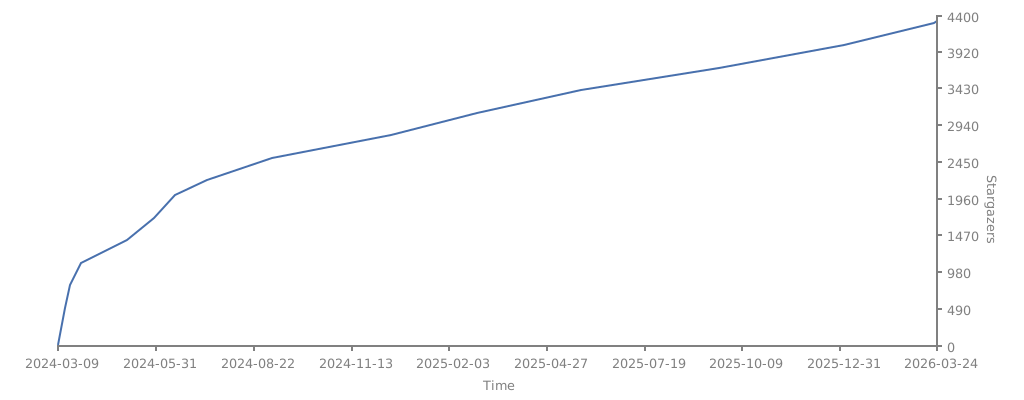
Star History
Related Skills
node-connect
332.9kDiagnose OpenClaw node connection and pairing failures for Android, iOS, and macOS companion apps
frontend-design
81.9kCreate distinctive, production-grade frontend interfaces with high design quality. Use this skill when the user asks to build web components, pages, or applications. Generates creative, polished code that avoids generic AI aesthetics.
openai-whisper-api
332.9kTranscribe audio via OpenAI Audio Transcriptions API (Whisper).
commit-push-pr
81.9kCommit, push, and open a PR
