
LinkedDataHub
The low-code Knowledge Graph application platform. Apache license.
Install / Use
/learn @AtomGraph/LinkedDataHubREADME
The low-code Knowledge Graph application platform
LinkedDataHub (LDH) is open source software you can use to manage data, create visualizations and build apps on RDF Knowledge Graphs.

What's new in LinkedDataHub v5? Watch this video for a feature overview:
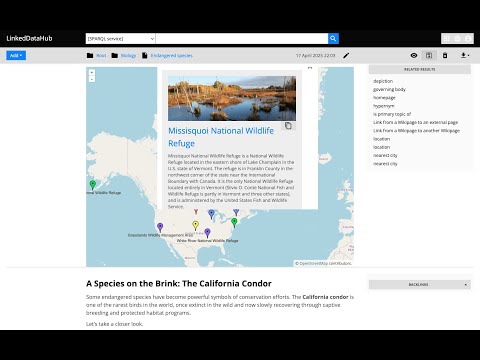
We started the project with the intention to use it for Linked Data publishing, but gradually realized that we've built a multi-purpose data-driven platform.
We are building LinkedDataHub primarily for:
- researchers who need an RDF-native FAIR data environment that can consume and collect Linked Data and SPARQL documents and follows the FAIR principles
- developers who are looking for a declarative full stack framework for Knowledge Graph application development, with out-of-the-box UI and API
What makes LinkedDataHub unique is its completely data-driven architecture: applications and documents are defined as data, managed using a single generic HTTP API and presented using declarative technologies. The default application structure and user interface are provided, but they can be completely overridden and customized. Unless a custom server-side processing is required, no imperative code such as Java or JavaScript needs to be involved at all.
Follow the Get started guide to LinkedDataHub. The setup and basic configuration sections are provided below and should get you running.
LinkedDataHub is also available as a free AWS Marketplace product! <a href="https://aws.amazon.com/marketplace/pp/prodview-vqbeztc3f2nni" target="_blank"><img src="https://github.com/AtomGraph/LinkedDataHub/raw/master/AWS%20Marketplace.svg" width="160" alt="AWS Marketplace"/></a>
It takes a few clicks and filling out a form to install the product into your own AWS account. No manual setup or configuration necessary!
Setup
<details> <summary>Click to expand</summary>Prerequisites
bashshell 4.x. It should be included by default on Linux. On Windows you can install the Windows Subsystem for Linux.- Docker installed. At least 8GB of memory dedicated to Docker is recommended.
- Docker Compose installed
CLI scripts
The following tools are required for CLI scripts in the bin/ directory:
Steps
- Fork this repository and clone the fork into a folder
- In the folder, create an
.envfile and fill out the missing values (you can use.env_sampleas a template). For example:COMPOSE_CONVERT_WINDOWS_PATHS=1 COMPOSE_PROJECT_NAME=linkeddatahub PROTOCOL=https HTTP_PORT=81 HTTPS_PORT=4443 HOST=localhost ABS_PATH=/ OWNER_MBOX=john@doe.com OWNER_GIVEN_NAME=John OWNER_FAMILY_NAME=Doe OWNER_ORG_UNIT=My unit OWNER_ORGANIZATION=My org OWNER_LOCALITY=Copenhagen OWNER_STATE_OR_PROVINCE=Denmark OWNER_COUNTRY_NAME=DK - Setup server's SSL certificates by running this from command line:
The script will create an./bin/server-cert-gen.sh .env nginx sslsslsub-folder where the SSL certificates and/or public keys will be placed. - Create the following secrets with certificate/truststore passwords:
secrets/client_truststore_password.txtsecrets/owner_cert_password.txtsecrets/secretary_cert_password.txtThe one you will need to remember in order to authenticate with LinkedDataHub using WebID client certificate isowner_cert_password.
- Launch the application services by running this from command line:
It will build LinkedDataHub's Docker image, start its container and mount the following sub-folders:docker-compose up --buildsslownerstores root owner's WebID certificate, keystore, and public keysecretarystores root application's WebID certificate, keystore, and public keyserverstores the server's certificate (also used by nginx)
datawhere the triplestore(s) will persist RDF datadatasetswhere LDH persists agent metadata filesuploadswhere LDH stores content-hashed file uploads It should take up to half a minute as datasets are being loaded into triplestores. After a successful startup you should see periodic healtcheck requests being made to the https://localhost:4443/ns URL.
- Install
ssl/owner/keystore.p12into a web browser of your choice (password is theowner_cert_passwordsecret value)- Google Chrome:
Settings > Advanced > Manage Certificates > Import... - Mozilla Firefox:
Options > Privacy > Security > View Certificates... > Import... - Apple Safari: The file is installed directly into the operating system. Open the file and import it using the Keychain Access tool (drag it to the
localsection). - Microsoft Edge: Does not support certificate management, you need to install the file into Windows. Read more here.
- Google Chrome:
- For authenticated API access use the
ssl/owner/cert.pemHTTPS client certificate. If you are running Linux with user other thanroot, you might need to fix the certificate permissions because Docker bind mounts are owned byrootby default. For example:sudo setfacl -m u:$(whoami):r ./ssl/owner/* - Open https://localhost:4443/ in the web browser or use
curlfor API access, for example:curl -k -E ./ssl/owner/cert.pem:<your cert password> -H "Accept: text/turtle" 'https://localhost:4443/'
Notes
-
There might go up to a minute before the web server is available because the nginx server depends on healthy LinkedDataHub and the healthcheck is done every 20s
-
You will likely get a browser warning such as
Your connection is not privatein Chrome orWarning: Potential Security Risk Aheadin Firefox due to the self-signed server certificate. Ignore it: clickAdvancedandProceedorAccept the riskto proceed.- If this option does not appear in Chrome (as observed on some MacOS), you can open
chrome://flags/#allow-insecure-localhost, switchAllow invalid certificates for resources loaded from localhosttoEnabledand restart Chrome
- If this option does not appear in Chrome (as observed on some MacOS), you can open
-
MacOS: Chrome subdomain support: Chrome on macOS requires the server certificate to be installed to the System keychain to properly load resources from dataspace subdomains (e.g.,
admin.localhost:4443). Firefox is more lenient and will work without this step.- Open Keychain Access (Applications > Utilities > Keychain Access)
- Select System keychain in the left sidebar
- File → Import Items → select
ssl/server/server.crt - Enter your admin password when prompted
- Double-click the "localhost" certificate
- Expand the Trust section
- Set "When using this certificate:" to Always Trust
- Close the window (enter password again)
- Completely quit Chrome (Cmd+Q) and restart
Alternatively, use the command line:
sudo security add-trusted-cert -d -r trustRoot -k /Library/Keychains/System.keychain ssl/server/server.crt -
.env_sampleand.envfiles might be invisible in MacOS Finder which hides filenames starting with a dot. You should be able to create it using Terminal however. -
On Linux your user may need to be a member of the
dockergroup. Add it using
sudo usermod -aG docker ${USER}
and re-login with your user. An alternative, but not recommended, is to run
sudo docker-compose up
Configuration
<details> <summary>Click to expand</summary>Base URI
A common case is changing the base URI from the default https://localhost:4443/ to your own.
Lets use https://ec2-54-235-229-141.compute-1.amazonaws.com/linkeddatahub/ as an example. We need to split the URI into components and set them in the .env file using the following parameters:
PROTOCOL=https
HTTP_PORT=80
HTTPS_PORT=443
HOST=ec2-54-235-229-141.compute-1.amazonaws.com
ABS_PATH=/linkeddatahub/
ABS_PATH is required, even if it's just /.
Dataspaces
Dataspaces are configured in config/system.trig. Relative URIs will be resolved against the base URI configured in the .env file.
:warning: Do not use blank nodes to identify applications or services. We recommend using the urn: URI scheme, since LinkedDataHub application resources are not accessible under their own dataspace.
Secrets
Secrets used in docker-compose.yml:
