
QtAseman
A set of C++ and QML tools and modules that helps you develop your projects easier and better.
Install / Use
/learn @Aseman-Land/QtAsemanREADME
Qt Aseman
- What is QtAseman?
- New in QtAseman 3.1.x
- How to Install
- How to Build
- How to create a QML application using QtAseman
- QtAseman QML modules
- Documents
- Donation
What is QtAseman
QtAseman is a set of tools, design patterns and architectures that we have developed over the years in various projects for wide range of uses. Now, with it's proven stability, we have decided to release this collection with the name QtAseman as an Open Source and Free tool under the LGPLv3 license.
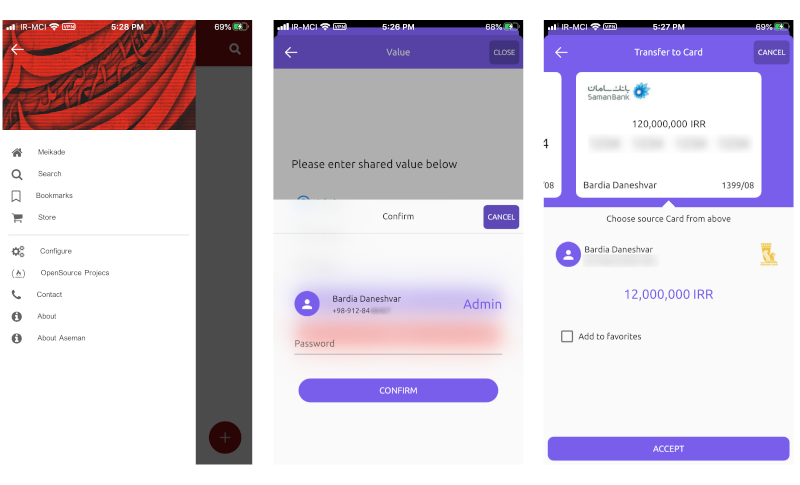
Some main features to use on QML are:
- Viewport tools that provides unique page manager system (page, popup, stack, dialog and ...)
- Gestures for viewports
- Transparent statusbar and optional navigation bar on mobile devices
- Some extra Qml controls components like Drawer, Header, TextField, CircularProgressBar and ...
- BackHandler system
- Font awesome and Material icons fonts
- VideoPlayer component
- Some graphical components like shadows for easy to use and better experiance
- Network and Http Request handler
- Models and Abstract models with better experience
- Encrypt/Decrypt tools
- Qt/C++ Like Hash, Map and List objects
- Tools to get more device infos like deviceId, density, keyboard height, statusBar height and ...
- Translation manager tools
- Settings manager
- Some other tools like file read/write methods, type convert methods and ...
- Process executer tools from QML
New in QtAseman 3.9.x
- QtAseman's Control Beta. It's a simple example:
import QtQuick 2.15
import AsemanQml.Controls.Beta 3.0
import AsemanQml.MaterialIcons 2.0

Window {
    title: qsTr("Hello World")

    Style.primaryColor: "#3f51b5"
    Style.primaryTextColor: "#fff"

    Page {
        id: page
        anchors.fill: parent
        title: "Home"
        header: Header {
            width: parent.width
        }

        Button {
            id: btn
            anchors.centerIn: parent
            highlighted: true
            icon: MaterialIcons.mdi_dialpad
            text: "Test Page"
            onClicked: test_stack.open()
        }
    }

    StackPage {
        id: test_stack
        Page {
            id: testStack
            header: Header {
                height: 50
                width: parent.width
            }

            Button {
                anchors.centerIn: parent
                highlighted: true
                icon: MaterialIcons.mdi_chevron_left
                text: "Back"
                onClicked: test_stack.close()
            }
        }
    }
}
How to Install
Currently binary packages only available on the ubuntu (launchpad) repositories. To install it on the ubuntu 20.04 LTS:
sudo add-apt-repository ppa:aseman/qt-modules
sudo apt install qt5aseman
and to install development files install qt5aseman-dev package.
on Arch you can use AUR (Thanks molaeiali):
yay -S qt-aseman
How to build
QtAseman uses standard Qt module mechanisms and it only depends on Qt libraries. Therefor it's quite easy to build on all platforms. Just clone it and build it easily:
git clone https://github.com/Aseman-Land/QtAseman.git --recursive
cd QtAseman
mkdir build && cd build
qmake -r ..
make -j2
make install
The easiest way to build is to open it using QtCreator and click on the build icon :)
Afterwards just run make install command to install it in the Qt location.
QtCreator Wizard
It will install automatically on Linux based operating systems.
For other Operating systems, to install QtCreator's wizards, Just copy src/wizards/qtcreator/qtasemanapplication/ directory to share/qtcreator/templates/wizards/projects/ directory of the QtCreator.
How to create a QML application using QtAseman
One of the main assets of QtAseman is that you can add it to your project without any extra change to the standard structure of the default QML app.
So To create an application using QtAseman, Just create a new QML project in your QtCreator and add AsemanQML module to the project. Now you can use all QtAseman components:
import AsemanQml.Controls 2.0
import QtQuick.Controls 2.12

AsemanWindow {
    visible: true
    width: 480
    height: 720
    title: qsTr("QtAseman Example")

    Label {
        anchors.centerIn: parent
        text: "Hello World! :)"
    }
}
If you wish to change any application attribute like applicationName or applicationOrganization you can create an AsemanApp object in the parent of AsemanWindow. Although it's completely optional and you can ignore it.
import AsemanQml.Controls 2.0

AsemanApplication {
    id: app
    applicationAbout: "QtAseman Application"
    applicationDisplayName: "QtAseman"
    applicationId: "be2a1f0c-34aa-44ed-8e65-4b1720e560b8"
    organizationDomain: "aseman.io"

    AsemanWindow {
        visible: true
        width: 480
        height: 720
    }
}
We suggest you to also create an AsemanApplication object, because QtAseman handles config file paths better while this attributes is set.
Note: In order to make all modules work correctly on android devices you must replace io.aseman.android.AsemanApplication and io.aseman.android.AsemanActivity with Qt's values in the android manifest file.
QtAseman QML Modules
There are many modules and components in QtAseman that will help you create applications without use of any extra C++ code. Also QtAseman offers a great software architecture for each module that makes development much more easier and faster.
AsemanQml.Base
AsemanQml.Base module provides many base and core modules for your application. For example modules like Device infos, Desktop functions tools, data type converters, lists, hashes and etc. are placed in Base module.
here is one of the main uses of Base module:
import AsemanQml.Controls 2.0
import AsemanQml.Base 2.0

AsemanWindow {
    visible: true
    width: 480
    height: 720
    title: qsTr("QtAseman Example")

    Rectangle {
        height: Devices.statusBarHeight
        width: parent.width
        color: "blue"
    }
}
QtAseman makes mobile status bars transparent by default and Devices.statusBarHeight returns the status bar height of the device. The above example makes the status bar color blue. If there is no status bar on the device (like desktop operation systems) it returns zero as the result.
You can get other useful values like screen density, suggested font density, main OS folder locations, platform details, device type and etc. using Devices component.
Also there is Tools component that provides some extra tools for applications, like methods to read or write to/from files or methods to convert json to variant map or convert url to local path and etc.
For example below codes create sha256 hash:
var sha = Tools.hash("12345", Tools.Sha256);
Or below codes read text from file:
var text = Tools.readText("/home/bardia/file.txt");
There is also a Process component that runs processes or a great back handler component named BackHandler.
BackHandler
BackHandler component provides back mechanism for your application. It's simple and easy to work with, plus all components of QtAseman support it by default, therefore it handles back actions automatically without the direct interference of developer.
Below example shows you how to use BackHandler component in your code:
Button {
    anchors.centerIn: parent
    text: "Show"
    onClicked: subRect.visible = true
}

Rectangle {
    id: subRect
    anchors.fill: parent
    visible: false
    onVisibleChanged: {
        if (visible)
            BackHandler.pushHandler(subRect, function(){ subRect.visible = false })
        else
            BackHandler.removeHandler(subRect)
    }

    Button {
        anchors.centerIn: parent
        text: "Hide"
        onClicked: BackHandler.back()
    }
}
Beside clicking on the hide button to trigger back function, you can press Esc button or the physical back button of device. On mobile devices if there is no back function in the BackHandler stack and back() method is called, application will try to quit.
Note: You must use AsemanWindow object to make Esc or Physical back button work.
Settings
Creates a settings file in a specific path and stores settings values there:
Settings {
    id: settings
    category: "General"
    source: AsemanApp.homePath + "/ui-settings.ini"

    property bool languageInited: false
    property int nightMode: 0
    property int colorTheme: 0
    property int darkColorTheme: 3
}
Every change in setting's property is saved and can be restored within the next load of application.
Translations
Translations and TranslationManager provide functions and tools to manage translation in your application:
TranslationManager {
    id: translationManager

    // Finds all lang-*.qm files in the sourceDirectory using three below lines
    sourceDirectory: "../translations"
    delimiters: "-"
    fileName: "lang"

    localeName: "fa"
}

Button {
    // Everytime translation changed to other language, Every refresher texts
    // will refreshed and translated to the new language
    text: qsTr("Dismiss") + Translations.refresher
}
RoundedItem
It renders
Related Skills
node-connect
351.4kDiagnose OpenClaw node connection and pairing failures for Android, iOS, and macOS companion apps
frontend-design
110.7kCreate distinctive, production-grade frontend interfaces with high design quality. Use this skill when the user asks to build web components, pages, or applications. Generates creative, polished code that avoids generic AI aesthetics.
openai-whisper-api
351.4kTranscribe audio via OpenAI Audio Transcriptions API (Whisper).
qqbot-media
351.4kQQBot 富媒体收发能力。使用 <qqmedia> 标签,系统根据文件扩展名自动识别类型(图片/语音/视频/文件)。
