
SAT
The Smart Autotune Thermostat (SAT) is a custom component for Home Assistant that works with many compatible gateways for your boiler.
Install / Use
/learn @Alexwijn/SATREADME
Smart Autotune Thermostat
[![hacs][hacs-badge]][hacs-url] [![release][release-badge]][release-url] ![build][build-badge] [![discord][discord-badge]][discord-url]
Please :star: this repo if you find it useful.
What is the Smart Autotune Thermostat?
The Smart Autotune Thermostat, or SAT for short, is a custom component for Home Assistant that seamlessly integrates with the following devices:
- OpenTherm Gateway (OTGW) (MQTT or Serial)
- DIYLess Master OpenTherm Shield
- Ihor Melnyk's OpenTherm adapter
- Jiří Praus' OpenTherm Gateway Arduino Shield
It can also function as a PID ON/OFF thermostat, providing advanced temperature control based on Outside Temperature compensation and the Proportional-Integral-Derivative (PID) algorithm. Unlike other thermostat components, SAT supports automatic gain tuning and heating curve coefficients. This capability allows it to determine the optimal setpoint for your boiler without any manual intervention.
Features
OpenTherm ( MQTT / Serial / ESPHome ):
- Multi-room temperature control with support for temperature synchronization for main climates
- Overshoot protection value automatic calculation mechanism
- Adjustable heating curve coefficients to fine-tune your heating system
- Target temperature step for adjusting the temperature in smaller increments
- Presets for different modes such as Away, Sleep, Home, Comfort
- Automatic gains for PID control
- PWM and Automatic-duty cycle
- Overshoot protection to prevent the boiler from overshooting the setpoint ( Low-Load Control )
- Climate valve offset to adjust the temperature reading for your climate valve
- Sample time for PID control to fine-tune your system's response time
- Open Window detection
- Control DHW setpoint
PID ON/OFF thermostat:
- Multi-room temperature control with support for temperature synchronization for main climates
- Adjustable heating curve coefficients to fine-tune your heating system
- Target temperature step for adjusting the temperature in smaller increments
- Presets for different modes such as Away, Sleep, Home, Comfort
- Automatic gains for PID control
- PWM and Automatic-duty cycle
- Climate valve offset to adjust the temperature reading for your climate valve
- Sample time for PID control to fine-tune your system's response time
- Open Window detection
Installation
HACS
Smart Autotune Thermostat ( SAT ) is available in [HACS][hacs] (Home Assistant Community Store).
Use this link to directly go to the repository in HACS

or
- Install HACS if you don't have it already
- Open HACS in Home Assistant
- Search for "Smart Autotune Thermostat"
- Click the download button. ⬇️
Manual
- Download the latest release of the SAT custom component from the GitHub repository.
- Copy the sat directory to the custom_components directory in your Home Assistant configuration directory. If the custom_components directory doesn't exist, create it.
- Restart Home Assistant to load the SAT custom component.
- After installing the SAT custom component, you can configure it via the Home Assistant Config Flow interface.
Configuration
SAT is configured using a config flow. After installation, go to the Integrations page in Home Assistant, click on the Add Integration button, and search for SAT if the autodiscovery feature fails.
OpenTherm
- OpenTherm Connection
-
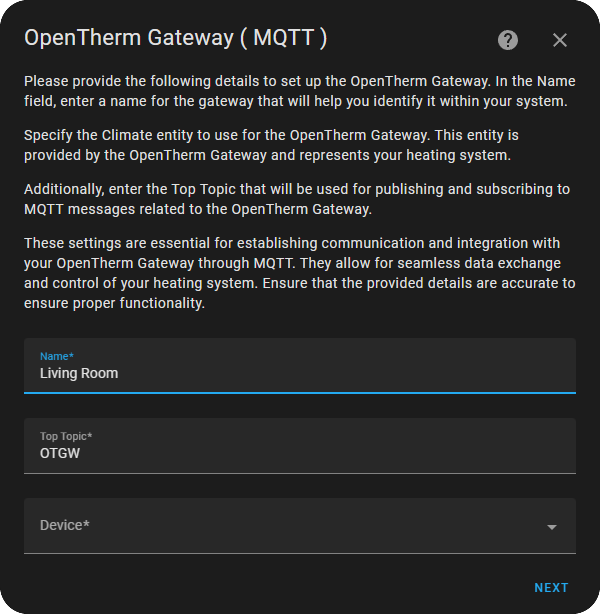
OpenTherm Gateway MQTT:
- Name of the thermostat
- Top Topic ( MQTT Top Topic found in OTGW-firmware Settings )
- Device
-
OpenTherm Gateway Serial:
- Name of the thermostat
- URL
-
ESPHome Opentherm:
- Name of the thermostat
- Device
-
<details> <summary>ESPHome minimal yaml configuration</summary>[!Important] The ESPHome yaml needs to follow the exact naming of the following entities, otherwise SAT will not be able to find them in Home Assistant.
# Insert usual esphome configuration (board, api, ota, etc.)

opentherm:
  in_pin: # insert in pin
  out_pin: # insert out pin
  ch_enable: true
  dhw_enable: true

number:
  - platform: opentherm
    t_dhw_set:
      name: t_dhw_set
      step: 1
      restore_value: true
      initial_value: 45
    t_set:
      name: t_set
      restore_value: true
      initial_value: 10
    max_t_set:
      name: max_t_set
      step: 1
      restore_value: true
    max_rel_mod_level:
      name: max_rel_mod_level
      min_value: 0
      max_value: 100
      step: 1
      initial_value: 100
      restore_value: true

sensor:
  - platform: opentherm
    rel_mod_level:
      name: rel_mod_level
    device_id:
      name: device_id
    t_boiler:
      name: t_boiler
    t_ret:
      name: t_ret
    max_capacity:
      name: max_capacity
    min_mod_level:
      name: min_mod_level
    t_dhw_set_lb:
      name: t_dhw_set_lb
    t_dhw_set_ub:
      name: t_dhw_set_ub

binary_sensor:
  - platform: opentherm
    flame_on:
      name: flame_on
    dhw_active:
      name: dhw_active

switch:
  - platform: opentherm
    dhw_enable:
      name: dhw_enable
    ch_enable:
      name: ch_enable
For more information about which other entities are available for OpenTherm please visit the ESPHome OpenTherm documentation
</details>- Configure sensors:
- Inside Temperature sensor ( Your Room Temperature sensor )
- Outside Temperature sensor ( Your Outside Temperature sensor )
- Inside Humidity Sensor ( Your Room Humidity sensor )
[!NOTE] For better results use an Inside Temperature sensor that reports two decimals and has a refresh rate of 30 seconds.
-
Heating System: Selecting the correct heating system type is important for SAT to accurately control the temperature and optimize performance. Choose the option that matches your setup to ensure proper temperature regulation throughout your home.
-
Areas:
- Primary: Users can add their physical thermostat. SAT will syncronize the
hvac_actionof the physical thermostat with the SAT climate entity'shvac action, that means if the physical thermostat doesn't require heating then the SAT climate entityhvac_actionwill remain at idle. Also the physical thermostat's room setpoint stays in sync with SAT climate entity. Moreover the physical thermostat will act as a back up if any failure to HA occurs. - Rooms: Users can add their TRV climate entities. So when any of the rooms will ask for heating, SAT will start the boiler.
- Primary: Users can add their physical thermostat. SAT will syncronize the
[!Note] If SAT is the only climate entity, skip this step.
[!TIP] Look at the Heating Mode setting in General Tab for further customization.
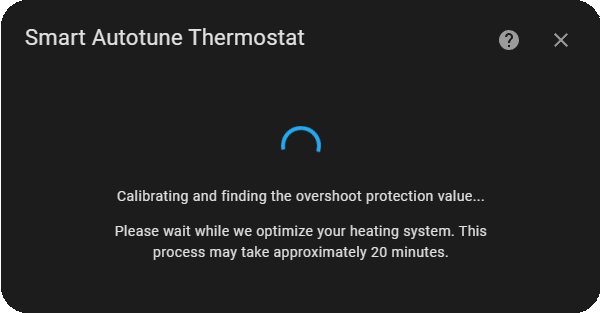
- Calibrate System: Optimize your heating system by automatically determining the optimal PID values for your setup. When selecting Automatic Gains, please note that the system will go through a calibration process that may take approximately 20 minutes to complete.
[!NOTE] If system calibration fails or you prefer to manually find the Overshoot Protection Value, please look at this discussion.
If you already know this value, then use the "Manually enter the overshoot protection value" option and fill the value.
Automatic Gains are recommended for most users as it simplifies the setup process and ensures optimal performance. However, if you're familiar with PID control and prefer to manually set the values, you can choose to skip Automatic Gains.
Please note that choosing to skip Automatic Gains requires a good understanding of PID control and may require additional manual adjustments to achieve optimal performance.
PID ON/OFF
To be completed
Configure
General tab:
Heating Curve Version: Represents the 3 formulas of calculation. The available options are:
Radiators:
- Classic Curve
- Quantum Curve
- Precision Curve ( Recommented )
Underfloor:
- Classic Curve
- Quantum Curve
- Precision Curve ( Recommented )
[!NOTE] Graph parameters:
- a: Heating Curve Value
- b: Room Setpoint
[!TIP] You can add the graph as an
iframecard in HA.Example:
type: iframe
url: https://www.desmos.com/calculator/spfvsid4ds
allow_open_top_navigation: true
allow: fullscreen
aspect_ratio: 130%
PID Controller Version:
- Classic Controller
- Improved Controller
- Adaptive Controller
[!NOTE] When the Adaptive controller is active, SAT automatically tunes the gains. No need for tweaking.
Heating Mode:
[!NOTE] Available only for multiroom installations
- Comfort ( SAT monitors the climates in other rooms to determine the error. It selects the highest error value as the PID error value for the current room )
- Eco ( SAT monitors only the Main thermostat's error and it is used as the PID error )
Maximum Setpoint: You can choose the max water setpoint for your system. For radiator installations, it is recommended to choose a value between 55-75 °C. For underfloor installations, the recommended max water setpoint is 50 °C.
[!NOTE] Radiators: Higher Max w
Related Skills
node-connect
341.0kDiagnose OpenClaw node connection and pairing failures for Android, iOS, and macOS companion apps
frontend-design
84.4kCreate distinctive, production-grade frontend interfaces with high design quality. Use this skill when the user asks to build web components, pages, or applications. Generates creative, polished code that avoids generic AI aesthetics.
openai-whisper-api
341.0kTranscribe audio via OpenAI Audio Transcriptions API (Whisper).
commit-push-pr
84.4kCommit, push, and open a PR
