
Aafactory
Ai Avatar creator
Install / Use
/learn @AA-Factory/AafactoryREADME
AI Avatar Factory
Create and manage AI-powered avatars with ease.


Tutorial video
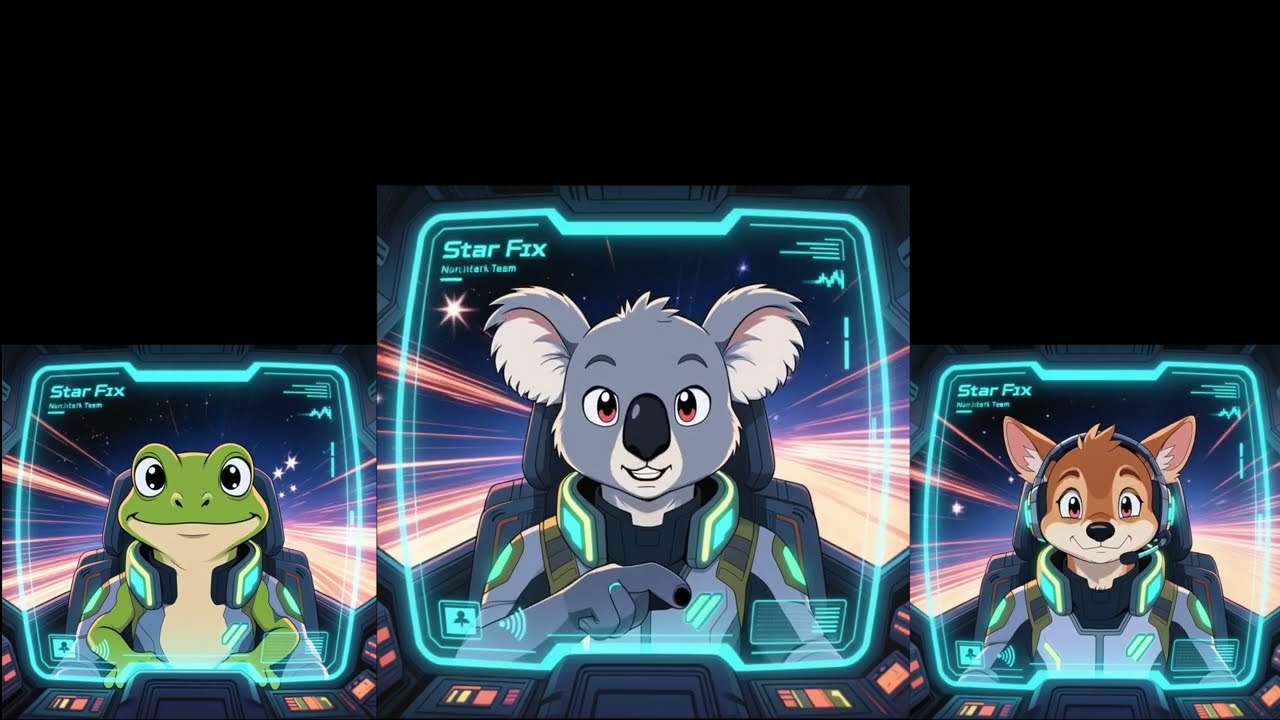
Official quick-start walkthrough (10 min). Follow along to clone the repo, configure Redis (local or remote), start services with Docker Compose, and create your first AI avatar.
What is AI Avatar Factory?
AI Avatar Factory is a platform for creating and managing AI avatars. Whether you're building virtual assistants, digital characters, or interactive AI personalities, this tool provides an easy-to-use interface with powerful video editing capabilities.
Key Features:
- 🎭 Create custom AI avatars
- 🎬 Built-in video editor
- 🤖 Support for multiple AI models
- 🚀 Easy deployment with Docker
- 🌐 Remote Redis support for distributed processing
Getting Started
Prerequisites
- Docker Desktop installed
- (Optional) Remote Redis server for distributed processing
Quick Start (5 minutes)
1. Download the code
git clone <repository-url>
cd aafactory
2. Setup the environment variables
Copy the .env.default file to .env and modify as needed:
cp .env.default .env
3. Start the application
docker-compose --profile local up
4. Configure Redis (Important)
The application supports both local(default) and remote Redis configurations. Remote Redis enables distributed processing across multiple servers. To connect:
-
Get your Redis Endpoint from your remote server (e.g., RunPod dashboard):

-
Open the Frontend in your browser at http://localhost:3000 and navigate to the Settings page to update the Redis Endpoint.

-
Share the same Redis Endpoint with other running instances for distributed processing:

Accessing the Application
Once running, access these services:
- Frontend: http://localhost:3000
- Backend API: http://localhost:8000
- API Documentation: http://localhost:8000/docs
- Celery Flower (Task Monitor): http://localhost:5556
Stopping the Application
Press Ctrl+C in the terminal, then run:
docker-compose down
Service Architecture
Core Services
| Service | Port | Purpose | | ----------- | ----- | ------------------------- | | Frontend | 3000 | Next.js user interface | | Backend API | 8000 | FastAPI REST API | | MongoDB | 27017 | Database | | Redis | 6379 | Cache & message broker | | Flower | 5556 | Task monitoring dashboard |
System Flow
sequenceDiagram
    participant Client
    participant FastAPI as FastAPI Container
    participant Redis as Redis (Remote)<br/>redis:6379
    participant RouterWorker as Router Worker<br/>(local queue)
    participant InfiniteTalk as infinite_talk Worker<br/>(infinite_talk queue)
    participant Zonos as zonos Worker<br/>(zonos queue)

    Client->>FastAPI: HTTP Request with task
    FastAPI->>Redis: Enqueue send_task_to_server<br/>queue: "local"

    Redis->>RouterWorker: Poll task from "local" queue
    RouterWorker->>RouterWorker: Execute send_task_to_server()<br/>server_name, task_name, payload

    alt Route to infinite_talk
        RouterWorker->>Redis: app.send_task()<br/>queue: "infinite_talk"
        Redis->>InfiniteTalk: Poll from "infinite_talk" queue
        InfiniteTalk->>InfiniteTalk: Process task_name<br/>with payload
        InfiniteTalk->>Redis: Store result
        Redis->>RouterWorker: Return task.id
    else Route to zonos
        RouterWorker->>Redis: app.send_task()<br/>queue: "zonos"
        Redis->>Zonos: Poll from "zonos" queue
        Zonos->>Zonos: Process task_name<br/>with payload
        Zonos->>Redis: Store result
        Redis->>RouterWorker: Return task.id
    end

    RouterWorker->>Redis: Return task.id
    Redis->>FastAPI: Task result (task.id)
    FastAPI->>Client: HTTP Response with task.id

    Note over Client,Redis: Polling Phase

    loop Poll for result
        Client->>FastAPI: GET /task_status/{task_id}
        FastAPI->>Redis: Check task status/result
        Redis->>FastAPI: Status (PENDING/SUCCESS/result)
        FastAPI->>Client: Response (status or result)
    end
Advanced Usage
Docker Compose Profiles
Run different combinations of services based on your needs:
| Profile | Command | Services |
| ----------------- | --------------------------------------------- | ------------------------------------- |
| Full Local | docker-compose --profile local up | Frontend + Backend + Database + Queue |
| Frontend Only | docker-compose --profile frontend up | Next.js app + MongoDB |
| Backend Only | docker-compose --profile backend-local up | API + Redis + Celery |
| Everything | docker-compose --profile local --profile up | All services |
Useful Commands
View logs from a specific service:
docker-compose logs -f backend
Restart a single service:
docker-compose restart frontend
Rebuild after updates:
docker-compose --profile local up --build
Check running containers:
docker-compose ps
Clean everything and start fresh:
docker-compose down -v
docker system prune -a
Testing
AI Avatar Factory includes comprehensive testing capabilities for unit tests, React hooks, and end-to-end tests.
Running Tests
1. Start the application in test mode:
docker-compose --profile local --env-file .env.test up
This starts all services using the test environment configuration.
2. Run tests:
Once the application is running, you can execute different test suites:
(currently the tests must be run on the host machine with Node.js installed from the frontend directory)
Unit Tests
# Run unit tests once
npm run test:unit

# Run unit tests in watch mode (auto-rerun on changes)
npm run test:unit:watch
React Hooks Tests
# Run hook tests once
npm run test:hooks

# Run hook tests in watch mode
npm run test:hooks:watch
End-to-End Tests
# Run E2E tests (headless Chrome)
npm run test:e2e

# Run E2E tests with UI mode (interactive)
npm run test:e2e:ui

# Run E2E tests in headed mode (visible browser)
npm run test:e2e:headed

# Debug E2E tests (step through with Playwright Inspector)
npm run test:e2e:debug

# View test report from last run
npm run test:e2e:report

# Generate E2E tests interactively
npm run test:e2e:codegen
Testing Best Practices
- Always use test environment: Run tests with
.env.testto avoid affecting production data - Seed before E2E tests: Run
npm run db:seedbefore E2E tests to ensure consistent test data - Watch mode for development: Use watch mode during active development for instant feedback
- UI mode for debugging: Use
test:e2e:uito visually inspect and debug E2E test failures - Generate tests: Use
test:e2e:codegento record user interactions and generate test code
Technology Stack
- Frontend: Next.js, TypeScript, Tailwind CSS, Fabric.js
- Backend: FastAPI, Python, UV package manager
- Database: MongoDB
- Queue: Celery with Redis
- Deployment: Docker Compose
Troubleshooting
Port already in use?
# Find what's using the port
lsof -i :3000
# Kill it or change the port in docker-compose.yml
Container won't start?
# View detailed error logs
docker-compose logs [service-name]
Need to reset everything?
docker-compose down -v
docker system prune -a
Still stuck? Join our Discord for help!
Contributing
We welcome contributions! Join our Discord community to:
- Ask questions and get support
- Report bugs and suggest features
- Share your avatars and projects
- Collaborate with other developers
Credits
Video editor component based on fabric-video-editor.
Related Skills
node-connect
344.1kDiagnose OpenClaw node connection and pairing failures for Android, iOS, and macOS companion apps
frontend-design
96.8kCreate distinctive, production-grade frontend interfaces with high design quality. Use this skill when the user asks to build web components, pages, or applications. Generates creative, polished code that avoids generic AI aesthetics.
openai-whisper-api
344.1kTranscribe audio via OpenAI Audio Transcriptions API (Whisper).
qqbot-media
344.1kQQBot 富媒体收发能力。使用 <qqmedia> 标签,系统根据文件扩展名自动识别类型(图片/语音/视频/文件)。
