
SocialAuthDjangoTutorial
No description available
Install / Use
/learn @0xyd/SocialAuthDjangoTutorialREADME
SocialAuthDjangoTutorial
Introduction
A simple example for beginners to implement social authentication in their Django Projects. In this tutorial, we will teach you how to sign up/in with facebook, twitter and Google with your web applications.
After we finish the basic sign in mechanisms in those three platforms, the next step is to learn how to get users' profile image from social networks as their profile image in our web services.
Outlines:
- Chapter 1: Install the Python Social Auth and Finish the Configurations.
- Chapter 2: How to establish apps with a simple social login function?
- A Facebook App
- A Twiiter App
- A Goolgle App
- Chapter 3: Pipleline: Set up our own authentication process.
- What is the Pipleline?
- Application 1: Get the User's Profile Picture
- Application 2: Handle an Exception: Facebook user login without Email Address.
(Still Continuing....)
Chapter 1: Install the Python Social Auth and Finish the Configurations.
1. Install From pypi:
$ pip install python-social-auth
You can also install social-auth from github clone, check here
2. Set up the social apps in our django projects
A. Set up the INSTALLED_APPS in your setting.py
If you use the default django ORM, please follow:
INSTALLED_APPS = (
...
# Use default Django ORM
'social.apps.django_app.default',
...
)
Using MongoEngine? Follow the below setting:
INSTALLED_APPS = (
...
# For MongoEngine
# 'social.apps.django_app.me',
...
)
After the setting, do the migration to create tables the social auth need.
$ python manage.py migrate
Then go to check our database( I like postgreSQL :) ), we can see that there are 4 tables established with prefix "soical_auth".
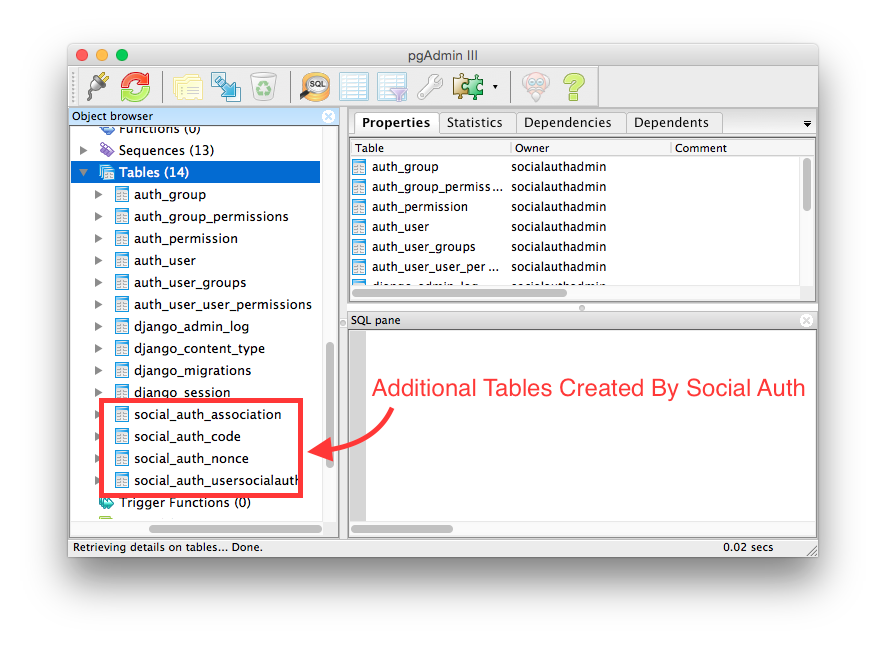
B. Add desired authentication backends to Django's AUTHENTICATION_BACKENDS setting:
Social Auth provides many social networks' authentications. Facebook, Twitter, Google, Yahoo, Spotify and Instagram are all supported. We can check whether the social authentications are supported by Social Auth in here
In this tutorial, we will focus on making a Web app with Facebook, Google and Twitter authentications.
# Authentication backends Setting
AUTHENTICATION_BACKENDS = (
# For Facebook Authentication
'social.backends.facebook.FacebookOAuth2',

# For Twitter Authentication
'social.backends.twitter.TwitterOAuth',

# For Google Authentication
'social.backends.google.GoogleOpenId',
'social.backends.google.GoogleOAuth2',
'social.backends.google.GoogleOAuth',

# Default Django Auth Backends
'django.contrib.auth.backends.ModelBackend',
)
Warning: In the tutorial, we use django's authentication system. If you have make a better authentication system on your own. Hope you can share us how to implement customized authentication system with Social Auth :)
C. Set the Url entries
Don't forget to set the url entreis for the social auth and the django administration
urlpatterns = patterns('',
...

# Url Entries for social auth
url('', include('social.apps.django_app.urls', namespace='social')),

# Url Entries for django administration
url('', include('django.contrib.auth.urls', namespace='auth')),

...
)
D. Add social auth's Template Context Processors
Two template context processors should be added.
TEMPLATE_CONTEXT_PROCESSORS = (
    # Default Template context processors
    'django.contrib.auth.context_processors.auth',
    'django.core.context_processors.debug',
    'django.core.context_processors.i18n',
    'django.core.context_processors.media',
    'django.core.context_processors.static',
    'django.core.context_processors.tz',
    'django.contrib.messages.context_processors.messages',

    # Setting of Template Context Processors for Social Auth
    'social.apps.django_app.context_processors.backends',
    'social.apps.django_app.context_processors.login_redirect',
)
Congratulations, we finish the basic social auth configuration. Let's start to build our first facebook login app.
Chapter 2: How to establish apps with a simple social login function?
1. A Facebook app
A. Enroll an facebook app on Facebook Developer Center
Everyone who has the facebook account is a facebook developer. If you don't have a facebook account, spend three minutes to apply one.
Let's go to facebook developer center.
Click "Add a New App" in "My Apps"
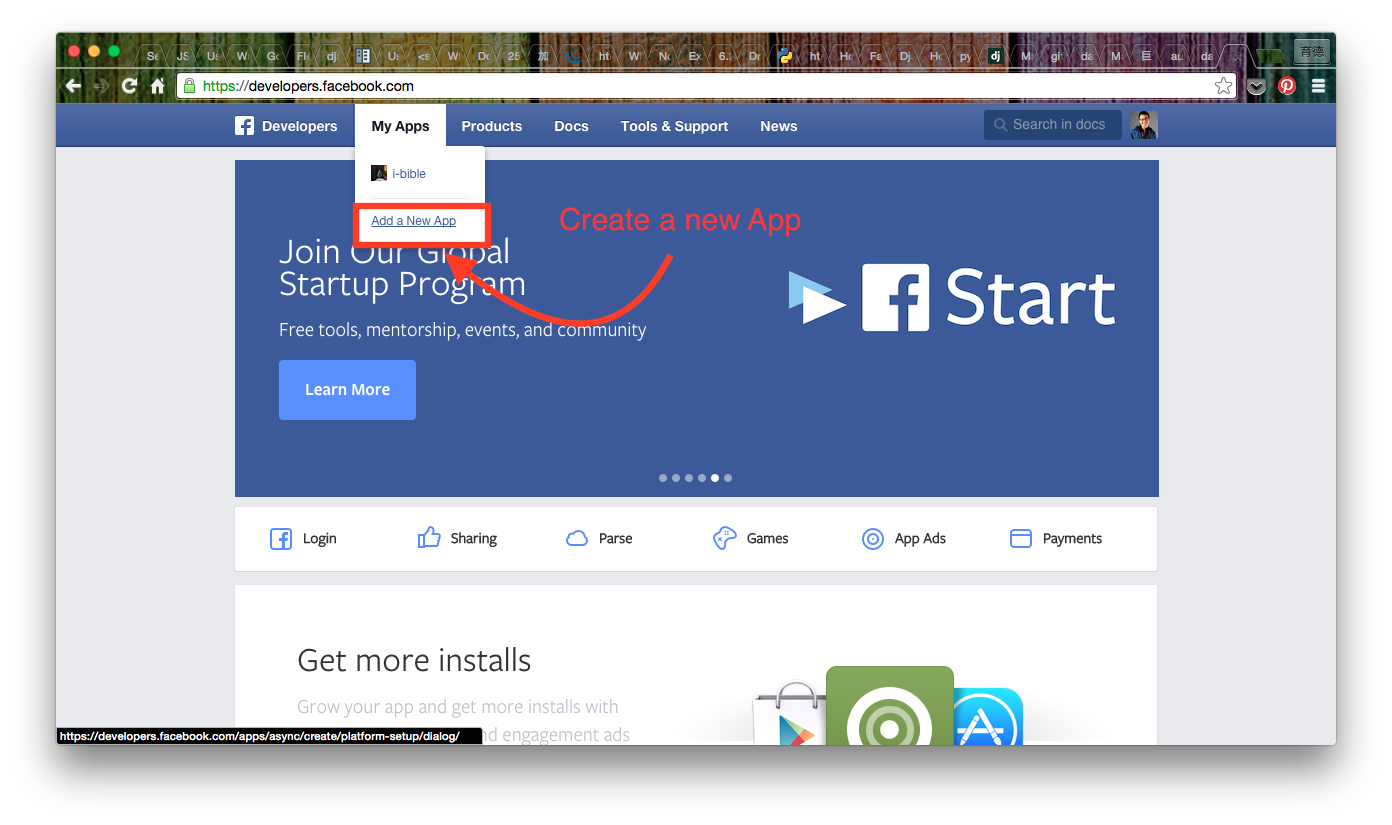
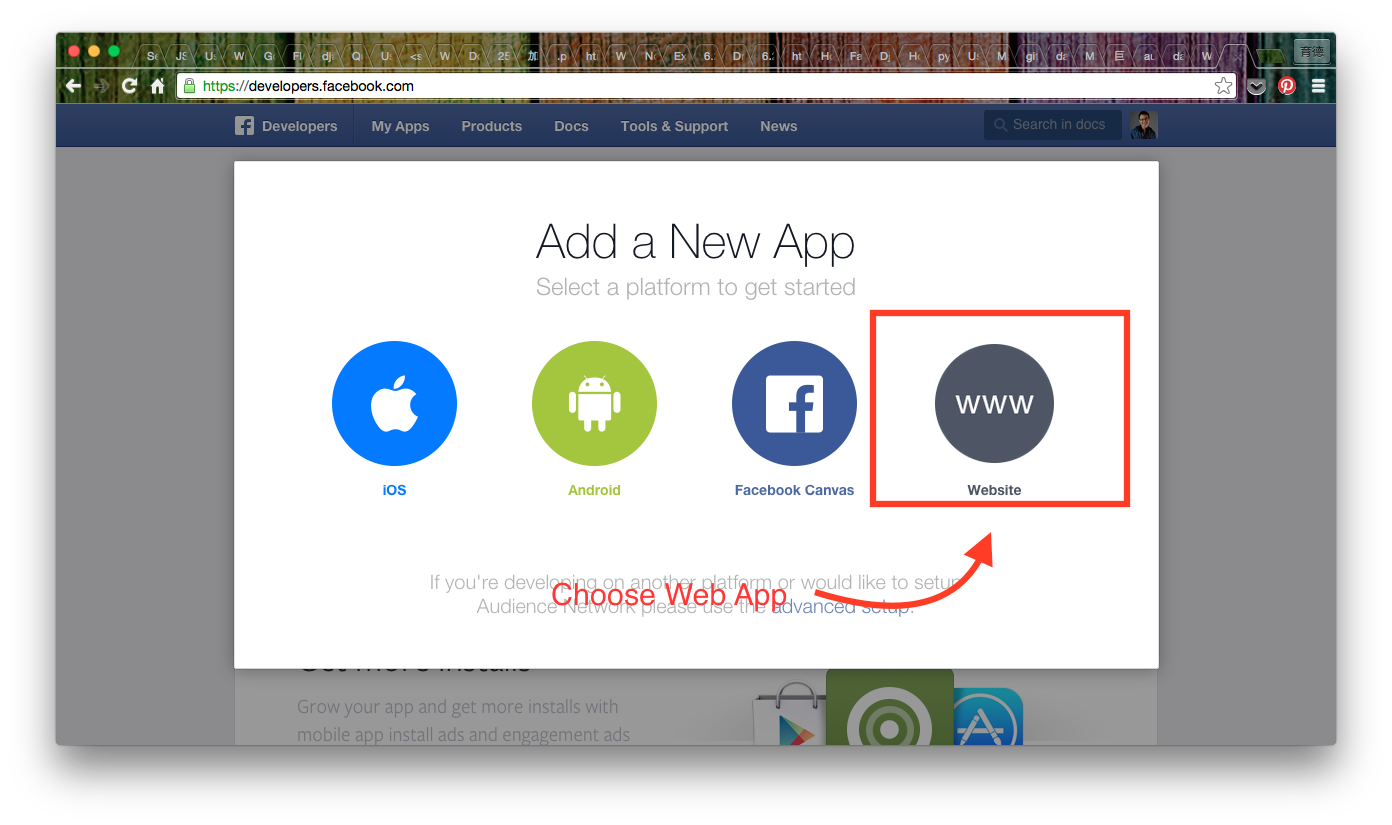
We are developing a Web app so chick the "www" icon.
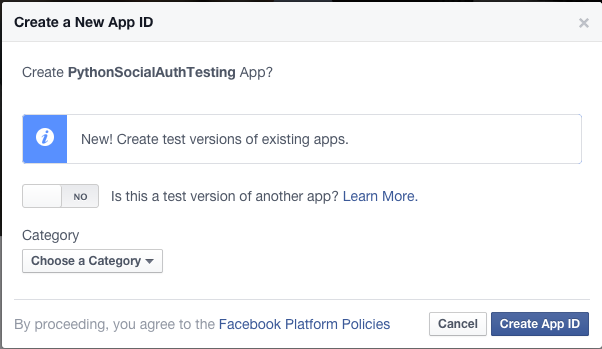
Then name our app and click the button "Create New Facebook App ID"
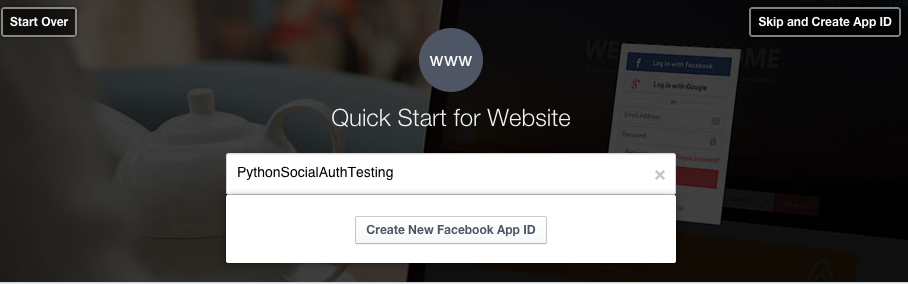
A form pops out, finish the required blanks and click "Create App ID".
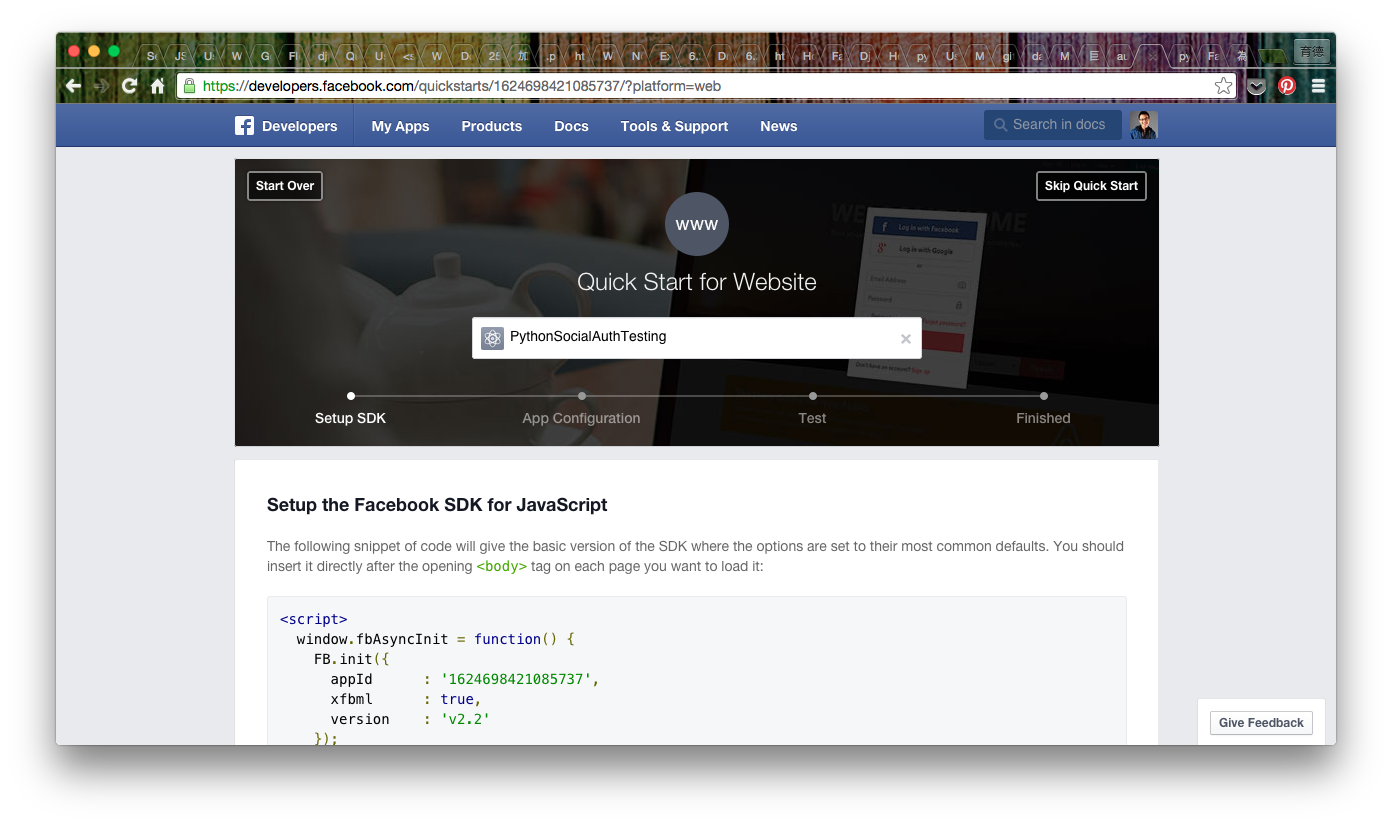
After the App is created successfully, the page will redirect to a "Quick Start" tutorial.
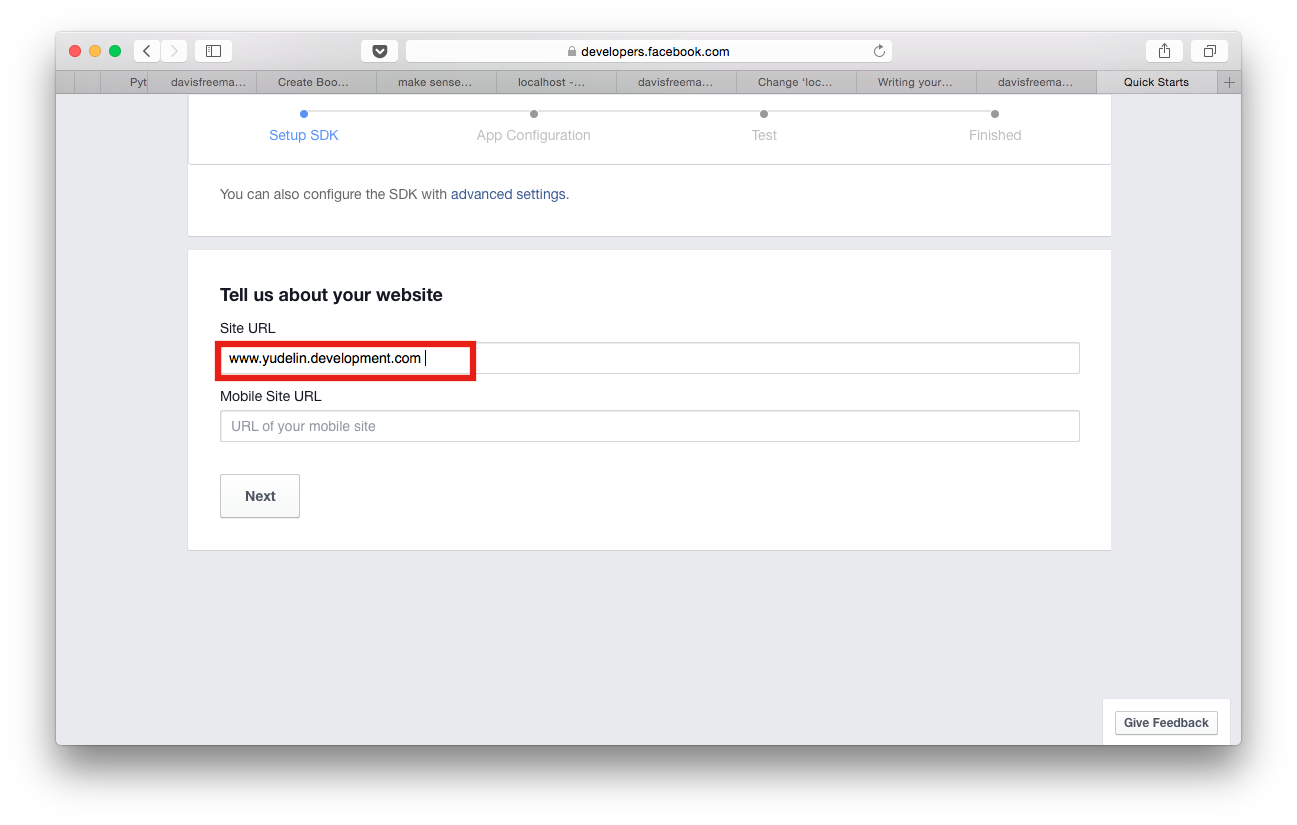
Scroll down the page, there are two blanks about the settings of the url. The first one is the url of our websites and the second one is for the mobile websites.
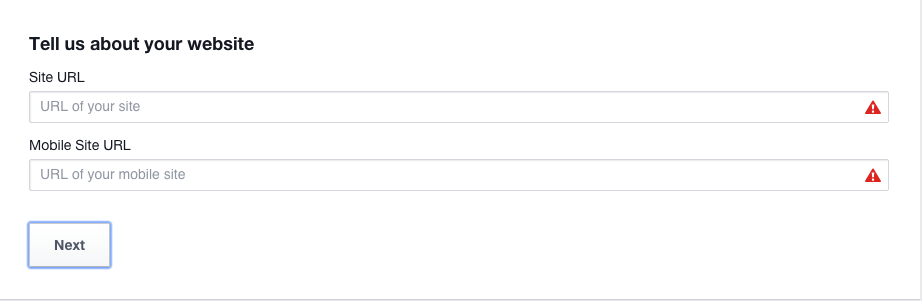
In the tutorial, we use the normal web app as the example. Hence, we input our web app's url in the above blank.
B. Set up a test Url configuration on our local machine.
If we want to test the functions of the social auth on the local machine. There are something we have to do.
Because the http://localhost and http://127.0.0.1 are not allowed. we have to define the domain name for our local machine local machine.
My development environment is built on Mac OS X, so the following steps are specific for the developers using Mac. For developers on Windows, I have no idea. Hope there are some professional developers contributing the configuration of windows. (In my point of view, the steps for linux may quite alike, if you guys want to contribute the related information, please do :") )
Mac:
-
Open the terminal.
-
Open the /etc/hosts with vim
$ sudo vim /etc/hosts
-
Change the localhost to the domain name we want and save the changes.
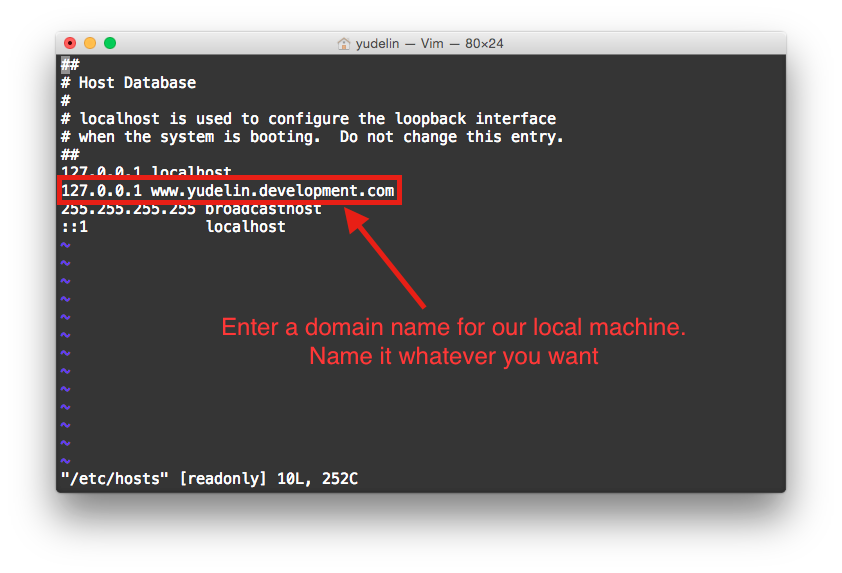
-
Recache the modifed Domain Settings.
$ decacheutil -flushcache
-
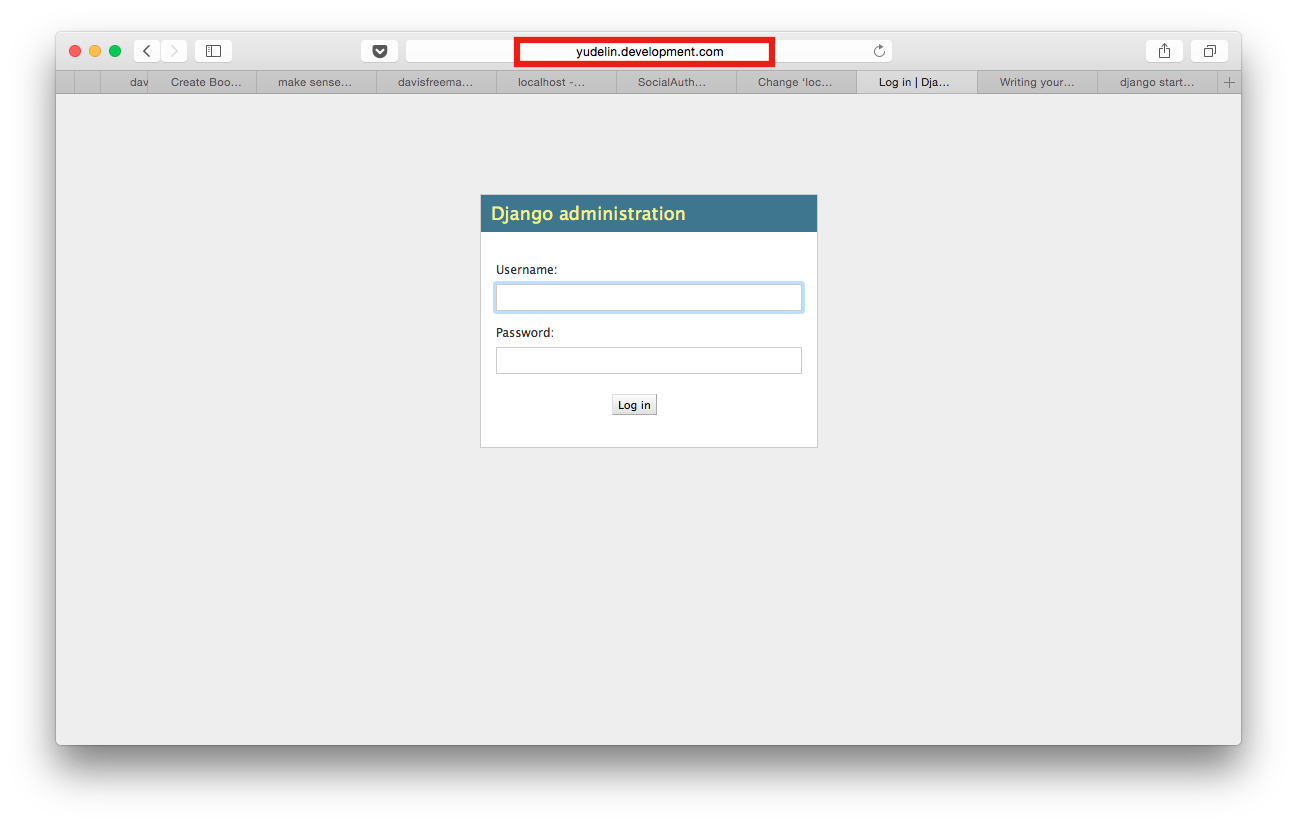
To check the domain name is successful or not, run the django project we set. If we can open the page with the new domain name. We success.
C. Set up the url for the app.
Enter the name in the site url blank.
Congratulations, we create our own facebook app successfully.
2. Configuration of the Facebook app
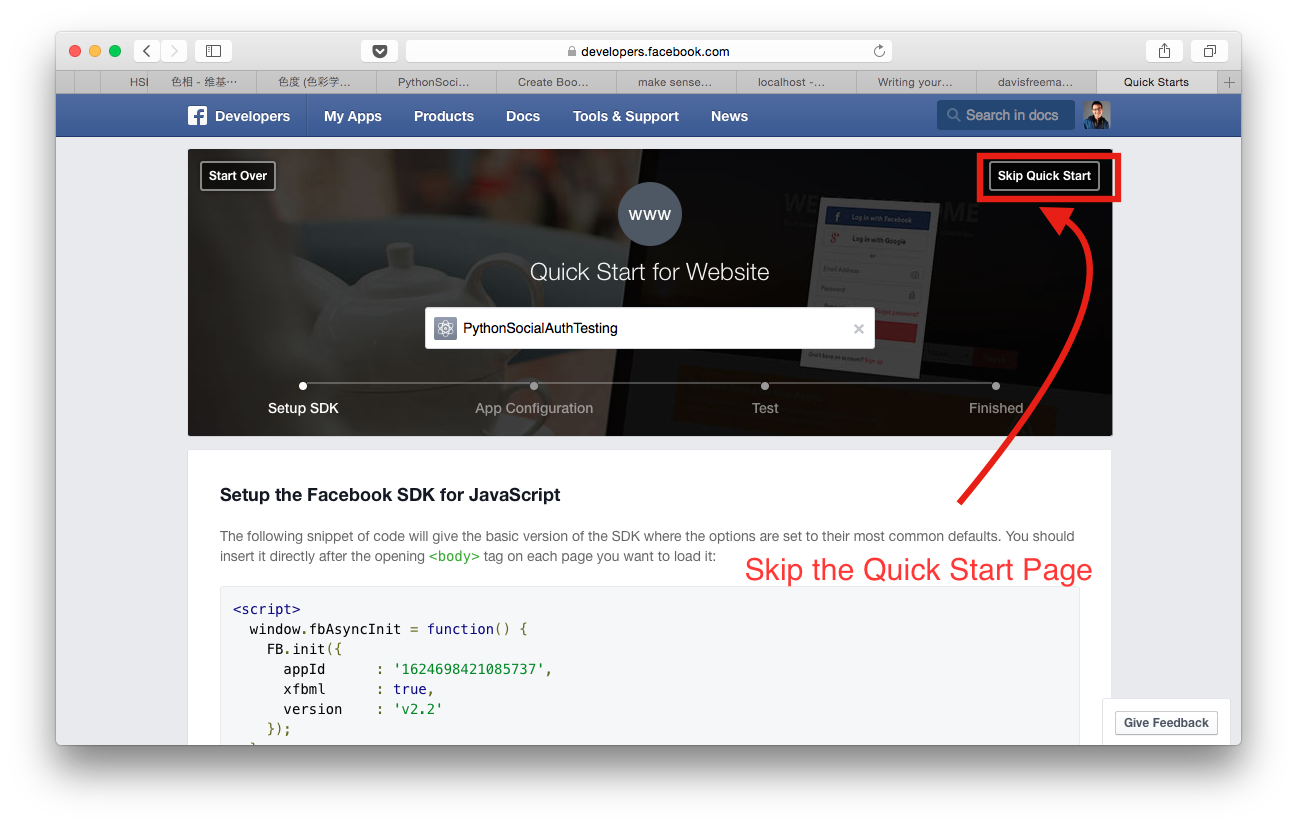
It's worth to read the "Quick Start" page which can give us a quick understanding of the basic facebook APIs. However, life is short. Click the "Skip Quick Start" button and go ahead.
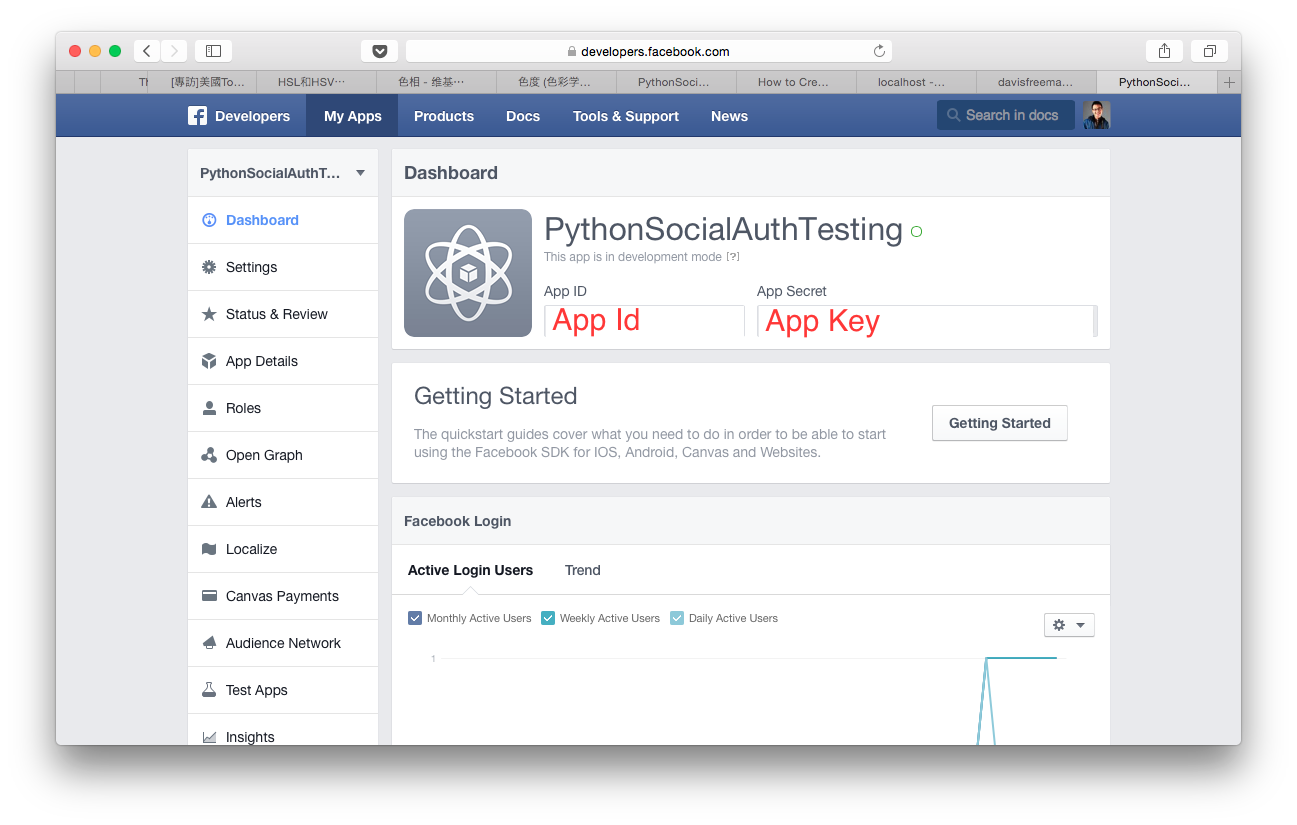
Then the page will direct to the dashboard of the web app. On the dashboard, we can see two vital properties which have deep connection with the social auth. One is the App Id, the identity number of the app. The other is the App Secret(or App Key), the app's password. Careful, NEVER let other knows the App Secret. Hide it as well as you can.
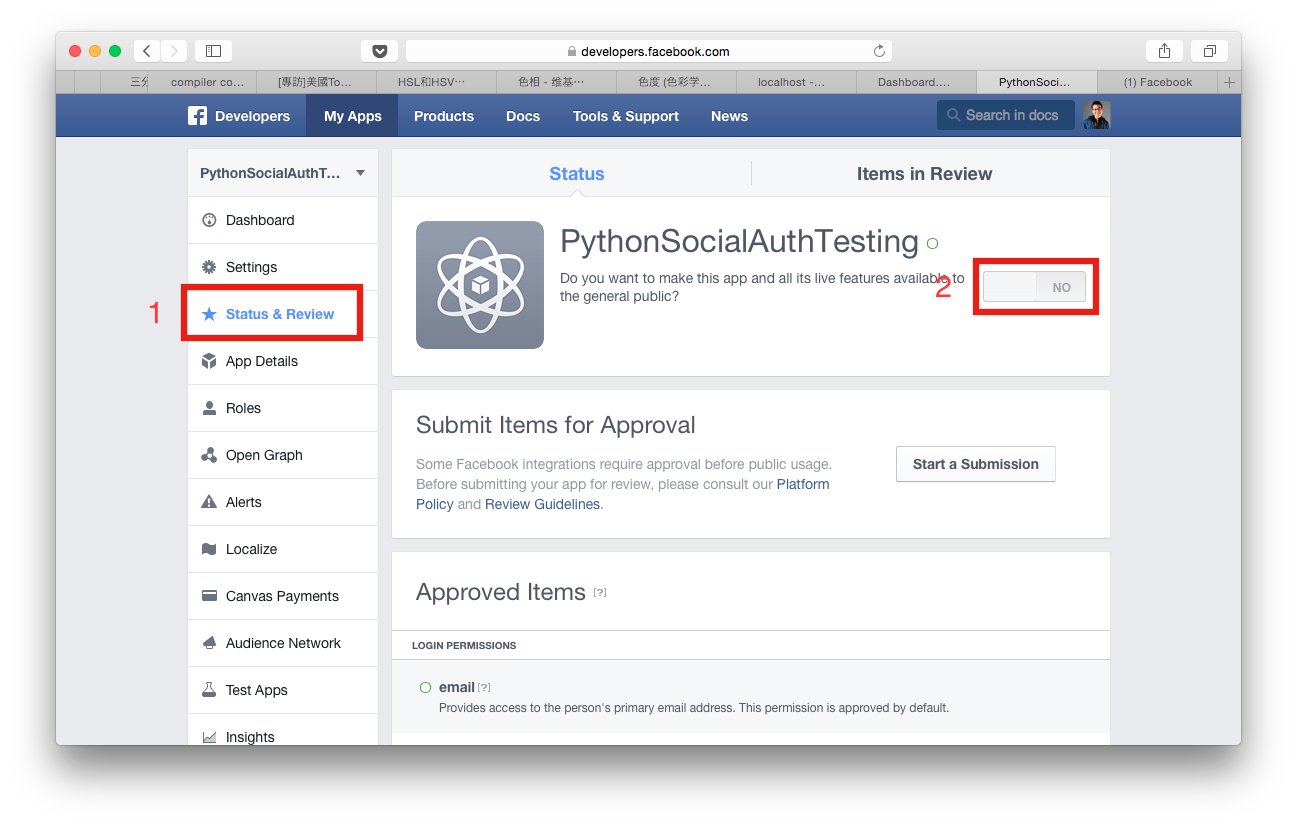
We are too excited to wait. So let's trigger our web app for development! Go to "Status & Review" page (Mark 1) and there is a toggle on the right side of the page (Mark 2). Click it for start.
3. Initialize an app with facebook social authentication
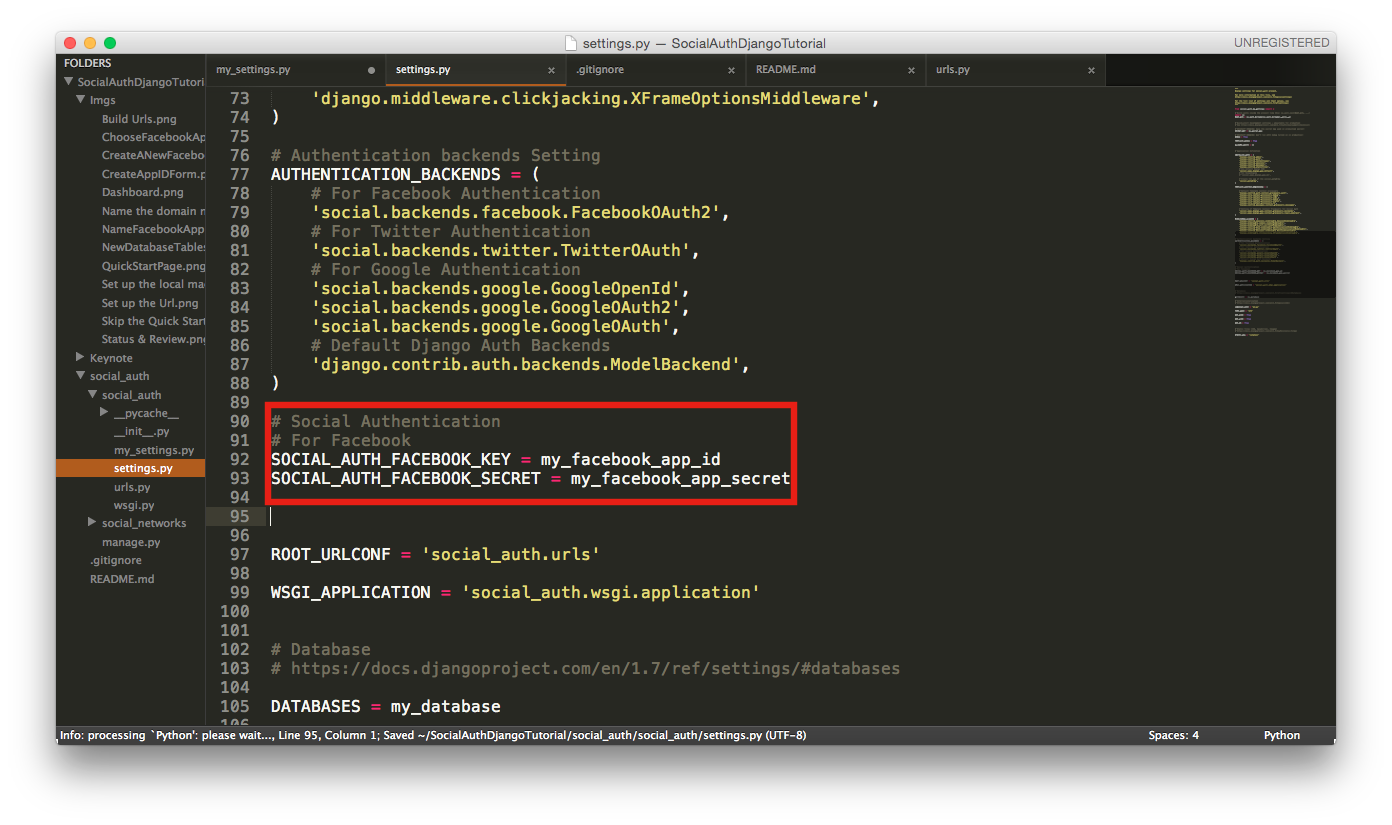
A. Add the facebook app id and secret into the setting.py.
B. Write the html as below
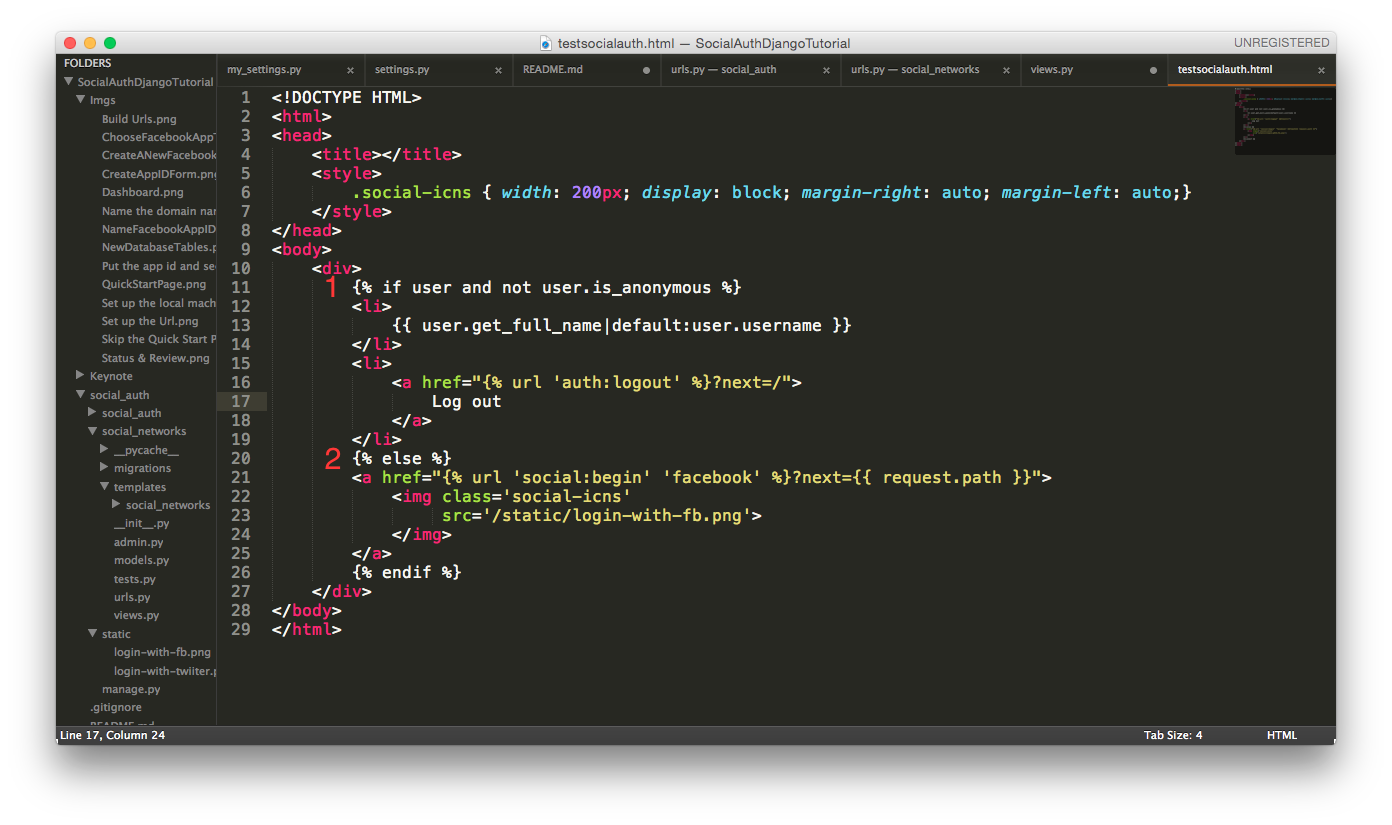
When a client gets the web page, the server will check the client's session id. If the id is correct, then the server will read the session data to check the user's properties. Getting anonymous represents the client hasn't logged in. Therefore, the "Login with facebook" icon will display.
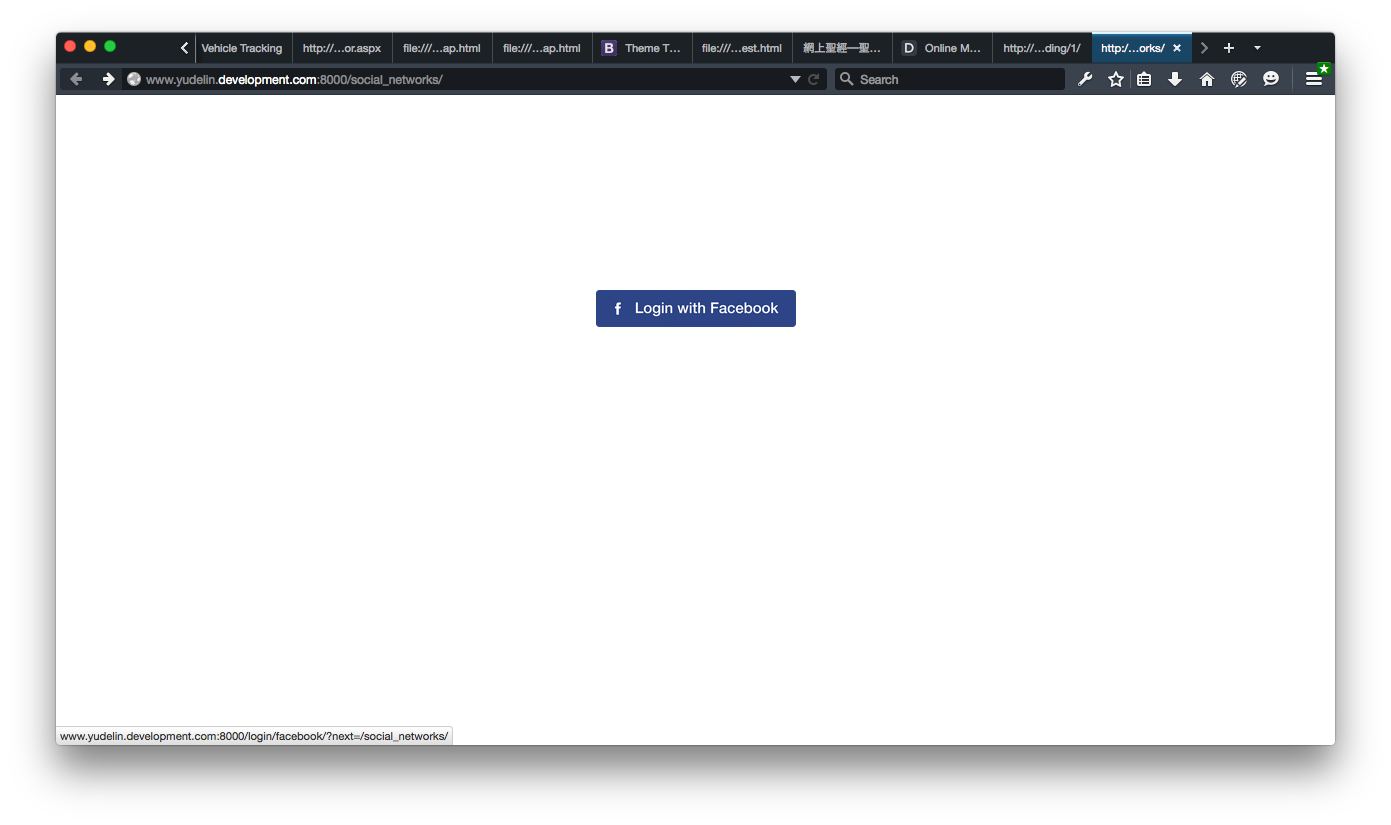
If our facebook cooki
